入门
工作流概述
作为一种 GDExtension,godot-cpp 的使用比 GDScript 和 C# 更复杂。如果你决定使用它,以下是您的工作流程概述:
创建一个新的 godot-cpp 项目(从模板创建或从零开始,如下所述)。
使用你喜欢的 IDE 在本地编写代码。
使用兼容范围内的最早 Godot 版本构建和测试你的代码。
为你计划支持的所有平台创建构建版本(例如使用 GitHub Actions)。
可选:发布至 Godot 资产库。
示例项目
对于你的第一个godot-cpp项目,建议先阅读本指南了解相关技术。完成后可使用`godot-cpp模板 <https://github.com/godotengine/godot-cpp-template>`__,它提供更完整的功能支持(包括 GitHub Actions 流水线和实用 SConstruct 样板代码)。鉴于模板本身说明较简略,建议你先完成本指南的学习。
设置项目
这里有一些前置需求是你需要的:
一个 Godot 4 可执行文件。
一个 C++ 编译器。
使用 Scons 作为构建工具。
一个 godot-cpp 仓库的副本。
另见配置 IDE和编译,因为这些构建工具与你从源码编译 Godot 所需的构建工具完全相同。
你可以从 GitHub 下载 godot-cpp 仓库,或者让 Git 为你完成这项工作。请注意,这个仓库为不同版本的 Godot 提供了不同的分支。GDExtensions 仅支持 Godot 的新版本(Godot 4 及更高版本),反之亦然,因此请确保你下载的是正确的分支。
备注
使用 GDExtension 时,需选择与目标 Godot 版本匹配的 godot-cpp 分支。例如,若目标是 Godot 4.1,那么应该使用 4.1 分支。本教程中统一使用 4.x 这一版本号,实际操作时请替换为你的具体目标版本。
master 分支是开发分支,它会定期更新以与 Godot 的 master 分支保持兼容。
警告
我们的长期目标是,确保旧版 GDExtension 能在后续版本中持续兼容,反之则不可行。例如,一个面向 Godot 4.2 的 GDExtension 应当在 Godot 4.3 中正常运作,但面向 Godot 4.3 的则不能在 Godot 4.2 中运作。
有一个例外:针对 Godot 4.0 的扩展将无法在 Godot 4.1 及后续版本中运行(参见 为 Godot 4.1 更新您的 GDExtension)。
如果你使用 Git 对项目进行版本控制,最好将项目添加为 Git 子模块:
mkdir gdextension_cpp_example
cd gdextension_cpp_example
git init
git submodule add -b 4.x https://github.com/godotengine/godot-cpp
cd godot-cpp
git submodule update --init
也可以直接将该项目克隆到项目文件夹内:
mkdir gdextension_cpp_example
cd gdextension_cpp_example
git clone -b 4.x https://github.com/godotengine/godot-cpp
备注
如果你决定下载仓库或将其克隆到你的文件夹中,请确保与我们这里所设置的文件夹结构相同,我们假定将在此展示的许多代码都基于这种项目结构。
如果从介绍中指定的链接克隆示例, 子模块不会自动初始化. 你需要执行以下命令:
cd gdextension_cpp_example
git submodule update --init
这会将该仓库克隆到你的项目文件夹中。
构建 C++ 绑定
我们已经下载了我们的前置条件, 接下来开始构建 C++ 绑定。
仓库包含当前 Godot 版本的元数据副本,如果你需要为较新版本的 Godot 构建这些绑定,请调用 Godot 可执行文件:
godot --dump-extension-api
生成的 extension_api.json 文件将会出现在可执行文件的目录中,将其复制到项目文件夹中,并在下面的 scons 命令中添加 custom_api_file=<PATH_TO_FILE> 参数。
用该命令来生成、编译绑定(根据你的操作系统,用 windows , linux 或 macos 代替 <platform> ):
构建过程会自动检测可用于并行构建的 CPU 线程数量。要指定使用的 CPU 线程数,请在 SCons 命令行的末尾添加 -jN,其中 N 是你希望使用的 CPU 线程数量。
cd godot-cpp
scons platform=<platform> custom_api_file=<PATH_TO_FILE>
cd ..
这一步将需要一段时间。完成后,你会在 godot-cpp / bin / 看到一个可以编译到你的项目中的静态库,。
备注
在 Windows 或 Linux 下,你可能需要在命令中添加 bits=64。
创建一个简单的插件
现在来构建一个插件。我们首先创建一个空的 Godot 项目,并在其中放入一些文件。
打开 Godot 并创建一个新项目。对于该示例,我们将其放在我们的 GDExtension 的文件夹结构中名为 demo 的文件夹中。
在我们的演示项目中,我们将创建一个包含名为 "Main" 的节点的场景,我们将其保存为 main.tscn ,稍后再回过头来看看。
回到 GDExtension 模块根目录,创建一个名为 src 的子文件夹,用来放置我们的源代码文件。
在你的 GDExtension 模块中,你现在应该有 demo 、 godot-cpp 和 src 这三个目录。
你的文件结构应如下所示:
gdextension_cpp_example/
|
+--demo/                  # game example/demo to test the extension
|
+--godot-cpp/             # C++ bindings
|
+--src/                   # source code of the extension we are building
在 src 文件夹中,我们将首先为我们将要创建的 GDExtension 节点创建头文件,将其命名为 gdexample.h :
#pragma once

#include <godot_cpp/classes/sprite2d.hpp>

namespace godot {

class GDExample : public Sprite2D {
    GDCLASS(GDExample, Sprite2D)

private:
    double time_passed;

protected:
    static void _bind_methods();

public:
    GDExample();
    ~GDExample();

    void _process(double delta) override;
};

} // namespace godot
上面的代码有些需要注意的地方:我们引入了 sprite2d.hpp,其中包含 Sprite2D 类的绑定。我们将在我们的模块中扩展这个类。
我们使用命名空间 godot,因为 GDExtension 中的所有内容都在此命名空间中定义。
然后是类定义,它通过一个容器类继承 Sprite2D。我们稍后会看到这样做的副作用。GDCLASS 宏为我们设置了一些内部内容。
之后, 我们声明一个名为 time_passed 的成员变量.
在接下来的代码块中,我们了我们的方法,除了已定义的构造函数和析构函数外,还有两个方法部分开发者可能感到熟悉,以及一个新方法。
第一个是 _bind_methods,这是一个静态函数,Godot 会调用它来了解可以调用哪些方法以及它暴露了哪些属性。第二个是我们的 _process 函数,它的工作方式与你在 GDScript 中熟悉的 _process 函数完全相同。
接下来,让我们通过创建 gdexample.cpp 文件来实现我们的函数:
#include "gdexample.h"
#include <godot_cpp/core/class_db.hpp>

using namespace godot;

void GDExample::_bind_methods() {
}

GDExample::GDExample() {
    // Initialize any variables here.
    time_passed = 0.0;
}

GDExample::~GDExample() {
    // Add your cleanup here.
}

void GDExample::_process(double delta) {
    time_passed += delta;

    Vector2 new_position = Vector2(10.0 + (10.0 * sin(time_passed * 2.0)), 10.0 + (10.0 * cos(time_passed * 1.5)));

    set_position(new_position);
}
这一步应该非常直截了当。我们在实现头文件中定义的类中的每个方法。
注意 _process 函数,它用于记录经过的时间,并利用正弦和余弦函数计算精灵的新位置。
我们的 GDExtension 插件可以包含多个类,每个都有各自的头文件和源文件(正如我们上面实现的 GDExample)。在此,我们还需要新增一个名为 register_types.cpp 的 C++ 文件,用来向 Godot 注册我们 GDExtension 插件中的所有类。
#include "register_types.h"

#include "gdexample.h"

#include <gdextension_interface.h>
#include <godot_cpp/core/defs.hpp>
#include <godot_cpp/godot.hpp>

using namespace godot;

void initialize_example_module(ModuleInitializationLevel p_level) {
    if (p_level != MODULE_INITIALIZATION_LEVEL_SCENE) {
        return;
    }

    GDREGISTER_RUNTIME_CLASS(GDExample);
}

void uninitialize_example_module(ModuleInitializationLevel p_level) {
    if (p_level != MODULE_INITIALIZATION_LEVEL_SCENE) {
        return;
    }
}

extern "C" {
// Initialization.
GDExtensionBool GDE_EXPORT example_library_init(GDExtensionInterfaceGetProcAddress p_get_proc_address, const GDExtensionClassLibraryPtr p_library, GDExtensionInitialization *r_initialization) {
    godot::GDExtensionBinding::InitObject init_obj(p_get_proc_address, p_library, r_initialization);

    init_obj.register_initializer(initialize_example_module);
    init_obj.register_terminator(uninitialize_example_module);
    init_obj.set_minimum_library_initialization_level(MODULE_INITIALIZATION_LEVEL_SCENE);

    return init_obj.init();
}
}
当 Godot 加载和卸载我们的插件时,分别调用 initialize_example_module 和 uninitialize_example_module 函数。我们在此通过遍历绑定模块中的函数来初始化它们,你也可以根据需要进行更多配置。通过为每个类调用 GDREGISTER_RUNTIME_CLASS 宏,我们确保这些类仅在游戏中运行——这与 GDScript 的默认行为一致。
核心在于第三个函数 godot_nativescript_init。我们首先调用绑定库中的一个函数来创建初始化对象,该对象负责注册 GDExtension 的初始化与终止函数,同时设置初始化层级(核心层、服务器层、场景层、编辑器层)。
最后,我们需要为 register_types.cpp 创建一个头文件,命名为 register_types.h。
#pragma once

#include <godot_cpp/core/class_db.hpp>

using namespace godot;

void initialize_example_module(ModuleInitializationLevel p_level);
void uninitialize_example_module(ModuleInitializationLevel p_level);
编译插件
为了编译项目,我们需要通过一个 SConstruct 文件来定义 SCons 的编译规则,该文件需引用 godot-cpp 目录中的同名文件。从零编写构建文件不在本教程范围内。你可以直接下载我们准备的 SConstruct 文件。我们将在后续教程中深入讲解如何自定义这些构建文件。
备注
这个 SConstruct 文件是针对最新的 godot-cpp 主分支编写的,用于更早版本的话可能需要略微进行一些修改,也可以参考 Godot 4.x 文档中的 SConstruct 文件。
下载好 SConstruct 文件后,将其放在你的 GDExtension 目录中和 godot-cpp、godot-headers 和 demo 平级的位置,然后运行:
scons platform=<platform>
你现在应该能够在 demo/bin/<platform> 中找到该模块。
在为 iOS 构建时,将模块打包为静态 .xcframework,你可以使用以下命令来完成此操作:
# compile simulator and device modules
scons arch=universal ios_simulator=yes platform=ios target=<target>
scons arch=arm64 ios_simulator=no platform=ios target=<target>

# assemble xcframeworks
xcodebuild -create-xcframework -library demo/bin/libgdexample.ios.<target>.a -library demo/bin/libgdexample.ios.<target>.simulator.a -output demo/bin/libgdexample.ios.<target>.xcframework
xcodebuild -create-xcframework -library godot-cpp/bin/libgodot-cpp.ios.<target>.arm64.a -library godot-cpp/bin/libgodot-cpp.ios.<target>.universal.simulator.a  -output demo/bin/libgodot-cpp.ios.<target>.xcframework
备注
这里我们将 godot-cpp 和 gdexample 库都编译为了调试构建。需要优化构建的话,编译时请使用 target=template_release 开关。
使用 GDExtension 模块
回到 Godot 编辑器之前,我们还需要在 demo/bin/ 中再创建一个文件。
该文件用于告知 Godot 不同平台应该加载哪些动态库,并指定模块的入口函数。其文件名为 gdexample.gdextension。
[configuration]

entry_symbol = "example_library_init"
compatibility_minimum = "4.1"
reloadable = true

[libraries]

macos.debug = "res://bin/libgdexample.macos.template_debug.framework"
macos.release = "res://bin/libgdexample.macos.template_release.framework"
ios.debug = "res://bin/libgdexample.ios.template_debug.xcframework"
ios.release = "res://bin/libgdexample.ios.template_release.xcframework"
windows.debug.x86_32 = "res://bin/libgdexample.windows.template_debug.x86_32.dll"
windows.release.x86_32 = "res://bin/libgdexample.windows.template_release.x86_32.dll"
windows.debug.x86_64 = "res://bin/libgdexample.windows.template_debug.x86_64.dll"
windows.release.x86_64 = "res://bin/libgdexample.windows.template_release.x86_64.dll"
linux.debug.x86_64 = "res://bin/libgdexample.linux.template_debug.x86_64.so"
linux.release.x86_64 = "res://bin/libgdexample.linux.template_release.x86_64.so"
linux.debug.arm64 = "res://bin/libgdexample.linux.template_debug.arm64.so"
linux.release.arm64 = "res://bin/libgdexample.linux.template_release.arm64.so"
linux.debug.rv64 = "res://bin/libgdexample.linux.template_debug.rv64.so"
linux.release.rv64 = "res://bin/libgdexample.linux.template_release.rv64.so"
android.debug.x86_64 = "res://bin/libgdexample.android.template_debug.x86_64.so"
android.release.x86_64 = "res://bin/libgdexample.android.template_release.x86_64.so"
android.debug.arm64 = "res://bin/libgdexample.android.template_debug.arm64.so"
android.release.arm64 = "res://bin/libgdexample.android.template_release.arm64.so"

[dependencies]
ios.debug = {
    "res://bin/libgodot-cpp.ios.template_debug.xcframework": ""
}
ios.release = {
    "res://bin/libgodot-cpp.ios.template_release.xcframework": ""
}
该文件包含一个 configuration 部分,用于控制模块的入口函数。你还应该用 compatability_minimum 设置兼容的最低 Godot 版本,以防止更旧版的 Godot 试图加载你的扩展。reloadable 标志用来启用扩展的自动重载功能,这将使编辑器在每次重新编译你的扩展时自动重新加载,而无需重启编辑器——此功能仅在调试模式(默认)下编译你的扩展时才有效。
libraries 部分很重要:它的作用是告诉 Godot 各个支持的平台对应的动态库在项目文件系统中的位置。因此导出项目时,也只会导出对应的文件,也就是说,数据包中不会包含与目标平台不兼容的库文件。
最后,你可以在 dependencies 部分中列出需要额外包含的动态库。如果你的 GDExtension 插件实现了他人的库,需要在项目中提供第三方动态库的话,就会用到这个部分。
以下是另一个检查正确文件结构的概述:
gdextension_cpp_example/
|
+--demo/                  # game example/demo to test the extension
|   |
|   +--main.tscn
|   |
|   +--bin/
|       |
|       +--gdexample.gdextension
|
+--godot-cpp/             # C++ bindings
|
+--src/                   # source code of the extension we are building
|   |
|   +--register_types.cpp
|   +--register_types.h
|   +--gdexample.cpp
|   +--gdexample.h
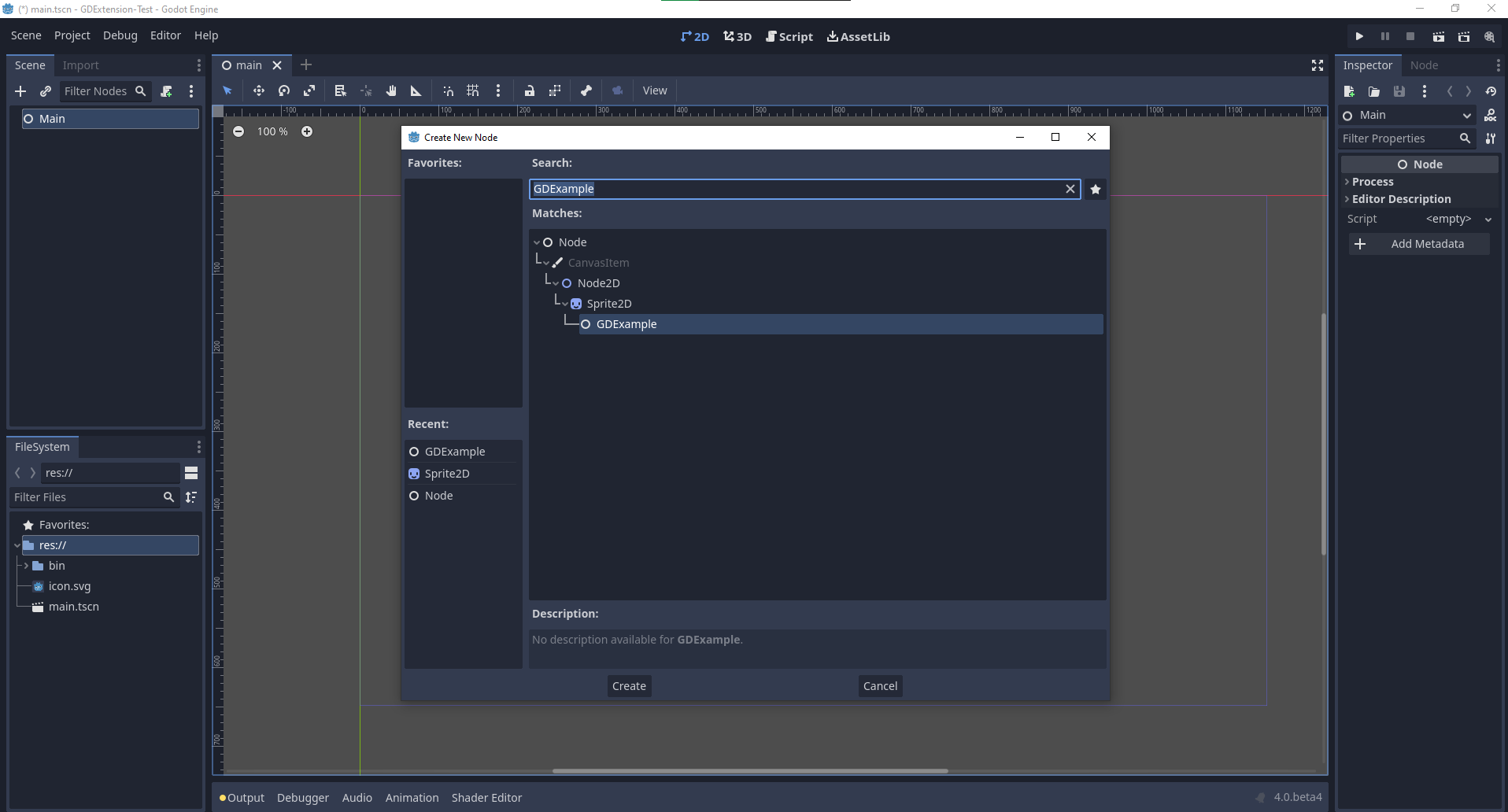
现在让我们回到 Godot。我们载入最初创建的主场景,并向场景中添加一个新出现的 GDExample 节点:
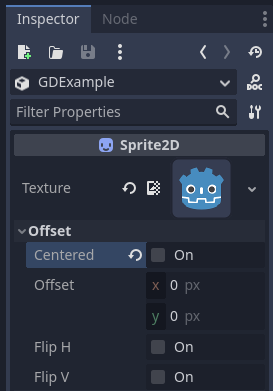
我们将把 Godot 图标设置为此节点的纹理,并禁用 centered(居中)属性:
我们终于准备好运行这个项目了:
添加属性
GDScript allows you to add properties to your script using the export
keyword. In GDExtension you have to register the properties with a getter and
setter function or directly implement the _get_property_list, _get and
_set methods of an object (but that goes far beyond the scope of this
tutorial).
Lets add a property that allows us to control the amplitude of our wave.
In our gdexample.h file we need to add a member variable and getter and setter
functions:
...
private:
    double time_passed;
    double amplitude;

public:
    void set_amplitude(const double p_amplitude);
    double get_amplitude() const;
...
在我们的 gdexample.cpp 文件中, 我们需要进行一些更改, 我们只会显示我们最终更改的方法, 不要删除我们省略的行:
void GDExample::_bind_methods() {
    ClassDB::bind_method(D_METHOD("get_amplitude"), &GDExample::get_amplitude);
    ClassDB::bind_method(D_METHOD("set_amplitude", "p_amplitude"), &GDExample::set_amplitude);

    ADD_PROPERTY(PropertyInfo(Variant::FLOAT, "amplitude"), "set_amplitude", "get_amplitude");
}

GDExample::GDExample() {
    // Initialize any variables here.
    time_passed = 0.0;
    amplitude = 10.0;
}

void GDExample::_process(double delta) {
    time_passed += delta;

    Vector2 new_position = Vector2(
        amplitude + (amplitude * sin(time_passed * 2.0)),
        amplitude + (amplitude * cos(time_passed * 1.5))
    );

    set_position(new_position);
}

void GDExample::set_amplitude(const double p_amplitude) {
    amplitude = p_amplitude;
}

double GDExample::get_amplitude() const {
    return amplitude;
}
使用这些更改编译模块后,就会看到界面上加入了一个属性。你现在可以更改此属性,当运行项目时,你将看到我们的 Godot 图标沿着更大的数字移动。
让我们做同样的事情但是为了我们动画的速度并使用 setter 和 getter 函数。我们的 gdexample.h 头文件再次只需要几行代码:
...
    double amplitude;
    double speed;
...
    void _process(double delta) override;
    void set_speed(const double p_speed);
    double get_speed() const;
...
这需要对我们的 gdexample.cpp 文件进行一些更改, 同样我们只显示已更改的方法, 所以不要删除我们忽略的任何内容:
void GDExample::_bind_methods() {
    ...
    ClassDB::bind_method(D_METHOD("get_speed"), &GDExample::get_speed);
    ClassDB::bind_method(D_METHOD("set_speed", "p_speed"), &GDExample::set_speed);

    ADD_PROPERTY(PropertyInfo(Variant::FLOAT, "speed", PROPERTY_HINT_RANGE, "0,20,0.01"), "set_speed", "get_speed");
}

GDExample::GDExample() {
    time_passed = 0.0;
    amplitude = 10.0;
    speed = 1.0;
}

void GDExample::_process(double delta) {
    time_passed += speed * delta;

    Vector2 new_position = Vector2(
        amplitude + (amplitude * sin(time_passed * 2.0)),
        amplitude + (amplitude * cos(time_passed * 1.5))
    );

    set_position(new_position);
}

...

void GDExample::set_speed(const double p_speed) {
    speed = p_speed;
}

double GDExample::get_speed() const {
    return speed;
}
Now when the project is compiled, we'll see another property called speed. Changing its value will make the animation go faster or slower. Furthermore, we added a property range which describes in which range the value can be. The first two arguments are the minimum and maximum value and the third is the step size.
备注
For simplicity, we've only used the hint_range of the property method. There are a lot more options to choose from. These can be used to further configure how properties are displayed and set on the Godot side.
信号
Last but not least, signals fully work in GDExtension as well. Having your extension
react to a signal given out by another object requires you to call connect
on that object. We can't think of a good example for our wobbling Godot icon, we
would need to showcase a far more complete example.
这是必需的语法:
some_other_node->connect("the_signal", Callable(this, "my_method"));
To connect our signal the_signal from some other node with our method
my_method, we need to provide the connect method with the name of the signal
and a Callable. The Callable holds information about an object on which a method
can be called. In our case, it associates our current object instance this with the
method my_method of the object. Then the connect method will add this to the
observers of the_signal. Whenever the_signal is now emitted, Godot knows which
method of which object it needs to call.
请注意,只有在 _bind_methods 方法中注册之后才能调用 my_method。否则 Godot 无法得知 my_method 的存在。
想要进一步了解 Callable 请参考 Callable。
让对象发出信号更为常见。对于我们摇摆不定的 Godot 图标,我们会做一些愚蠢的事情来展示它是如何工作的。每过一秒钟我们就会发出一个信号并传递新的位置。
在我们的 gdexample.h 头文件中,我们需要定义一个新成员 time_emit:
...
    double time_passed;
    double time_emit;
    double amplitude;
...
gdexample.cpp 这次的修改有点复杂。首先,你需要在我们的 _init 方法或构造函数中设置 time_emit = 0.0。另外两个修改我们将逐一查看。
In our _bind_methods method, we need to declare our signal. This is done
as follows:
void GDExample::_bind_methods() {
    ...
    ADD_PROPERTY(PropertyInfo(Variant::FLOAT, "speed", PROPERTY_HINT_RANGE, "0,20,0.01"), "set_speed", "get_speed");

    ADD_SIGNAL(MethodInfo("position_changed", PropertyInfo(Variant::OBJECT, "node"), PropertyInfo(Variant::VECTOR2, "new_pos")));
}
在这里,我们的 ADD_SIGNAL 宏可以通过一个包含 MethodInfo 参数的单次调用来实现。MethodInfo 的第一个参数是信号的名称,剩下的参数是 PropertyInfo 类型,描述方法每个参数的基本信息。PropertyInfo 参数通过定义参数的数据类型,以及参数的默认名称来进行说明。
So here, we add a signal, with a MethodInfo which names the signal "position_changed". The
PropertyInfo parameters describe two essential arguments, one of type Object, the other
of type Vector2, respectively named "node" and "new_pos".
接下来我们需要修改我们的 _process 方法:
void GDExample::_process(double delta) {
    time_passed += speed * delta;

    Vector2 new_position = Vector2(
        amplitude + (amplitude * sin(time_passed * 2.0)),
        amplitude + (amplitude * cos(time_passed * 1.5))
    );

    set_position(new_position);

    time_emit += delta;
    if (time_emit > 1.0) {
        emit_signal("position_changed", this, new_position);

        time_emit = 0.0;
    }
}
经过一秒钟后, 我们发出信号并重置我们的计数器。我们可以将参数值直接添加给 emit_signal。
Once the GDExtension library is compiled, we can go into Godot and select our sprite node. In the Node dock, we can find our new signal and link it up by pressing the Connect button or double-clicking the signal. We've added a script on our main node and implemented our signal like this:
extends Node

func _on_Sprite2D_position_changed(node, new_pos):
    print("The position of " + node.get_class() + " is now " + str(new_pos))
每一秒,我们都会将我们的位置输出到控制台。
下一步
We hope the above example showed you the basics. You can build upon this example to create full-fledged scripts to control nodes in Godot using C++!
Instead of basing your project off the above example setup, we recommend to restart now by cloning the
godot-cpp template, and base your project off of that.
It has better coverage of features, such as a GitHub build action and additional useful SConstruct boilerplate.