Cambiar el icono de la aplicación en Windows
Por defecto, el icono del juego exportado será el icono de Godot. Lo más probable es que quieras cambiar esto para tu juego. Hay dos tipos de iconos que se pueden cambiar: el icono del archivo y el icono de la barra de tareas.
Creating a custom ICO file
Nota
Since Godot 4.1, Godot can create an ICO file for you based on the icon file defined in the Windows export preset. This icon file can be in PNG, WebP or SVG format. If no icon is defined in the Windows export preset, the application/config/icon project setting is used automatically instead.
This means you no longer need to follow the steps in this section to manually create an ICO file, unless you wish to have control over the icon design depending on its displayed size. Note that even if Godot creates the ICO file for you, you still need to set up rcedit so that the file icon actually changes.
Windows does not use formats such as PNG or JPEG for application icons. Instead, it uses a Windows-only format called ICO. You can create your application icon in any program but you will have to convert it to an ICO file using a program such as GIMP.
This video tutorial repasa cómo exportar un archivo ICO con GIMP.
Es también posible convertir una imagen PNG a un archivo ICO compatible con hiDPI usando este comando de ImageMagick:
magick convert icon.png -define icon:auto-resize=256,128,64,48,32,16 icon.ico
Dependiendo de la versión de ImageMagick que hayas instalado, es posible que debas omitir magick y ejecutar este comando en su lugar:
convert icon.png -define icon:auto-resize=256,128,64,48,32,16 icon.ico
Advertencia
Para que el archivo ICO reemplace efectivamente el ícono de Godot predeterminado, debe contener * todos * los tamaños incluidos en el ícono de Godot predeterminado: 16 × 16, 32 × 32, 48 × 48, 64 × 64, 128 × 128, 256 × 256 . Si el archivo ICO no contiene todos los tamaños, el icono de Godot predeterminado se mantendrá para los tamaños que no se anularon.
El comando ImageMagick anterior tiene esto en cuenta.
Cambiar el icono de la barra de tareas
El icono de la barra de tareas es el icono que aparece en la barra de tareas cuando se está ejecutando el juego.

To change the taskbar icon, go to
Project > Project Settings > Application > Config, make sure
Advanced Settings are enabled to see the setting, then go to
Windows Native Icon. Click on the folder icon and select your ICO file.
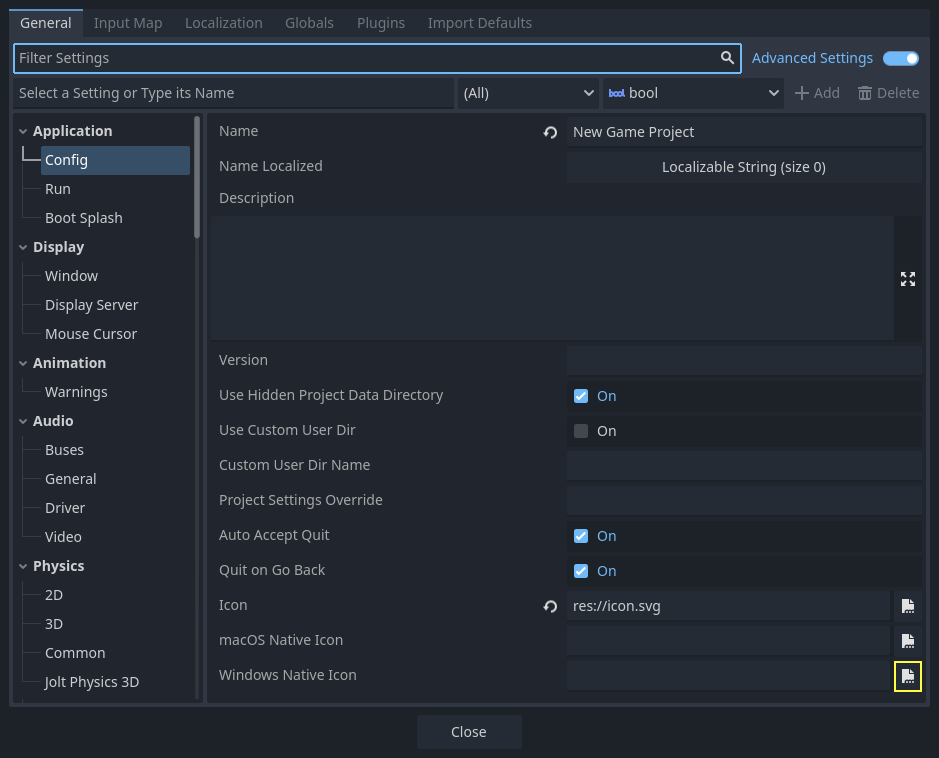
Este ajuste sólo cambia el icono del juego exportado en Windows. Para configurar el icono para macOS, usa Macos Native Icon. Y para cualquier otra plataforma, usa el ajuste Icon.
Cambiar el ícono del archivo
En Godot 3.5 y versiones posteriores, puedes cambiar el ícono de archivo sin herramientas externas utilizando godoticon. Cambiar el ícono de archivo de esta manera debería funcionar para ejecutables que contengan un PCK incrustado.
El icono de archivo es el icono del ejecutable sobre el que se hace clic para iniciar el juego.
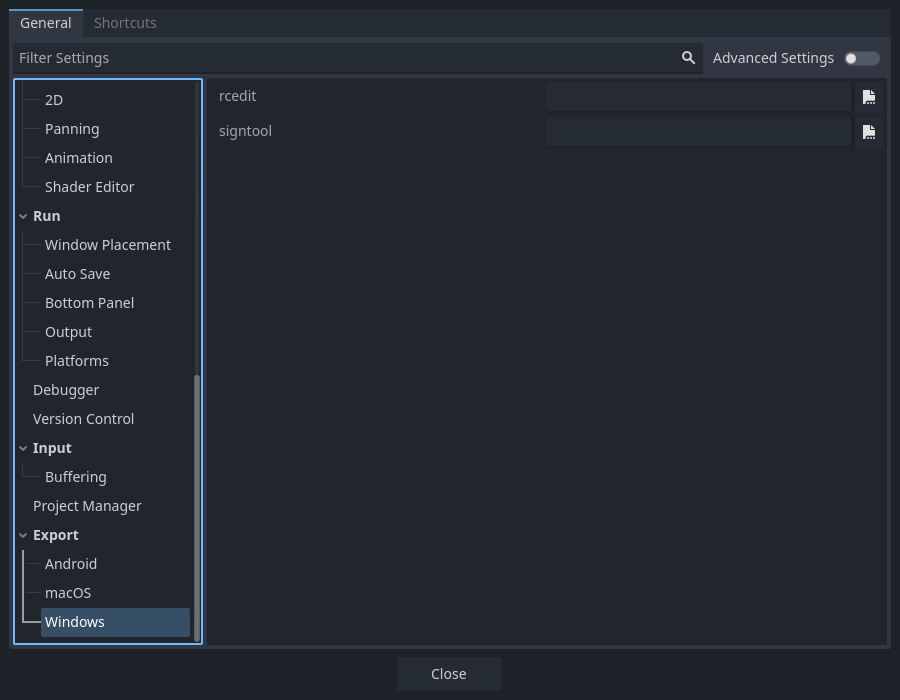
Antes de seleccionarlo en las opciones de exportación, necesitarás instalar una herramienta extra llamada **rcedit*. La puedes descargar desde aquí.
After downloading, you need to tell Godot the path to the rcedit executable on your computer. Go to Editor > Editor Settings > Export > Windows. Click on the folder icon for the rcedit entry. Navigate to and select the rcedit executable.
Nota
Los usuarios de Linux y macOS también necesitarán instalar WINE para usar rcedit.
On macOS, make sure to use a 64-bit version of both WINE and rcedit since 32-bit applications aren't supported anymore.
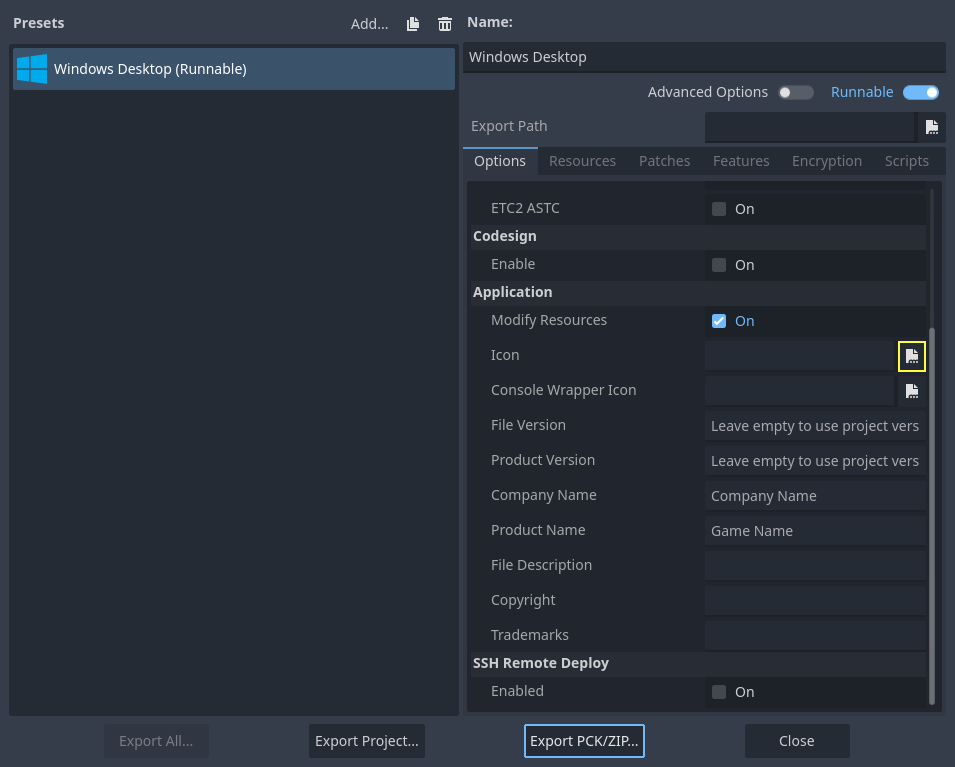
You should now have everything in place to change the file icon. To do that, you will need to specify the icon when exporting. Go to Project > Export. Assuming you have already created a Windows Desktop preset, select your icon in ICO format in the Application > Icon field.
Advertencia
All the supplied metadata must be valid. Most importantly, the version
identifiers must take the form major.minor.patch.revision where
every component is required and is a positive integer. For instance,
1.2.0.0 is valid but 1.2.0 is not.
If you provide invalid metadata in the export preset, the application icon won't change as rcedit will fail to change the executable's metadata.
Nota
Si rcedit falla en cambiar el icono, puedes en su lugar compile your own Windows export templates con el icono cambiado. Para hacerlo, reemplace platform/windows/godot.ico con su propio archivo ICO antes de compilar las plantillas de exportación.
Una vez hecho esto, puede especificar tus plantillas de exportación como plantillas de exportación personalizadas en el preajuste de exportación de Windows del proyecto.
Probando el resultado
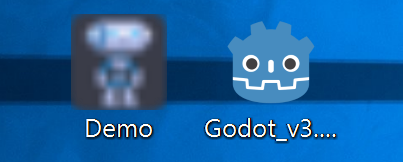
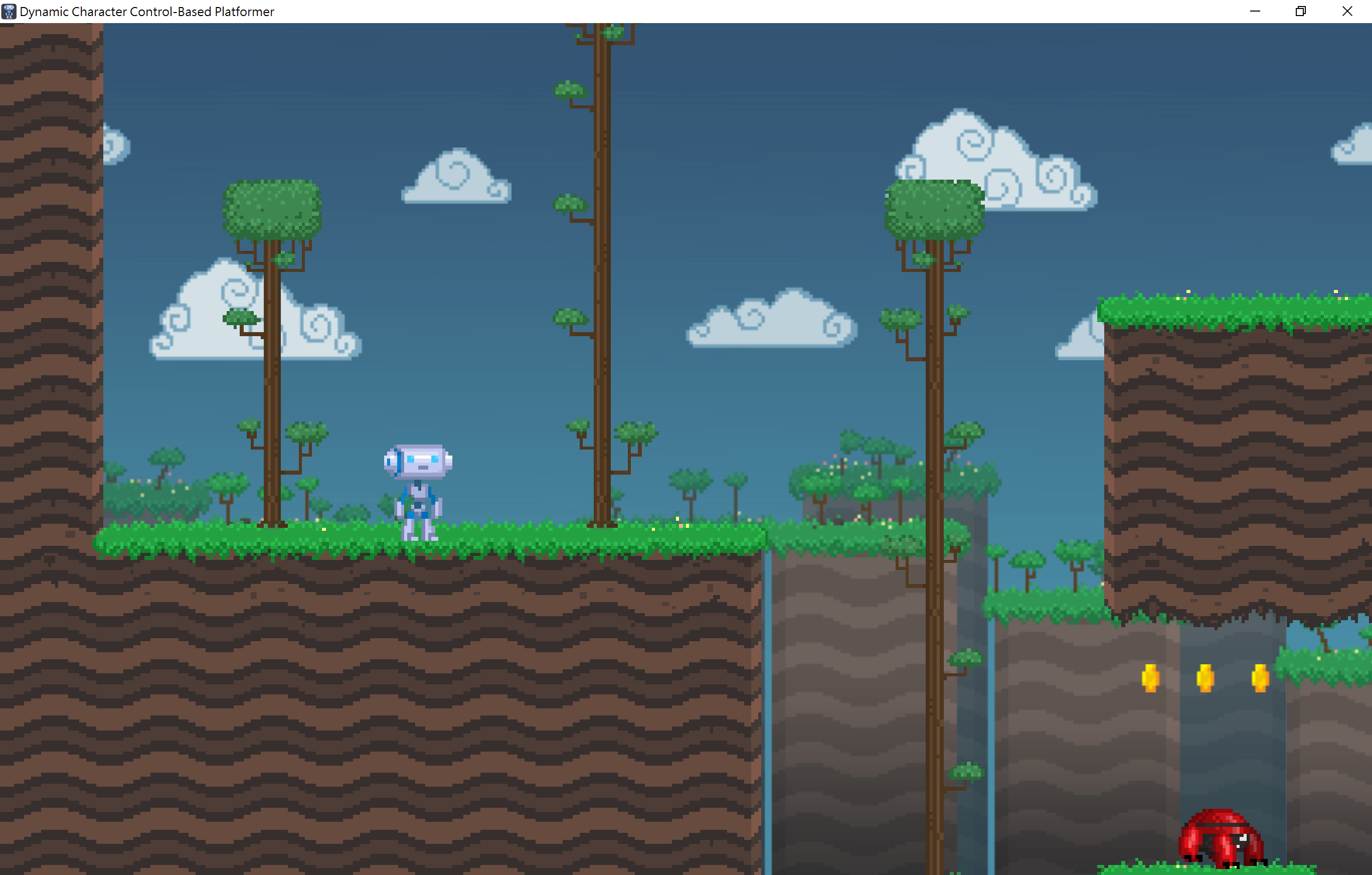
Ahora puedes exportar el proyecto. Si no se ha producido ningún problema, entonces deberías ver esto:
Nota
Si tu icono no se muestra correctamente, en Windows 10, intenta vaciar la caché de iconos. Para ello, abre el diálogo Ejecutar e introduce ie4uinit.exe -ClearIconCache o ie4uinit.exe -show.