Up to date
This page is up to date for Godot 4.3.
If you still find outdated information, please open an issue.
First look at Godot's interface
Esta pagina va a darte un pequeño vistazo a la interfaz de Godot. Nosotros vamos a ver diferentes pantallas principales y docks para ayudarte a orientarte.
Ver también
For a comprehensive breakdown of the editor's interface and how to use it, see the Editor manual.
El Administrador de Proyectos
When you launch Godot, the first window you see is the Project Manager. In the default tab Projects, you can manage existing projects, import or create new ones, and more.
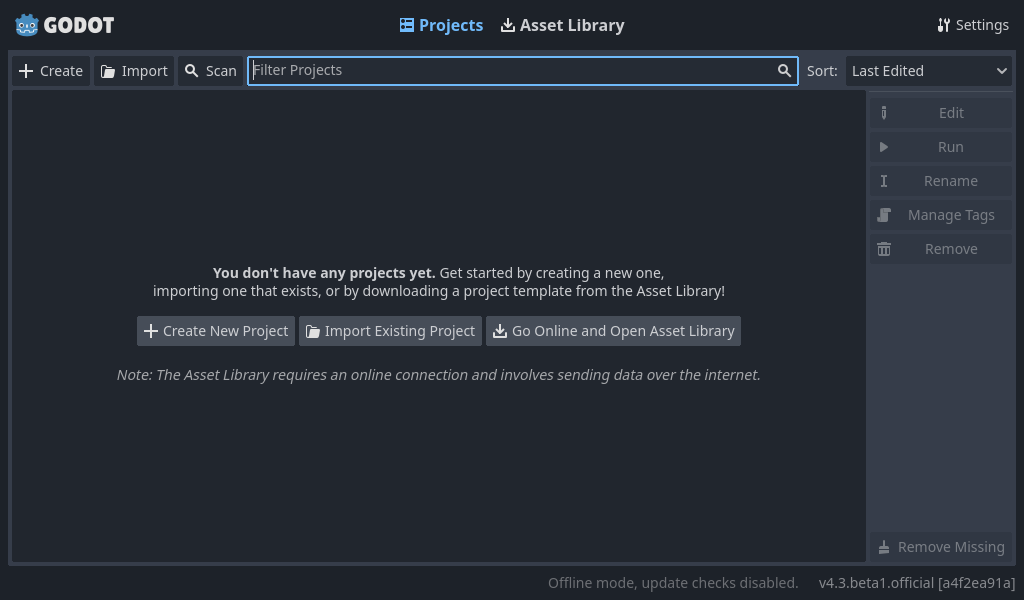
At the top of the window, there is another tab named Asset Library. The first time you go to this tab you'll see a "Go Online" button. For privacy reasons, the Godot project manager does not access the internet by default. To change this click the "Go Online" button. You can change this option later in the settings.
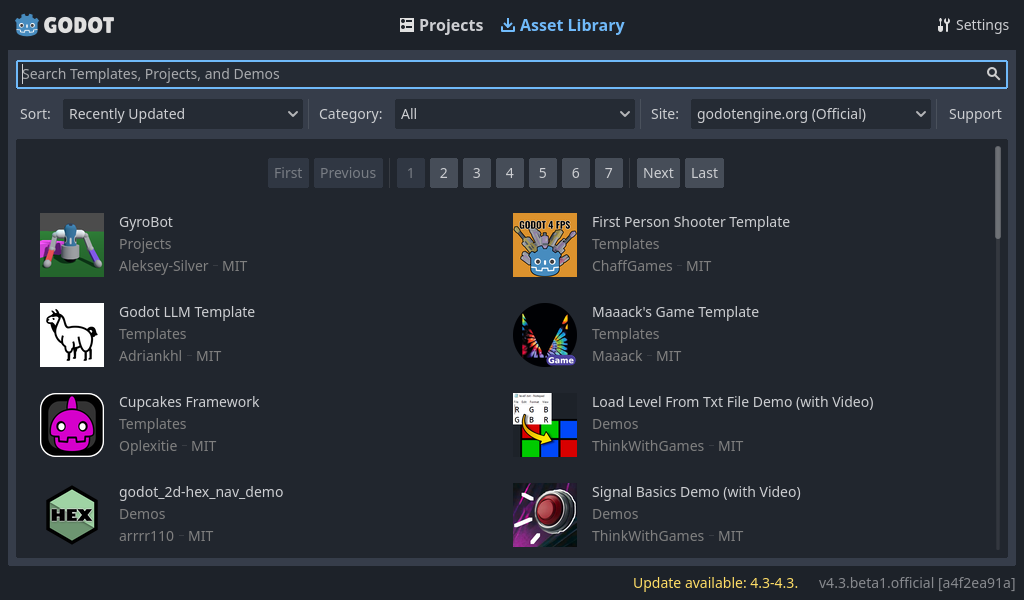
Once your network mode is set to "online", you can search for demo projects in the open source asset library, which includes many projects developed by the community:
The Project Manager's settings can be opened using the Settings menu:
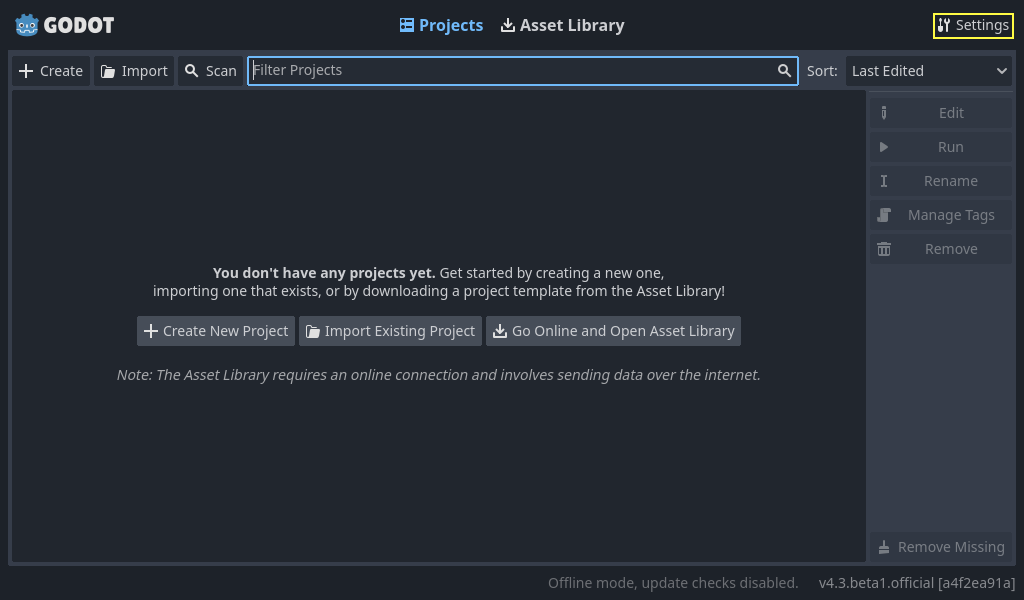
From here, you can change the editor's language (default is the system language), interface theme, display scale, network mode, and also the directory naming convention.
Ver también
Para familiarizarte con la interfaz del Proyect Manager, consulta Utilizando el Administrador de Proyectos.
Una primera mirada al editor de Godot
When you open a new or an existing project, the editor's interface appears. Let's look at its main areas:
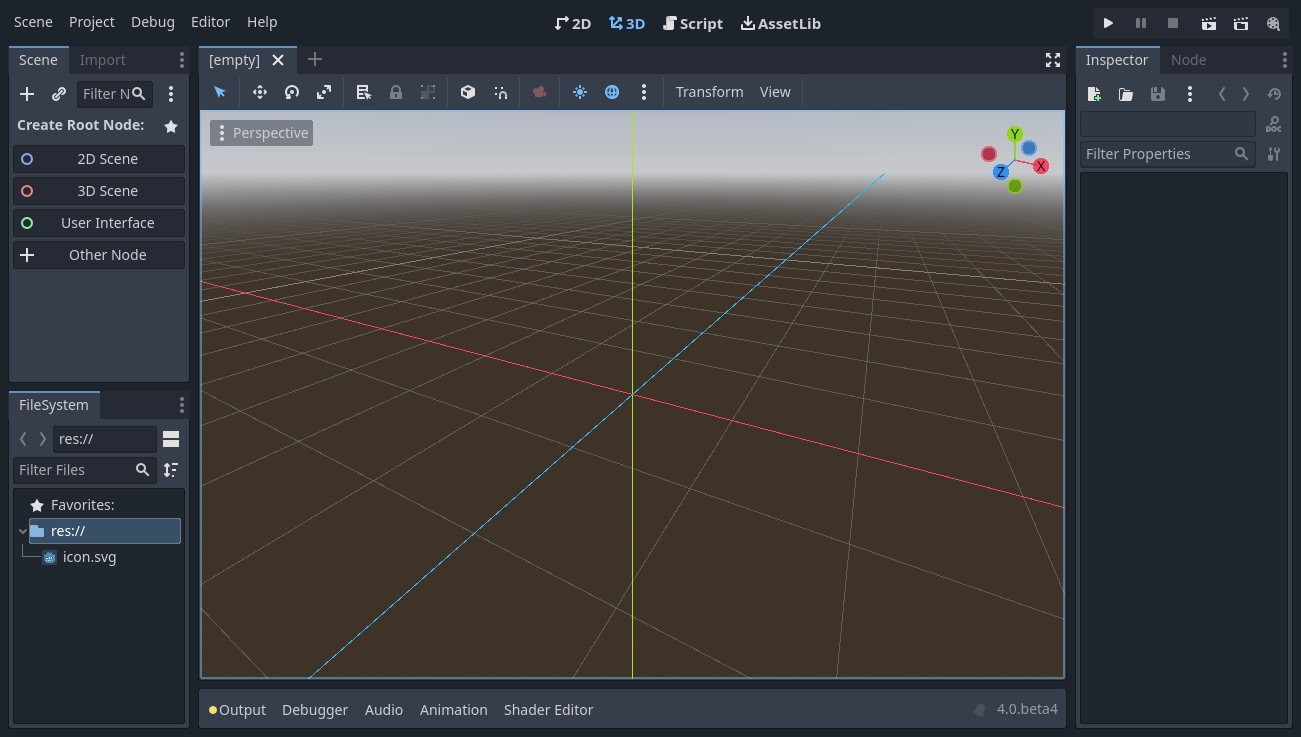
By default, along the window's top edge, it features main menu on the left, workspace switching buttons in the center (active workspace is highlighted), and playtest buttons on the right:

Just below the workspace buttons, the opened scenes as tabs are seen. The plus (+) button right next to the tabs will add a new scene to the project. With the button on the far right, distraction-free mode can be toggled, which maximizes or restores the viewport's size by hiding docks in the interface:

In the center, below the scene selector is the viewport with its toolbar at the top, where you'll find different tools to move, scale, or lock the scene's nodes (currently the 3D workspace is active):
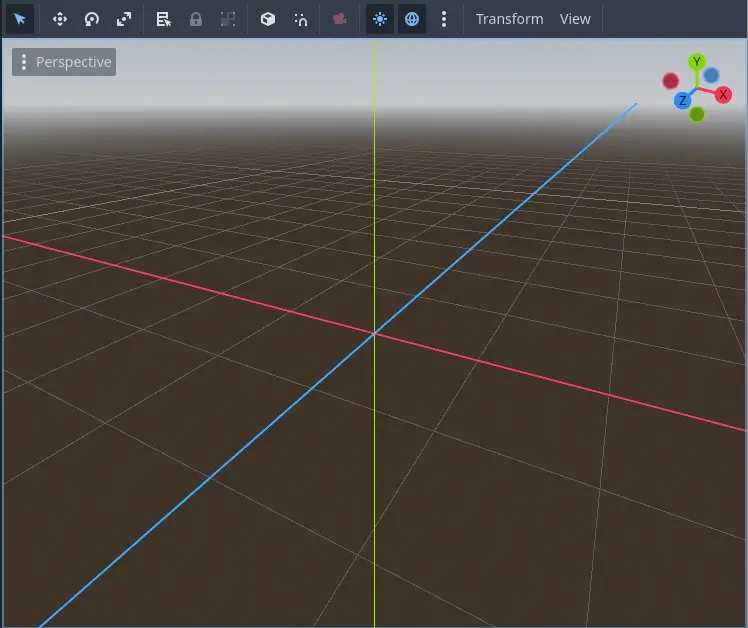
This toolbar changes based on the context and selected node. Here is the 2D toolbar:

Below is the 3D one:

Ver también
To learn more on workspaces, read Los cuatro espacios de trabajo.
Ver también
To learn more on the 3D viewport and 3D in general, read Introducción al 3D.
A los lados del viewport, se encuentran los paneles empotrables. En la parte inferior se encuentra el panel inferior.
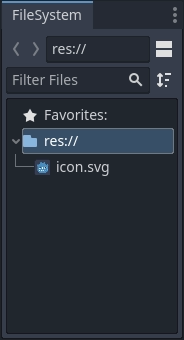
Let's look at the docks. The FileSystem dock lists your project files, including scripts, images, audio samples, and more:
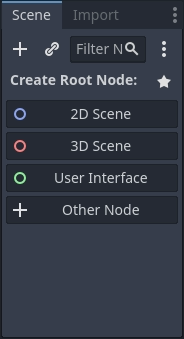
The Scene dock lists the active scene's nodes:
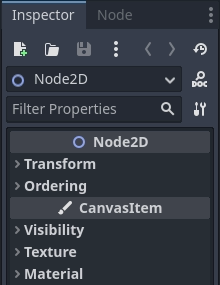
The Inspector allows you to edit the properties of a selected node:
Ver también
To read more on inspector, see El Inspector.
Ver también
Docks can be customized. Read more on Moviendo y redimensionando paneles.
The bottom panel, situated below the viewport, is the host for the debug console, the animation editor, the audio mixer, and more. They can take precious space, that's why they're folded by default:

When you click on one, it expands vertically. Below, you can see the animation editor opened:
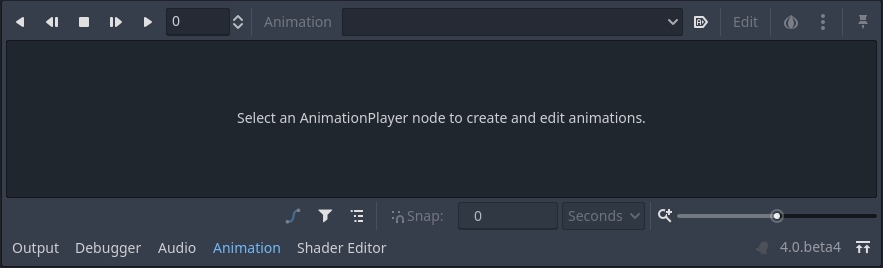
Bottom panels can also be shown or hidden using the shortcuts defined in Editor Settings > Shortcuts, under the Bottom Panels category.
Los cuatro espacios de trabajo
There are four main screen buttons centered at the top of the editor: 2D, 3D, Script, and Asset Library.
Utilizarás el Espacio de trabajo 2D para todo tipo de juegos. Además de los juegos en 2D, es allí donde construirás tus interfaces.
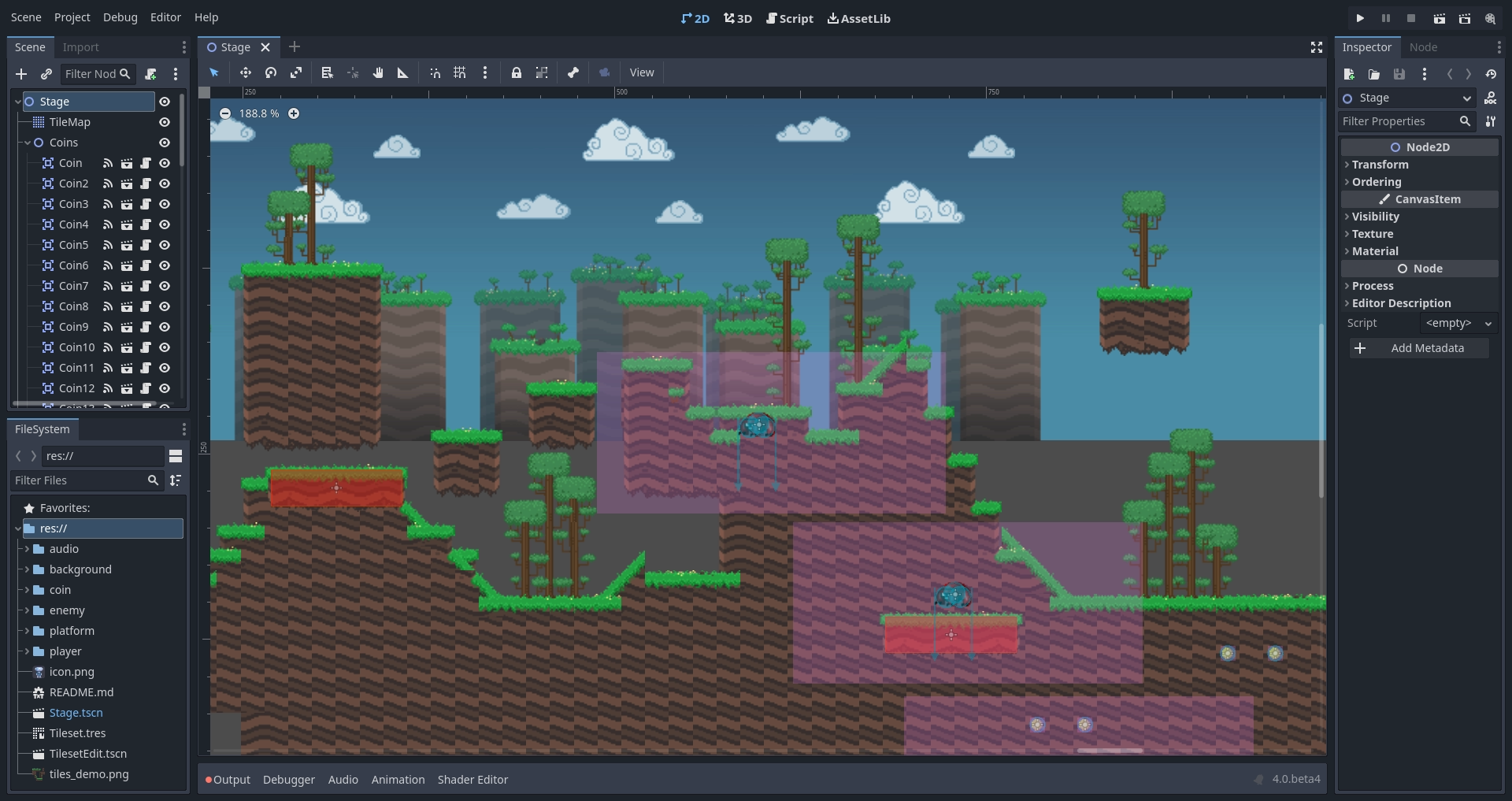
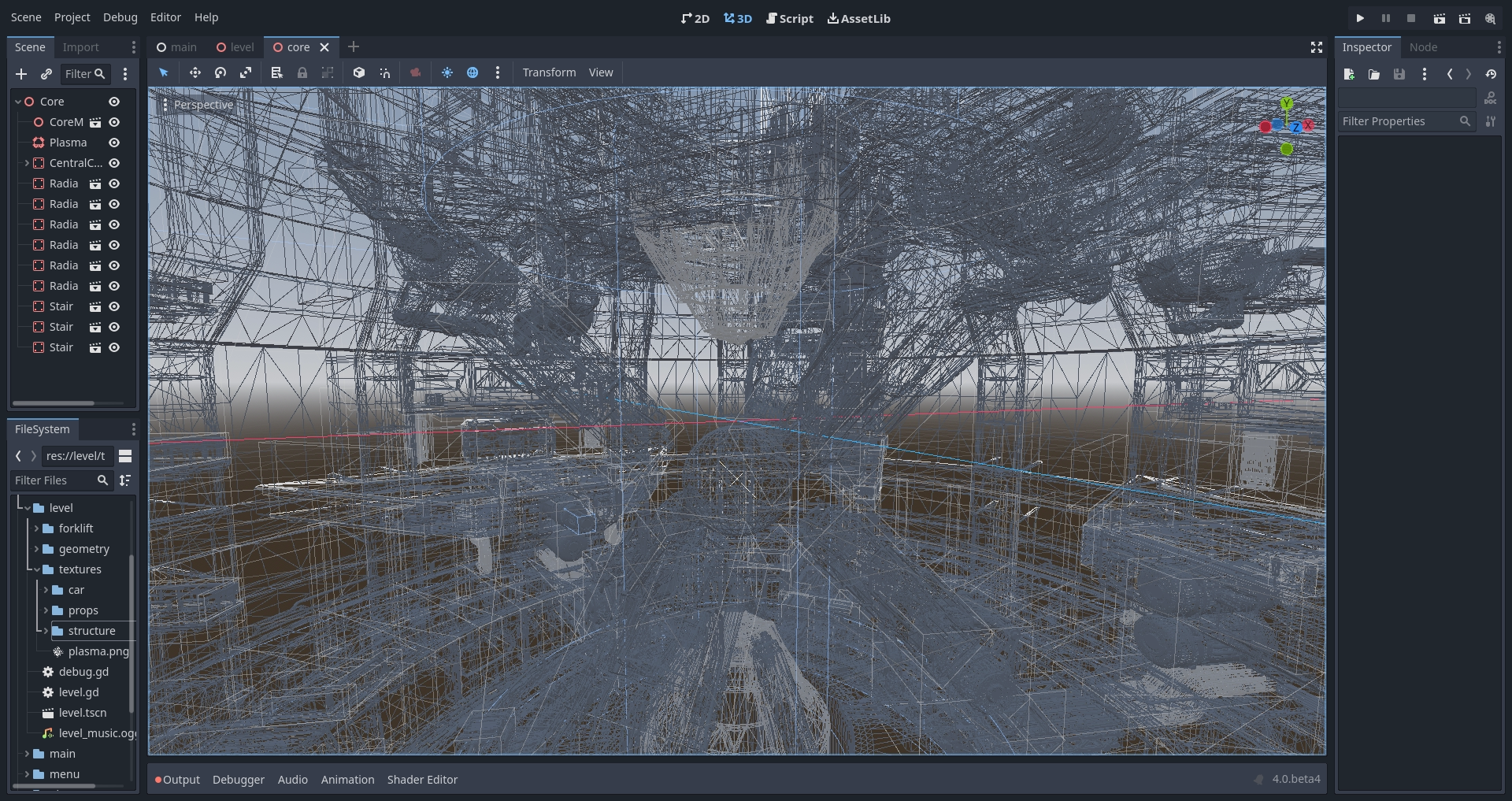
En la pantalla 3D, puede trabajar con mallas, luces y niveles de diseño para juegos 3D.
Nota
Ver Introducción al 3D para mas detalles sobre Espacio de trabajo 3D.
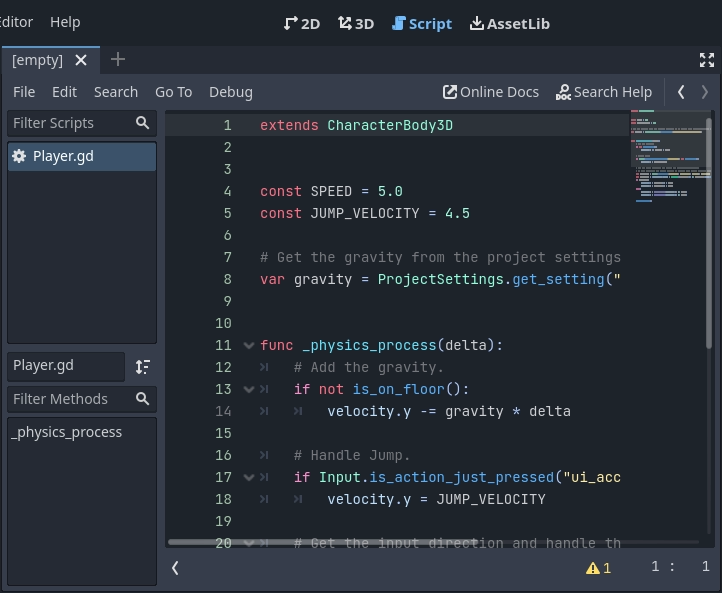
La "pantalla de scripts" es un editor completo con un depurador, autocompletado y referencia de código integrada.
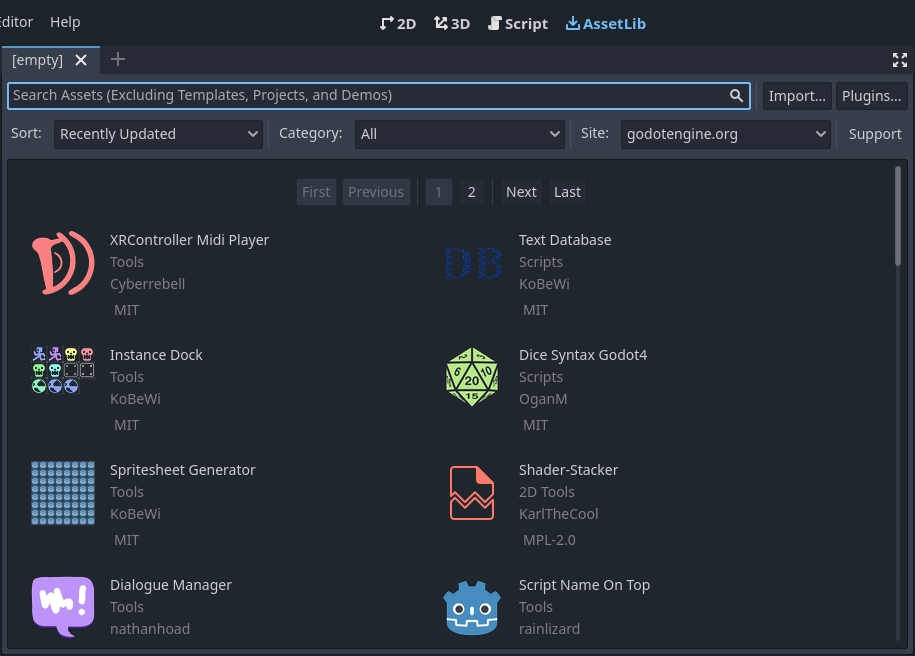
Finally, the Asset Library is a library of free and open source add-ons, scripts, and assets to use in your projects.
Ver también
Puedes aprender más sobre la asset library en Acerca de la Biblioteca de Assets.
Referencia de clases integrada
Godot viene con referencia de clase incorporada.
Puedes buscar información sobre una clase, método, propiedad, constante o señal por alguno de los siguientes métodos:
Pressing F1 (or Opt + Space on macOS, or Fn + F1 for laptops with a Fn key) anywhere in the editor.
Presiona el botón de "Buscar ayuda" en la parte superior-derecha de la pantalla principal de Script.
Presionando en Ayuda y Buscar en la Ayuda.
Haciendo clic mientras se presiona la tecla Ctrl en el nombre de una clase, de una función o en una variable integrada en el editor de script.

Cuando haces una de estas cosas, aparecerá una ventana. Escribe para buscar por un item. También puedes usarla para revisar los objetos y métodos disponibles.
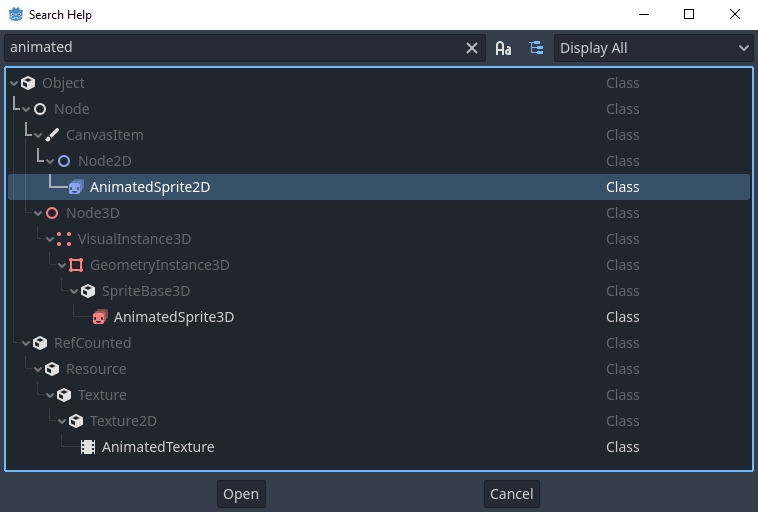
Doble click en un item abrirá la página correspondiente en la ventana de scripts.
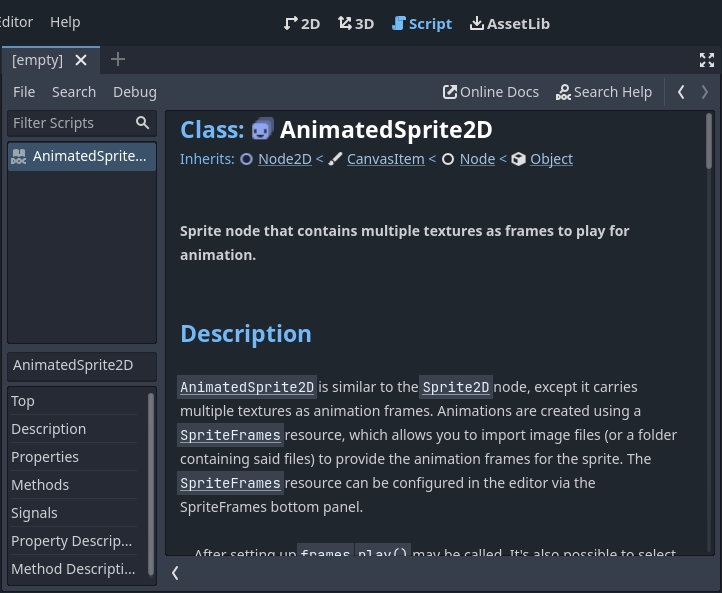
Alternatively,
Clicking while pressing the Ctrl key on a class name, function name, or built-in variable in the script editor.
Right-clicking on nodes and choosing Open Documentation or choosing Lookup Symbol for elements in script editor will directly open their documentation.