Up to date
This page is up to date for Godot 4.3.
If you still find outdated information, please open an issue.
Fixing jitter, stutter and input lag
What is jitter, stutter and input lag?
Jitter y stutter son dos alteraciones diferentes en el movimiento visible de objetos en la pantalla que pueden afectar a un juego, incluso cuando se ejecuta a velocidad completa. Estos efectos son principalmente visibles en juegos donde el mundo se mueve a una velocidad constante en una dirección fija, como juegos de carreras o plataformas.
Input lag is unrelated to jitter and stutter, but is sometimes discussed alongside. Input lag refers to visible on-screen delay when performing actions with the mouse, keyboard, controller or touchscreen. It can be related to game code, engine code or external factors (such as hardware). Input lag is most noticeable in games that use the mouse to aim, such as first-person games. Input lag can't be completely eliminated, but it can be reduced in several ways.
Distinguishing between jitter and stutter
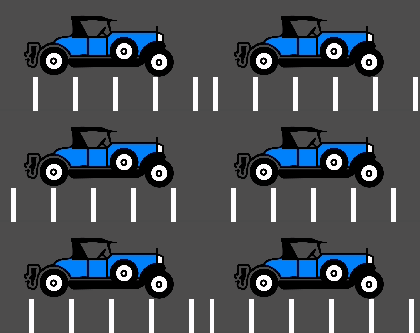
Un juego que se ejecute a una velocidad de fotogramas normal sin mostrar ningún efecto va a parecer fluido:
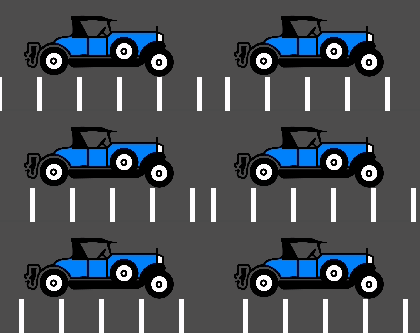
Un juego que presenta jitter se sacudirá constantemente de manera muy sutil:
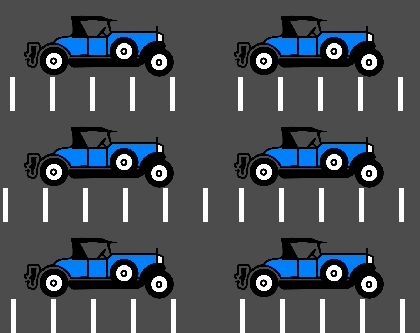
Finalmente, un juego que presenta stutter parecerá suave, pero dará la impresión de detenerse o retroceder un fotograma cada pocos segundos:
Jitter (temblor)
Puede haber muchas causas de jitter, la más típica ocurre cuando la frecuencia de físicas del juego (generalmente 60 Hz) se ejecuta a una resolución diferente a la frecuencia de actualización del monitor. Verifica si la frecuencia de actualización de tu monitor es diferente de 60 Hz.
En general, esto no es un problema, dado que la mayoría de los monitores son de 60 Hz y, a partir de Godot 3.1, se introdujo un temporizador de fotogramas que intenta sincronizarse con el refresco lo mejor posible.
Sometimes only some objects appear to jitter (character or background). This
happens when they are processed in different time sources (one is processed in
the physics step while another is processed in the idle step). Godot 3.1 does
some improvements to this, from allowing kinematic bodies to be animated in the
regular _process() loop, to further fixes in the frame timer.
Stutter (tartamudeo)
El tartamudeo puede ocurrir debido a dos razones diferentes. La primera y más obvia es que el juego no pueda mantener un rendimiento de fotogramas completo. Resolver esto es específico del juego y requerirá optimización para mejorar el rendimiento.
El segundo motivo es más complicado, ya que a menudo no está relacionado con el motor del juego, sino con el sistema operativo subyacente. A continuación, te proporciono información sobre el tartamudeo en diferentes sistemas operativos.
On platforms that support disabling V-Sync, stuttering can be made less noticeable by disabling V-Sync in the project settings. This will however cause tearing to appear, especially on monitors with low refresh rates. If your monitor supports it, consider enabling variable refresh rate (G-Sync/FreeSync) while leaving V-Sync enabled. This avoids mitigating some forms of stuttering without introducing tearing.
Forcing your graphics card to use the maximum performance profile can also help reduce stuttering, at the cost of increased GPU power draw.
Windows
Windows es conocido por causar tartamudeo en juegos en modo de ventana. Esto depende en gran medida del hardware instalado, la versión de los controladores y los procesos que se ejecutan en paralelo (por ejemplo, tener muchas pestañas de navegador abiertas puede causar tartamudeo en un juego en ejecución). Para evitar esto, a partir de la versión 3.1, Godot eleva la prioridad del juego a "por encima de lo normal". Esto ayuda considerablemente, pero es posible que no elimine completamente el tartamudeo.
Eliminar completamente este problema requeriría otorgar a tu juego privilegios completos para convertirse en "tiempo crítico", lo cual no se recomienda. Algunos juegos pueden hacerlo, pero se aconseja aprender a convivir con este problema, ya que es común en juegos de Windows y la mayoría de los usuarios no juegan en modo de ventana (los juegos que se juegan en una ventana, como juegos de rompecabezas, generalmente no presentarán este problema de todas formas).
Para el modo de pantalla completa, Windows otorga una prioridad especial al juego, por lo que el tartamudeo ya no es visible y es muy raro. Así es como se juega la mayoría de los juegos.
When using a mouse with a polling rate of 1,000 Hz or more, consider using a fully up-to-date Windows 11 installation which comes with fixes related to high CPU utilization with high polling rate mice. These fixes are not available in Windows 10 and older versions.
Truco
Games should use the Exclusive Fullscreen window mode, as opposed to Fullscreen which is designed to prevent Windows from automatically treating the window as if it was exclusive fullscreen.
Fullscreen is meant to be used by GUI applications that want to use per-pixel transparency without a risk of having it disabled by the OS. It achieves this by leaving a 1-pixel line at the bottom of the screen. By contrast, Exclusive Fullscreen uses the actual screen size and allows Windows to reduce jitter and input lag for fullscreen games.
Linux
Stutter may be visible on desktop Linux, but this is usually associated with different video drivers and compositors. Some compositors may also trigger this problem (e.g. KWin), so it is advised to try using a different one to rule it out as the cause. Some window managers such as KWin and Xfwm allow you to manually disable compositing, which can improve performance (at the cost of tearing).
There is no workaround for driver or compositor stuttering, other than reporting it as an issue to the driver or compositor developers. Stutter may be more present when playing in windowed mode as opposed to fullscreen, even with compositing disabled.
Feral GameMode can be used to automatically apply optimizations (such as forcing the GPU performance profile) when running specific processes.
macOS
En general, macOS no presenta tartamudeo, aunque recientemente se han reportado algunos errores al ejecutar en pantalla completa (esto es un error de macOS). Si tienes una máquina que muestra este comportamiento, por favor avísanos.
Android
En general, Android no presenta tartamudeo ni sacudidas porque la actividad en ejecución obtiene toda la prioridad. Dicho esto, puede haber dispositivos problemáticos (se sabe que algunos modelos antiguos de Kindle Fire presentan este problema). Si ves este problema en Android, por favor avísanos.
iOS
Los dispositivos iOS generalmente no presentan tartamudeo, pero los dispositivos más antiguos que ejecutan versiones más recientes del sistema operativo pueden experimentar problemas. Esto generalmente es inevitable.
Input lag
Project configuration
On platforms that support disabling V-Sync, input lag can be made less noticeable by disabling V-Sync in the project settings. This will however cause tearing to appear, especially on monitors with low refresh rates. It's suggested to make V-Sync available as an option for players to toggle.
When using the Forward+ or Mobile rendering methods, another way to reduce
visual latency when V-Sync is enabled is to use double-buffered V-Sync instead
of the default triple-buffered V-Sync. Since Godot 4.3, this can be achieved by
reducing the Display > Window > V-Sync > Swapchain Image Count project
setting to 2. The downside of using double buffering is that framerate will
be less stable if the display refresh rate can't be reached due to a CPU or GPU
bottleneck. For instance, on a 60 Hz display, if the framerate would normally
drop to 55 FPS during gameplay with triple buffering, it will have to drop down
to 30 FPS momentarily with double buffering (and then go back to 60 FPS when
possible). As a result, double-buffered V-Sync is only recommended if you can
consistently reach the display refresh rate on the target hardware.
Aumentar la cantidad de iteraciones físicas por segundo también puede reducir la latencia de entrada inducida por la física. Esto es especialmente notable cuando se usa la interpolación física (que mejora la suavidad pero aumenta la latencia). Para ello, configure Physics > Common > Physics Ticks Per Second en un valor mayor que el predeterminado 60, o configure Engine.physics_ticks_per_second en tiempo de ejecución en un script. Los valores que son un múltiplo de la frecuencia de actualización del monitor (normalmente 60) funcionan mejor cuando la interpolación física está deshabilitada, ya que evitarán la vibración. Esto significa que valores como 120, 180 y 240 son buenos puntos de partida. Como beneficio adicional, los FPS de física más altos hacen que sea menos probable que ocurran problemas de tunelización e inestabilidad física.
The downside of increasing physics FPS is that CPU usage will increase, which
can lead to performance bottlenecks in games that have heavy physics simulation
code. This can be alleviated by increasing physics FPS only in situations where
low latency is critical, or by letting players adjust physics FPS to match their
hardware. However, different physics FPS will lead to different outcomes in
physics simulation, even when delta is consistently used in your game logic.
This can give certain players an advantage over others. Therefore, allowing the
player to change the physics FPS themselves should be avoided for competitive
multiplayer games.
Lastly, you can disable input buffering on a per-rendered frame basis by calling
Input.set_use_accumulated_input(false) in a script. This will make it so the
_input() and _unhandled_input() functions in your scripts are called on
every input, rather than accumulating inputs and waiting for a frame to be
rendered. Disabling input accumulation will increase CPU usage, so it should be
done with caution.
Truco
On any Godot project, you can use the --disable-vsync
command line argument to forcibly disable V-Sync.
Since Godot 4.2, --max-fps <fps> can also be used to set a FPS limit
(0 is unlimited). These arguments can be used at the same time.
Hardware/OS-specific
Si tu monitor lo admite, considera habilitar la frecuencia de actualización variable (G-Sync/FreeSync) mientras dejas V-Sync habilitado, luego limita la velocidad de cuadros en la configuración del proyecto a un valor ligeramente inferior a la frecuencia de actualización máxima de tu monitor como se indica en`esta página <https://blurbusters.com/howto-low-lag-vsync-on/>`__. Por ejemplo, en un monitor de 144 Hz, puedes establecer el límite de velocidad de cuadros del proyecto en 141. Esto puede parecer contradictorio al principio, pero limitar los FPS por debajo del rango de frecuencia de actualización máxima garantiza que el sistema operativo nunca tenga que esperar a que finalice el borrado vertical. Esto genera un retraso de entrada similar al de V-Sync deshabilitado con el mismo límite de velocidad de cuadros (generalmente menos de 1 ms mayor), pero sin ningún desgarro.
This can be done by changing the Application > Run > Max FPS project
setting or assigning Engine.max_fps at run-time in a script.
On some platforms, you can also opt into a low-latency mode in the graphics driver options (such as the NVIDIA Control Panel on Windows). The Ultra setting will give you the lowest possible latency, at the cost of slightly lower average framerates. Forcing the GPU to use the maximum performance profile can also further reduce input lag, at the cost of higher power consumption (and resulting heat/fan noise).
Finally, make sure your monitor is running at its highest possible refresh rate in the OS' display settings.
Also, ensure that your mouse is configured to use its highest polling rate (typically 1,000 Hz for gaming mice, sometimes more). High USB polling rates can however result in high CPU usage, so 500 Hz may be a safer bet on low-end CPUs. If your mouse offers multiple DPI settings, consider also using the highest possible setting and reducing in-game sensitivity to reduce mouse latency.
On Linux, disabling compositing in window managers that allow it (such as KWin or Xfwm) can reduce input lag significantly.
Reporting jitter, stutter or input lag problems
Si estás informando un problema de tartamudeo o sacudidas (abriendo un reporte) que no es causado por ninguna de las razones mencionadas anteriormente, por favor especifica de manera muy clara toda la información posible sobre el dispositivo, el sistema operativo, las versiones de los controladores, etc. Esto puede ayudar a identificar y resolver el problema de manera más efectiva.
If you are reporting input lag problems, please include a capture made with a high speed camera (such as your phone's slow motion video mode). The capture must have both the screen and the input device visible so that the number of frames between an input and the on-screen result can be counted. Also, make sure to mention your monitor's refresh rate and your input device's polling rate (especially for mice).
Also, make sure to use the correct term (jitter, stutter, input lag) based on the exhibited behavior. This will help understand your issue much faster. Provide a project that can be used to reproduce the issue, and if possible, include a screen capture demonstrating the bug.