Up to date
This page is up to date for Godot 4.3.
If you still find outdated information, please open an issue.
Rider
Rider is a commercial JetBrains IDE for C# and C++ that uses the same solution system as Visual Studio.
导入项目
小技巧
如果 Visual Studio 已经是你的主要 IDE,那么你可以在 Rider 中使用同一个解决方案文件。Rider 和 Visual Studio 使用相同的解决方案文件格式,所以你可以在两个 IDE 间切换,无需重新构建解决方案文件。切换 IDE 时需要更改调试配置。
Rider requires a solution file to work on a project. While Godot does not come with the solution file, it can be generated using SCons.
导航到Godot根文件夹, 打开命令提示符或PowerShell窗口.
将以下命令复制粘贴并运行以生成解决方案。
scons platform=windows vsproj=yes dev_build=yes
vsproj 参数说明要生成 Visual Studio 项目。dev_build 参数确保生成中包括了调试符号,允许你进行一系列操作,例如使用断点逐步执行代码。
If you have Rider setup as your main IDE for .sln, you can now open the project by double-clicking on the
godot.slnin the project root or by using the Open option inside of Rider.
备注
Rider 在第一次打开项目时可能会构建失败。这种情况下,可以关闭 Rider,在 Visual Studio 中打开解决方案,构建项目,关闭 Visual Studio,然后再次在 Rider 中打开。之后便可以在 Rider 中构建项目。
项目的编译与调试
Rider 拥有内置调试器,可以用来调试 Godot 项目。点击屏幕上方 Debug 图标来启动调试器。该调试器只能对项目管理器使用,要调试编辑器的话需要先配置调试器。

Click on the Godot > Edit Configurations option at the top of the screen.
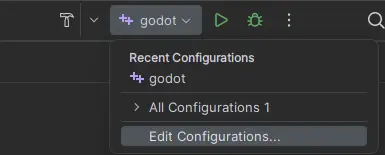
删除 Program arguments 下的内容,然后粘贴以下一行:
-e --path <path to the Godot project>
这会告知可执行文件在不使用项目管理器调试指定项目。应当使用项目文件夹的根路径,而非 project.godot 的文件路径。
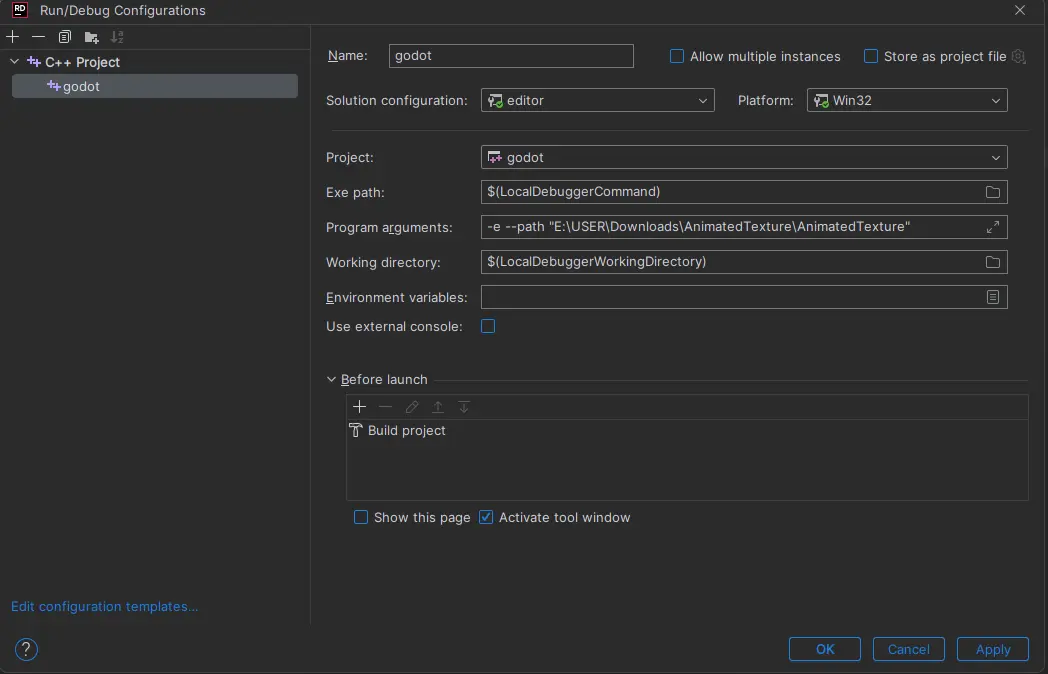
最后点击“应用”和“确定”来保存更改。
现在你可以点击屏幕上方的 调试 图标来启动调试器,这样会打开需要调试的项目。
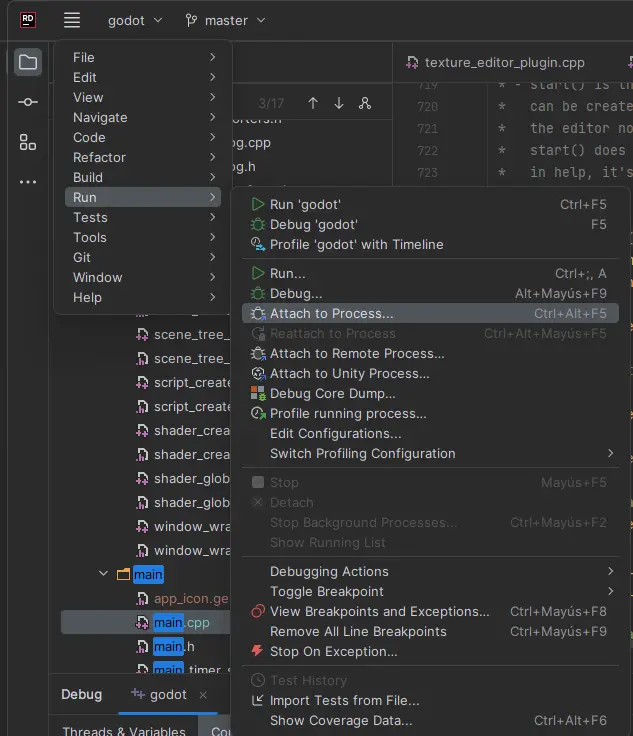
或者,你也可以使用 运行 > 附加到进程 将调试器附加到运行中的 Godot 实例。