アニメーションツリー
はじめに
With AnimationPlayer, Godot has one of the most flexible animation systems that you can find in any game engine. It is pretty much unique in its ability to animate almost any property in any node or resource, and its dedicated transform, bezier, function calling, audio, and sub-animation tracks.
However, the support for blending those animations via AnimationPlayer is limited, as you can only set a fixed cross-fade transition time.
AnimationTree is a new node introduced in Godot 3.1 to deal with advanced transitions.
It replaces the ancient AnimationTreePlayer, while adding a huge amount of features and flexibility.
AnimationTree and AnimationPlayer
Before starting, know that an AnimationTree node does not contain its own animations.
Instead, it uses animations contained in an AnimationPlayer node. You create, edit, or import your animations in an AnimationPlayer
and then use an AnimationTree to control the playback.
AnimationPlayer and AnimationTree can be used in both 2D and 3D scenes. When importing 3D scenes and their animations, you can use
name suffixes
to simplify the process and import with the correct properties. At the end, the imported Godot scene will contain the animations in an AnimationPlayer node.
Since you rarely use imported scenes directly in Godot (they are either instantiated or inherited from), you can place the AnimationTree node in your
new scene which contains the imported one. Afterwards, point the AnimationTree node to the AnimationPlayer that was created in the imported scene.
This is how it's done in the Third Person Shooter demo, for reference:
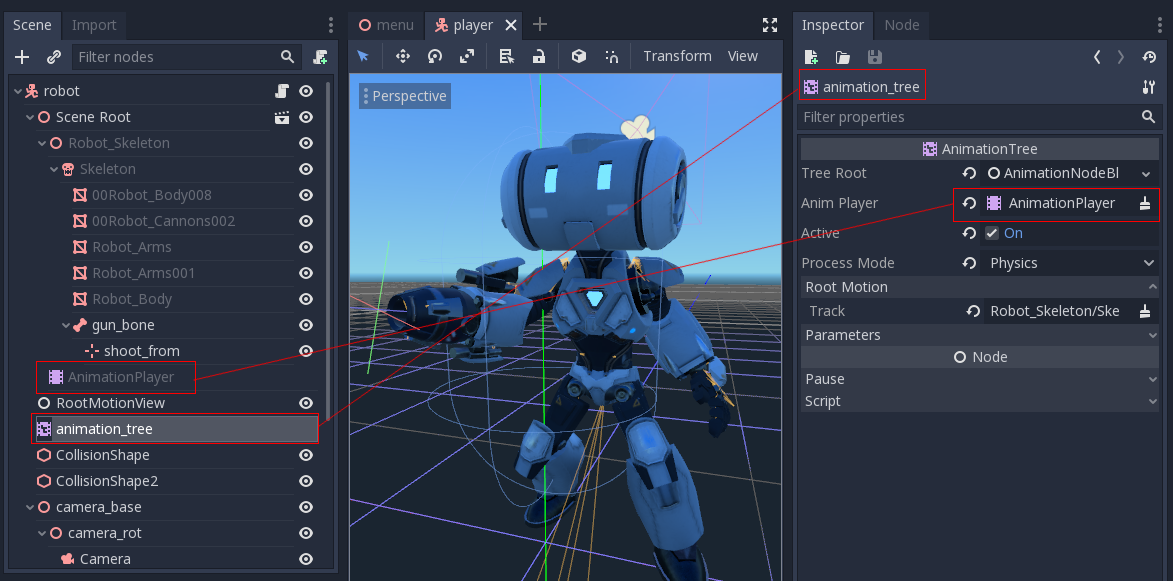
プレイヤー用の新しいシーンはCharacterBody3Dをルートにして作られています。このシーンの中には、元の.dae(Collada)ファイルがインスタンス化され、AnimationTreeノードが作成されてあります。
ツリーの作成
To use an AnimationTree, you have to set a root node. An animation root node is a class that contains and evaluates sub-nodes and outputs an animation.
There are 3 types of sub-nodes:
アニメーション・ノード。リンクされた
AnimationPlayerのアニメーションを参照します。Animation Root nodes, which are used to blend sub-nodes and can be nested.
Animation Blend nodes, which are used in an
AnimationNodeBlendTree, a 2D graph of nodes. Blend nodes take multiple input ports and give one output port.
A few types of root nodes are available:
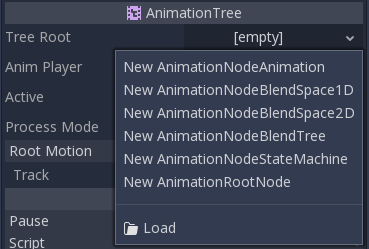
AnimationNodeAnimation: Selects an animation from the list and plays it. This is the simplest root node, and generally not used as a root.AnimationNodeBlendTree: Contains multiple nodes as children in a graph. Many blend nodes are available, such as mix, blend2, blend3, one shot, etc.AnimationNodeBlendSpace1D: Allows linear blending between two animation nodes. Control the blend position in a 1D blend space to mix between animations.AnimationNodeBlendSpace2D: Allows linear blending between three animation nodes. Control the blend position in a 2D blend space to mix between animations.AnimationNodeStateMachine: Contains multiple nodes as children in a graph. Each node is used as a state, with multiple functions used to alternate between states.
ブレンド・ツリー
When you make an AnimationNodeBlendTree, you get an empty 2d graph in the bottom panel, under the AnimationTree tab. It contains only an Output
node by default.
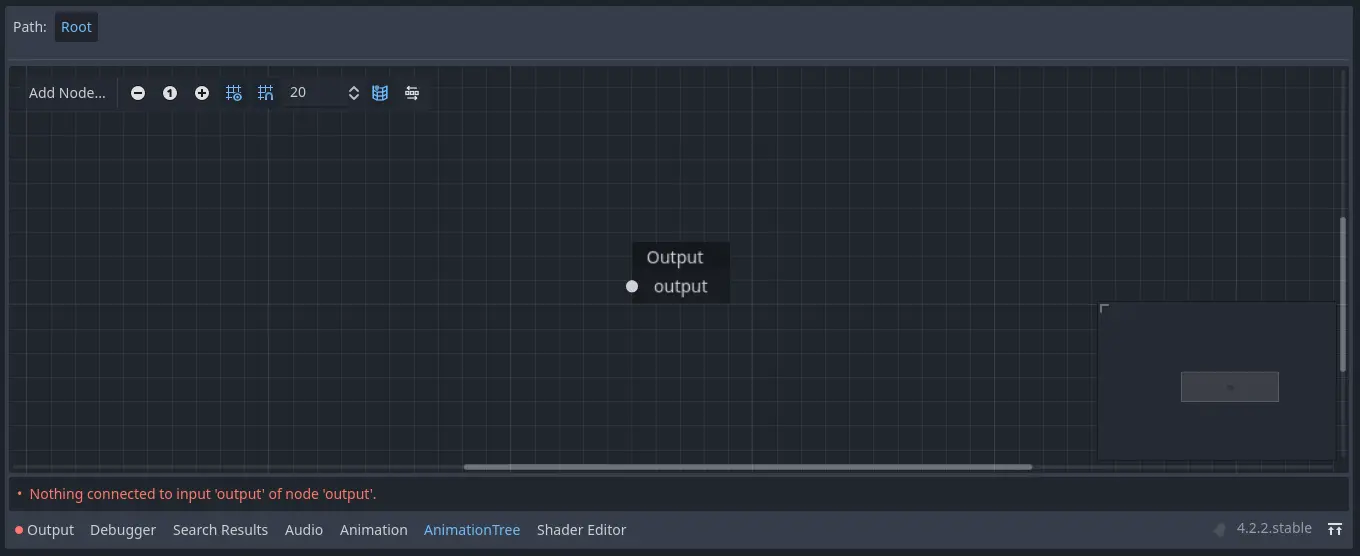
In order for animations to play, a node has to be connected to the output. You can add nodes from the Add Node.. menu or by right clicking an empty space:
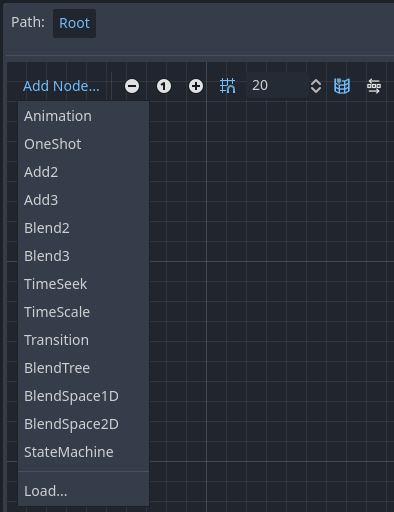
The simplest connection to make is to connect an Animation node to the output directly, which will just play back the animation.
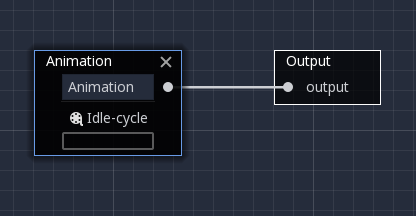
Following is a description of the other available nodes:
Blend2 / Blend3
これらのノードは、2つあるいは3つのインプットをユーザー指定の値でブレンドします:
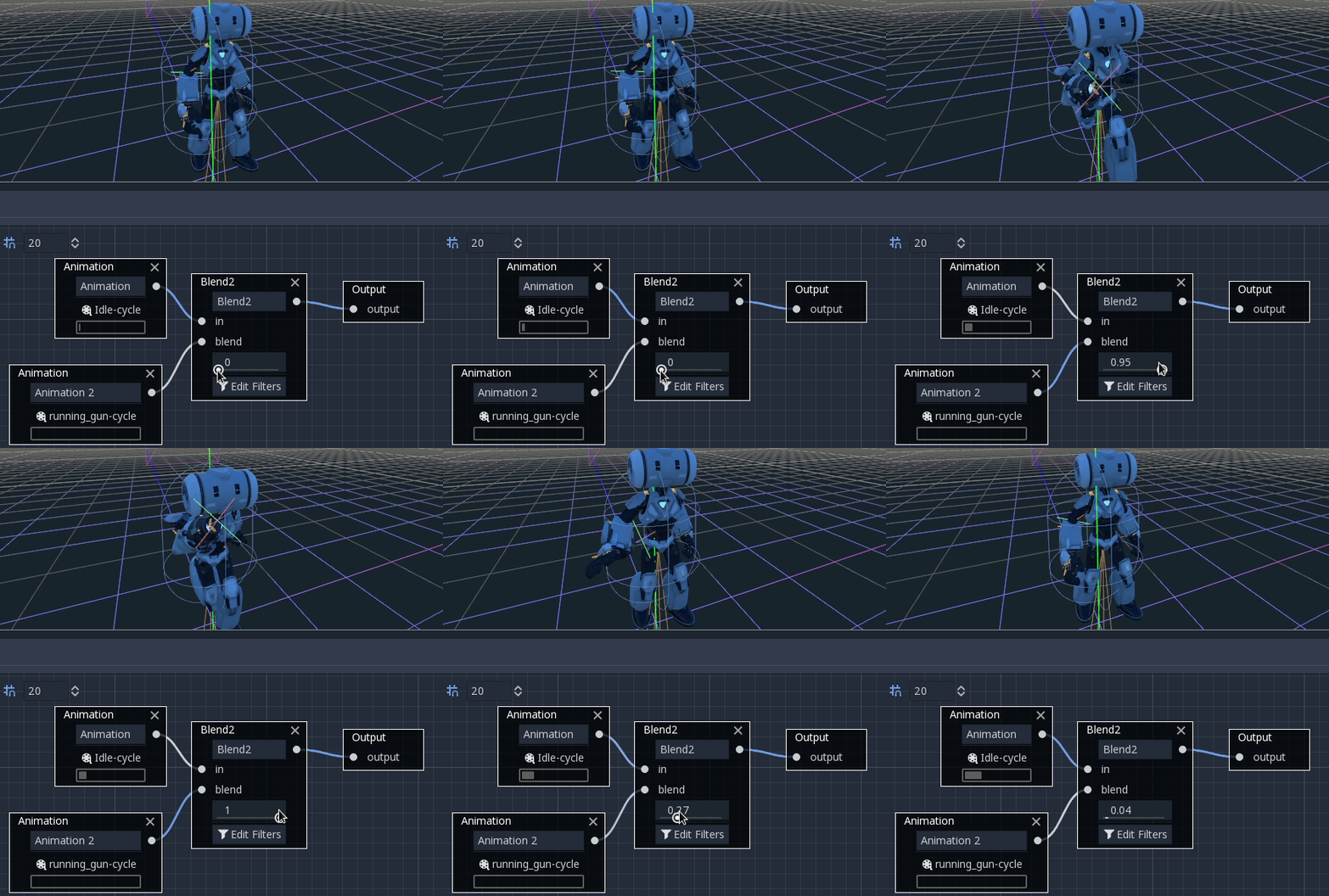
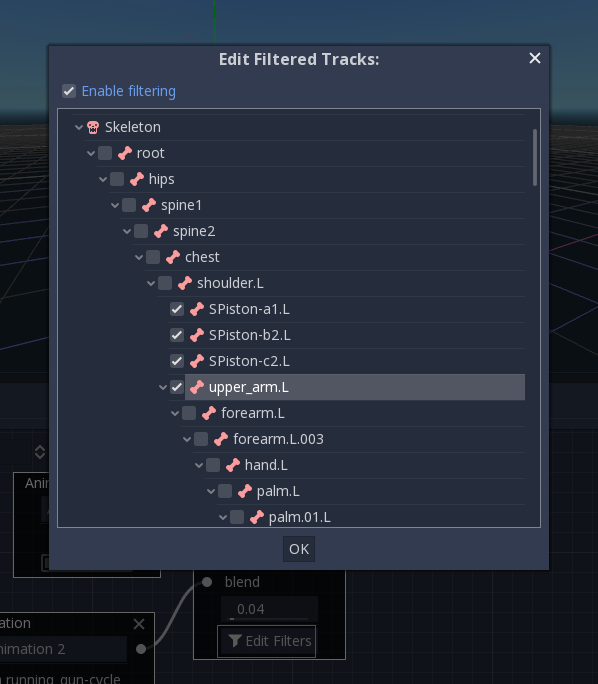
Blending can use filters to control individually which tracks get blended and which do not. This can be useful for layering animations on top of each other.
For more complex blending, it is recommended to use blend spaces instead.
OneShot
This node will execute an animation once and return when it finishes. You can customize blend times for fading in and out, as well as filters.
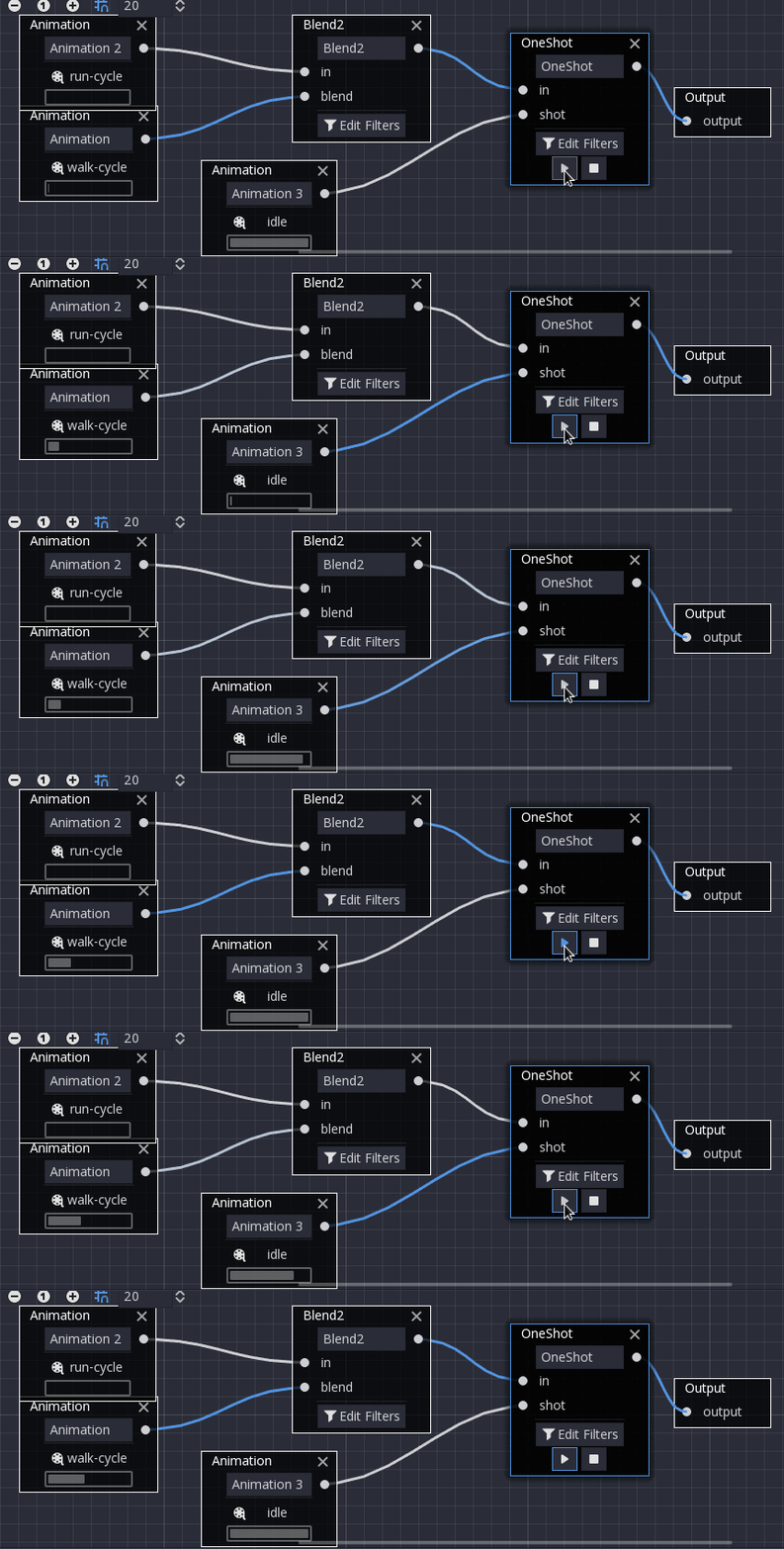
# Play child animation connected to "shot" port.
animation_tree.set("parameters/OneShot/request", AnimationNodeOneShot.ONE_SHOT_REQUEST_FIRE)
# Alternative syntax (same result).
animation_tree["parameters/OneShot/request"] = AnimationNodeOneShot.ONE_SHOT_REQUEST_FIRE

# Abort child animation connected to "shot" port.
animation_tree.set("parameters/OneShot/request", AnimationNodeOneShot.ONE_SHOT_REQUEST_ABORT)
# Alternative syntax (same result).
animation_tree["parameters/OneShot/request"] = AnimationNodeOneShot.ONE_SHOT_REQUEST_ABORT

# Get current state (read-only).
animation_tree.get("parameters/OneShot/active"))
# Alternative syntax (same result).
animation_tree["parameters/OneShot/active"]
// Play child animation connected to "shot" port.
animationTree.Set("parameters/OneShot/request", (int)AnimationNodeOneShot.OneShotRequest.Fire);

// Abort child animation connected to "shot" port.
animationTree.Set("parameters/OneShot/request", (int)AnimationNodeOneShot.OneShotRequest.Abort);

// Get current state (read-only).
animationTree.Get("parameters/OneShot/active");
TimeSeek
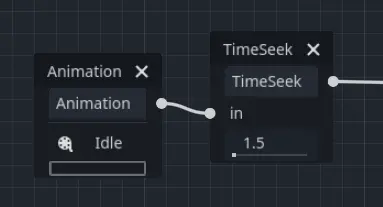
This node allows you to seek to a time in the animation connected to its in input. Use this node to play an Animation starting from a certain playback position.
Note that the seek request value is measured in seconds, so if you would like to play an animation from the beginning, set the value to 0.0, or if you would like
to play an animation from 3 seconds in, set the value to 3.0.
# Play child animation from the start.
animation_tree.set("parameters/TimeSeek/seek_request", 0.0)
# Alternative syntax (same result).
animation_tree["parameters/TimeSeek/seek_request"] = 0.0

# Play child animation from 12 second timestamp.
animation_tree.set("parameters/TimeSeek/seek_request", 12.0)
# Alternative syntax (same result).
animation_tree["parameters/TimeSeek/seek_request"] = 12.0
// Play child animation from the start.
animationTree.Set("parameters/TimeSeek/seek_request", 0.0);

// Play child animation from 12 second timestamp.
animationTree.Set("parameters/TimeSeek/seek_request", 12.0);
TimeScale
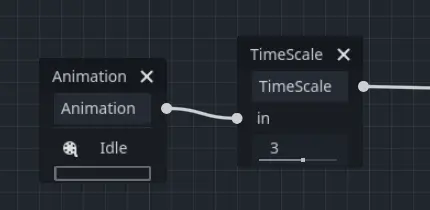
This node allows you to scale the speed of the animation connected to its in input. The speed of the animation will be multiplied by the number in the scale parameter. Setting the scale to 0 will pause the animation. Setting the scale to a negative number will play the animation backwards.
Transition
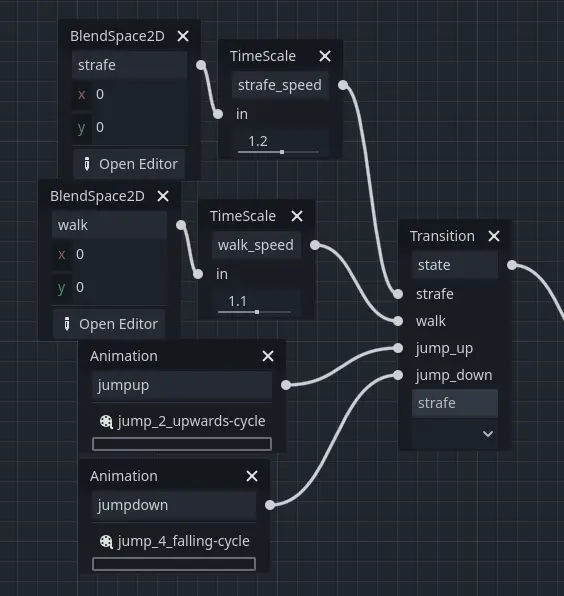
This node is a simplified version of a StateMachine. You connect animations to the inputs, and the current state index determines which animation to play. You may specify a crossfade transition time. In the Inspector, you may change the number of input ports, rearrange inputs, or delete inputs.
# Play child animation connected to "state_2" port.
animation_tree.set("parameters/Transition/transition_request", "state_2")
# Alternative syntax (same result).
animation_tree["parameters/Transition/transition_request"] = "state_2"

# Get current state name (read-only).
animation_tree.get("parameters/Transition/current_state")
# Alternative syntax (same result).
animation_tree["parameters/Transition/current_state"]

# Get current state index (read-only).
animation_tree.get("parameters/Transition/current_index"))
# Alternative syntax (same result).
animation_tree["parameters/Transition/current_index"]
// Play child animation connected to "state_2" port.
animationTree.Set("parameters/Transition/transition_request", "state_2");

// Get current state name (read-only).
animationTree.Get("parameters/Transition/current_state");

// Get current state index (read-only).
animationTree.Get("parameters/Transition/current_index");
StateMachine
When you make an AnimationNodeStateMachine, you get an empty 2d graph in the bottom panel, under the AnimationTree tab. It contains a Start and End
state by default.
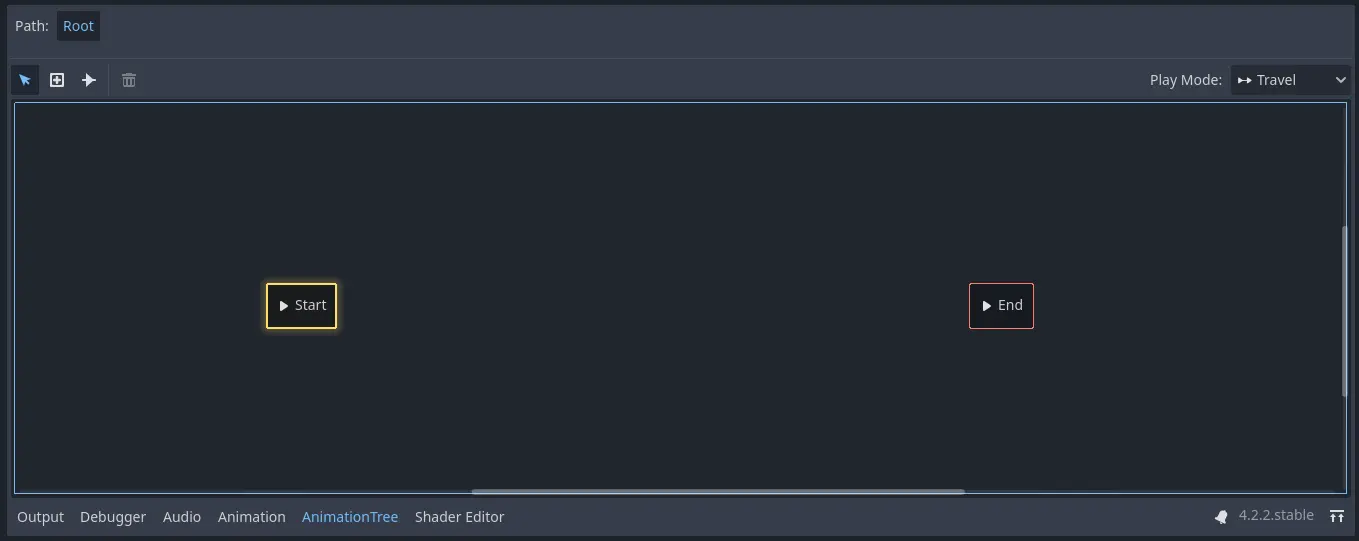
To add states, right click or use the create new nodes button, whose icon is a plus in a box. You can add animations, blendspaces, blendtrees, or even another StateMachine. To edit one of these more complex sub-nodes, click on the pencil icon on the right of the state. To return to the original StateMachine, click Root on the top left of the panel.
Before the StateMachine can do anything useful, the states must be connected with transitions. To add a transition, click the connect nodes button, which is a line with a right-facing arrow, and drag between two states. You can create 2 transitions between states, one going in each direction.
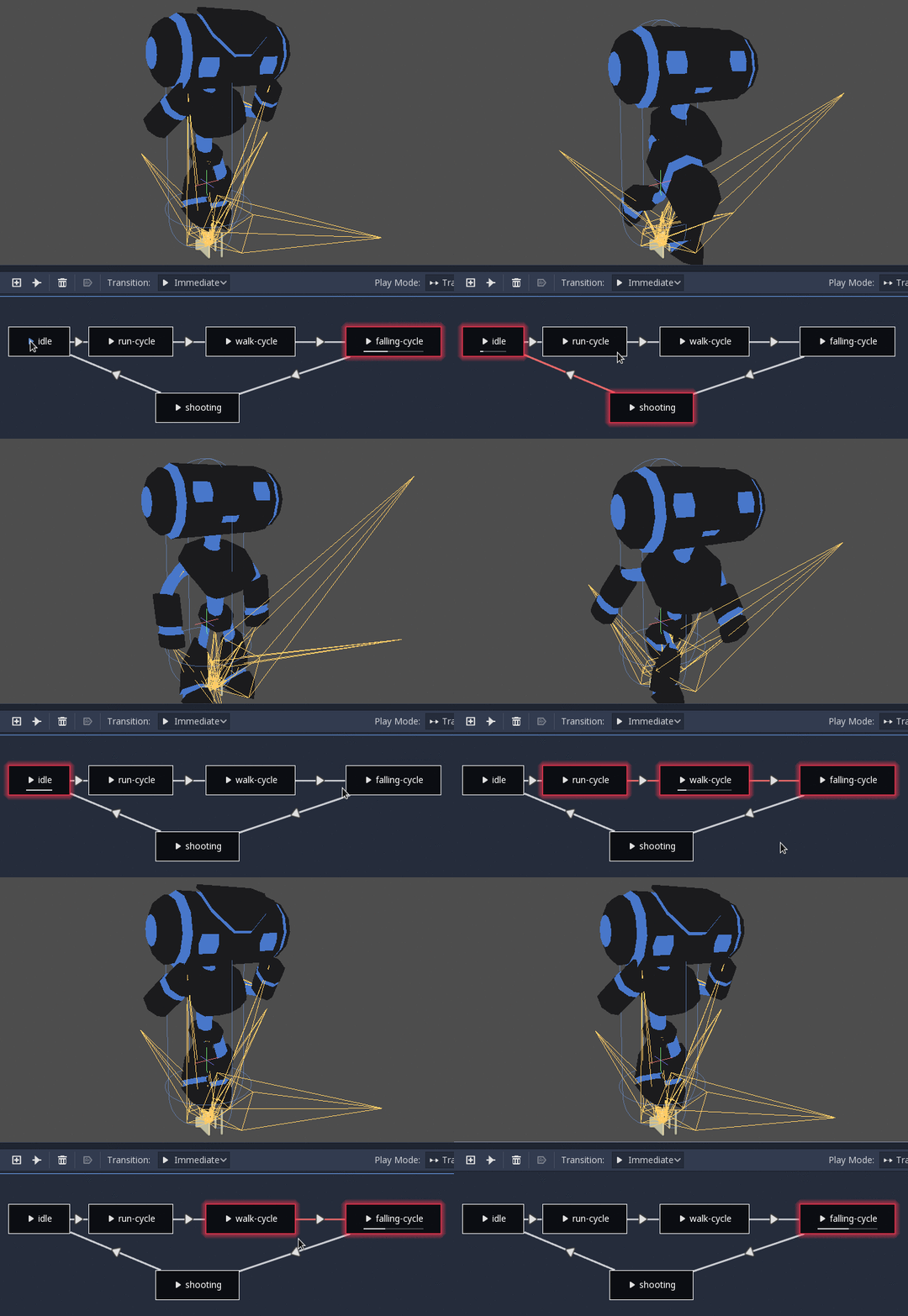
There are 3 types of transitions:
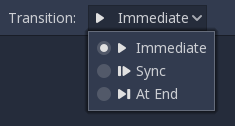
Immediate: Will switch to the next state immediately.
同期 (Sync): 次のステートへと即座に切り替わりますが、新しいステートでも古いステートと同じ再生位置になります。
終わりに (At End): 現在のステートの再生位置が最後になるまで待ち、それから次のステートの先頭に切り替わります。
Transitions also have a few properties. Click a transition and it will be displayed in the inspector:
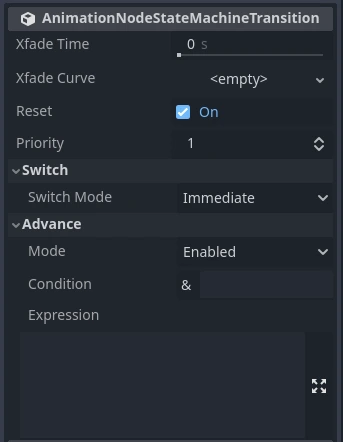
Xfade Time は、このステートと次との間でのクロスフェードにかかる時間です。
Xfade Curve is a cross-fade following a curve rather than a linear blend.
Reset determines whether the state you are switching into plays from the beginning (true) or not (false).
Priority is used together with the
travel()function from code (more on this later). Lower priority transitions are preferred when travelling through the tree.Switch Mode is the transition type (see above). It can be changed after creation here.
Advance Mode determines the advance mode. If
Disabled, the transition will not be used. IfEnabled, the transition will only be used duringtravel(). IfAuto, the transition will be used if the advance condition and expression are true, or if there are no advance conditions/expressions.
Advance Condition and Advance Expression
The last 2 properties in a StateMachine transition are Advance Condition and Advance Expression. When the Advance Mode is set to Auto, these
determine if the transition will advance or not.
Advance Condition is a true/false check. You may put a custom variable name in the text field, and when the StateMachine reaches this transition, it will check if your variable is true. If so, the transition continues. Note that the advance condition only checks if a variable is true, and it cannot check for falseness.
This gives the Advance Condition a very limited capability. If you wanted to make a transition back and forth based on one property, you would need to make 2 variables that have opposite values, and check if either of them are true. This is why, in Godot 4, the Advance Expression was added.
The Advance Expression works similar to the Advance Condition, but instead of checking if one variable is true, it evaluates any expression. An expression
is anything you could put in an if statement. These are all examples of expressions that would work in the Advance Expression:
is_walkingis_walking== trueis_walking && !is_idlevelocity > 0player.is_on_floor()
Here is an example of an improperly-set-up StateMachine transition using Advance Condition:
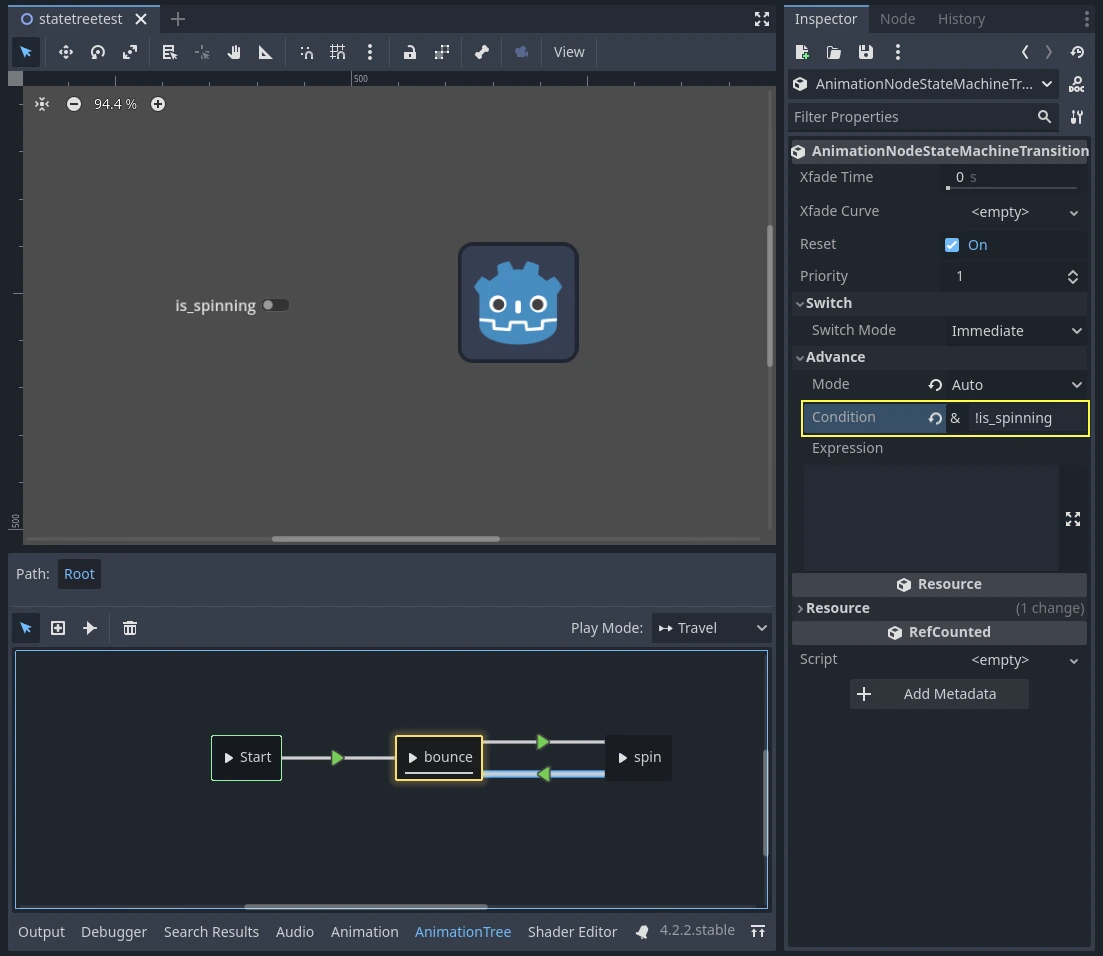
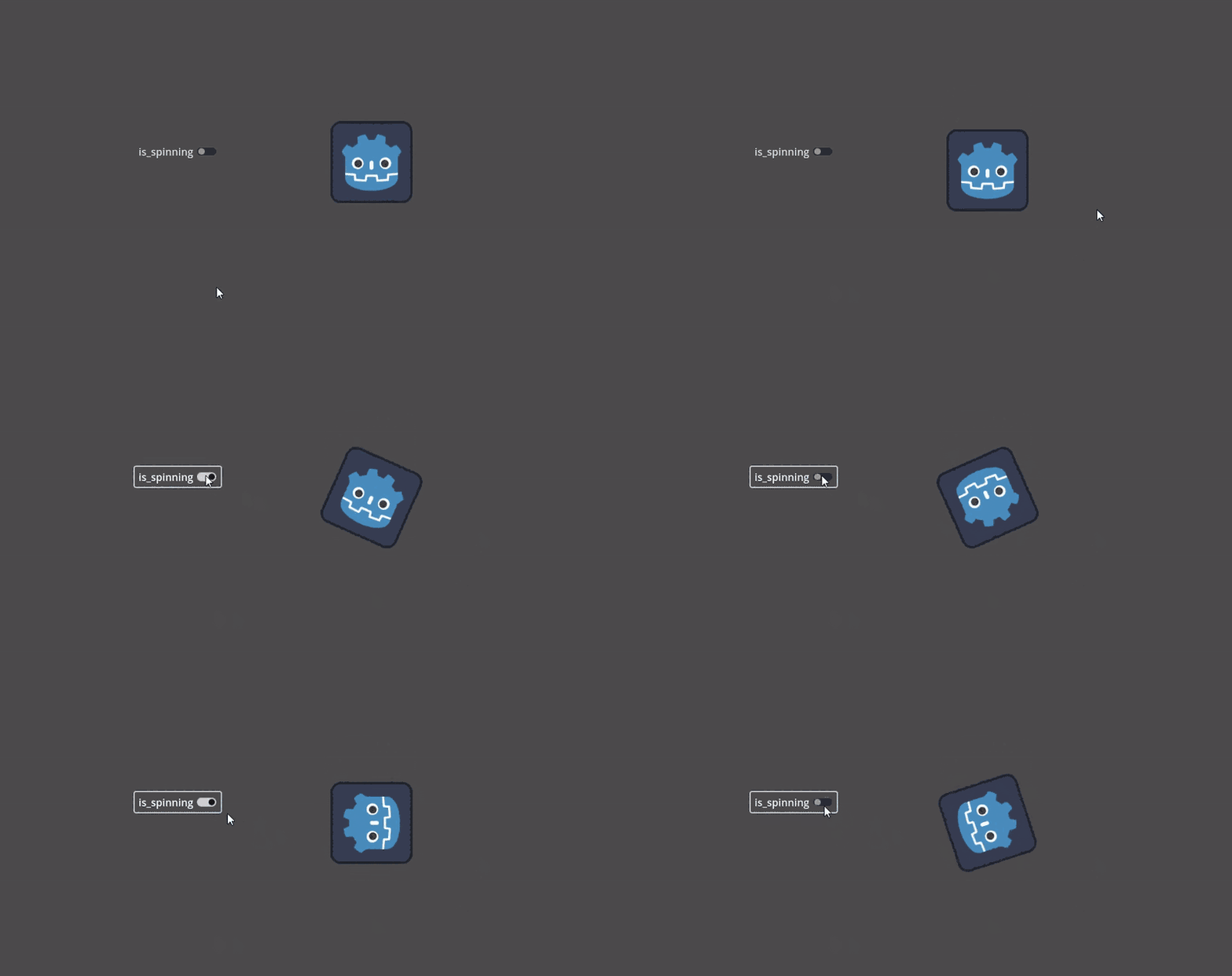
This is not working because there is a ! variable in the Advance Condition, which cannot be checked.
Here is the same example, set up properly, using two opposite variables:
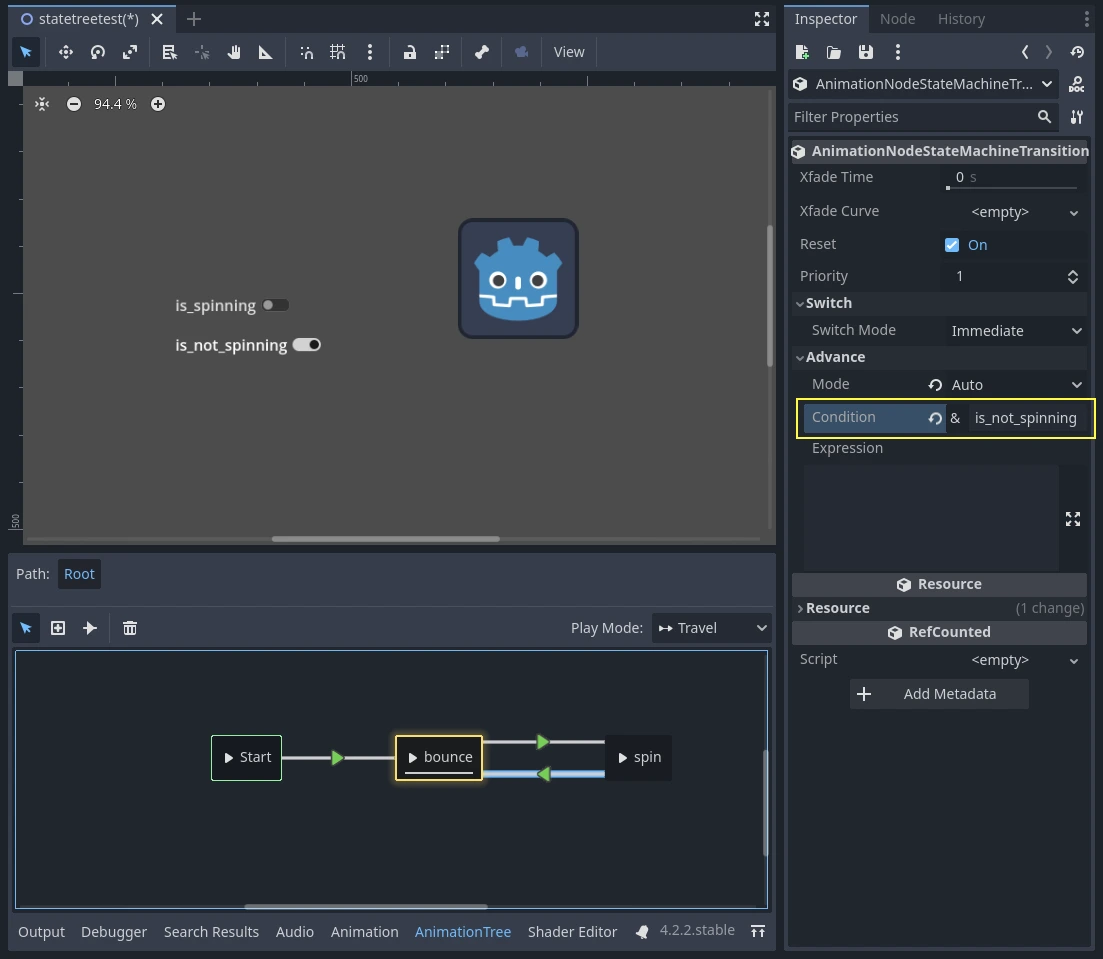
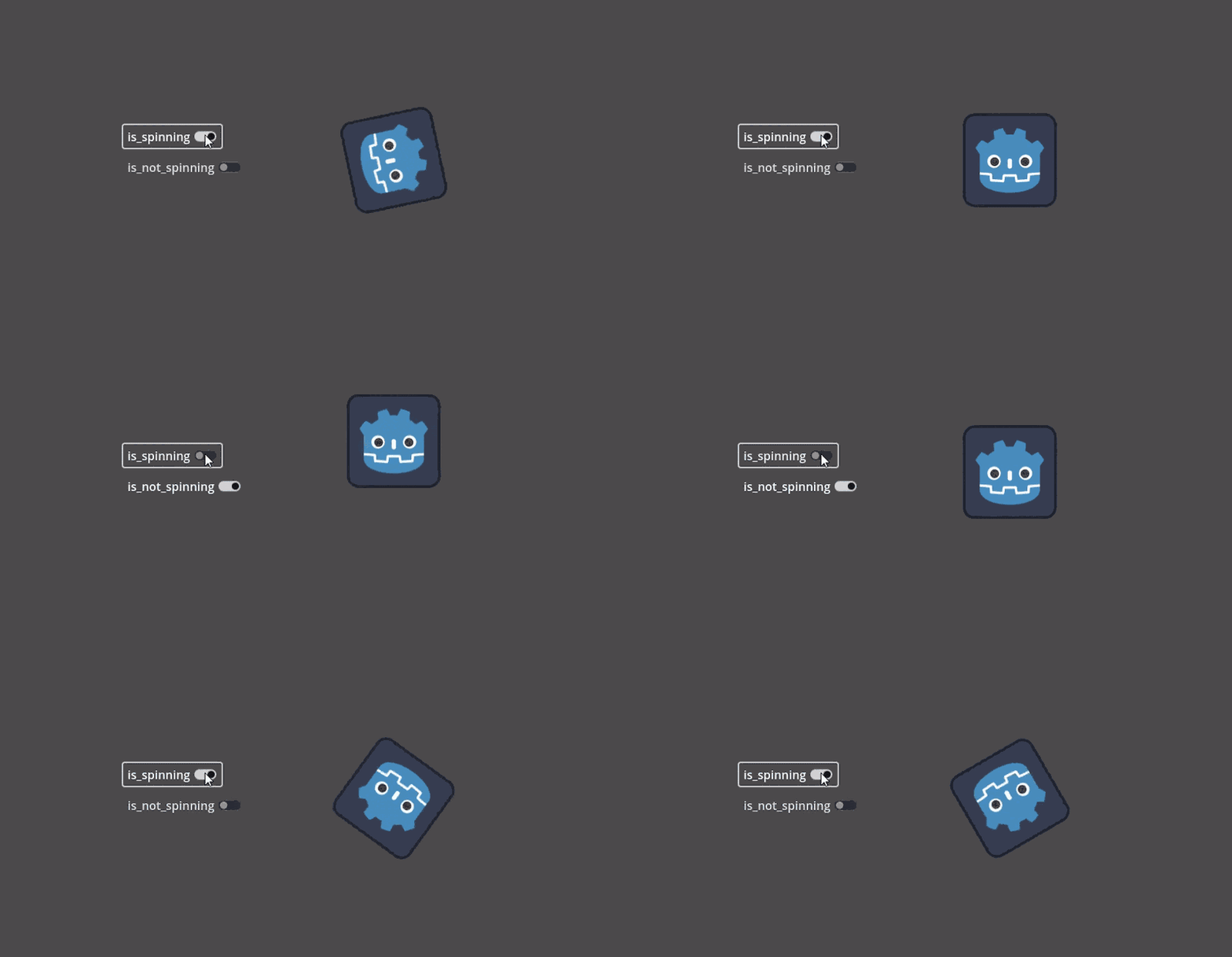
Here is the same example, but using Advance Expression rather than Advance Condition, which eliminates the need for two variables:
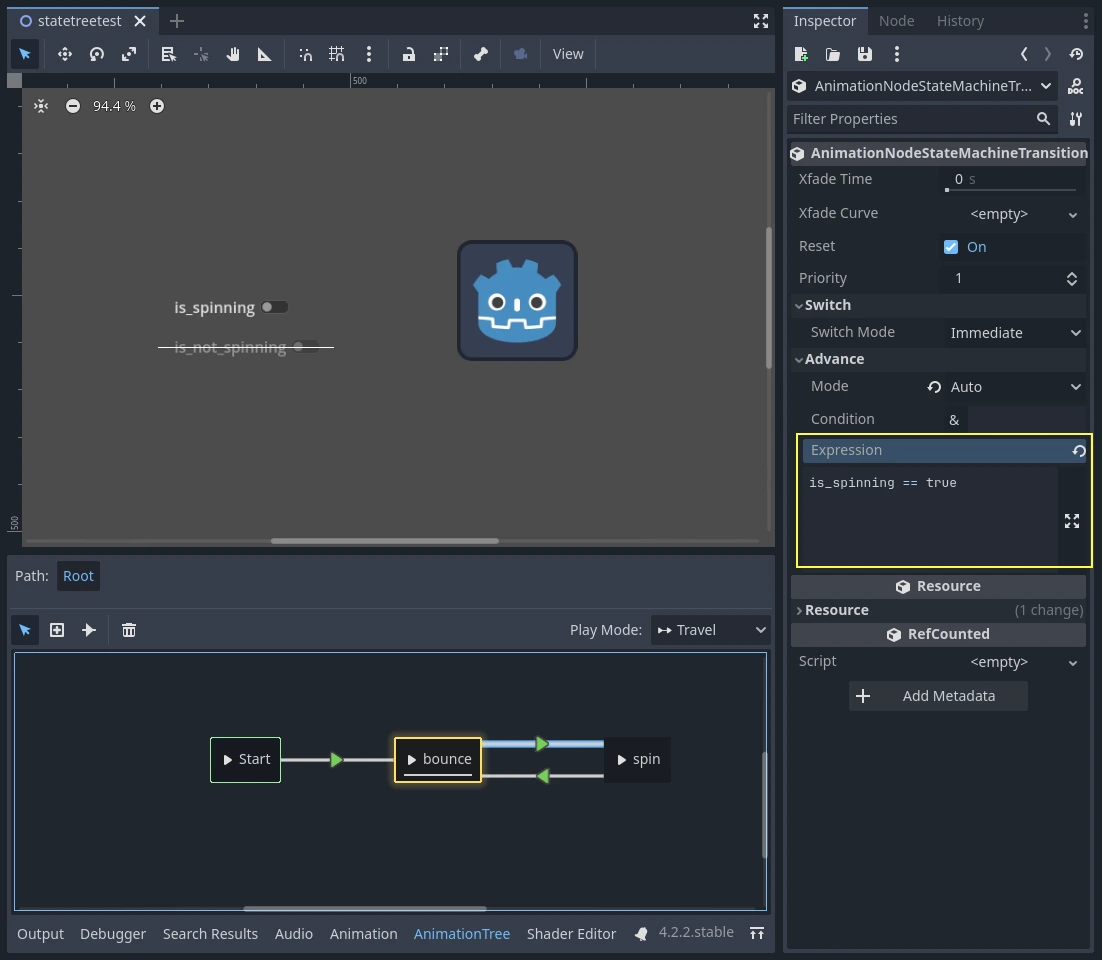
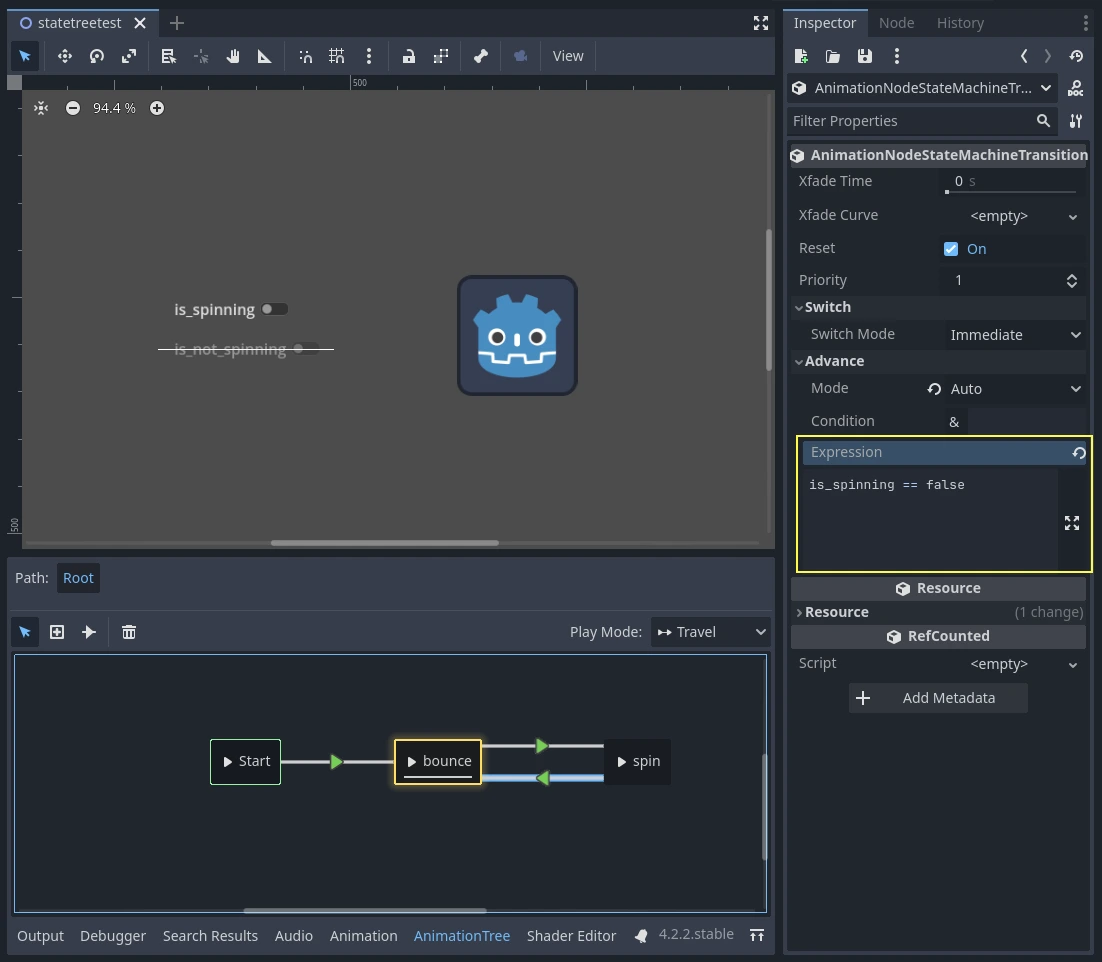
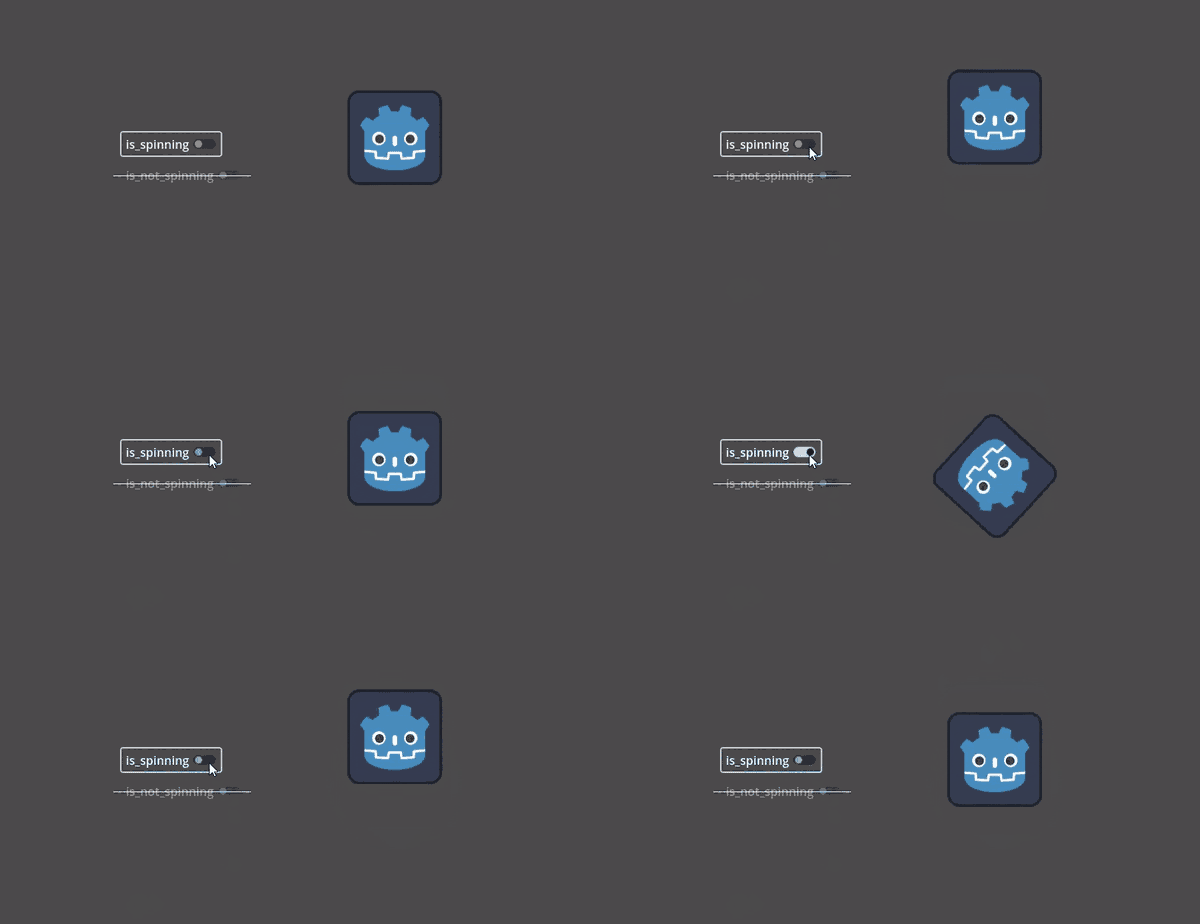
In order to use Advance Expressions, the Advance Expression Base Node has to be set from the Inspector of the AnimationTree node. By default, it is set to the AnimationTree node itself, but it needs to point to whatever node contains the script with your animation variables.
StateMachine travel
One of the nice features in Godot's StateMachine implementation is the ability to travel. You can instruct the graph to go from the
current state to another one, while visiting all the intermediate ones. This is done via the A* algorithm.
If there is no path of transitions starting at the current state and finishing at the destination state, the graph teleports to the destination state.
To use the travel ability, you should first retrieve the AnimationNodeStateMachinePlayback
object from the AnimationTree node (it is exported as a property), and then call one of its many functions:
var state_machine = animation_tree["parameters/playback"]
state_machine.travel("SomeState")
AnimationNodeStateMachinePlayback stateMachine = (AnimationNodeStateMachinePlayback)animationTree.Get("parameters/playback");
stateMachine.Travel("SomeState");
The StateMachine must be running before you can travel. Make sure to either call start() or connect a node to Start.
BlendSpace2D and BlendSpace1D
BlendSpace2D is a node to do advanced blending in two dimensions. Points representing animations are added to a 2D space and then a position between them
is controlled to determine the blending:
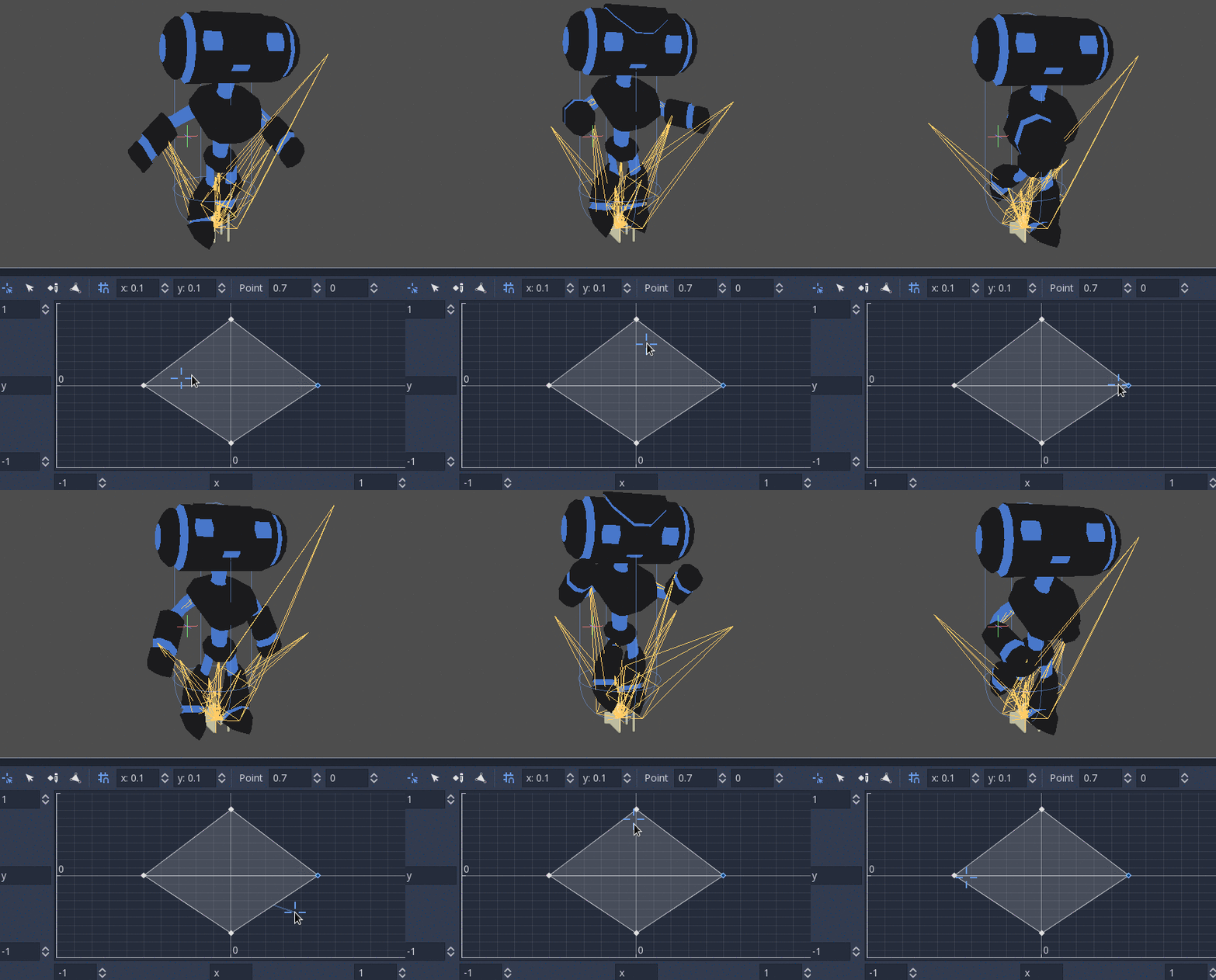
You may place these points anywhere on the graph by right clicking or using the add point button, whose icon is a pen and point. Wherever you place the points, the triangle between them will be generated automatically using Delaunay. You may also control and label the ranges in X and Y.
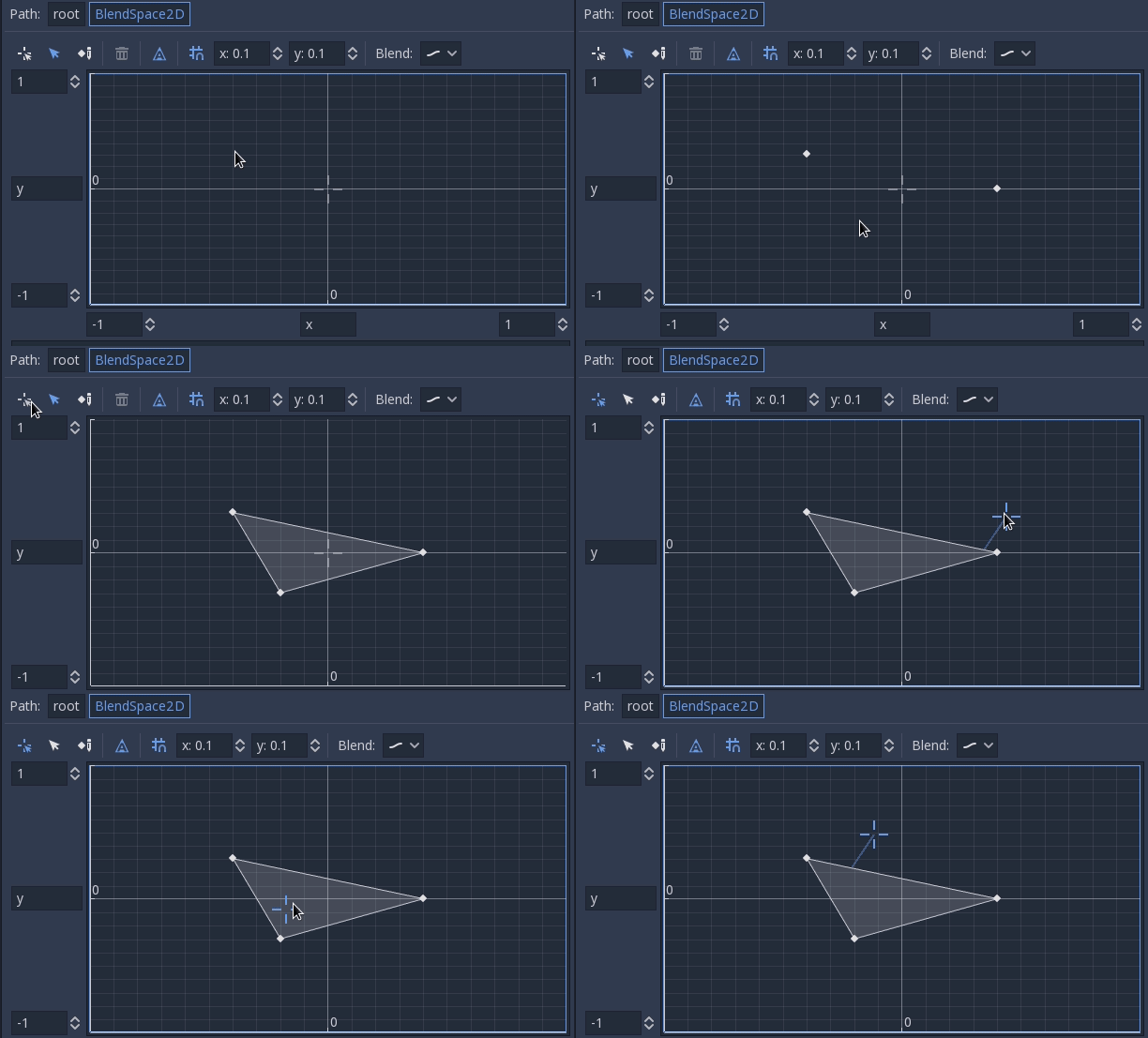
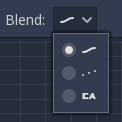
Finally, you may also change the blend mode. By default, blending happens by interpolating points inside the closest triangle. When dealing with 2D animations (frame by frame), you may want to switch to Discrete mode. Alternatively, if you want to keep the current play position when switching between discrete animations, there is a Carry mode. This mode can be changed in the Blend menu:
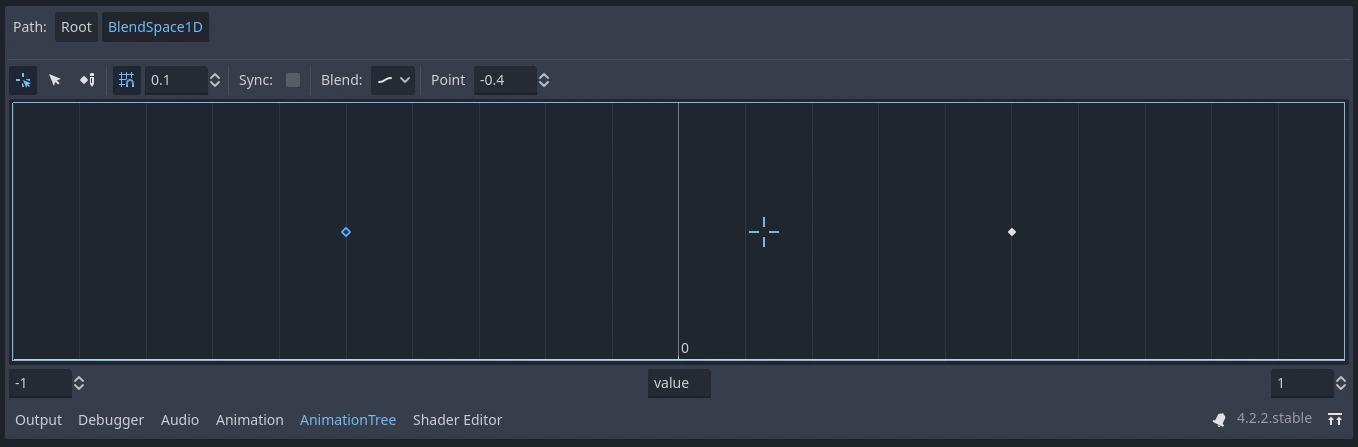
BlendSpace1D works just like BlendSpace2D, but in one dimension (a line). Triangles are not used.
For better blending
In Godot 4.0+, in order for the blending results to be deterministic (reproducible and always consistent), the blended property values must have a specific initial value. For example, in the case of two animations to be blended, if one animation has a property track and the other does not, the blended animation is calculated as if the latter animation had a property track with the initial value.
When using Position/Rotation/Scale 3D tracks for Skeleton3D bones, the initial value is Bone Rest.
For other properties, the initial value is 0 and if the track is present in the RESET animation,
the value of its first keyframe is used instead.
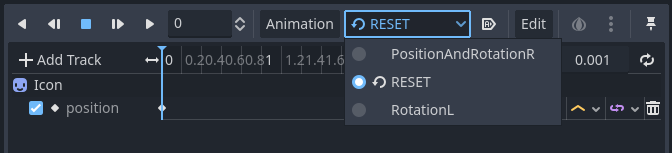

For example, the following AnimationPlayer has two animations, but one of them lacks a Property track for Position.
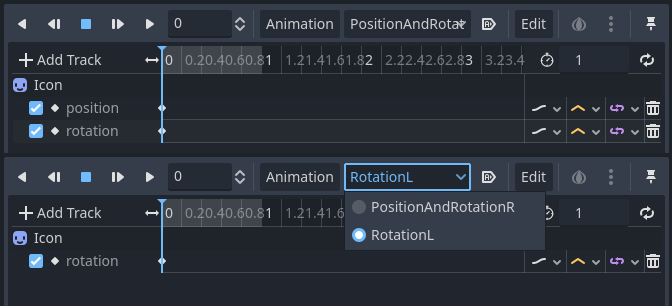
This means that the animation lacking that will treat those Positions as Vector2(0, 0).

This problem can be solved by adding a Property track for Position as an initial value to the RESET animation.
注釈
Be aware that the RESET animation exists to define the default pose when loading an object originally.
It is assumed to have only one frame and is not expected to be played back using the timeline.
Also keep in mind that the Rotation 3D tracks and the Property tracks for 2D rotation with Interpolation Type set to Linear Angle or Cubic Angle will prevent rotations greater than 180 degrees from the initial value as blended animation.
This can be useful for Skeleton3Ds to prevent the bones penetrating the body when blending animations. Therefore, Skeleton3D's Bone Rest values should be as close to the midpoint of the movable range as possible. This means that for humanoid models, it is preferable to import them in a T-pose.

You can see that the shortest rotation path from Bone Rests is prioritized rather than the shortest rotation path between animations.
If you need to rotate Skeleton3D itself more than 180 degrees by blend animations for movement, you can use Root Motion.
ルート モーション
3Dアニメーションの作業では、スケルトンを動かすためにルート・スケルトン ボーンを用意するのが一般的なテクニックです。これにより、キャラクターを床に合わせて歩かせることが可能になります。また、ムービー場面においても、正確に物体に触れさせられるようになります。
Godot内でアニメーションを再生するときは、このボーンを ルート・モーション トラック に指定することができます。そうすると、そのボーンの見た目の変化は打ち消されます (アニメーションはそのまま)。
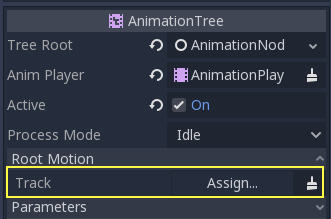
そのあと、実際のモーションはAnimationTree APIからトランスフォームとして取得します:
# Get the motion delta.
animation_tree.get_root_motion_position()
animation_tree.get_root_motion_rotation()
animation_tree.get_root_motion_scale()

# Get the actual blended value of the animation.
animation_tree.get_root_motion_position_accumulator()
animation_tree.get_root_motion_rotation_accumulator()
animation_tree.get_root_motion_scale_accumulator()
// Get the motion delta.
animationTree.GetRootMotionPosition();
animationTree.GetRootMotionRotation();
animationTree.GetRootMotionScale();

// Get the actual blended value of the animation.
animationTree.GetRootMotionPositionAccumulator();
animationTree.GetRootMotionRotationAccumulator();
animationTree.GetRootMotionScaleAccumulator();
This can be fed to functions such as CharacterBody3D.move_and_slide to control the character movement.
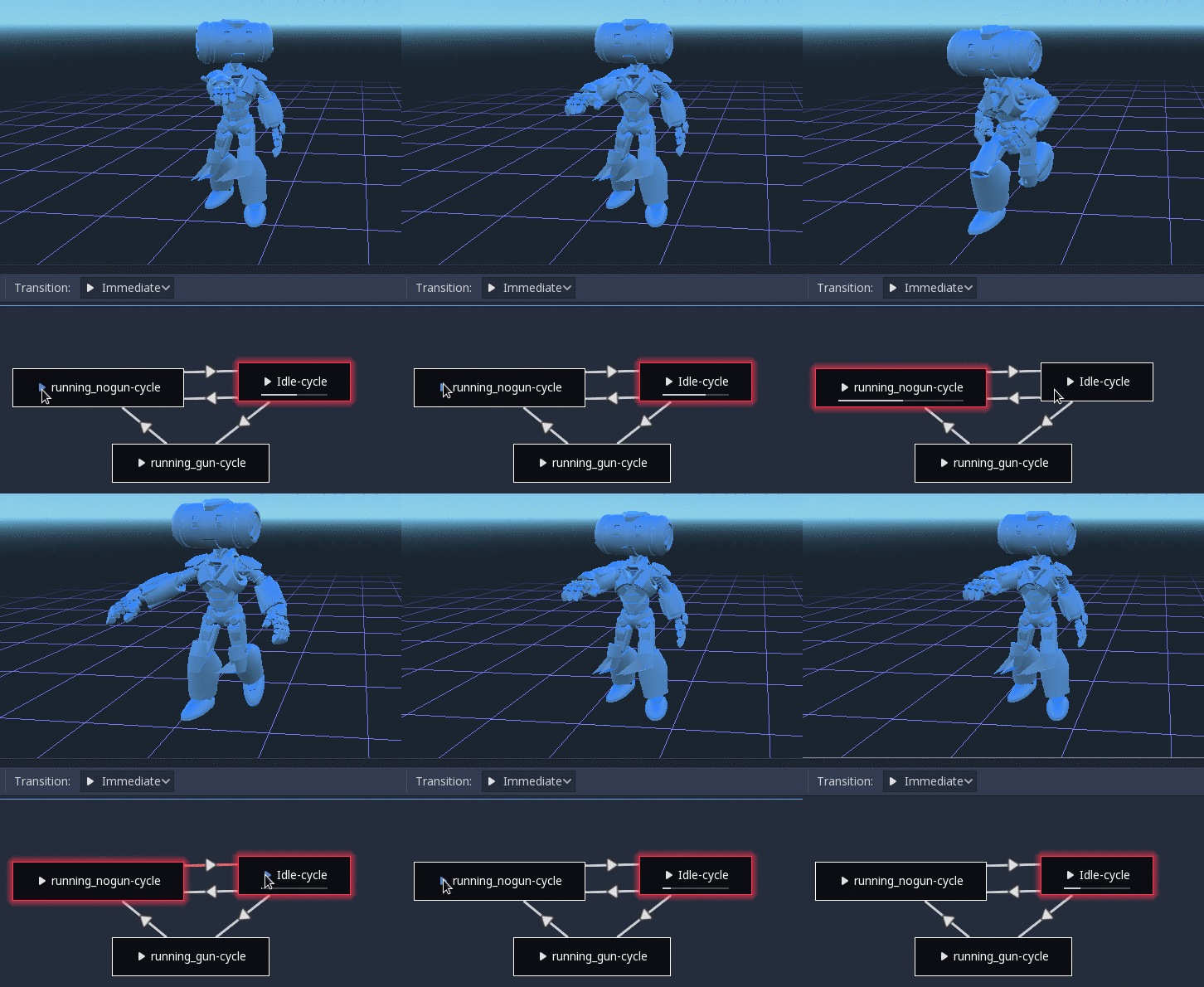
There is also a tool node, RootMotionView, you can place a scene that will act as a custom floor for your
character and animations (this node is disabled by default during the game).
コードからコントロールする
ツリーを作成してプレビューしたら、最後に残る質問は「これを全部コードからコントロールする方法は?」です。
Keep in mind that the animation nodes are just resources, so they are shared between all instances using them.
Setting values in the nodes directly will affect all instances of the scene that uses this AnimationTree.
This is generally undesirable, but does have some cool use cases, e.g. you can copy and paste parts of your animation tree,
or reuse nodes with a complex layout (such as a StateMachine or blend space) in different animation trees.
実際のアニメーション データはAnimationTreeノードに格納されており、プロパティを通じてアクセスします。AnimationTreeの Parameters セクションに、リアルタイムで変更できるパラメーターが全てあるので確認してみてください:
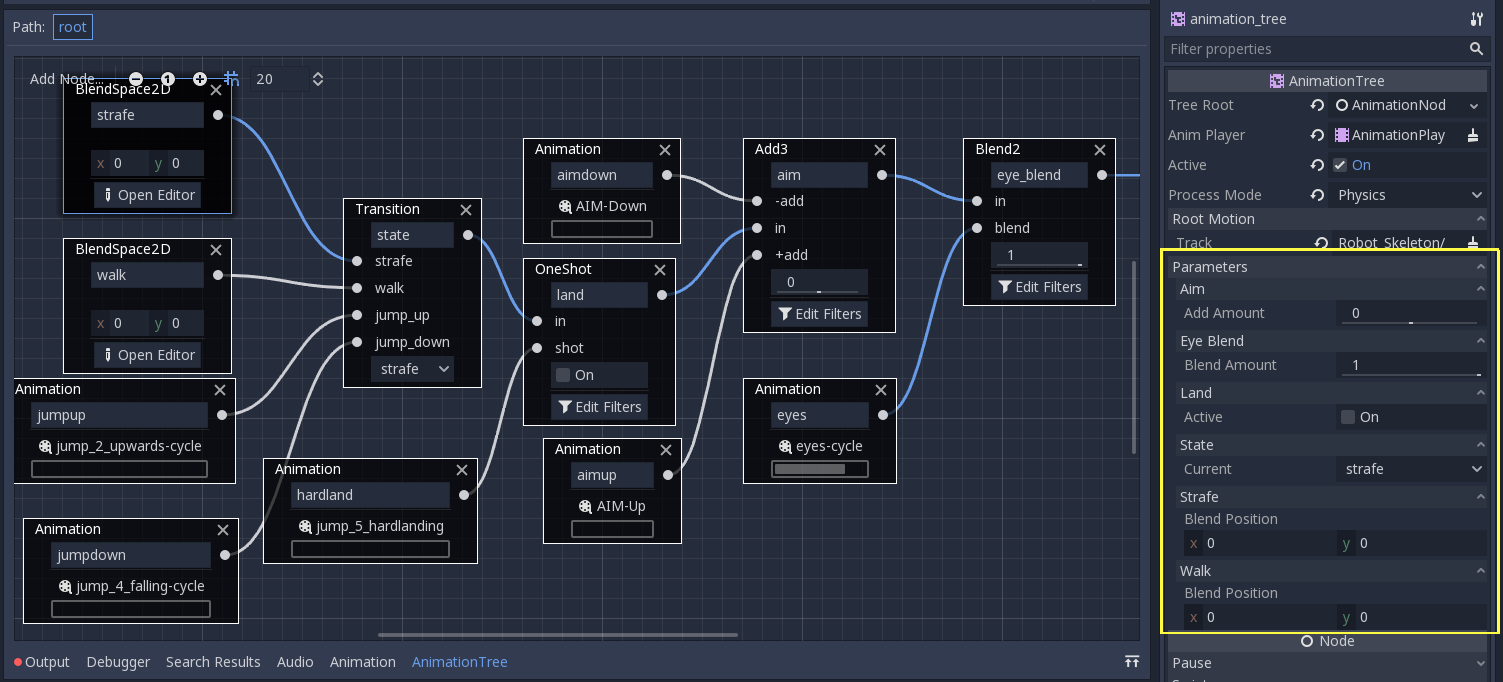
This is handy because it makes it possible to animate them from an AnimationPlayer, or even the AnimationTree itself,
allowing very complex animation logic.
To modify these values from code, you must obtain the property path. You can find them by hovering your mouse over any of the parameters:
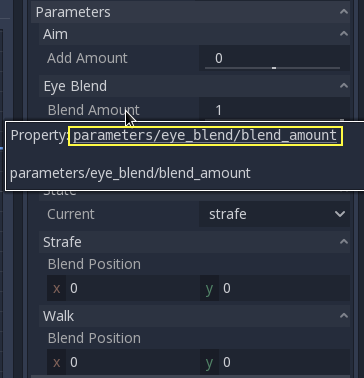
Then you can set or read them:
animation_tree.set("parameters/eye_blend/blend_amount", 1.0)
# Alternate syntax (same result)
animation_tree["parameters/eye_blend/blend_amount"] = 1.0
animationTree.Set("parameters/eye_blend/blend_amount", 1.0);
注釈
Advance Expressions from a StateMachine will not be found under the parameters. This is because they are held in another script rather than the AnimationTree itself. Advance Conditions will be found under parameters.