Anpassen des Mauszeigers
Möglicherweise möchten Sie das Erscheinungsbild des Mauszeigers in Ihrem Spiel ändern, um es an das Gesamtdesign anzupassen. Es gibt zwei Möglichkeiten, den Mauszeiger anzupassen:
Using project settings. This is simpler, but more limited.
Using a script. This is more customizable, but involves scripting.
Bemerkung
You could display a "software" mouse cursor by hiding the mouse cursor and
moving a Sprite2D to the cursor position in a _process() method, but
this will add at least one frame of latency compared to a "hardware" mouse
cursor. Therefore, it's recommended to use the approach described here
whenever possible.
Wenn Sie den "Software"-Ansatz verwenden müssen, sollten Sie einen Extrapolationsschritt hinzufügen, um die tatsächliche Mauseingabe besser anzuzeigen.
Verwenden der Projekteinstellungen
Open the Project Settings and go to Display > Mouse Cursor. You will see the settings Custom Image, Custom Image Hotspot, and Tooltip Position Offset.
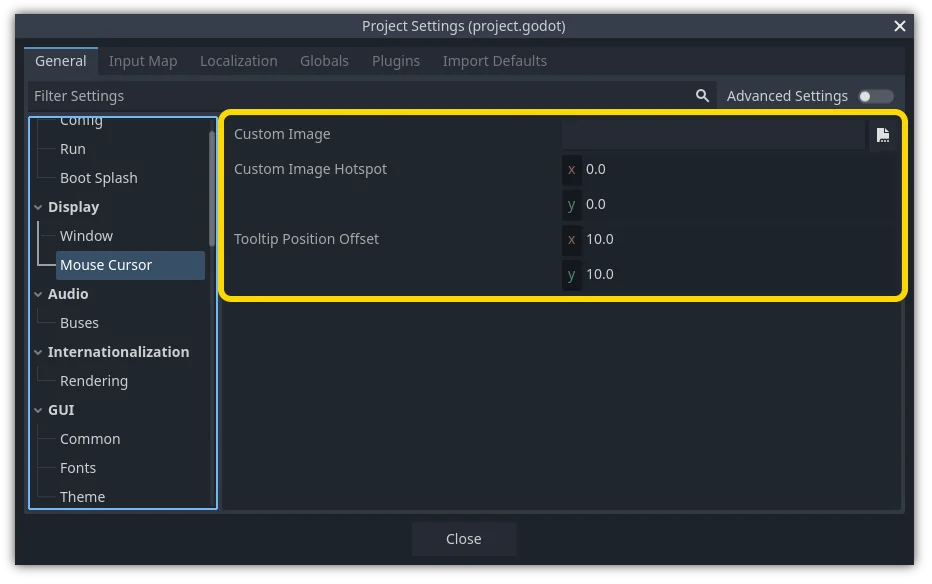
Custom Image is the desired image that you would like to set as the mouse cursor. Custom Hotspot is the point in the image that you would like to use as the cursor's detection point.
Warnung
The custom image must be 256×256 pixels at most. To avoid rendering issues, sizes of 128×128 or smaller are recommended.
Auf der Web-Plattform beträgt die maximal zulässige Größe des Mauszeiger-Bildes 128×128.
Verwenden eines Skripts
Erstellen Sie einen Node und hängen Sie das folgende Skript an.
extends Node


# Load the custom images for the mouse cursor.
var arrow = load("res://arrow.png")
var beam = load("res://beam.png")


func _ready():
    # Changes only the arrow shape of the cursor.
    # This is similar to changing it in the project settings.
    Input.set_custom_mouse_cursor(arrow)

    # Changes a specific shape of the cursor (here, the I-beam shape).
    Input.set_custom_mouse_cursor(beam, Input.CURSOR_IBEAM)
using Godot;

public partial class MyNode : Node
{
    public override void _Ready()
    {
        // Load the custom images for the mouse cursor.
        var arrow = ResourceLoader.Load("res://arrow.png");
        var beam = ResourceLoader.Load("res://beam.png");

        // Changes only the arrow shape of the cursor.
        // This is similar to changing it in the project settings.
        Input.SetCustomMouseCursor(arrow);

        // Changes a specific shape of the cursor (here, the I-beam shape).
        Input.SetCustomMouseCursor(beam, Input.CursorShape.Ibeam);
    }
}
Siehe auch
Lesen Sie die Input.set_custom_mouse_cursor() Dokumentation für weitere Informationen über die Verwendung und plattformspezifische Hinweise.
Mauszeigerliste
There are multiple mouse cursors you can define, documented in the Input.CursorShape enum. Which ones you want to use depends on your use case.