Android Studio
Android Studio est un IDE gratuit pour le développement d'Android, fait par Google et JetBrains. Il est basé sur IntelliJ IDEA et dispose d'un éditeur riche en fonctionnalités qui supporte Java et C/C++. Il peut être utilisé pour travailler sur le moteur principal de Godot ainsi que sur la base de code de la plate-forme Android.
Importation du projet
From the Android Studio's welcome window select Open.
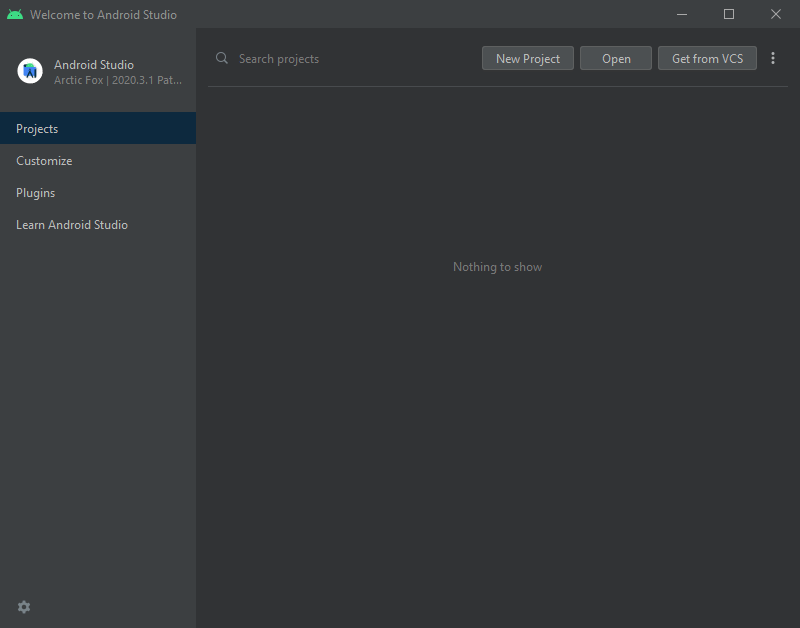
Fenêtre d'accueil d'Android Studio.
Naviguez jusqu'au
<Godot root directory>/platform/android/javaet sélectionnez le fichiersettings.gradle.Android Studio va importer et indexer le projet.
Android Studio project layout
Le projet est organisé à l'aide des modules d'Android Studio :
- module``lib`` :
- Situé sous``<Godot root directory>/platform/android/java/lib``, il s'agit d'un module de bibliothèque qui organise
the Godot java and native code and make it available as a reusable dependency / artifact.
The artifact generated by this module is made available for other Android modules / projects to use as a dependency, via MavenCentral.
- Module
éditeur: - Situé sous``<Godot root directory>/platform/android/java/editor``, il s'agit d'un module d'application qui contient
the source code for the Android port of the Godot Editor.
This module has a dependency on the
libmodule.
- Module
- module``app`` :
- Situé sous``<Godot root directory>/platform/android/java/app``, il s'agit d'un module d'application qui contient
the source code for the Android build templates.
This module has a dependency on the
libmodule.
Building & debugging the editor module
- Pour compiler le module
editor: Select the Run/Debug Configurations drop down and select
editor.
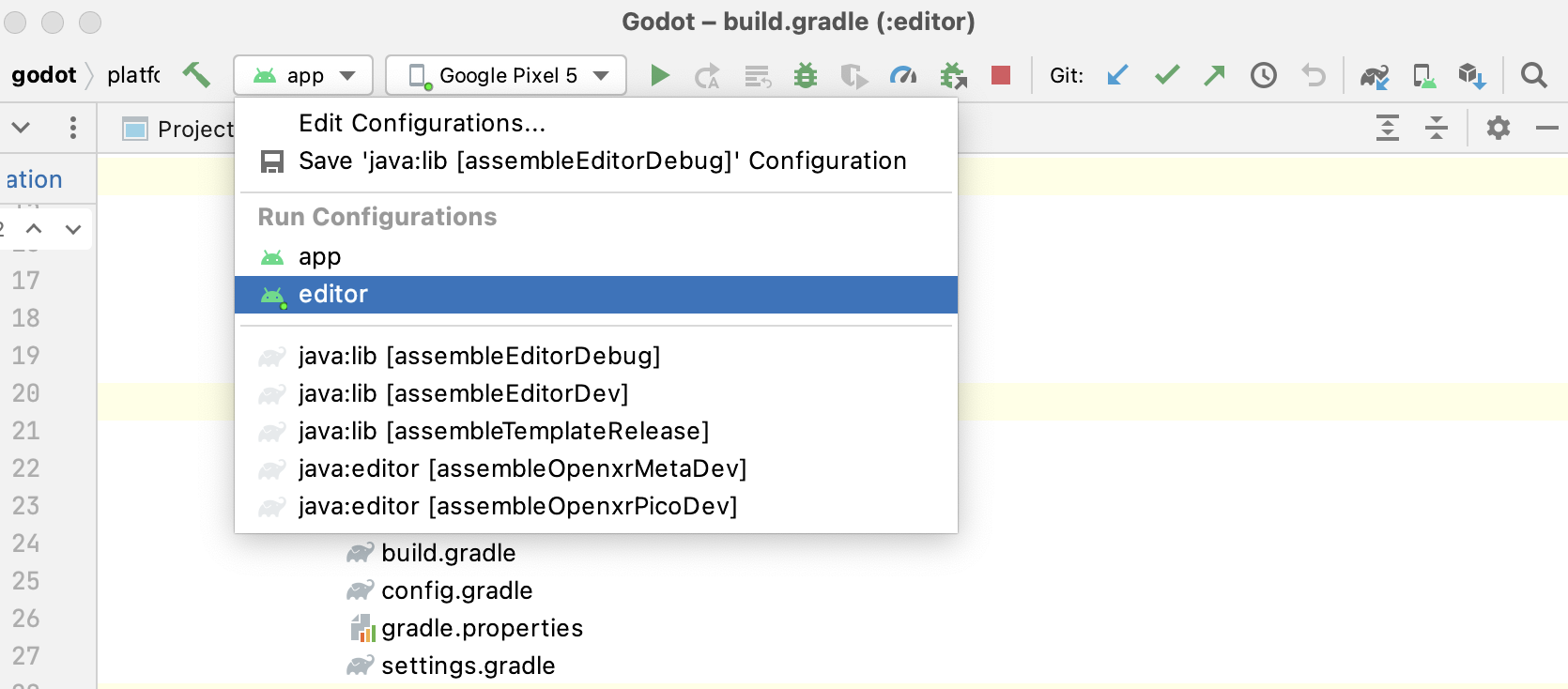
Select Run > Run 'editor' from the top menu or click the Run icon.
- Pour compiler le module
- Pour déboguer le module
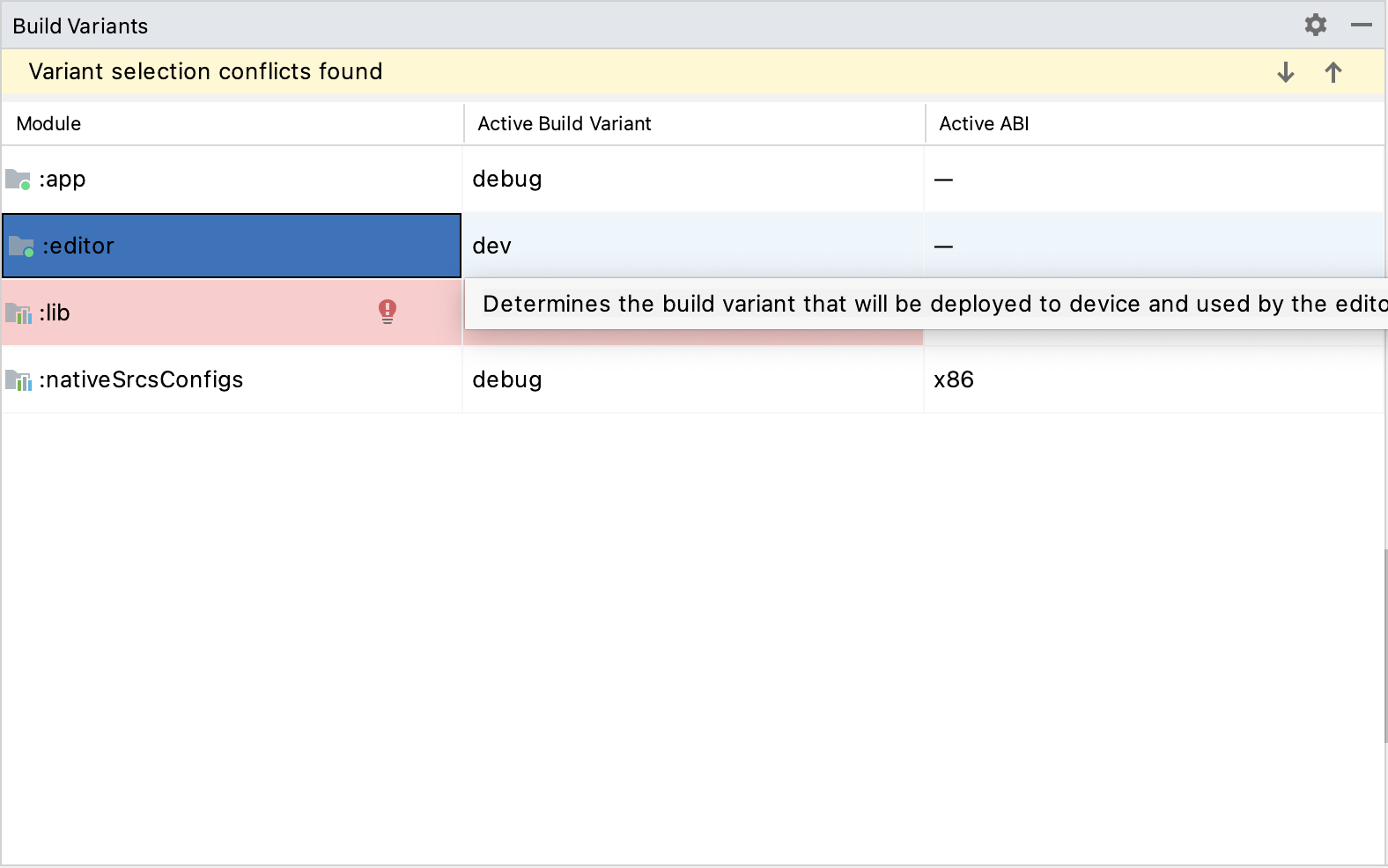
editor: Open the Build Variants window using View > Tools Windows > Build Variants from the top menu.
In the Build Variants window, make sure that in the Active Build Variant column, the
:editorentry is set to dev.
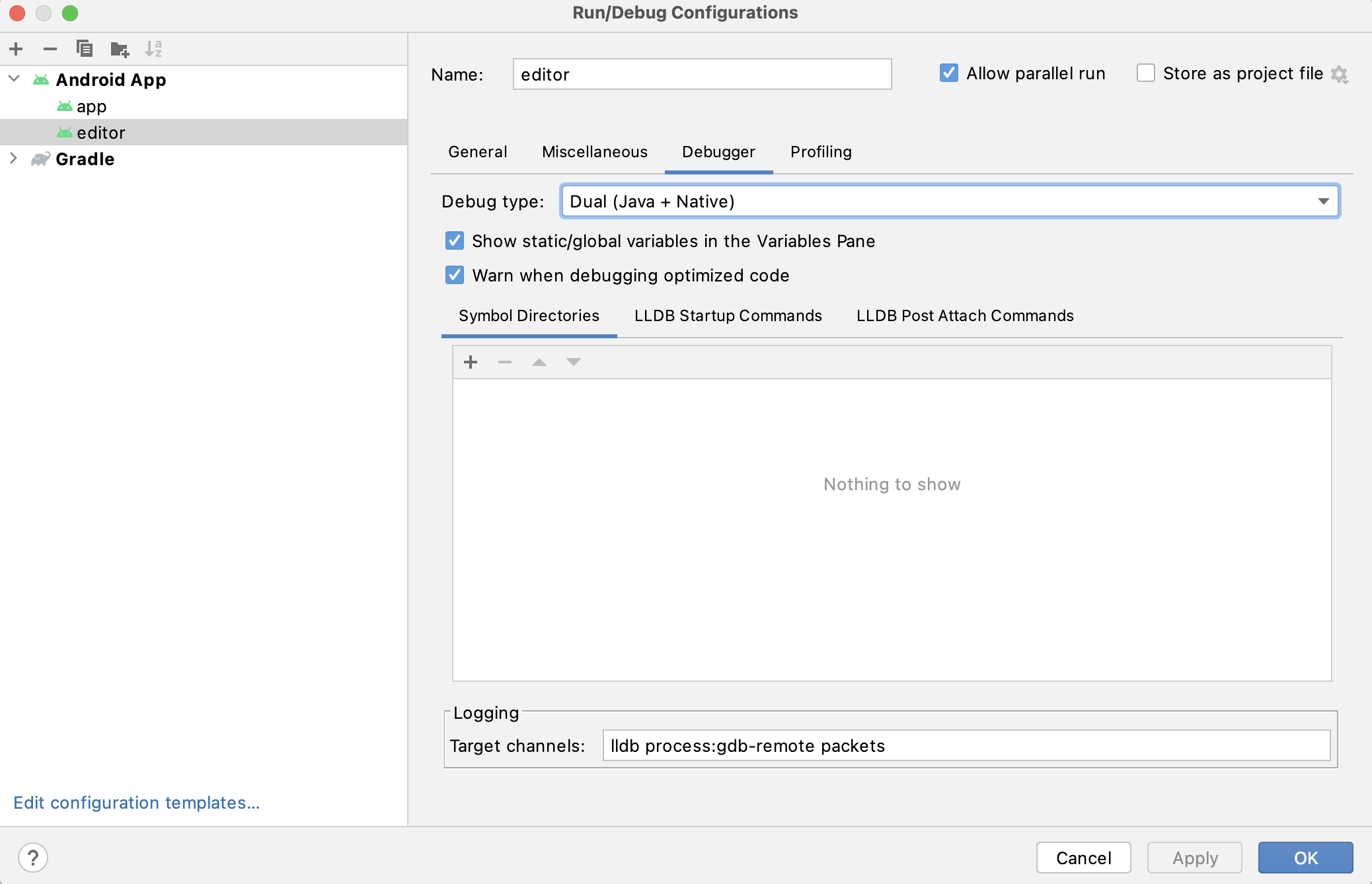
Open the Run/Debug Configurations window by clicking on Run > Edit Configurations... on the top menu.
In the Run/Debug Configurations window, select the
editorentry, and under Debugger make sure the Debug Type is set toDual (Java + Native)
Select Run > Debug 'editor' from the top menu or click the Debug icon.
- Pour déboguer le module
Building & debugging the app module
The app module requires the presence of a Godot project in its assets directory (<Godot root directory>/platform/android/java/app/assets) to run.
This is usually handled by the Godot Editor during the export process.
While developing in Android Studio, it's necessary to manually add a Godot project under that directory to replicate the export process.
Once that's done, you can follow the instructions below to run/debug the app module:
- Pour compiler le module
app: Select the Run/Debug Configurations drop down and select
app.
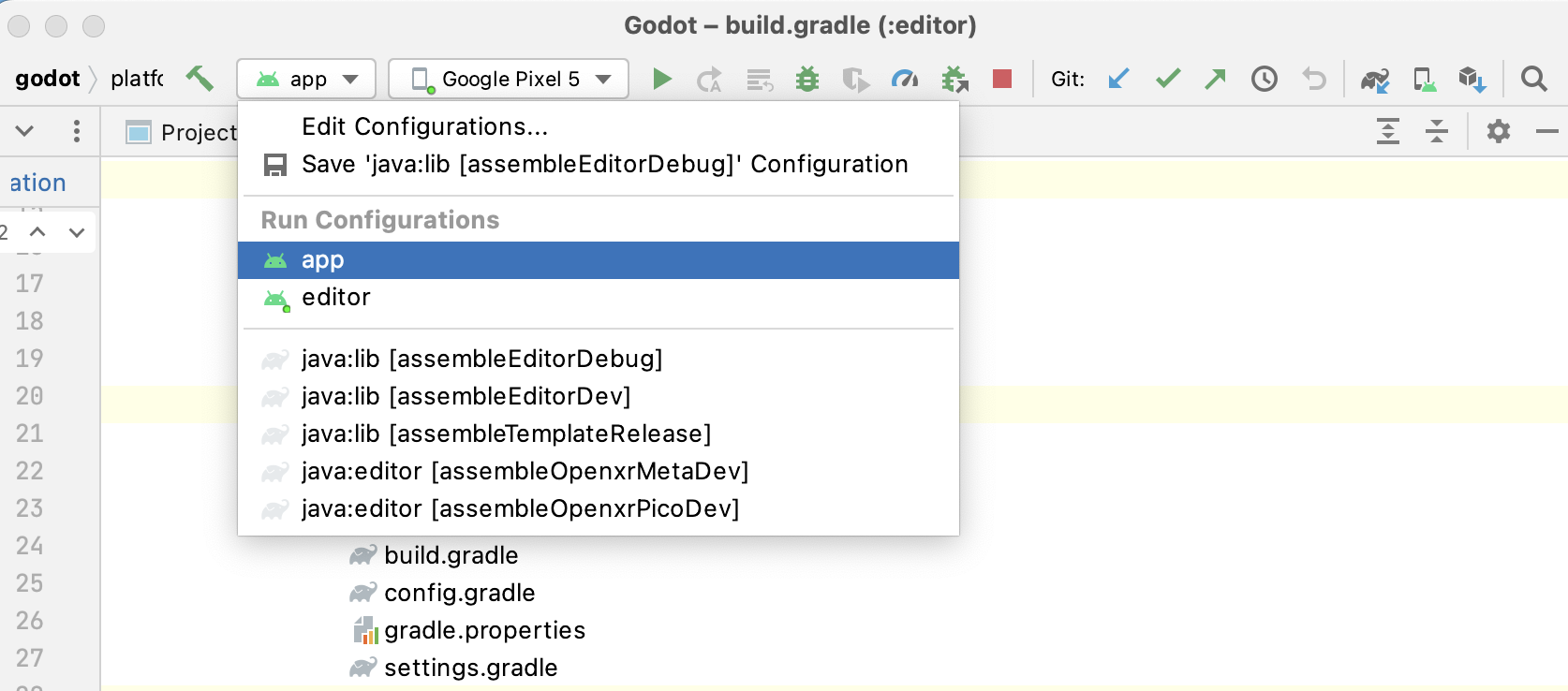
Select Run > Run 'app' from the top menu or click the Run icon.
- Pour compiler le module
- Pour déboguer le module
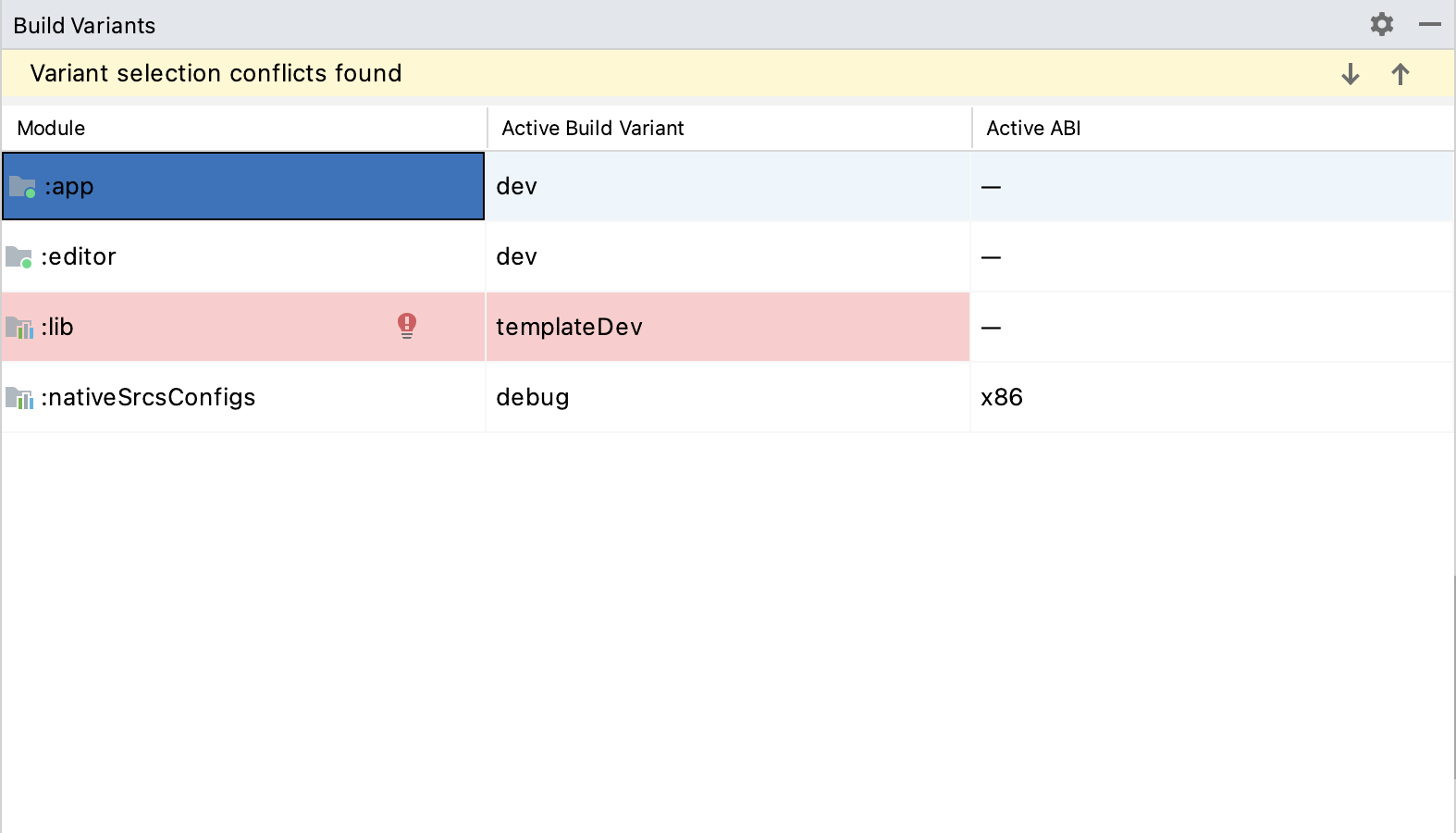
app: Open the Build Variants window using View > Tools Windows > Build Variants from the top menu.
In the Build Variants window, make sure that in the Active Build Variant column, the
:appentry is set to dev.
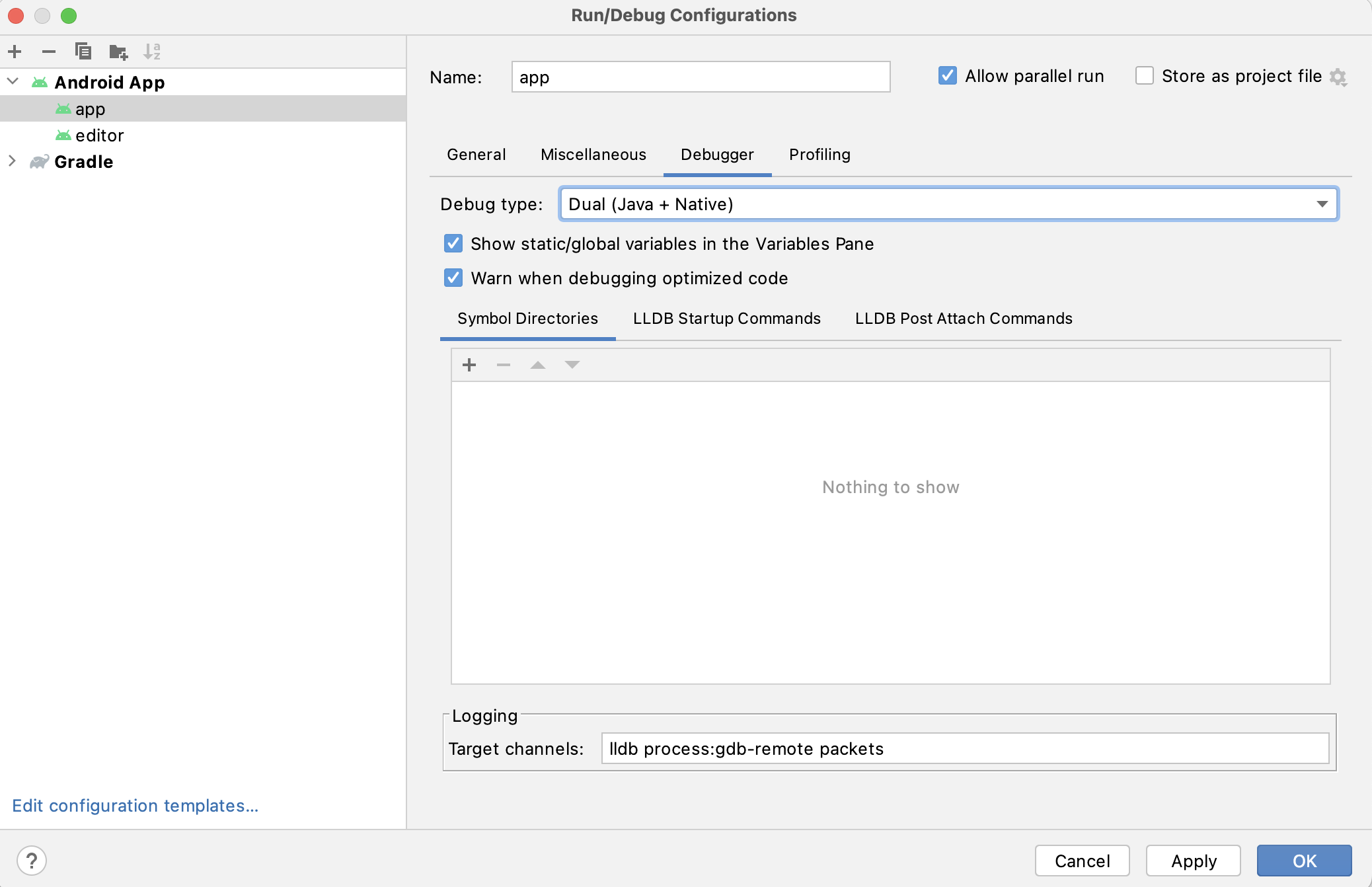
Open the Run/Debug Configurations window by clicking on Run > Edit Configurations... on the top menu.
In the Run/Debug Configurations window, select the
appentry, and under Debugger make sure the Debug Type is set toDual (Java + Native)
Select Run > Debug 'app' from the top menu or click the Debug icon.
- Pour déboguer le module
If you run into any issues, ask for help in Godot's Android dev channel.