Internationaliser des jeux
Introduction
While indie or niche games usually do not need localization, games targeting a more massive market often require localization. Godot offers many tools to make this process more straightforward, so this tutorial is more like a collection of tips and tricks.
Localization is usually done by specific studios hired for the job. Despite the huge amount of software and file formats available for this, the most common way to do localization to this day is still with spreadsheets. The process of creating the spreadsheets and importing them is already covered in the Importation de traductions tutorial. If you haven't read the Importing translations page before, we recommend you give it a read before reading this page.
Note
We will be using the official demo as an example; you can download it from the Asset Library.
Configuration de la traduction importée
Les traductions peuvent être mises à jour et réimportées lorsqu'elles changent, mais elles doivent toujours être ajoutées au projet. Cela se fait dans Projet → Paramètres du projet → Localisation :
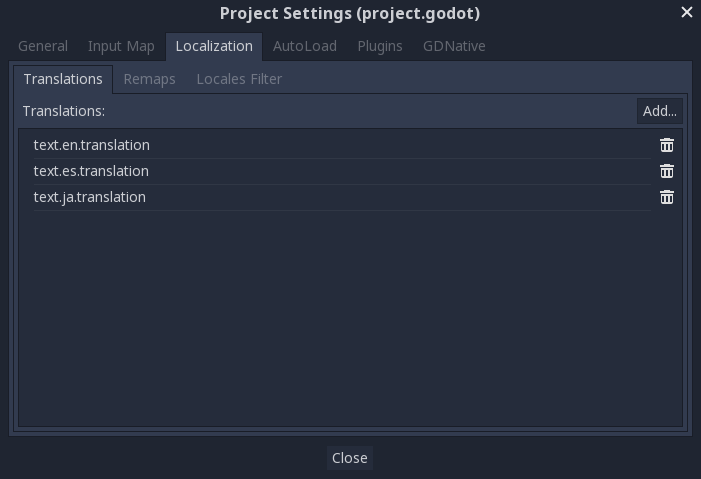
La boîte de dialogue ci-dessus permet d'ajouter ou de supprimer des traductions à l'échelle du projet.
Localisation des ressources
Il est également possible de demander à Godot d'utiliser des versions alternatives d'actifs (ressources) en fonction de la langue actuelle. Cela peut être utilisé pour des images localisées telles que des panneaux d'affichage dans le jeu ou des voix localisées.
The Remaps tab can be used for this:
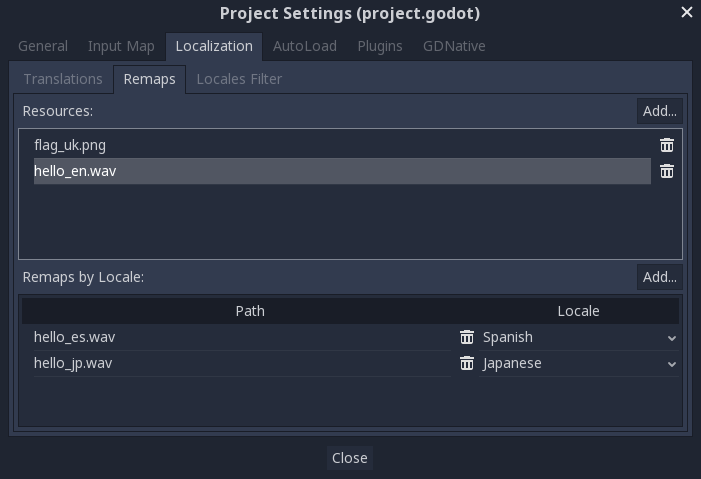
Select the resource to be remapped then add some alternatives for each locale.
Note
The resource remapping system isn't supported for DynamicFonts. To use different fonts depending on the language's script, use the DynamicFont fallback system instead, which lets you define as many fallback fonts as you want.
The upside of the DynamicFont fallback system is that it works regardless of the current language, making it ideal for things like multiplayer chat where the text language may not match the client's language.
Automatically setting a language
It is recommended to default to the user's preferred language which can be obtained via OS.get_locale_language().
If your game is not available in that language, it will fall back to the Fallback
in Project Settings > Internationalization > Locale, or to en if empty.
Nevertheless letting players change the language in game is recommended for various reasons (e.g. translation quality or player preference).
var language = "automatic"
# Load here language from the user settings file
if language == "automatic":
   var preferred_language = OS.get_locale_language()
   TranslationServer.set_locale(preferred_language)
else:
   TranslationServer.set_locale(language)
Paramètres régionaux vs. langue
A locale is commonly a combination of a language with a region or country, but can also contain information like a script or a variant.
Exemples :
en: Langue anglaiseen_GB: anglais en Grande-Bretagne / anglais britanniqueen_US: anglais aux Etats-Unis / anglais américainen_DE: English in Germany
Indie games generally only need to care about language, but read on for more information.
Why locales exist can be illustrated through the USA and Great Britain. Both speak the same language (English), yet differ in many aspects: - Spelling: E.g. gray (USA), grey (GB) - Use of words: E.g. eggplant (USA), aubergine (GB) - Units or currencies: E.g. feet/inches (USA), metres/cm (GB)
It can get more complex however. Imagine you offer different content in Europe and in China (e.g. in an MMO). You will need to translate each of those content variations into many languages and store and load them accordingly.
Conversion de clés en texte
Certains contrôles, tels que Button et Label, vont automatiquement chercher une traduction si leur texte correspond à une clé de traduction. Par exemple, si le texte d'une étiquette est " MAIN_SCREEN_GREETING1 " et que cette clé existe dans la traduction actuelle, le texte sera automatiquement traduit.
Ce comportement de traduction automatique peut être indésirable dans certains cas. Par exemple, lorsque vous utilisez une étiquette pour afficher le nom d'un joueur, vous ne souhaitez probablement pas que le nom du joueur soit traduit s'il correspond à une clé de traduction. Pour désactiver la traduction automatique sur un nœud spécifique, désactivez Localisation > Traduction automatique dans l'inspecteur.
Dans le code, la fonction Object.tr() peut être utilisée. Cela va juste chercher le texte dans les traductions et le convertir s'il est trouvé :
level.text = tr("LEVEL_5_NAME")
status.text = tr("GAME_STATUS_%d" % status_index)
level.Text = Tr("LEVEL_5_NAME");
status.Text = Tr($"GAME_STATUS_{statusIndex}");
Note
If no text is displayed after changing the language, try to use a different font. The default project font only supports a subset of the Latin-1 character set, which cannot be used to display languages like Russian or Chinese.
A good resource for multilingual fonts is Noto Fonts. Make sure to download the correct variation if you're using a less common language.
Once you've downloaded the font, load the TTF file into a DynamicFont resource and use it as a custom font of your Control node. For better reusability, associate a new a Theme resource to your root Control node and define the DynamicFont as the Default Font in the theme.
Placeholders
To feature placeholders in your translated strings, use
Chaînes de format en GDScript or the equivalent feature in C#. This lets
translators move the location of the placeholder in the string freely, which
allows translations to sound more natural. Named placeholders with the
String.format() function should be used whenever possible, as they also
allow translators to choose the order in which placeholders appear:
# The placeholder's locations can be changed, but not their order.
# This will probably not suffice for some target languages.
message.text = tr("%s picked up the %s") % ["Ogre", "Sword"]

# The placeholder's locations and order can be changed.
# Additionally, this form gives more context for translators to work with.
message.text = tr("{character} picked up the {weapon}").format({character = "Ogre", weapon = "Sword"})
Contextes de traduction
If you're using plain English as source strings (rather than message codes
LIKE_THIS), you may run into ambiguities when you have to translate the same
English string to different strings in certain target languages. You can
optionally specify a translation context to resolve this ambiguity and allow
target languages to use different strings, even though the source string is
identical:
# "Close", as in an action (to close something).
button.set_text(tr("Close", "Actions"))

# "Close", as in a distance (opposite of "far").
distance_label.set_text(tr("Close", "Distance"))
// "Close", as in an action (to close something).
GetNode<Button>("Button").Text = Tr("Close", "Actions");

// "Close", as in a distance (opposite of "far").
GetNode<Label>("Distance").Text = Tr("Close", "Distance");
Pluralisation
Most languages require different strings depending on whether an object is in singular or plural form. However, hardcoding the "is plural" condition depending on whether there is more than 1 object is not valid in all languages.
Some languages have more than two plural forms, and the rules on the number of objects required for each plural form vary. Godot offers support for pluralization so that the target locales can handle this automatically.
Pluralization is meant to be used with positive (or zero) integer numbers only. Negative and floating-point values usually represent physical entities for which singular and plural don't clearly apply.
var num_apples = 5
label.text = tr_n("There is %d apple", "There are %d apples", num_apples) % num_apples
int numApples = 5;
GetNode<Label>("Label").Text = string.Format(TrN("There is {0} apple", "There are {0} apples", numApples), numApples);
This can be combined with a context if needed:
var num_jobs = 1
label.text = tr_n("%d job", "%d jobs", num_jobs, "Task Manager") % num_jobs
int numJobs = 1;
GetNode<Label>("Label").Text = string.Format(TrN("{0} job", "{0} jobs", numJobs, "Task Manager"), numJobs);
Note
Providing pluralized translations is only supported with Localisation à l'aide de gettext, not CSV.
Rendre les contrôles redimensionnables
Le même texte dans différentes langues peut varier considérablement en longueur. Pour cela, assurez-vous de lire le tutoriel sur Taille et ancrages, car ajuster dynamiquement la taille des contrôles peut aider. Container peut être utile, ainsi que les options d'habillage de texte disponibles dans Label.
To check whether your UI can accommodate translations with longer strings than the original, you can enable pseudolocalization in the advanced Project Settings. This will replace all your localizable strings with longer versions of themselves, while also replacing some characters in the original strings with accented versions (while still being readable). Placeholders are kept as-is, so that they keep working when pseudolocalization is enabled.
For example, the string Hello world, this is %s! becomes
[Ĥéłłô ŵôŕłd́, ŧh̀íš íš %s!] when pseudolocalization is enabled.
While looking strange at first, pseudolocalization has several benefits:
It lets you spot non-localizable strings quickly, so you can go over them and make them localizable (if it makes sense to do so).
It lets you check UI elements that can't fit long strings. Many languages will feature much longer translations than the source text, so it's important to ensure your UI can accommodate longer-than-usual strings.
It lets you check whether your font contains all the characters required to support various languages. However, since the goal of pseudolocalization is to keep the original strings readable, it's not an effective test for checking whether a font can support CJK or right-to-left languages.
The project settings allow you to tune pseudolocalization behavior, so that you can disable parts of it if desired.
TranslationServer
Godot has a server handling low-level translation management called the TranslationServer. Translations can be added or removed during runtime; the current language can also be changed at runtime.
Bidirectional text and UI Mirroring
L'arabe et l'hébreu sont écrits de droite à gauche (sauf pour les nombres et les mots latins présents), et l'interface utilisateur de ces langues devrait également être miroir. Dans certaines langues, la forme d'un glyphe change en fonction des caractères environnants.
Le support pour les systèmes d'écriture bidirectionnelle et le miroir de l'interface utilisateur est transparent, vous n'avez généralement pas besoin de changer quoi que ce soit ou de connaître le système d'écriture spécifique.
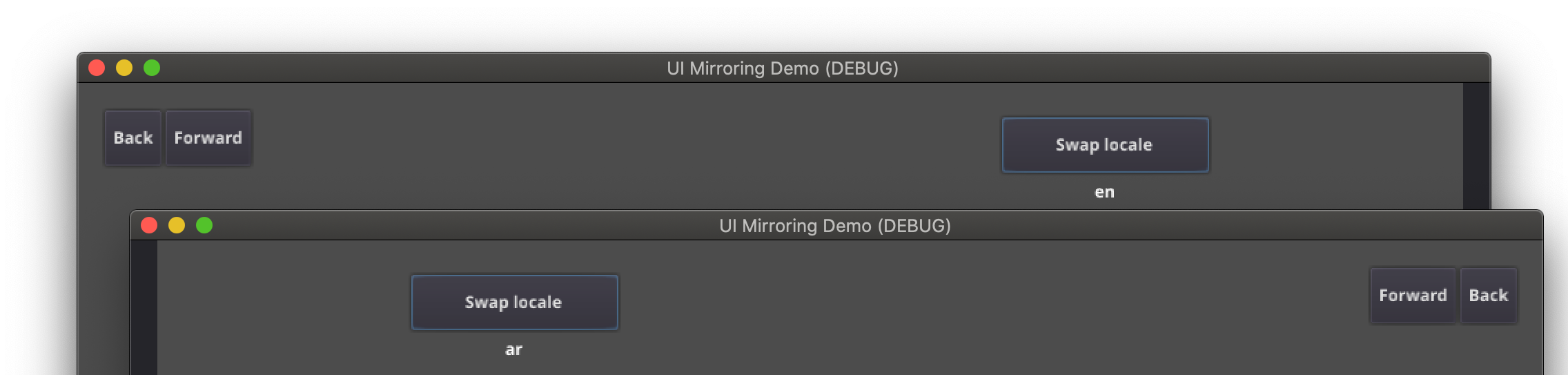
Pour les langues RTL, Godot effectuera automatiquement les changements suivants à l'interface utilisateur :
Mirrors left/right anchors and margins.
Swaps left and right text alignment.
Mirrors horizontal order of the child controls in the containers, and items in Tree/ItemList controls.
Uses mirrored order of the internal control elements (e.g. OptionButton dropdown button, checkbox alignment, List column order, Tree item icons and connecting line alignment, e.t.c.), in some cases mirrored controls use separate theme styles.
Coordinate system is not mirrored, and non-UI nodes (sprites, e.t.c) are not affected.
It is possible to override text and control layout direction by using the following control properties:
text_direction, sets the base text direction. When set to "auto", direction depends on the first strong directional character in the text according to the Unicode Bidirectional Algorithm,language, remplace la langue actuelle du projet.structured_text_bidi_overrideproperty and_structured_text_parsercallback, enables special handling for structured text.layout_direction, overrides control mirroring.
Voir aussi
You can see how right-to-left typesetting works in action using the BiDI and Font Features demo project.
Adding break iterator data to exported project
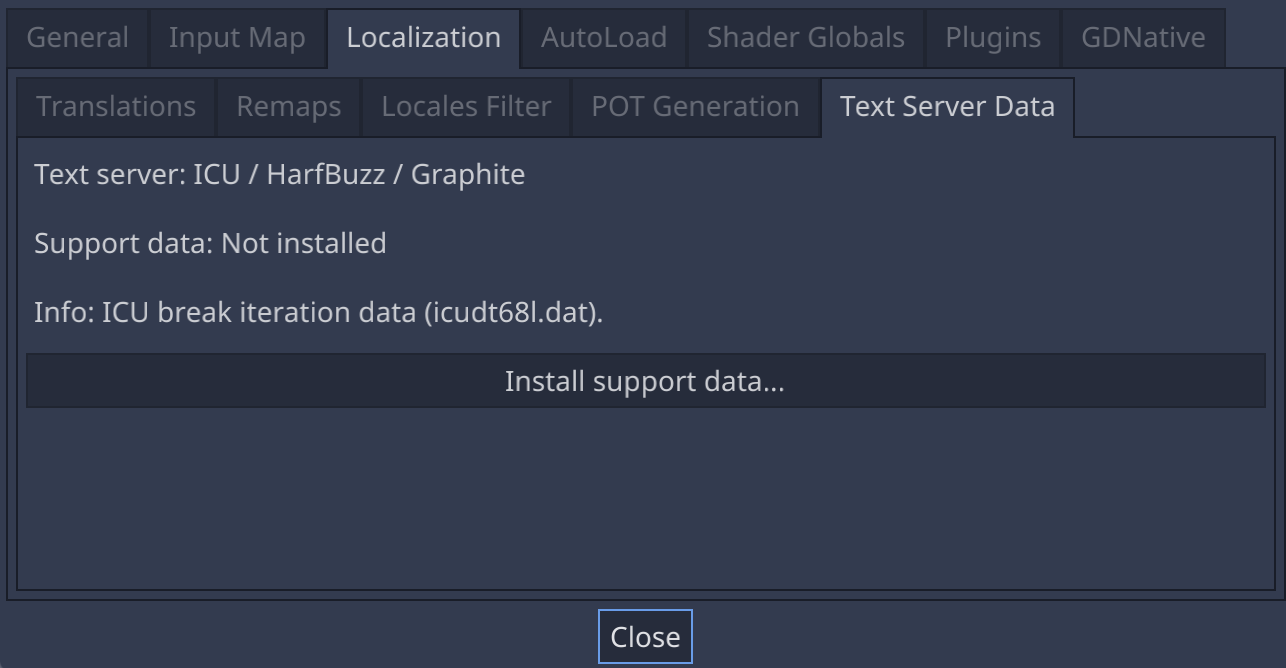
Some languages are written without spaces, and word and line breaking requires more than rules over character sequences. Godot includes ICU rule and dictionary based, break iterator data, but this data is not included into exported projects by default. To include it go to Project → Project Settings → Localization → Text Server Data and click Install support data.... Break iterator data is about 4 MB large.
Structured text BiDi override
Unicode BiDi algorithm is designed to work with natural text and it's incapable of handling text with the higher level order, like file names, URIs, email addresses, regular expressions or source code.

For example, the path for this shown directory structure will be displayed incorrectly (top "LineEdit" control). "File" type structured text override splits text into segments, then BiDi algorithm is applied to each of them individually to correctly display directory names in any language and preserve correct order of the folders (bottom "LineEdit" control).
Custom callbacks provide a way to override BiDi for the other types of structured text.
Localisation des nombres
Controls specifically designed for number input or output (e.g. ProgressBar, SpinBox) will use localized numbering system automatically, for the other control TextServer.format_number(string, language) can be used to convert Western Arabic numbers (0..9) to the localized numbering system and TextServer.parse_number(string, language) to convert it back.
Localizing icons and images
Icons with left and right pointing arrows which may need to be reversed for Arabic and Hebrew locales, in case they indicate movement or direction (e.g. back/forward buttons). Otherwise, they can remain the same.
Tester les traductions
Vous souhaiterez tester les traductions d'un projet avant de le mettre en ligne. Godot propose deux façons de le faire.
First, in the Project Settings, under Internationalization > Locale (with advanced settings enabled), there is a Test property. Set this property to the locale code of the language you want to test. Godot will run the project with that locale when the project is run (either from the editor or when exported).
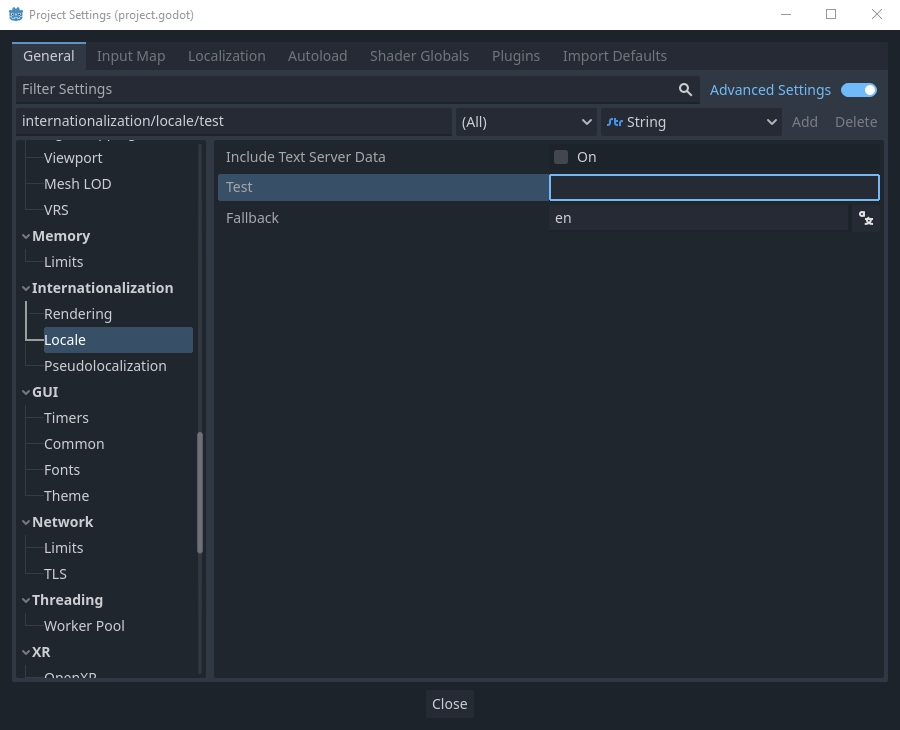
A noter qu’étant donne qu'il s'agit d'une préférence du projet, elle apparaîtra dans le système de contrôle de version lorsque non-vide. Pour cette raison, sa valeur doit être vidée avant de soumettre les changements au système de contrôle de version.
Les translations peuvent être testées en exécutant Godot depuis la ligne de commande. Par exemple, pour tester un jeu en français, l'argument suivant peut être fourni :
godot --language fr
Traduire le nom du projet
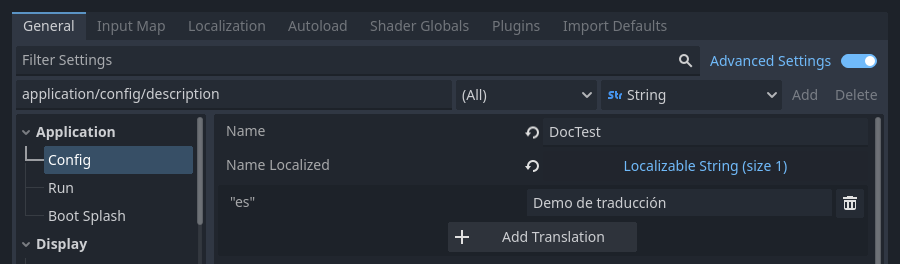
The project name becomes the app name when exporting to different
operating systems and platforms. To specify the project name in more
than one language go to Project > Project Settings> Application >
Config. From here click on the button that says Localizable String
(Size 0). Now there should be a button below that which says Add
Translation. Click on that and it will take you to a page where you
can choose the language (and country if needed) for your project name
translation. After doing that you can now type in the localized name.
Si vous n'êtes pas sûr du code de langue à utiliser, référez-vous à la liste des codes de langue.