Work in progress
The content of this page was not yet updated for Godot
4.4
and may be outdated. If you know how to improve this page or you can confirm
that it's up to date, feel free to open a pull request.
Prototypage d'un niveau avec CSG
CSG stands for Constructive Solid Geometry, and is a tool to combine basic shapes or custom meshes to create more complex shapes. In 3D modeling software, CSG is mostly known as "Boolean Operators".
Level prototyping is one of the main uses of CSG in Godot. This technique allows users to create the most common shapes by combining primitives. Interior environments can be created by using inverted primitives.
Note
The CSG nodes in Godot are mainly intended for prototyping. There is no built-in support for UV mapping or editing 3D polygons (though extruded 2D polygons can be used with the CSGPolygon3D node).
If you're looking for an easy to use level design tool for a project, you may want to use FuncGodot or Cyclops Level Builder instead.
Voir aussi
You can check how to use CSG nodes to build various shapes (such as stairs or roads) using the Constructive Solid Geometry demo project.
Introduction aux nœuds CSG
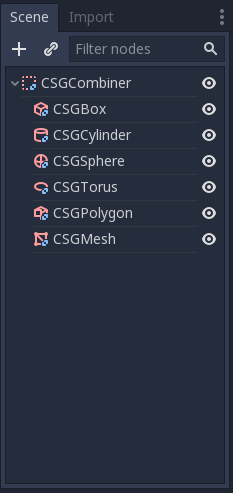
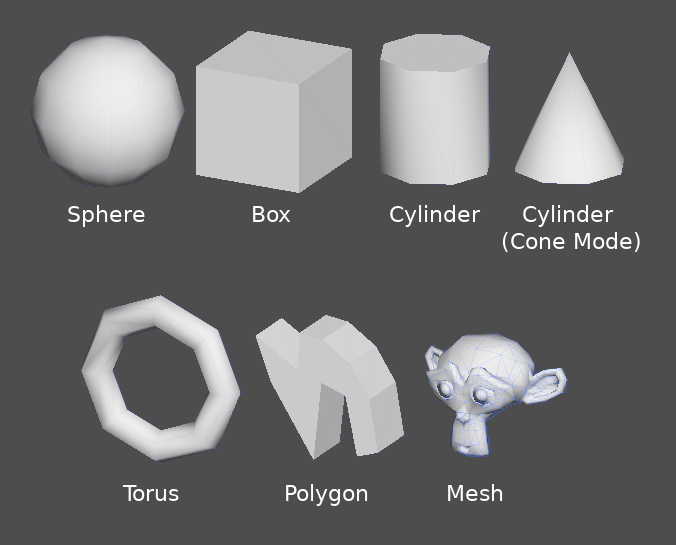
Comme les autres fonctionnalités de Godot, CSG est supporté sous forme de nœuds. Ce sont les nœuds CSG :
CSGCylinder3D (supporte aussi les cônes)
Fonctionnalités des outils CSG
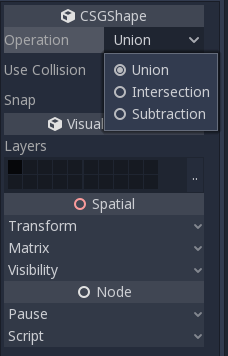
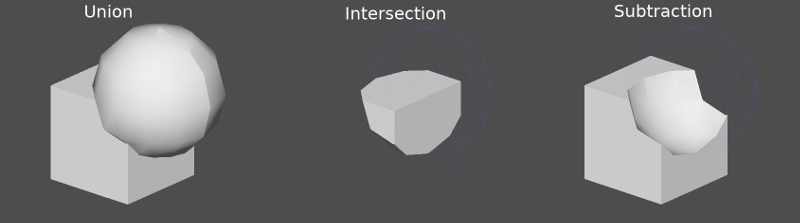
Chaque nœud CSG supporte 3 types d'opérations booléennes :
Union : La géométrie des deux primitives est fusionnée, la géométrie croisée est supprimée.
Intersection : Seule la géométrie d'intersection est conservée, le reste est supprimé.
Subtraction : La deuxième forme est soustraite de la première, laissant une bosse avec sa forme.
CSGPolygon
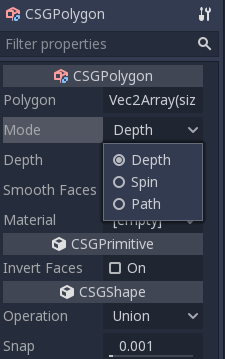
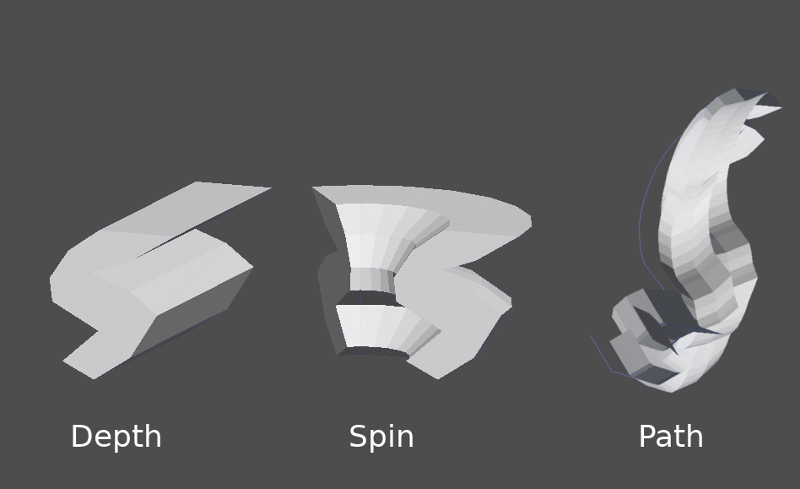
Le nœud CSGPolygon3D extrude le long d'un Polygone dessiné en 2D (en coordonnées X, Y) des manières suivantes :
Depth : Extrusion d'une quantité donnée.
Spin : Extrudée en tournant autour de son origine.
Path : Extrudé le long d'un nœud de chemin. Cette opération est communément appelée lofting.
Note
Le mode Chemin doit être muni d'un nœud Path3D pour fonctionner. Dans le nœud Path, tracez le chemin et le polygone dans CSGPolygon3D sera extrudé le long du chemin donné.
Maillages personnalisés
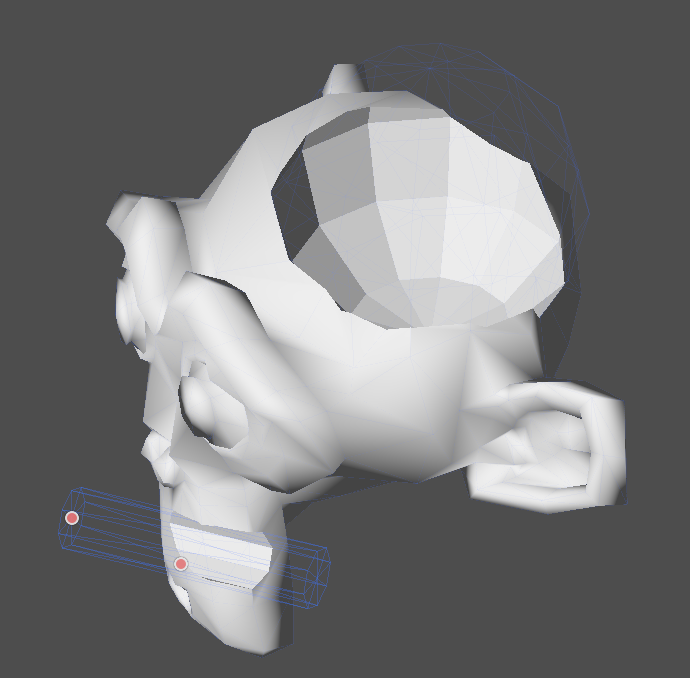
Des maillages personnalisées peuvent être utilisées pour CSGMesh3D tant que le maillage est manifold. Le maillage peut être modelisé dans d'autres logiciels et importé dans Godot. Les matériaux multiples sont supportés.
For a mesh to be used as a CSG mesh, it is required to:
be closed
chaque arrête ne doit connecter qu'exactement deux faces
avoir du volume
And it is recommended to avoid:
les volumes négatifs
auto-intersection
interior faces
Godot utilise la bibliothèque manifold pour implementer des maillages CSG. La définition technique de "manifold" utilisée par Godot est la suivante, adaptée de la définition de "manifold" de cette bibliothèque :
Every edge of every triangle must contain the same two vertices (by index) as exactly one other triangle edge, and the start and end vertices must switch places between these two edges. The triangle vertices must appear in clockwise order when viewed from the outside of the Godot Engine manifold mesh.
Rendre un maillage existant manifold avec Blender
Si vous avez un maillage existant qui n'est pas déjà manifold, vous pouvez le rendre manifold avec Blender.
In Blender, install and enable the 3D Print Toolbox addon.
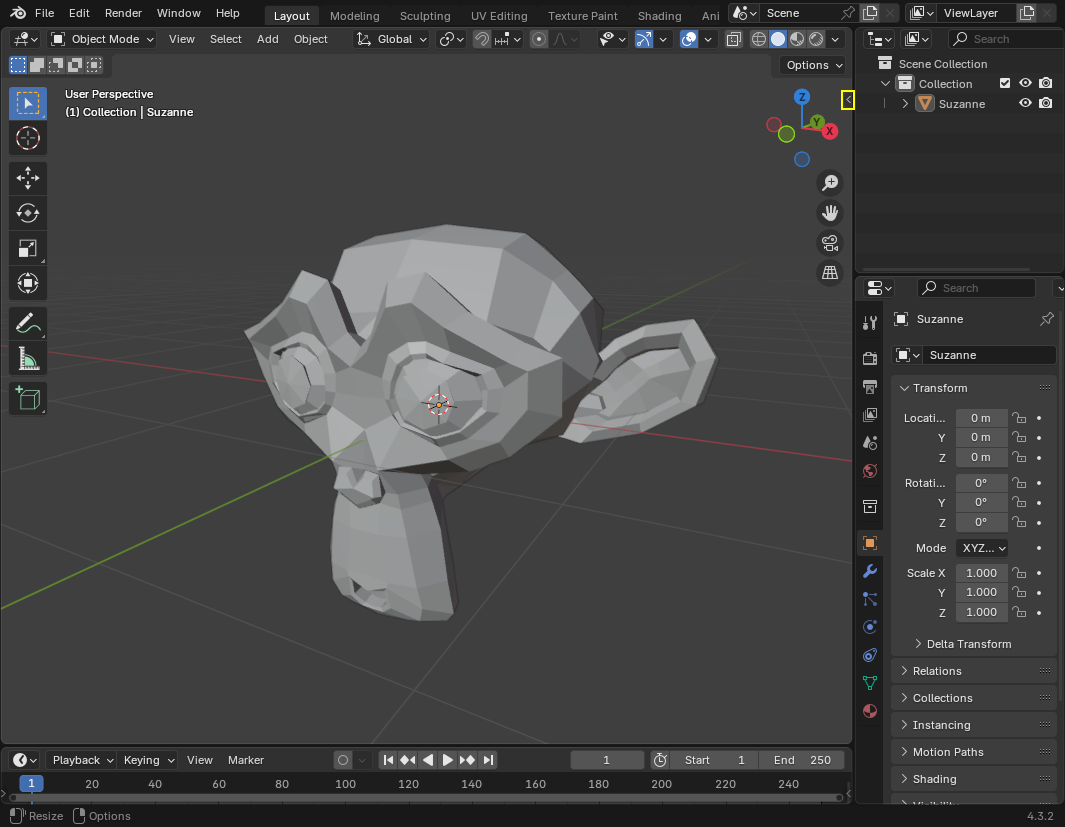
Sélectionnez le maillage que vous voulez rendre manifold. Ouvrez la barre latérale en cliquant sur la flèche :
Dans l'onglet Impression 3D, sous Nettoyage, cliquez sur le bouton Rendre Manifold :
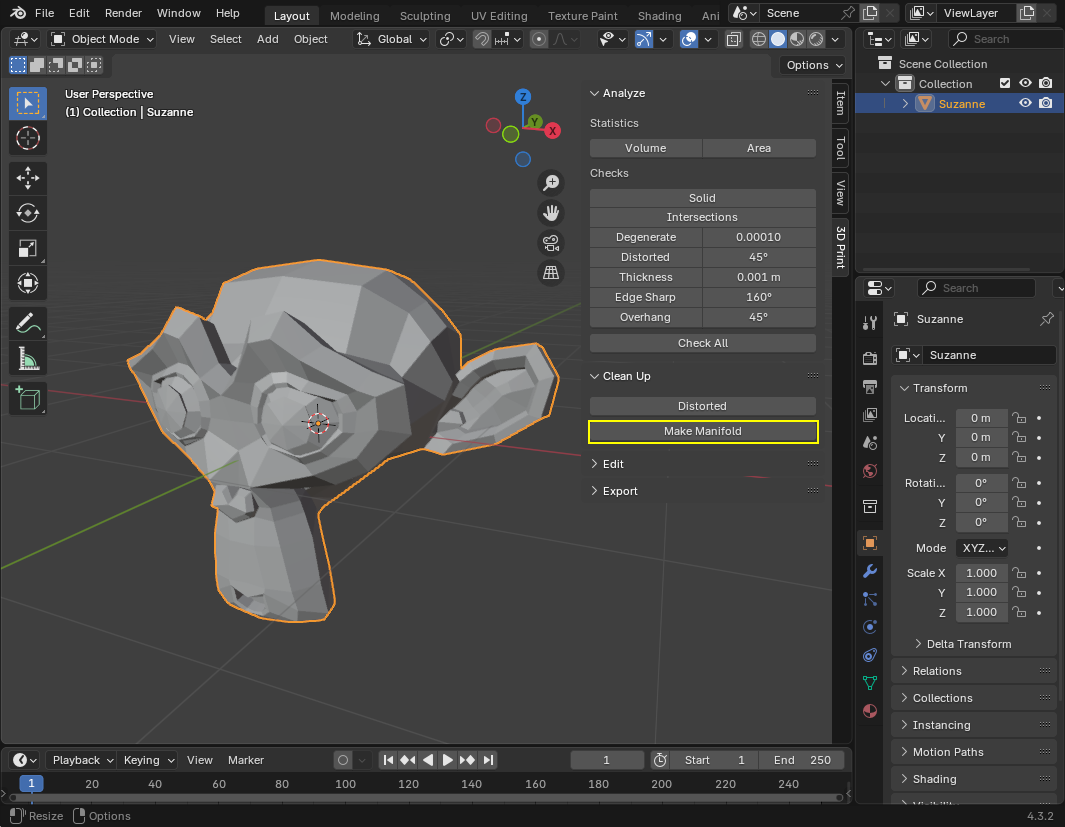
La maillage devrait maintenant être manifold, et peut être utilisé comme un maillage personnalisé.
CSGCombiner3D
Le nœud CSGCombiner3D est une forme vide utilisée pour l'organisation. Il ne combinera que les nœuds enfants.
Ordre de traitement
Every CSG node will first process its children nodes and their operations: union, intersection, or subtraction, in tree order, and apply them to itself one after the other.
Note
Dans un souci de performance, assurez-vous que la géométrie CSG reste relativement simple, car les mailles complexes peuvent prendre un certain temps à traiter. Si vous ajoutez des objets ensemble (tels qu'une table et d'autres objets trouvés régulièrement dans une pièce), créez-les comme des arbres CSG séparés. Forcer trop d'objets dans un même arbre finira par affecter les performances. N'utilisez des opérations binaires que là où vous en avez réellement besoin.
Prototypage d'un niveau
Nous allons prototyper une pièce pour pratiquer l'utilisation des outils du CSG.
Astuce
Travailler en projection Orthogonal donne une meilleure vue en combinant les formes CSG.
Notre niveau contiendra ces objets :
une pièce,
un lit,
une lampe,
un bureau,
une bibliothèque.
Create a scene with a Node3D node as root node.
Astuce
L'éclairage par défaut de l'environnement n'offre pas un ombrage précis sous certains angles. Modifiez le mode d'affichage à l'aide de Display Overdraw dans le menu de la fenêtre 3D, ou ajoutez un nœud DirectionalLight pour vous aider à voir clairement.
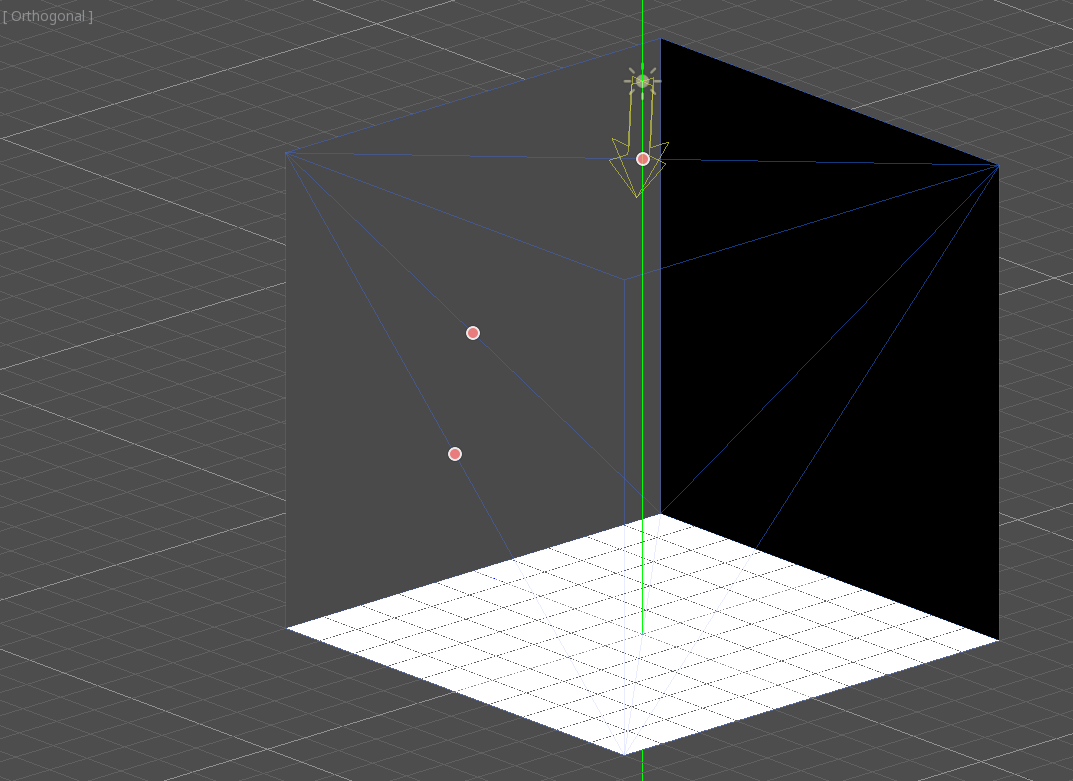
Create a CSGBox3D and name it room, enable Invert Faces and change the
dimensions of your room.
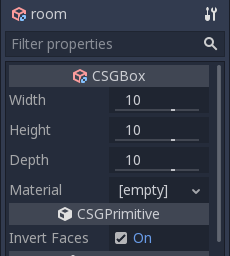
Next, create a CSGCombiner3D and name it desk.
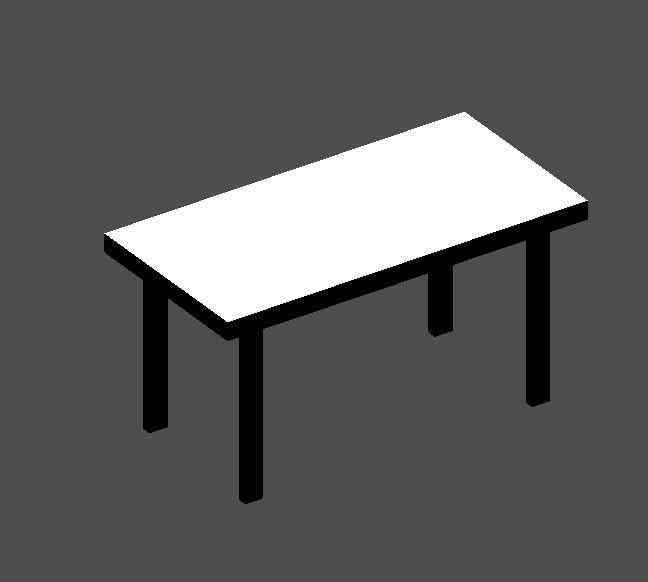
Un bureau a une surface et 4 pieds :
Create 1 CSGBox3D children node in Union mode for the surface and adjust the dimensions.
Create 4 CSGBox3D children nodes in Union mode for the legs and adjust the dimensions.
Ajustez leur emplacement pour ressembler à un bureau.
Note
CSG nodes inside a CSGCombiner3D will only process their operation within the combiner. Therefore, CSGCombiner3Ds are used to organize CSG nodes.
Create a CSGCombiner3D and name it bed.
Our bed consists of 3 parts: the bed, the mattress and a pillow. Create a CSGBox3D and adjust its dimension for the bed. Create another CSGBox3D and adjust its dimension for the mattress.
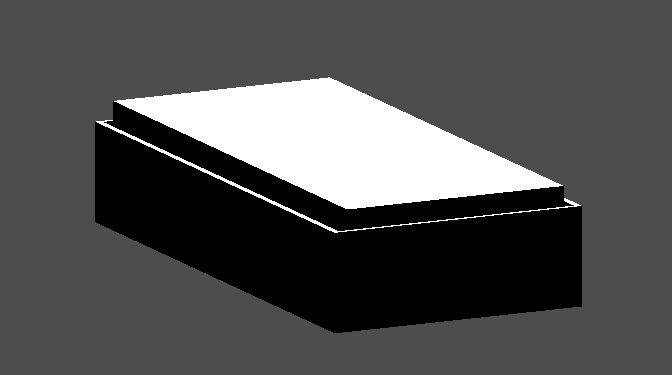
We will create another CSGCombiner3D named pillow as the child of bed.
The scene tree should look like this:
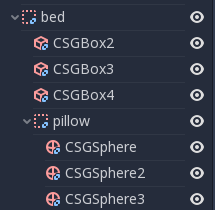
We will combine 3 CSGSphere3D nodes in Union mode to form a pillow. Scale the Y axis of the spheres and enable Smooth Faces.
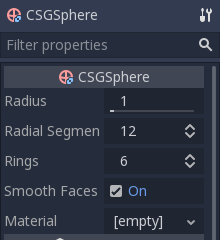
Sélectionnez le nœud pillow et passez en mode Subtraction ; les sphères combinées perceront un trou dans le matelas.
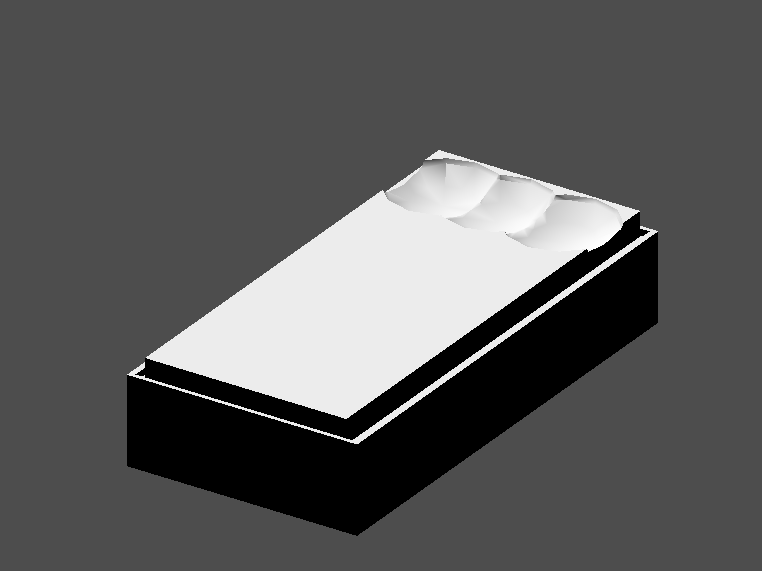
Try to re-parent the pillow node to the root Node3D node; the hole will
disappear.
Note
This is to illustrate the effect of CSG processing order. Since the root node is not a CSG node, the CSGCombiner3D nodes are the end of the operations; this shows the use of CSGCombiner3D to organize the CSG scene.
Défaire le re-parent après avoir observé l'effet. Le lit que vous avez construit devrait ressembler à ceci :
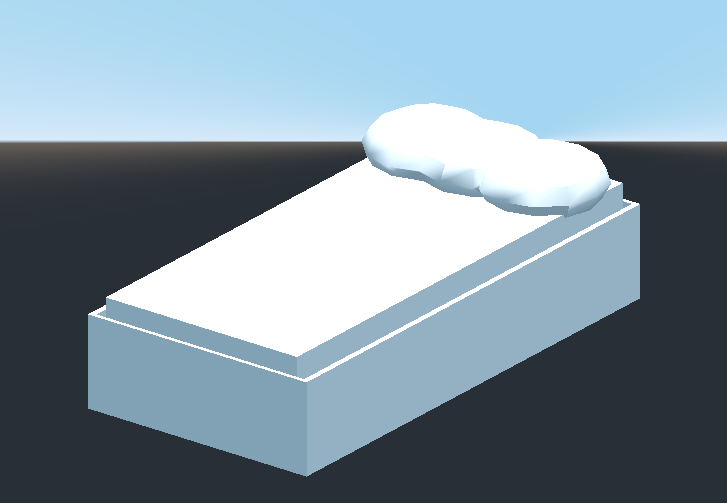
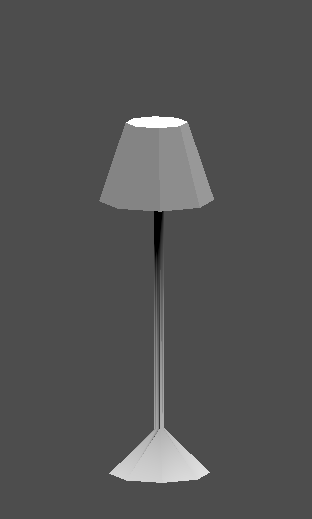
Create a CSGCombiner3D and name it lamp.
A lamp consists of 3 parts: the stand, the pole and the lampshade. Create a CSGCylinder3D, enable the Cone option and make it the stand. Create another CSGCylinder3D and adjust the dimensions to use it as a pole.
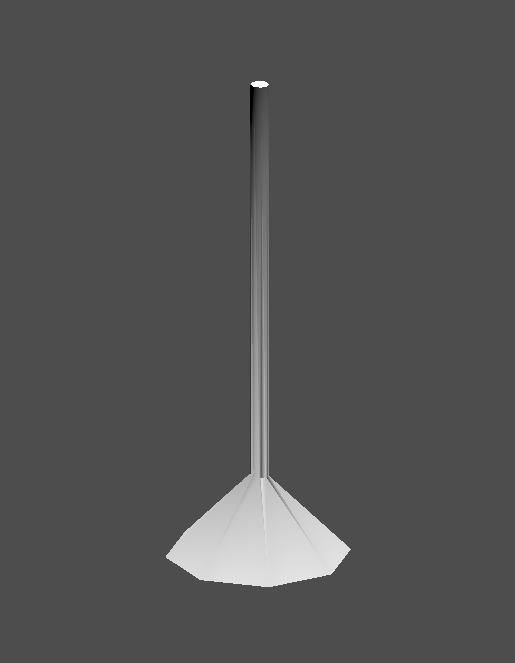
We will use a CSGPolygon3D for the lampshade. Use the Spin mode for the CSGPolygon3D and draw a trapezoid while in Front View (numeric keypad 1); this shape will extrude around the origin and form the lampshade.
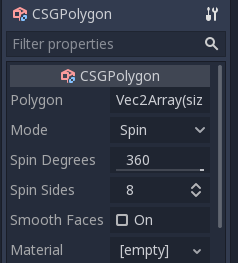
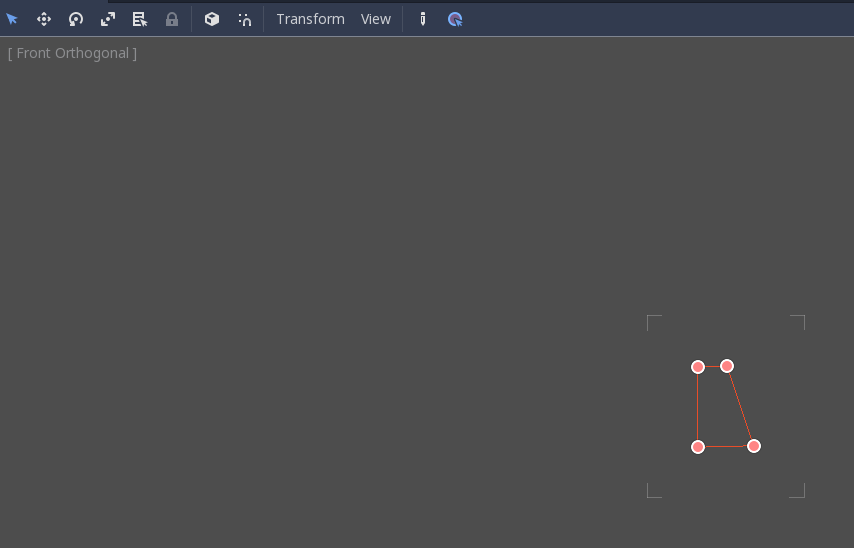
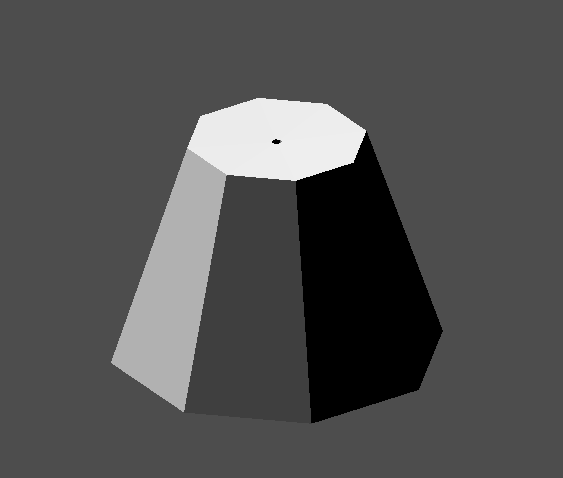
Ajustez l'emplacement des 3 pièces pour qu'il ressemble à une lampe.
Create a CSGCombiner3D and name it bookshelf.
We will use 3 CSGBox3D nodes for the bookshelf. Create a CSGBox3D and adjust its dimensions; this will be the size of the bookshelf.
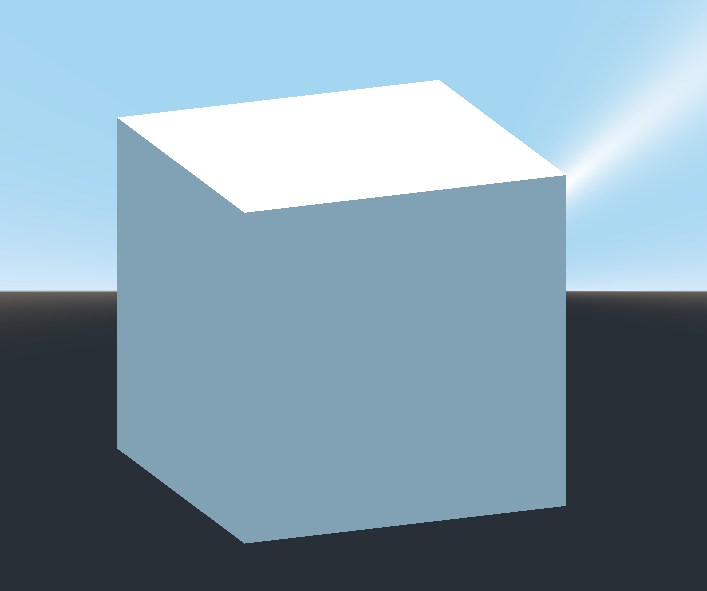
Duplicate the CSGBox3D and shorten the dimensions of each axis and change the mode to Subtraction.
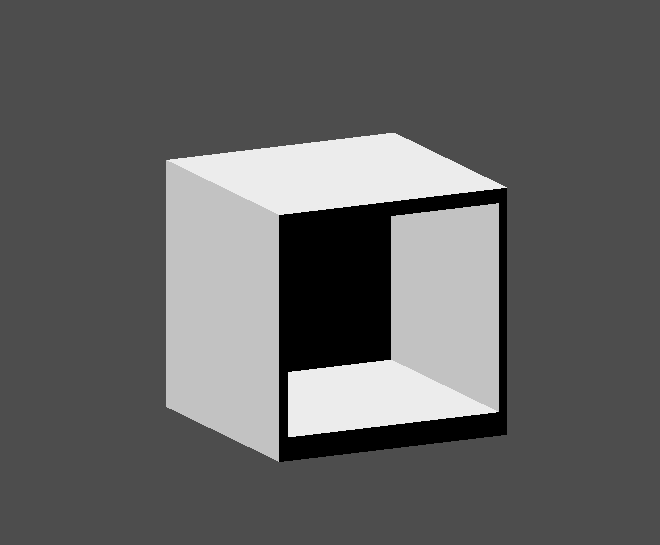
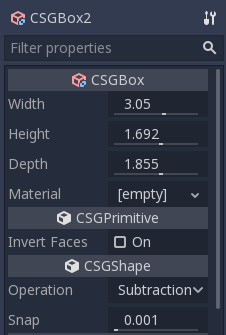
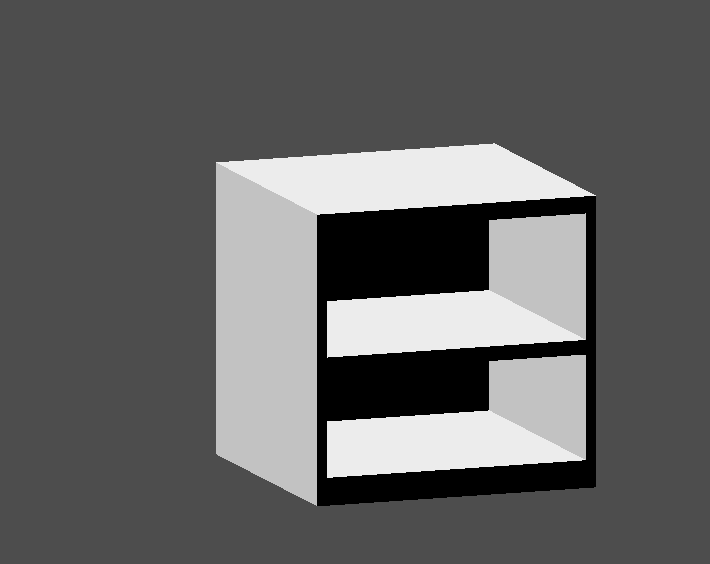
You've almost built a shelf. Create one more CSGBox3D for dividing the shelf into two levels.
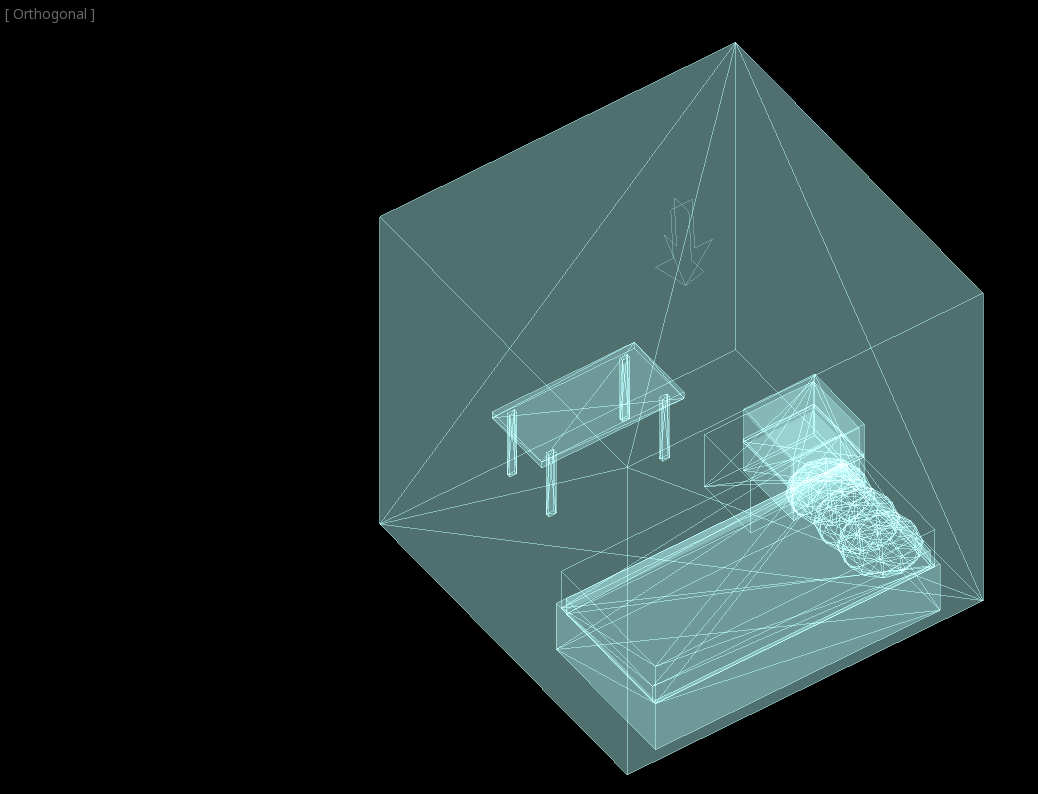
Positionner les meubles dans la chambre comme vous le souhaitez et votre scène de rassembler à cela :
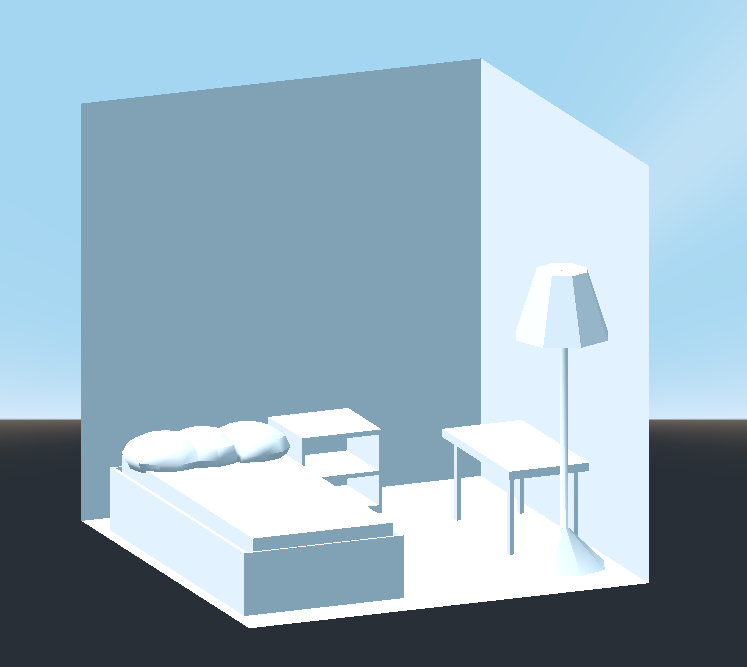
Vous avez réussi à prototyper un niveau de pièce avec les outils CSG de Godot. Les outils CSG peuvent être utilisés pour concevoir toutes sortes de niveaux, comme un labyrinthe ou une ville ; explorez ses limites lorsque vous concevez votre jeu.
Utilisation de prototypes de textures
Godot's Standard Material 3D and ORM Material 3D supports triplanar mapping, which can be used to automatically apply a texture to arbitrary objects without distortion. This is handy when using CSG as Godot doesn't support editing UV maps on CSG nodes yet. Triplanar mapping is relatively slow, which usually restricts its usage to organic surfaces like terrain. Still, when prototyping, it can be used to quickly apply textures to CSG-based levels.
Note
Si vous avez besoin de textures pour le prototypage, Kenney a fait un ensemble de textures prototypes sous licence CC0.
Il y a deux façons d'appliquer un matériau à un nœud CSG :
Applying it to a CSGCombiner3D node as a material override (Geometry > Material Override in the Inspector). This will affect its children automatically, but will make it impossible to change the material in individual children.
Appliquer un matériau à des nœuds individuels (Matériau dans l'inspecteur). De cette façon, chaque nœud CSG peut avoir sa propre apparence. Les nœuds CSG soustractifs appliqueront leur matériau aux nœuds qu'ils "creusent".
Pour appliquer le mapping triplanaire à un nœud CSG, sélectionnez-le, allez dans l'inspecteur, cliquez sur le texte [empty] à côté de Material Override (ou Material pour les nœuds CSG individuels). Choisissez Nouveau StandardMaterial3D. Cliquez sur l'icône du matériau nouvellement créé pour le modifier. Dépliez la section Albedo et chargez une texture dans la propriété Texture. Maintenant, dépliez la section Uv1 et cochez Triplanar. Vous pouvez changer le décalage et l'échelle de la texture sur chaque axe en jouant avec les propriétés Scale et Offset juste au-dessus. Des valeurs plus élevées dans la propriété Scale feront que la texture se répétera plus souvent.
Astuce
Vous pouvez copier un StandardMaterial3D pour le réutiliser à travers vos nœuds CSG. Pour ce faire, cliquez sur la flèche déroulante située à côté d'une propriété du matériel dans l'inspecteur et choisissez Copier. Pour le coller, sélectionnez le nœud sur lequel vous souhaitez appliquer le matériau, cliquez sur la flèche déroulante située à côté de sa propriété de matériau, puis choisissez Coller.
Converting to MeshInstance3D
Since Godot 4.4, you can convert a CSG node and its children to a MeshInstance3D node.
This has several benefits:
Bake lightmaps, since UV2 can be generated on a MeshInstance3D.
Bake occlusion culling, since the occlusion culling bake process only takes MeshInstance3D into account.
Faster loading times, since the CSG mesh no longer needs to be rebuilt when the scene loads.
Better performance when updating the node's transform if using the mesh within another CSG node.
To convert a CSG node to a MeshInstance3D node, select it, then choose CSG > Bake Mesh Instance in the toolbar. The MeshInstance3D node will be created as a sibling. Note that the CSG node that was used for baking is not hidden automatically, so remember to hide it to prevent its geometry from overlapping with the newly created MeshInstance3D.
You can also create a trimesh collision shape using CSG > Bake Collision Shape. The generated CollisionShape3D node must be a child of a StaticBody3D or AnimatableBody3D node to be effective.
Astuce
Remember to keep the original CSG node in the scene tree, so that you can perform changes to the geometry later if needed. To make changes to the geometry, remove the MeshInstance3D node and make the root CSG node visible again.
Exporting as glTF
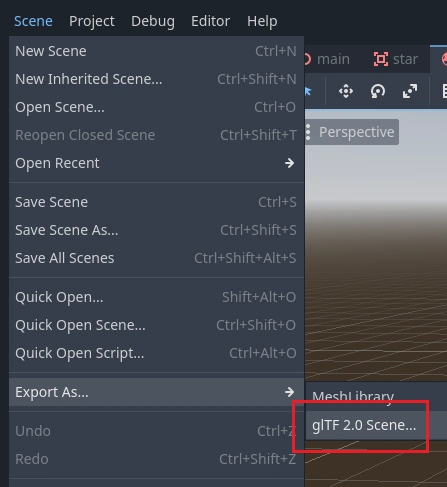
It can be useful to block out a level using CSG, then export it as a 3d model, to import into 3D modeling software. You can do this by selecting Scene > Export As... > glTF 2.0 Scene.