Android Studio
Android Studio is a free IDE for Android development made by Google and JetBrains. It's based on IntelliJ IDEA and has a feature-rich editor which supports Java and C/C++. It can be used to work on Godot's core engine as well as the Android platform codebase.
Importando o projeto
From the Android Studio's welcome window select Open.
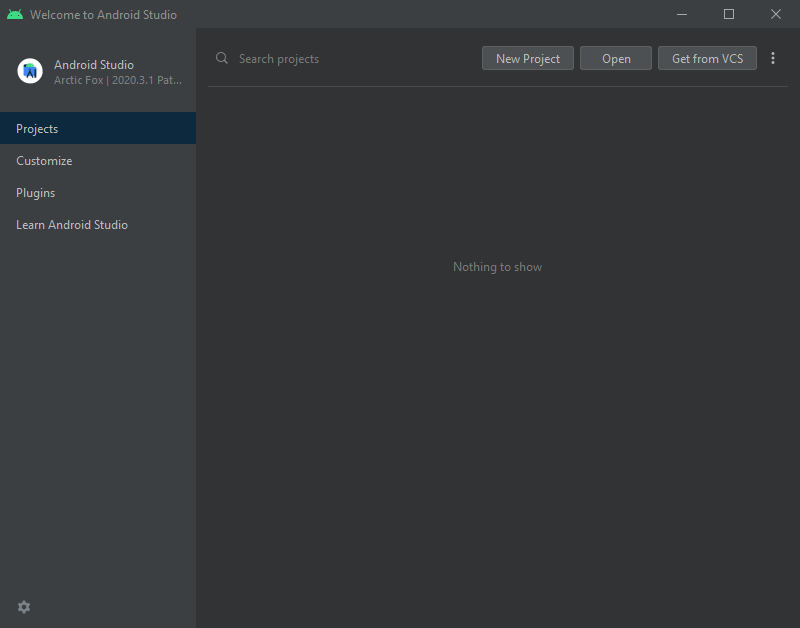
Janela de boas-vindas do Android Studio.
Navegue para``<Diretório raíz do Godot>/platform/android/java`` e selecione o arquivo
settings.gradle.O Android Studio vai importar e indexar o projeto.
Android Studio project layout
The project is organized using Android Studio's modules:
libmodule:- Located under
<Godot root directory>/platform/android/java/lib, this is a library module that organizes the Godot java and native code and make it available as a reusable dependency / artifact.
- Located under
The artifact generated by this module is made available for other Android modules / projects to use as a dependency, via MavenCentral.
editormodule:- Located under
<Godot root directory>/platform/android/java/editor, this is an application module that holds the source code for the Android port of the Godot Editor.
- Located under
This module has a dependency on the
libmodule.
appmodule:- Located under
<Godot root directory>/platform/android/java/app, this is an application module that holds the source code for the Android build templates.
- Located under
This module has a dependency on the
libmodule.
Building & debugging the editor module
- To build the
editormodule: Select the Run/Debug Configurations drop down and select
editor.
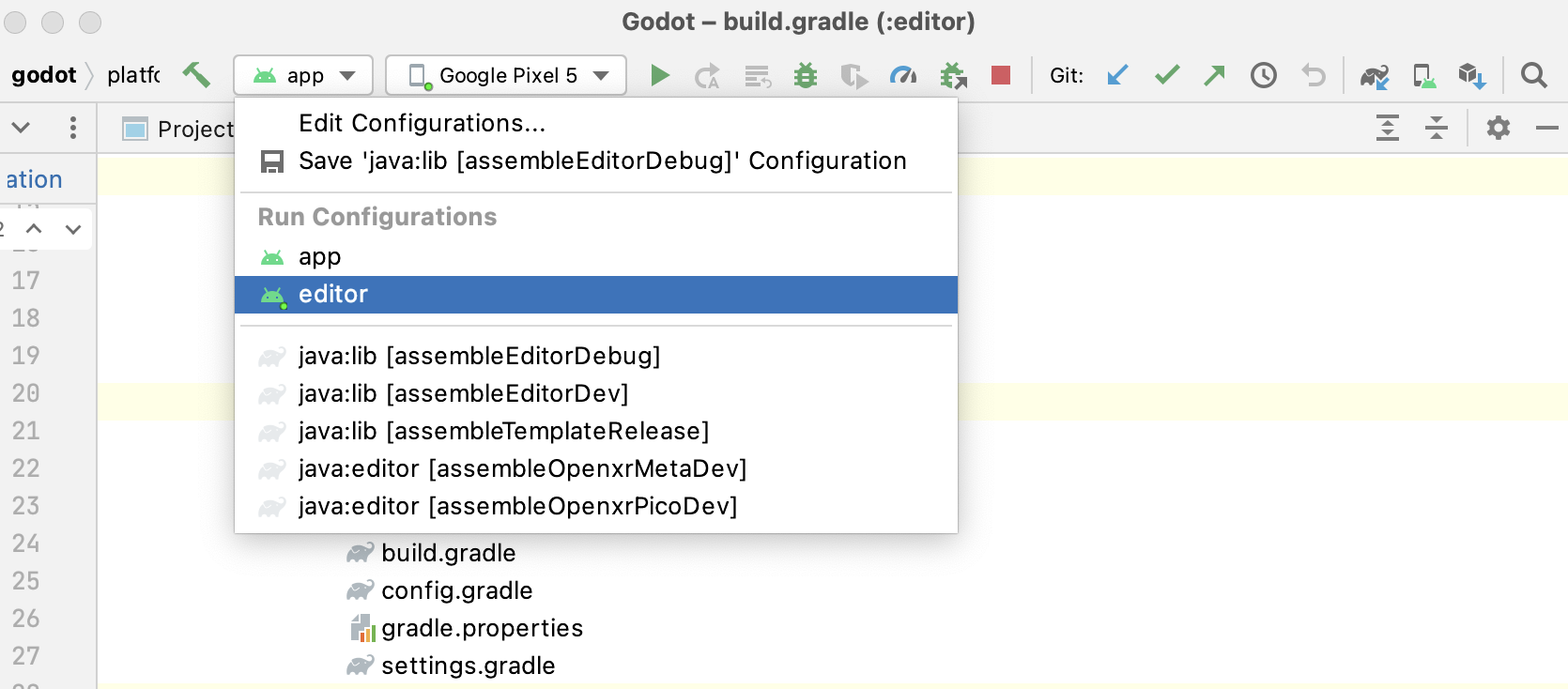
Select Run > Run 'editor' from the top menu or click the Run icon.
- To build the
- To debug the
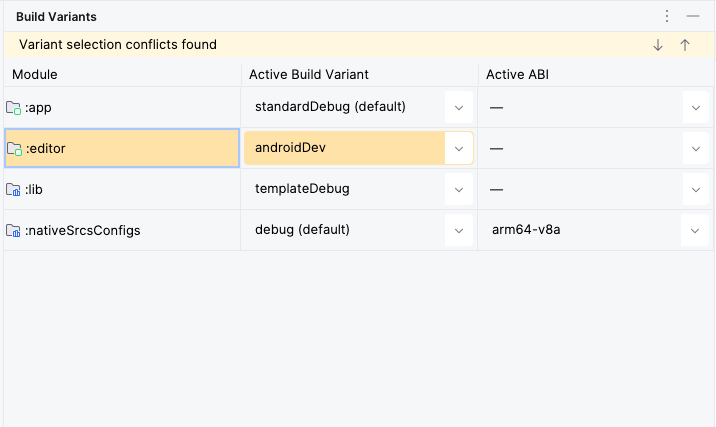
editormodule: Open the Build Variants window using View > Tools Windows > Build Variants from the top menu.
In the Build Variants window, make sure that in the Active Build Variant column, the
:editorentry is set to one of the Dev variants.
Open the Run/Debug Configurations window by clicking on Run > Edit Configurations... on the top menu.
In the Run/Debug Configurations window, select the
editorentry, and under Debugger make sure the Debug Type is set toDual (Java + Native)Click the
+sign under the Symbol Directories section, and add thelibmodule directory:platform/android/java/lib

Select Run > Debug 'editor' from the top menu or click the Debug icon.
- To debug the
Building & debugging the app module
The app module requires the presence of a Godot project in its assets directory (<Godot root directory>/platform/android/java/app/assets) to run.
This is usually handled by the Godot Editor during the export process.
While developing in Android Studio, it's necessary to manually add a Godot project under that directory to replicate the export process.
Once that's done, you can follow the instructions below to run/debug the app module:
- To build the
appmodule: Select the Run/Debug Configurations drop down and select
app.
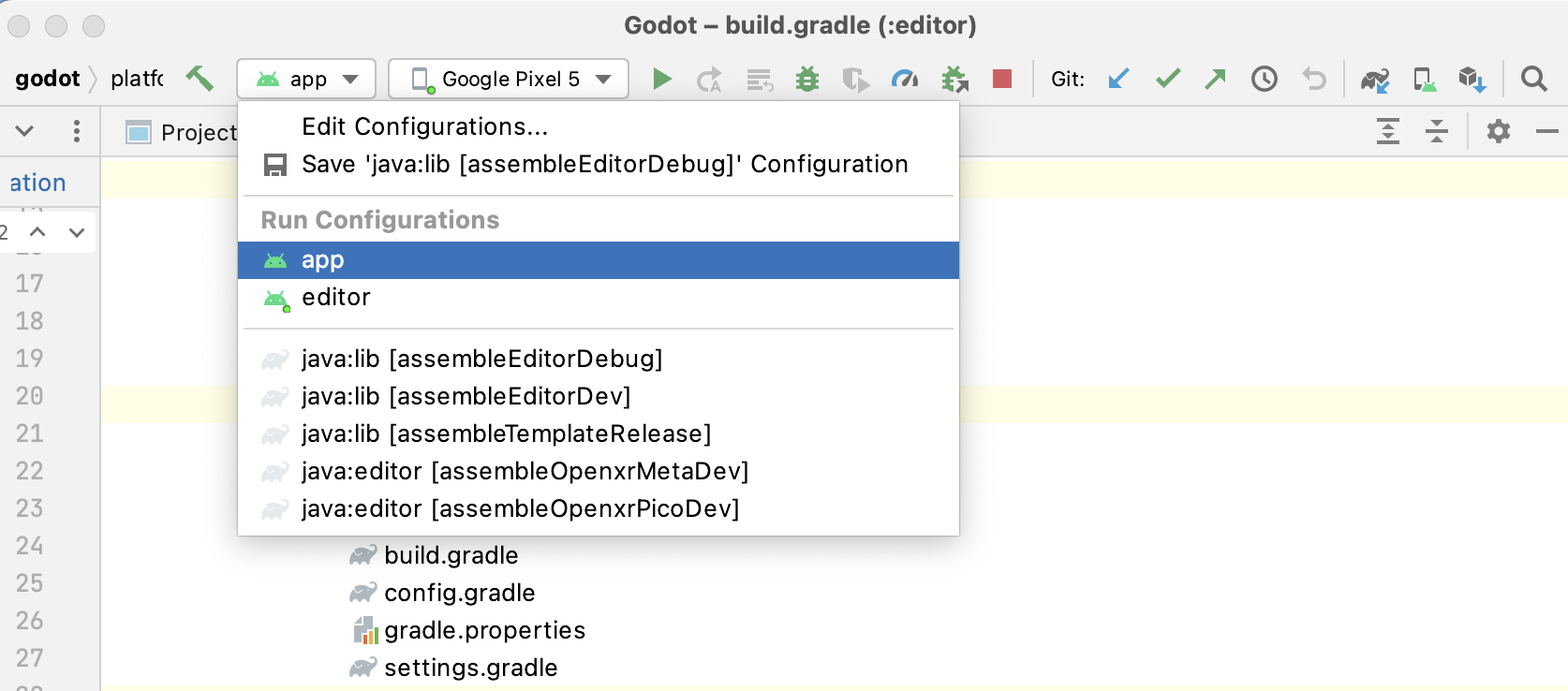
Select Run > Run 'app' from the top menu or click the Run icon.
- To build the
- To debug the
appmodule: Open the Build Variants window using View > Tools Windows > Build Variants from the top menu.
In the Build Variants window, make sure that in the Active Build Variant column, the
:appentry is set to one of the Dev variants.
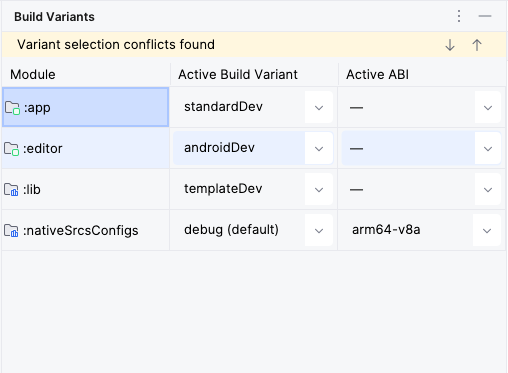
Open the Run/Debug Configurations window by clicking on Run > Edit Configurations... on the top menu.
In the Run/Debug Configurations window, select the
appentry, and under Debugger make sure the Debug Type is set toDual (Java + Native)Click the
+sign under the Symbol Directories section, and add thelibmodule directory:platform/android/java/lib

Select Run > Debug 'app' from the top menu or click the Debug icon.
- To debug the
If you run into any issues, ask for help in Godot's Android dev channel.