Up to date
This page is up to date for Godot 4.3.
If you still find outdated information, please open an issue.
Utiliser CharacterBody2D/3D
Introduction
Godot offre un certain nombre d'objets de collision pour assurer à la fois la détection et la réponse aux collisions. Essayer de décider lequel utiliser pour votre projet peut prêter à confusion. Vous pouvez éviter les problèmes et simplifier le développement si vous comprenez comment chacun d'eux fonctionne et quels sont leurs avantages et leurs inconvénients. Dans ce tutoriel, nous allons regarder le nœud CharacterBody2D et montrer quelques exemples de son utilisation.
Note
While this document uses CharacterBody2D in its examples, the same
concepts apply in 3D as well.
What is a character body?
CharacterBody2D est destiné à l'implémentation de corps qui doivent être contrôlés par code. Ils détectent les collisions avec d'autres corps en mouvement, mais ne sont pas affectés par les propriétés physiques du moteur, comme la gravité ou la friction. Bien que cela signifie que vous devez écrire du code pour créer leur comportement, cela signifie également que vous avez un contrôle plus précis sur la façon dont ils bougent et réagissent.
Note
This document assumes you're familiar with Godot's various physics bodies. Please read Introduction à la physique first, for an overview of the physics options.
Astuce
Un CharacterBody2D peut être affecté par la gravité et d'autres forces, mais vous devez calculer le mouvement en code. Le moteur physique ne déplace pas un CharacterBody2D.
Mouvement et collision
Lorsque vous déplacez un CharacterBody2D, vous ne devez pas définir directement sa propriété position. Au lieu de cela, vous utilisez les méthodes move_and_collide() ou move_and_slide(). Ces méthodes déplacent le corps le long d'un vecteur donné et détectent les collisions.
Avertissement
You should handle physics body movement in the _physics_process() callback.
Les deux méthodes de mouvement ont des objectifs différents, et plus loin dans ce tutoriel, vous verrez des exemples de leur fonctionnement.
move_and_collide
This method takes one required parameter: a Vector2 indicating
the body's relative movement. Typically, this is your velocity vector multiplied by the
frame timestep (delta). If the engine detects a collision anywhere along
this vector, the body will immediately stop moving. If this happens, the
method will return a KinematicCollision2D object.
KinematicCollision2D est un objet contenant des données sur la collision et l'objet entrant en collision. À l'aide de ces données, vous pouvez calculer votre réaction en cas de collision.
move_and_collide is most useful when you just want to move the body and
detect collision, but don't need any automatic collision response. For example,
if you need a bullet that ricochets off a wall, you can directly change the angle
of the velocity when you detect a collision. See below for an example.
move_and_slide
La méthode move_and_slide() est destinée à simplifier la réponse de collision dans le cas courant où vous voulez qu'un corps glisse le long de l'autre. Ceci est particulièrement utile dans les jeux de plates-formes ou les jeux top-down, par exemple.
When calling move_and_slide(), the function uses a number of node properties
to calculate its slide behavior. These properties can be found in the Inspector,
or set in code.
velocity- default value:Vector2( 0, 0 )This property represents the body's velocity vector in pixels per second.
move_and_slide()will modify this value automatically when colliding.motion_mode- default value:MOTION_MODE_GROUNDEDThis property is typically used to distinguish between side-scrolling and top-down movement. When using the default value, you can use the
is_on_floor(),is_on_wall(), andis_on_ceiling()methods to detect what type of surface the body is in contact with, and the body will interact with slopes. When usingMOTION_MODE_FLOATING, all collisions will be considered "walls".up_direction- default value:Vector2( 0, -1 )This property allows you to define what surfaces the engine should consider being the floor. Its value lets you use the
is_on_floor(),is_on_wall(), andis_on_ceiling()methods to detect what type of surface the body is in contact with. The default value means that the top side of horizontal surfaces will be considered "ground".floor_stop_on_slope- valeur par défaut :trueCe paramètre empêche un corps de glisser sur les pentes lorsqu'il est à l'arrêt.
wall_min_slide_angle- default value:0.261799(in radians, equivalent to15degrees)This is the minimum angle where the body is allowed to slide when it hits a slope.
floor_max_angle- valeur par défaut:0.785398(en radians, équivalent à45degrés)Ce paramètre est l'angle maximum avant qu'une surface ne soit plus considérée comme un "sol."
There are many other properties that can be used to modify the body's behavior under specific circumstances. See the CharacterBody2D docs for full details.
Détection des collisions
Lorsque vous utilisez move_and_collide(), la fonction retourne directement un KinematicCollision2D, et vous pouvez l'utiliser dans votre code.
When using move_and_slide() it's possible to have multiple collisions occur,
as the slide response is calculated. To process these collisions, use get_slide_collision_count()
and get_slide_collision():
# Using move_and_collide.
var collision = move_and_collide(velocity * delta)
if collision:
    print("I collided with ", collision.get_collider().name)

# Using move_and_slide.
move_and_slide()
for i in get_slide_collision_count():
    var collision = get_slide_collision(i)
    print("I collided with ", collision.get_collider().name)
// Using MoveAndCollide.
var collision = MoveAndCollide(Velocity * (float)delta);
if (collision != null)
{
    GD.Print("I collided with ", ((Node)collision.GetCollider()).Name);
}

// Using MoveAndSlide.
MoveAndSlide();
for (int i = 0; i < GetSlideCollisionCount(); i++)
{
    var collision = GetSlideCollision(i);
    GD.Print("I collided with ", ((Node)collision.GetCollider()).Name);
}
Note
get_slide_collision_count() only counts times the body has collided and changed direction.
Voir KinematicCollision2D pour plus de détails sur les données de collision renvoyées.
Quelle méthode de mouvement utiliser ?
A common question from new Godot users is: "How do you decide which movement
function to use?" Often, the response is to use move_and_slide() because
it seems simpler, but this is not necessarily the case. One way to think of it
is that move_and_slide() is a special case, and move_and_collide()
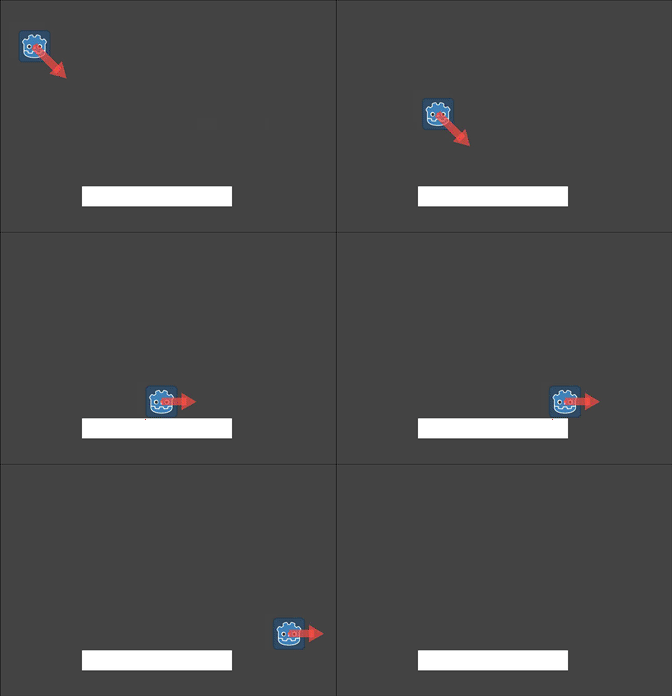
is more general. For example, the following two code snippets result in
the same collision response:
# using move_and_collide
var collision = move_and_collide(velocity * delta)
if collision:
    velocity = velocity.slide(collision.get_normal())

# using move_and_slide
move_and_slide()
// using MoveAndCollide
var collision = MoveAndCollide(Velocity * (float)delta);
if (collision != null)
{
    Velocity = Velocity.Slide(collision.GetNormal());
}

// using MoveAndSlide
MoveAndSlide();
Tout ce qui peut être fait avec move_and_slide() peut aussi être fait avec move_and_collide(), mais cela peut demander un peu plus de code. Néammoins, comme nous allons le voir dans les exemples ci-dessous, il y a des cas où move_and_slide() ne donne pas le résultat voulu.
In the example above, move_and_slide() automatically alters the velocity
variable. This is because when the character collides with the environment,
the function recalculates the speed internally to reflect
the slowdown.
Par exemple, si votre personnage est tombé au sol, vous ne voulez pas qu'il accumule de la vitesse verticale à cause de l'effet de la gravité. Au lieu de cela, vous souhaitez que sa vitesse verticale soit remise à zéro.
move_and_slide() may also recalculate the kinematic body's velocity several
times in a loop as, to produce a smooth motion, it moves the character and
collides up to five times by default. At the end of the process, the character's
new velocity is available for use on the next frame.
Exemples
To see these examples in action, download the sample project: character_body_2d_starter.zip
Mouvement et murs
If you've downloaded the sample project, this example is in "basic_movement.tscn".
Pour cet exemple, ajoutez un CharacterBody2D avec deux enfants : une Sprite2D et une CollisionShape2D. Utilisez l'icône de Godot "icon.svg" comme texture pour le Sprite2D (faites glisser depuis le Système de fichiers vers la propriété Texture du Sprite2D). Dans la propriété Shape du CollisionShape2D, sélectionnez "Nouveau RectangleShape2D" et redimensionnez le rectangle pour remplir l'image du sprite.
Note
Voir Vue d'ensemble du mouvement 2D pour des exemples d'implémentation de systèmes de mouvement 2D.
Attachez un script au CharacterBody2D et ajoutez le code suivant :
extends CharacterBody2D

var speed = 300

func get_input():
    var input_dir = Input.get_vector("ui_left", "ui_right", "ui_up", "ui_down")
    velocity = input_dir * speed

func _physics_process(delta):
    get_input()
    move_and_collide(velocity * delta)
using Godot;

public partial class MyCharacterBody2D : CharacterBody2D
{
    private int _speed = 300;

    public void GetInput()
    {
        Vector2 inputDir = Input.GetVector("ui_left", "ui_right", "ui_up", "ui_down");
        Velocity = inputDir * _speed;
    }

    public override void _PhysicsProcess(double delta)
    {
        GetInput();
        MoveAndCollide(Velocity * (float)delta);
    }
}
Run this scene and you'll see that move_and_collide() works as expected, moving
the body along the velocity vector. Now let's see what happens when you add
some obstacles. Add a StaticBody2D with a
rectangular collision shape. For visibility, you can use a Sprite2D, a
Polygon2D, or turn on "Visible Collision Shapes" from the "Debug" menu.
Jouez la scène de nouveau et essayez de bouger vers l'obstacle. Vous verrez que le CharacterBody2D ne peut pas les traverser. Néanmoins, essayez de bouger vers les obstacles avec un angle et vous verrez qu'ils agissent comme de la colle : il semble que le corps se coince.
Cela arrive parce qu'il n'y a pas de réaction à la collision. move_and_collide() arrête le mouvement du corps quand une collision se produit. On doit coder n'importe quelle réaction que l'on veut pour cette collision.
Try changing the function to move_and_slide() and running again.
move_and_slide() fournit une réaction à la collision par défaut en faisant glisser le corps le long de l'objet de la collision. C'est utile pour beaucoup de types de jeux, et il est possible que ce soit le seul comportement dont vous ayez besoin.
Rebondissement/réflexion
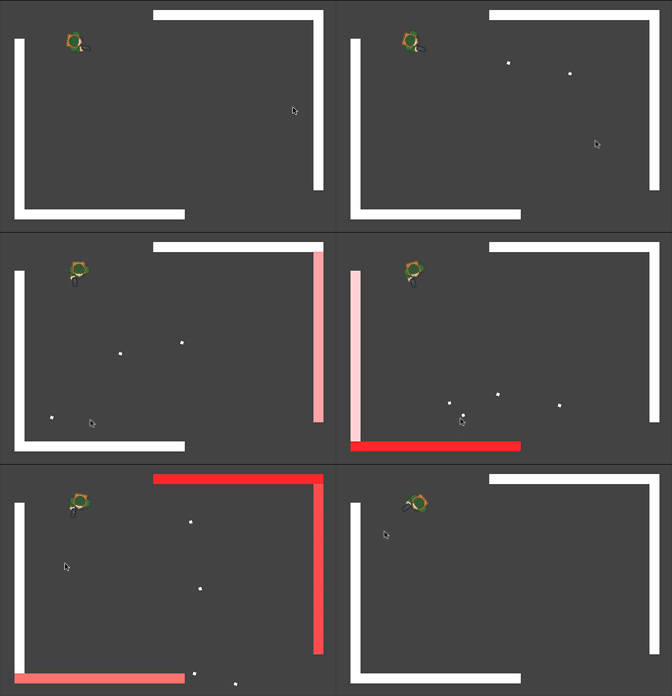
What if you don't want a sliding collision response? For this example ("bounce_and_collide.tscn" in the sample project), we have a character shooting bullets and we want the bullets to bounce off the walls.
Cet exemple utilise trois scènes, La scène principale contient le joueur (Player) et les murs (Walls). La balle (Bullet) et le mur (Wall) sont des scènes séparées pour pouvoir être instanciés.
The Player is controlled by the w and s keys for forward and back. Aiming
uses the mouse pointer. Here is the code for the Player, using move_and_slide():
extends CharacterBody2D

var Bullet = preload("res://bullet.tscn")
var speed = 200

func get_input():
    # Add these actions in Project Settings -> Input Map.
    var input_dir = Input.get_axis("backward", "forward")
    velocity = transform.x * input_dir * speed
    if Input.is_action_just_pressed("shoot"):
        shoot()

func shoot():
    # "Muzzle" is a Marker2D placed at the barrel of the gun.
    var b = Bullet.instantiate()
    b.start($Muzzle.global_position, rotation)
    get_tree().root.add_child(b)

func _physics_process(delta):
    get_input()
    var dir = get_global_mouse_position() - global_position
    # Don't move if too close to the mouse pointer.
    if dir.length() > 5:
        rotation = dir.angle()
        move_and_slide()
using Godot;

public partial class MyCharacterBody2D : CharacterBody2D
{
    private PackedScene _bullet = GD.Load<PackedScene>("res://Bullet.tscn");
    private int _speed = 200;

    public void GetInput()
    {
        // Add these actions in Project Settings -> Input Map.
        float inputDir = Input.GetAxis("backward", "forward");
        Velocity = Transform.X * inputDir * _speed;
        if (Input.IsActionPressed("shoot"))
        {
            Shoot();
        }
    }

    public void Shoot()
    {
        // "Muzzle" is a Marker2D placed at the barrel of the gun.
        var b = (Bullet)_bullet.Instantiate();
        b.Start(GetNode<Node2D>("Muzzle").GlobalPosition, Rotation);
        GetTree().Root.AddChild(b);
    }

    public override void _PhysicsProcess(double delta)
    {
        GetInput();
        var dir = GetGlobalMousePosition() - GlobalPosition;
        // Don't move if too close to the mouse pointer.
        if (dir.Length() > 5)
        {
            Rotation = dir.Angle();
            MoveAndSlide();
        }
    }
}
Et le code de la balle :
extends CharacterBody2D

var speed = 750

func start(_position, _direction):
    rotation = _direction
    position = _position
    velocity = Vector2(speed, 0).rotated(rotation)

func _physics_process(delta):
    var collision = move_and_collide(velocity * delta)
    if collision:
        velocity = velocity.bounce(collision.get_normal())
        if collision.get_collider().has_method("hit"):
            collision.get_collider().hit()

func _on_VisibilityNotifier2D_screen_exited():
    # Deletes the bullet when it exits the screen.
    queue_free()
using Godot;

public partial class Bullet : CharacterBody2D
{
    public int _speed = 750;

    public void Start(Vector2 position, float direction)
    {
        Rotation = direction;
        Position = position;
        Velocity = new Vector2(speed, 0).Rotated(Rotation);
    }

    public override void _PhysicsProcess(double delta)
    {
        var collision = MoveAndCollide(Velocity * (float)delta);
        if (collision != null)
        {
            Velocity = Velocity.Bounce(collision.GetNormal());
            if (collision.GetCollider().HasMethod("Hit"))
            {
                collision.GetCollider().Call("Hit");
            }
        }
    }

    private void OnVisibilityNotifier2DScreenExited()
    {
        // Deletes the bullet when it exits the screen.
        QueueFree();
    }
}
The action happens in _physics_process(). After using move_and_collide(), if a
collision occurs, a KinematicCollision2D object is returned (otherwise, the return
is null).
Si une collision est retournée, on utilise la normale de la collision pour faire se réfléchir la vitesse des balles velocity avec la méthode Vector2.bounce().
Si l'objet de la collision (collider) a une méthode hit, on l'appelle aussi. Dans le projet d'exemple, on a ajouté un effet de couleur clignotante au mur pour montrer cela.
Mouvement de jeu de plateforme
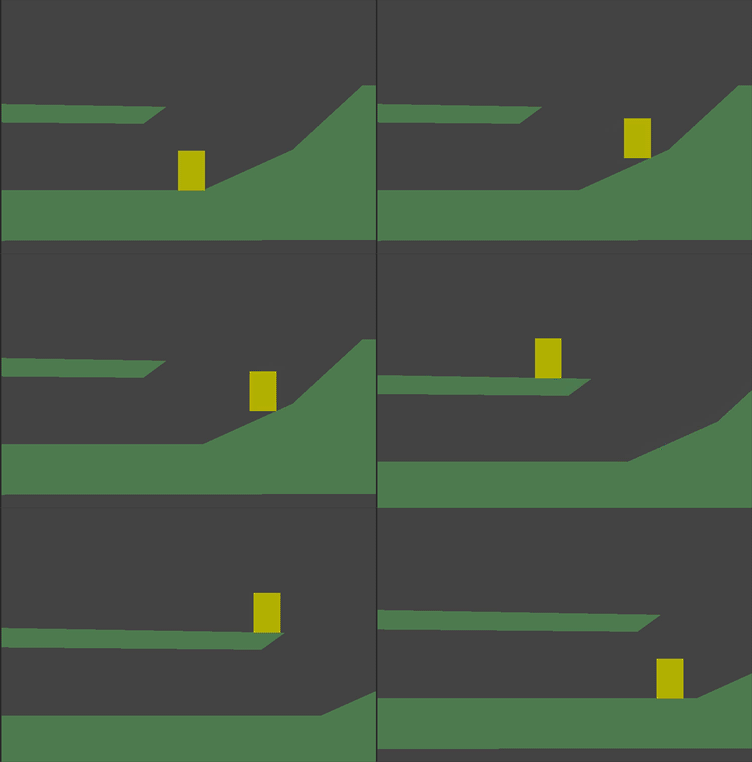
Let's try one more popular example: the 2D platformer. move_and_slide()
is ideal for quickly getting a functional character controller up and running.
If you've downloaded the sample project, you can find this in "platformer.tscn".
For this example, we'll assume you have a level made of one or more StaticBody2D
objects. They can be any shape and size. In the sample project, we're using
Polygon2D to create the platform shapes.
Voici le code pour le corps du joueur :
extends CharacterBody2D

var speed = 300.0
var jump_speed = -400.0

# Get the gravity from the project settings so you can sync with rigid body nodes.
var gravity = ProjectSettings.get_setting("physics/2d/default_gravity")


func _physics_process(delta):
    # Add the gravity.
    velocity.y += gravity * delta

    # Handle Jump.
    if Input.is_action_just_pressed("jump") and is_on_floor():
        velocity.y = jump_speed

    # Get the input direction.
    var direction = Input.get_axis("ui_left", "ui_right")
    velocity.x = direction * speed

    move_and_slide()
using Godot;

public partial class MyCharacterBody2D : CharacterBody2D
{
    private float _speed = 100.0f;
    private float _jumpSpeed = -400.0f;

    // Get the gravity from the project settings so you can sync with rigid body nodes.
    public float Gravity = ProjectSettings.GetSetting("physics/2d/default_gravity").AsSingle();

    public override void _PhysicsProcess(double delta)
    {
        Vector2 velocity = Velocity;

        // Add the gravity.
        velocity.Y += Gravity * (float)delta;

        // Handle jump.
        if (Input.IsActionJustPressed("jump") && IsOnFloor())
            velocity.Y = _jumpSpeed;

        // Get the input direction.
        float direction = Input.GetAxis("ui_left", "ui_right");
        velocity.X = direction * _speed;

        Velocity = velocity;
        MoveAndSlide();
    }
}
In this code we're using move_and_slide() as described above - to move the body
along its velocity vector, sliding along any collision surfaces such as the ground
or a platform. We're also using is_on_floor() to check if a jump should be
allowed. Without this, you'd be able to "jump" in midair; great if you're making
Flappy Bird, but not for a platformer game.
There is a lot more that goes into a complete platformer character: acceleration, double-jumps, coyote-time, and many more. The code above is just a starting point. You can use it as a base to expand into whatever movement behavior you need for your own projects.