Processo d'importazione
Importare contenuti in Godot
To import assets in Godot, place your assets (image files, scenes, audio files, fonts, etc) directly in the project folder. There are 2 ways to achieve this:
For any file type: Copy files manually with your operating system's file manager.
For file types that can be imported by Godot: Drag-and-drop files from the operating system's file manager to the editor's FileSystem dock. This only works with resource file types (i.e. file types that Godot can import).
Godot will automatically import these files internally and keep the imported
resources hidden in a res://.godot/imported/ folder.
This means that when trying to access imported assets through code, you need to use the Resource Loader as it will automatically take into account where the internal files are saved. If you try and access an imported asset using the FileAccess class, it will work in the editor, but it will break in the exported project.
However, the Resource Loader cannot access non-imported files. Only the FileAccess class can.
Cambiare i parametri di importazione
Nota
Import parameters are only present in non-native Godot resource types.
This means Godot's own scene and resource file formats (.tscn, .scn,
.tres, .res) don't have import options you can select in the Import
dock.
Per cambiare i parametri di importazione di un contenuto in Godot, seleziona la risorsa interessata nel pannello del FileSystem:
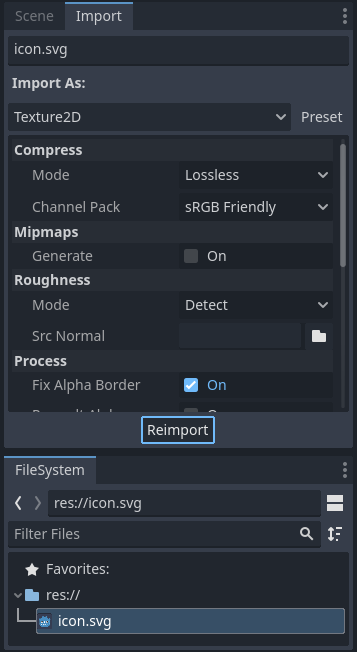
After adjusting the parameters, click Reimport. Be careful: if you select another file in the FileSystem dock before clicking Reimport, changes will be discarded. After clicking Reimport, the chosen parameters will only be used for this asset and on future reimports.
Inoltre, è possibile cambiare i parametri di importazione di più contenuti allo stesso tempo. Selezionali tutti assieme nel pannello FileSystem e i parametri visualizzati verranno applicati a tutti dopo averli reimportati.
Reimportazione di più contenuti
While working on a project you may find that several assets need to have the same parameters changed, such as enabling mipmaps, but you only want those specific parameters changed. To do this, select every asset you want to reimport in the file system. In the import tab there will now be a checkbox to the left of every import parameter.
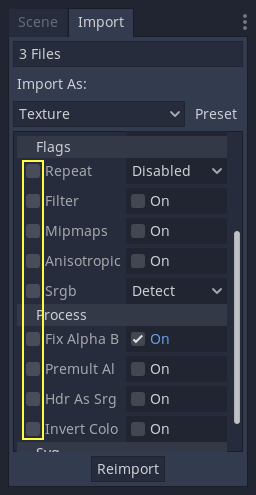
Select the checkbox of the parameters you want to change on your imported assets, then change the parameters normally. Finally, click the reimport button and every selected asset will be reimported with only those parameters changed.
Reimportazione automatica
Quando il checksum MD5 dell'asset originale cambia, Godot lo reimporta automaticamente, applicando le configurazioni della preconfigurazione (o preset) per quell'asset specifico.
File generati
L'importazione aggiungerà un ulteriore file <asset>.import accanto al file sorgente, contenente la configurazione di importazione.
Assicurati di fare il commit di questi file nel tuo sistema di controllo della versione, poiché questi file contengono metadati importanti.
ls
example.png
example.png.import
project.godot
Inoltre, risorse aggiuntive saranno presenti nella cartella nascosta res://.godot/imported/:
ls .godot/imported
example.png-218a8f2b3041327d8a5756f3a245f83b.ctex
example.png-218a8f2b3041327d8a5756f3a245f83b.md5
Se uno di questi file in questa cartella viene cancellato (o tutta la cartella), la risorsa o le risorse verranno reimportate automaticamente. Perciò, non è consigliato fare il commit della cartella .godot/ nel sistema di controllo versione. Sebbene ciò possa ridurre i tempi di reimportazione durante il checkout su un altro computer, ciò richiede moltissimo più spazio e tempo di trasferimento.
The default version control metadata that can be generated on project creation
will automatically ignore the .godot/ folder.
Cambiare il tipo della risorsa da importare
Alcuni contenuti si possono importare come risorse di tipo differente. Per questo, seleziona il tipo interessato e clicca Reimporta:

Select Keep File (exported as is) as resource type to skip file import, files
with this resource type will be preserved as is during project export.
Select Skip File (not exported) as resource type to skip file import and ignore
file during project export.
Cambiare i parametri di importazione standard
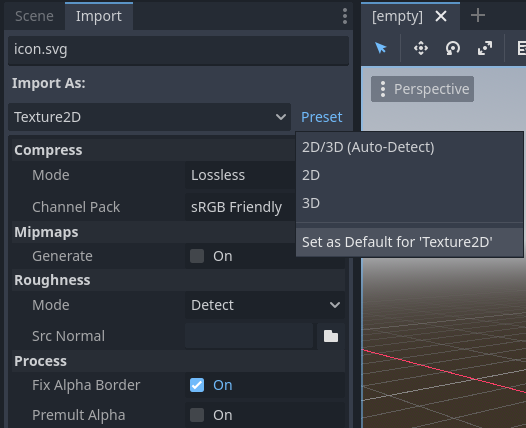
Giochi diversi possono richiedere diversi valori predefinito. È possibile modificare le opzioni di importazione in un insieme predefinito attraverso il menu Preimpostazione.... Oltre ad alcuni tipi di risorse che offrono preimpostazioni, è anche possibile salvare e cancellare le preimpostazioni:
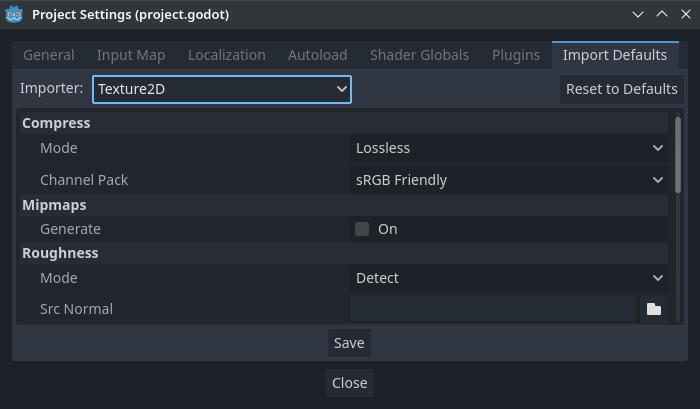
The default import parameters for a given resource type can be changed project-wide using the Import Defaults tab of the Project Settings dialog:
Ulteriore lettura
Questo flusso di lavoro richiede un po' di tempo per abituarsi, ma impone a gestire le risorse in modo più corretto.
Esistono molti tipi di risorse disponibili per essere importati. Continua a leggere per capire come utilizzarle tutti: