Risoluzione dei problemi
Questa pagina elenca i problemi comuni riscontrati durante l'utilizzo di Godot e le possibili soluzioni.
Vedi anche
Consultare Utilizzare l'editor web per avvertenze specifiche alla versione Web dell'editor Godot.
The editor runs slowly and uses all my CPU and GPU resources, making my computer noisy
This is a known issue, especially on macOS since most Macs have Retina displays. Due to Retina displays' higher pixel density, everything has to be rendered at a higher resolution. This increases the load on the GPU and decreases perceived performance.
Esistono diversi modi per migliore le prestazioni e la durata della batteria:
In 3D, click the Perspective button in the top left corner and enable Half Resolution. The 3D viewport will now be rendered at half resolution, which can be up to 4 times faster.
Open the Editor Settings and increase the value of Low Processor Mode Sleep (µsec) to
33000(30 FPS). This value determines the amount of microseconds between frames to render. Higher values will make the editor feel less reactive, but will help decrease CPU and GPU usage significantly.If you have a node that causes the editor to redraw continuously (such as particles), hide it and show it using a script in the
_ready()method. This way, it will be hidden in the editor, but will still be visible in the running project.
The editor stutters and flickers on my variable refresh rate monitor (G-Sync/FreeSync)
This is a known issue. Variable refresh rate monitors need to adjust their gamma curves continuously to emit a consistent amount of light over time. This can cause flicker to appear in dark areas of the image when the refresh rate varies a lot, which occurs as the Godot editor only redraws when necessary.
Ci sono diverse soluzioni per questo:
Enable Interface > Editor > Update Continuously in the Editor Settings. Keep in mind this will increase power usage and heat/noise emissions since the editor will now be rendering constantly, even if nothing has changed on screen. To alleviate this, you can increase Low Processor Mode Sleep (µsec) to
33000(30 FPS) in the Editor Settings. This value determines the amount of microseconds between frames to render. Higher values will make the editor feel less reactive, but will help decrease CPU and GPU usage significantly.Alternatively, disable variable refresh rate on your monitor or in the graphics driver.
VRR flicker can be reduced on some displays using the VRR Control or Fine Tune Dark Areas options in your monitor's OSD. These options may increase input lag or result in crushed blacks.
If using an OLED display, use the Black (OLED) editor theme preset in the Editor Settings. This hides VRR flicker thanks to OLED's perfect black levels.
L'avvio dell'editor o del progetto richiede molto tempo
When using one of the Vulkan-based renderers (Forward+ or Mobile), the first startup is expected to be relatively long. This is because shaders need to be compiled before they can be cached. Shaders also need to be cached again after updating Godot, after updating graphics drivers or after switching graphics cards.
Se il problema continua dopo il primo avvio, si tratta di un bug noto <https://github.com/godotengine/godot/issues/20566> __ su Windows quando sono collegate periferiche USB specifiche. In particolare, il software iCUE di Corsair sembra causare questo bug. Provare ad aggiornare i driver delle tue periferiche USB alla versione più recente. Se il bug persiste, è necessario scollegare le periferiche difettose prima di aprire l'editor. È quindi possibile collegare nuovamente le periferiche.
Firewall software such as Portmaster may also cause the debug port to be
blocked. This causes the project to take a long time to start, while being
unable to use debugging features in the editor (such as viewing print()
output). You can work this around by changing the debug port used by the project
in the Editor Settings (Network > Debug > Remote Port). The default is
6007; try another value that is greater than 1024, such as 7007.
On Windows, when loading the project for the first time after the PC is turned on, Windows Defender will cause the filesystem cache validation on project startup to take significantly longer. This is especially noticeable in projects with a large number of files. Consinder adding the project folder to the list of exclusions by going to Virus & threat protection > Virus & threat protection settings > Add or remove exclusions.
L'editor Godot appare bloccato dopo aver cliccato sulla console del sistema
Quando si esegue Godot su Windows con la console di sistema abilitata, è possibile abilitare accidentalmente la modalità di selezione facendo clic all'interno della finestra di comando. Questo comportamento specifico di Windows sospende l'applicazione per consentire di selezionare il testo all'interno della console di sistema. Godot non può ignorare questo comportamento specifico del sistema.
Per risolvere questo problema, seleziona la finestra della console di sistema e premi Invio per uscire dalla modalità di selezione.
The Godot editor's macOS dock icon gets duplicated every time it is manually moved
If you open the Godot editor and manually change the position of the dock icon, then restart the editor, you will get a duplicate dock icon all the way to the right of the dock.
This is due to a design limitation of the macOS dock. The only known way to resolve this would be to merge the project manager and editor into a single process, which means the project manager would no longer spawn a separate process when starting the editor. While using a single process instance would bring several benefits, it isn't planned to be done in the near future due to the complexity of the task.
To avoid this issue, keep the Godot editor's dock icon at its default location as created by macOS.
Un testo come "NO DC" appare nell'angolo in alto a sinistra della finestra del Gestore dei progetti e dell'editor
Questo è causato dal driver grafico NVIDIA che inietta un overlay per visualizzare le informazioni.
Per disabilitare questa sovrapposizione su Windows, ripristina le impostazioni del driver grafico ai valori predefiniti nel pannello di controllo NVIDIA.
Per disabilitare questo overlay su Linux, apri nvidia-settings, vai su X Screen 0 > OpenGL Settings e deseleziona Enable Graphics API Visual Indicator.
Un microfono o un'icona di "aggiornamento" appare nell'angolo in basso a destra della finestra del Gestore dei progetti e dell'editor
This is caused by the NVIDIA graphics driver injecting an overlay to display instant replay information on ShadowPlay recording. This overlay can only be seen on Windows, as Linux does not have support for ShadowPlay.
To disable this overlay, press Alt + Z (default shortcut for the NVIDIA overlay) and disable Settings > HUD Layout > Status Indicator in the NVIDIA overlay.
Alternatively, you can install the new NVIDIA app <https://www.nvidia.com/en-us/software/nvidia-app/> which replaces GeForce Experience and does not suffer from this issue. Unlike GeForce Experience, the NVIDIA app draws the replay indicator in the corner of the screen as opposed to the corner of each window.
L'editor o il progetto appaiono troppo nitidi o sfocati
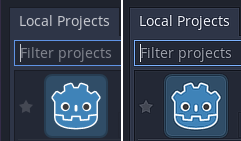
Correct appearance (left), oversharpened appearance due to graphics driver sharpening (right)
If the editor or project appears overly sharp, this is likely due to image sharpening being forced on all Vulkan or OpenGL applications by your graphics driver. You can disable this behavior in the graphics driver's control panel:
NVIDIA (Windows): Open the start menu and choose NVIDIA Control Panel. Open the Manage 3D settings tab on the left. In the list in the middle, scroll to Image Sharpening and set it to Sharpening Off.
AMD (Windows): Open the start menu and choose AMD Software. Click the settings "cog" icon in the top-right corner. Go to the Graphics tab then disable Radeon Image Sharpening.
If the editor or project appears overly blurry, this is likely due to FXAA being forced on all Vulkan or OpenGL applications by your graphics driver.
NVIDIA (Windows): Open the start menu and choose NVIDIA Control Panel. Open the Manage 3D settings tab on the left. In the list in the middle, scroll to Fast Approximate Antialiasing and set it to Application Controlled.
NVIDIA (Linux): Open the applications menu and choose NVIDIA X Server Settings. Select to Antialiasing Settings on the left, then uncheck Enable FXAA.
AMD (Windows): Open the start menu and choose AMD Software. Click the settings "cog" icon in the top-right corner. Go to the Graphics tab, scroll to the bottom and click Advanced to unfold its settings. Disable Morphological Antialiasing.
Third-party vendor-independent utilities such as vkBasalt may also force sharpening or FXAA on all Vulkan applications. You may want to check their configuration as well.
After changing options in the graphics driver or third-party utilities, restart Godot to make the changes effective.
If you still wish to force sharpening or FXAA on other applications, it's recommended to do so on a per-application basis using the application profiles system provided by graphics drivers' control panels.
L'editor o il progetto sembrano avere colori sbiaditi
On Windows, this is usually caused by incorrect OS or monitor settings, as Godot currently does not support HDR output (even though it may internally render in HDR).
As most displays are not designed to display SDR content in HDR mode, it is recommended to disable HDR in the Windows settings when not running applications that use HDR output. On Windows 11, this can be done by pressing Windows + Alt + B (this shortcut is part of the Xbox Game Bar app). To toggle HDR automatically based on applications currently running, you can use AutoActions.
If you insist on leaving HDR enabled, it is possible to somewhat improve the result by ensuring the display is configured to use HGIG tonemapping (as opposed to DTM), then using the Windows HDR calibration app. It is also strongly recommended to use Windows 11 instead of Windows 10 when using HDR. The end result will still likely be inferior to disabling HDR on the display, though.
Support for HDR output is planned in a future release.
The editor/project freezes or displays glitched visuals after resuming the PC from suspend
This is a known issue on Linux with NVIDIA graphics when using the proprietary driver. There is no definitive fix yet, as suspend on Linux + NVIDIA is often buggy when OpenGL or Vulkan is involved. The Compatibility rendering method (which uses OpenGL) is generally less prone to suspend-related issues compared to the Forward+ and Mobile renderers (which use Vulkan).
The NVIDIA driver offers an experimental option to preserve video memory after suspend which may resolve this issue. This option has been reported to work better with more recent NVIDIA driver versions.
To avoid losing work, save scenes in the editor before putting the PC to sleep.
Il progetto funziona quando viene eseguito dall'editor, ma non riesce a caricare alcuni file quando viene eseguito da una copia esportata
Ciò è solitamente causato dal dimenticare di specificare un filtro per i file non di risorse nella finestra di dialogo Esporta. Per impostazione predefinita, Godot includerà solo le risorse effettive nel file PCK. Alcuni file comunemente utilizzati, come i file JSON, non sono considerati risorse. Ad esempio, se carichi test.json nel progetto esportato, devi specificare * .json nel filtro di esportazione non di risorse. Vedi Opzioni di risorse per maggiori informazioni.
Also, note that files and folders whose names begin with a period will never be
included in the exported project. This is done to prevent version control
folders like .git from being included in the exported PCK file.
Su Windows, ciò può anche essere dovuto ai problemi di case sensitive . Se si fa riferimento a una risorsa nello script con un case diverso rispetto al file system, il caricamento fallirà una volta esportato il progetto. Questo perché il filesystem PCK virtuale fa distinzione tra maiuscole e minuscole, mentre il filesystem di Windows non fa distinzione tra maiuscole e minuscole per impostazione predefinita.
The project crashes frequently or instantly after opening it from the project manager
This could be caused by a number of things such as an editor plugin, GDExtension addon, or something else. In this scenario it's recommended that you open the project in recovery mode, and attempt to find and fix whatever is causing the crashes. See the Project Manager page for more information.