プログラムでプレイヤーを動かす
いよいよコーディングです。前編で作成した入力アクションを使って、キャラクターを動かしていきます。
注釈
このプロジェクトでは、Godotの命名規則に従います。
GDScript: クラス(ノード)はPascalCaseを使用し、変数と関数はsnake_caseを使用し、定数はALL_CAPSを使用します(GDScriptスタイルガイドを参照)。
C#: クラス、export変数、メソッドはPascalCaseを使用し、プライベートフィールドは _camelCase を使用し、ローカル変数とパラメーターは camelCase を使用します(C# スタイルガイドを参照)。シグナルを接続するときは、メソッド名を正確に入力してください。
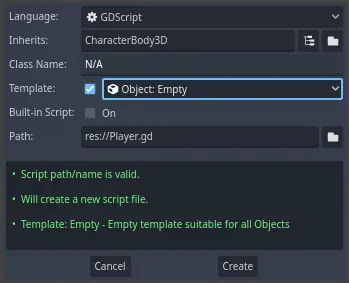
新しいスクリプトを追加するために、 Player ノードを右クリックし、 スクリプトをアタッチ… (Attach Script)を選択します。「ノードにスクリプトをアタッチする」ポップアップ画面で、 テンプレート (Template)横のチェックボックスをオフにし、テンプレートを 空 (Empty)にセットしてから 作成 (Create)ボタンを押してください。
まず、このクラスのプロパティから始めましょう。移動速度(speed)、重力を表す落下加速度(gravity)、そしてキャラクターを移動させるのに使う速度(velocity)を定義していきます。
extends CharacterBody3D

# How fast the player moves in meters per second.
@export var speed = 14
# The downward acceleration when in the air, in meters per second squared.
@export var fall_acceleration = 75

var target_velocity = Vector3.ZERO
using Godot;

public partial class Player : CharacterBody3D
{
    // Don't forget to rebuild the project so the editor knows about the new export variable.

    // How fast the player moves in meters per second.
    [Export]
    public int Speed { get; set; } = 14;
    // The downward acceleration when in the air, in meters per second squared.
    [Export]
    public int FallAcceleration { get; set; } = 75;

    private Vector3 _targetVelocity = Vector3.Zero;
}
これらは移動する物体に共通するプロパティです。 target_velocity は、速度と方向を組み合わせた 3Dベクトル です。ここでは、フレーム間で値を更新して再利用したいので、プロパティとして定義しています。
注釈
距離はメートル単位なので、2D コードとは値がかなり異なります。2D では、1000単位(ピクセル)は画面の幅の半分にしか相当しませんが、3D では 1km になります。
それでは、移動をコーディングしていきましょう。まず、グローバルな Input オブジェクトを使って、 _physics_process() 内で入力方向ベクトルを計算するところから始めます。
func _physics_process(delta):
    # We create a local variable to store the input direction.
    var direction = Vector3.ZERO

    # We check for each move input and update the direction accordingly.
    if Input.is_action_pressed("move_right"):
        direction.x += 1
    if Input.is_action_pressed("move_left"):
        direction.x -= 1
    if Input.is_action_pressed("move_back"):
        # Notice how we are working with the vector's x and z axes.
        # In 3D, the XZ plane is the ground plane.
        direction.z += 1
    if Input.is_action_pressed("move_forward"):
        direction.z -= 1
public override void _PhysicsProcess(double delta)
{
    // We create a local variable to store the input direction.
    var direction = Vector3.Zero;

    // We check for each move input and update the direction accordingly.
    if (Input.IsActionPressed("move_right"))
    {
        direction.X += 1.0f;
    }
    if (Input.IsActionPressed("move_left"))
    {
        direction.X -= 1.0f;
    }
    if (Input.IsActionPressed("move_back"))
    {
        // Notice how we are working with the vector's X and Z axes.
        // In 3D, the XZ plane is the ground plane.
        direction.Z += 1.0f;
    }
    if (Input.IsActionPressed("move_forward"))
    {
        direction.Z -= 1.0f;
    }
}
ここでは _process() の代わりに _physics_process() を使用してすべての計算を行います。これは運動学や剛体の移動などの物理関連のコード専用に設計されています。これは一定の時間間隔でノードを更新します。
参考
_process()と_physics_process()の違いについては、 アイドル処理と物理処理 を参照してください。
まず、direction変数を Vector3.ZEROに初期化することからはじめます。次に、プレイヤーがmove_*の入力を一つ以上押しているかどうかを確認し、ベクトルのx、z成分を適宜に更新します。これらの成分は地平面の軸に相当します。
この4つの条件は8つの可能性そして8つの可能な方向を与えます。
たとえば、プレイヤーが W と D の両方を同時に押した場合、ベクトルの長さは1.4程度になります。しかし、1 つのキーを押した場合は、1の長さになります。ベクトルの長さが一定であるようにしたいので、そのためにnormalized()メソッドを呼び出します。
func _physics_process(delta):
    #...

    if direction != Vector3.ZERO:
        direction = direction.normalized()
        # Setting the basis property will affect the rotation of the node.
        $Pivot.basis = Basis.looking_at(direction)
public override void _PhysicsProcess(double delta)
{
    // ...

    if (direction != Vector3.Zero)
    {
        direction = direction.Normalized();
        // Setting the basis property will affect the rotation of the node.
        GetNode<Node3D>("Pivot").Basis = Basis.LookingAt(direction);
    }
}
ここでは、方向が0より大きい長さを持つ場合、つまりプレイヤーが方向キーを押している場合にのみ、このベクトルを正規化(normalize)します。
$Pivot が向いている方向を、 direction 方向を向く Basis を生成することで計算します。
次に、速度(velocity)を更新します。地面での速度と落下速度を別々に計算する必要があります。字下げを1タブ戻し、プログラム行が_physics_process()関数の中にありつつ、上で書いた条件文の外にあるようにしてください。
func _physics_process(delta):
    #...
    if direction != Vector3.ZERO:
        #...

    # Ground Velocity
    target_velocity.x = direction.x * speed
    target_velocity.z = direction.z * speed

    # Vertical Velocity
    if not is_on_floor(): # If in the air, fall towards the floor. Literally gravity
        target_velocity.y = target_velocity.y - (fall_acceleration * delta)

    # Moving the Character
    velocity = target_velocity
    move_and_slide()
public override void _PhysicsProcess(double delta)
{
    // ...
    if (direction != Vector3.Zero)
    {
        // ...
    }

    // Ground velocity
    _targetVelocity.X = direction.X * Speed;
    _targetVelocity.Z = direction.Z * Speed;

    // Vertical velocity
    if (!IsOnFloor()) // If in the air, fall towards the floor. Literally gravity
    {
        _targetVelocity.Y -= FallAcceleration * (float)delta;
    }

    // Moving the character
    Velocity = _targetVelocity;
    MoveAndSlide();
}
CharacterBody3D.is_on_floor() 関数はオブジェクトが床と接触しているフレームで true の値を返します。そのため、 Player が空中にいる間だけ重力を適用すればよいのです。
垂直方向の速度については、毎フレーム落下加速度にデルタタイムを掛けたものを引きます。このコード行でキャラクターは床に乗るか接触していない間は毎フレーム落下するようになります。
物理エンジンは、移動および衝突が起こった場合にのみ、特定のフレームにおける壁、床、または他の物体との相互作用を検出することができます。 後でこのプロパティを使ってジャンプをコーディングします。
最後の行でCharacterBody3D.move_and_slide()を呼び出しています。これはCharacterBody3Dクラスの強力なメソッドで、キャラクターをスムーズに動かすことができます。動きの途中で壁にぶつかっても、エンジンがスムーズな動きにしようとします。これはCharacterBody3Dのvelocityの値を使用します
そして、これが床の上でキャラクターを動かすために必要なコードのすべてです。
参考までに、 player.gd の全体のコードを以下に示します。
extends CharacterBody3D

# How fast the player moves in meters per second.
@export var speed = 14
# The downward acceleration when in the air, in meters per second squared.
@export var fall_acceleration = 75

var target_velocity = Vector3.ZERO


func _physics_process(delta):
    var direction = Vector3.ZERO

    if Input.is_action_pressed("move_right"):
        direction.x += 1
    if Input.is_action_pressed("move_left"):
        direction.x -= 1
    if Input.is_action_pressed("move_back"):
        direction.z += 1
    if Input.is_action_pressed("move_forward"):
        direction.z -= 1

    if direction != Vector3.ZERO:
        direction = direction.normalized()
        # Setting the basis property will affect the rotation of the node.
        $Pivot.basis = Basis.looking_at(direction)

    # Ground Velocity
    target_velocity.x = direction.x * speed
    target_velocity.z = direction.z * speed

    # Vertical Velocity
    if not is_on_floor(): # If in the air, fall towards the floor. Literally gravity
        target_velocity.y = target_velocity.y - (fall_acceleration * delta)

    # Moving the Character
    velocity = target_velocity
    move_and_slide()
using Godot;

public partial class Player : CharacterBody3D
{
    // How fast the player moves in meters per second.
    [Export]
    public int Speed { get; set; } = 14;
    // The downward acceleration when in the air, in meters per second squared.
    [Export]
    public int FallAcceleration { get; set; } = 75;

    private Vector3 _targetVelocity = Vector3.Zero;

    public override void _PhysicsProcess(double delta)
    {
        var direction = Vector3.Zero;

        if (Input.IsActionPressed("move_right"))
        {
            direction.X += 1.0f;
        }
        if (Input.IsActionPressed("move_left"))
        {
            direction.X -= 1.0f;
        }
        if (Input.IsActionPressed("move_back"))
        {
            direction.Z += 1.0f;
        }
        if (Input.IsActionPressed("move_forward"))
        {
            direction.Z -= 1.0f;
        }

        if (direction != Vector3.Zero)
        {
            direction = direction.Normalized();
            // Setting the basis property will affect the rotation of the node.
            GetNode<Node3D>("Pivot").Basis = Basis.LookingAt(direction);
        }

        // Ground velocity
        _targetVelocity.X = direction.X * Speed;
        _targetVelocity.Z = direction.Z * Speed;

        // Vertical velocity
        if (!IsOnFloor()) // If in the air, fall towards the floor. Literally gravity
        {
            _targetVelocity.Y -= FallAcceleration * (float)delta;
        }

        // Moving the character
        Velocity = _targetVelocity;
        MoveAndSlide();
    }
}
プレイヤーの動きをテストする
これから、 Main のシーンにプレーヤーを置いてテストしてみましょう。そのためには、プレーヤーをインスタンス化し、カメラを追加する必要があります。2D とは異なり、3D では、ビューポートにカメラがない場合は何も見えません。
Player のシーンを保存し、 Main のシーンを開いてみてください。エディタ上部のMainタブをクリックすると開けます。
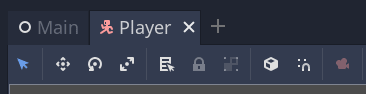
シーンを閉じていた場合は、ファイルシステム(FileSystem)ドックで、main.tscnをダブルクリックして再び開いてください。
Player をインスタンス化するには、 Main ノードを右クリックして、 子シーンをインスタンス化… (Instantiate Child Scene)を選択してください。
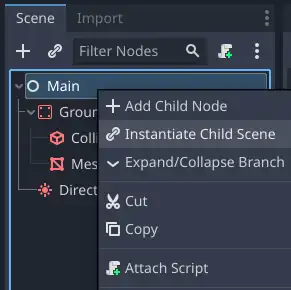
ポップアップウィンドウの中の、 Player.tscn をダブルクリックします。キャラクターがビューポートの中央に表示されるはずです。
カメラを追加する
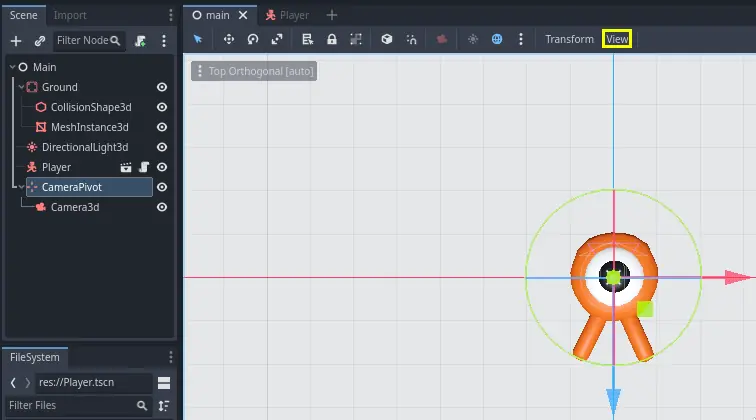
次にカメラを追加しましょう。PlayerのPivotで行ったように、基本的なリグを作成することにします。 Main ノードをもう一度右クリックし、今度は子ノードを追加(Add Child Node)を選択します。新しい Marker3D を作成し、それを CameraPivot と名づけてください。 CameraPivot を選択し、 Camera3D を子ノードとして追加してください。シーン ツリーは、次のようになります。
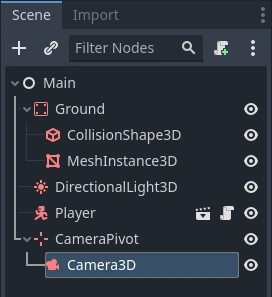
Cameraを選択しているとき3Dビューの左上に表示される プレビュー(Preview)チェック ボックスに注目してください。これをクリックすると、ゲーム内のカメラの投影をプレビューすることができます。
ここでは、Pivotを使用して、クレーンに乗っているかのようにカメラを回転させることにします。まず、3D ビューを分割して、シーンを自由に移動できるようにし、カメラが見ているものを確認できるようにしましょう。
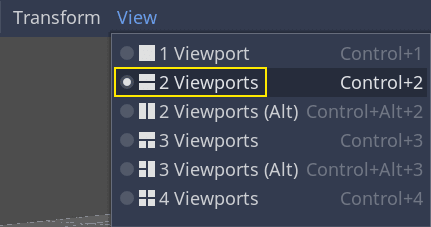
ビューポートのすぐ上のツールバーで、ビュー(View)、そして2 ビューポート(2 Viewports)をクリックしてください。また、Ctrl + 2 (macOSは Cmd + 2 )を押すことも可能です。
下部のビューで Camera3D を選択し、プレビューのチェックボックスをクリックしてカメラプレビューをオンにします。
上部のビューで、 Camera3D が選択されていることを確認し、カメラをZ軸方向に19ユニットほど移動させます(青い矢印をドラッグします)。
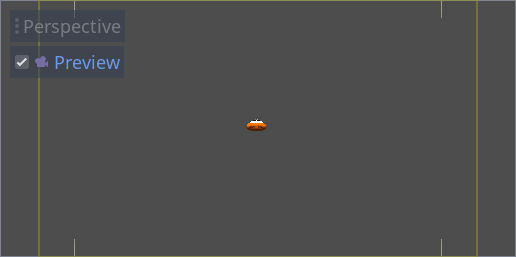
ここでマジックが起こります。CameraPivotを選択し、X 軸の周りで(赤い円を使用して)-45度回転させます。カメラがクレーンに取り付けられているように動くのがわかると思います。
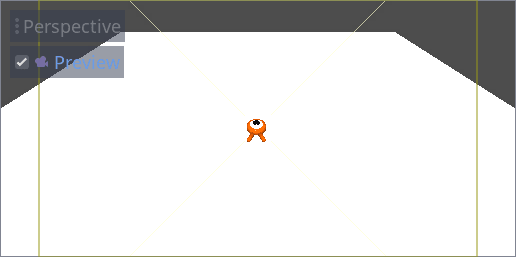
F6 を押してシーンを実行し、矢印キーを押してキャラクターを移動することができます。
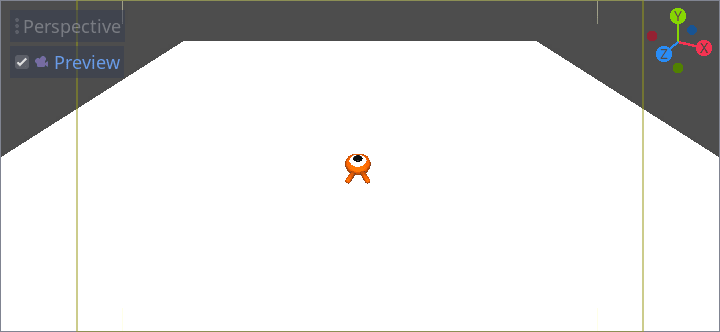
透視投影(Perspective)を使用しているため、キャラクターの周囲の何もない空間が見えています。このゲームでは、ゲームプレイエリアをより適切に枠に収め、プレイヤーが距離を読みやすくするために、代わりに平行投影(Orthographic)を使用することにします。
再びCameraを選択し、インスペクター(Inspector)で、Projectionを Orthogonalに、Sizeを19に設定します。これで、キャラクターはより平坦に見え、地面が背景を埋めるようになるはずです。
注釈
Godot 4 でオルソグラフィックカメラ(平行に投影するカメラ)を使用する場合、ディレクショナルライト(ライト1灯でシーン全体を照らすライト)のシャドウの品質はカメラの Far 値に依存します。 Far 値が高いほど、カメラはより遠くを見ることができます。ただし、 Far 値が高いほど、影のレンダリングがより長い距離をカバーする必要があるため、(カメラに近いシャドウマップのピクセルが拡大されてしまい)影の品質も低下します。
平行投影に切り替えた後、ディレクショナルシャドウがぼやけて見える場合は、カメラの Far プロパティを 100 などの低い値に下げてください。 Far プロパティを小さくしすぎないように注意してください。この Far プロパティの値を下げすぎると、遠くのオブジェクトが表示されなくなります。
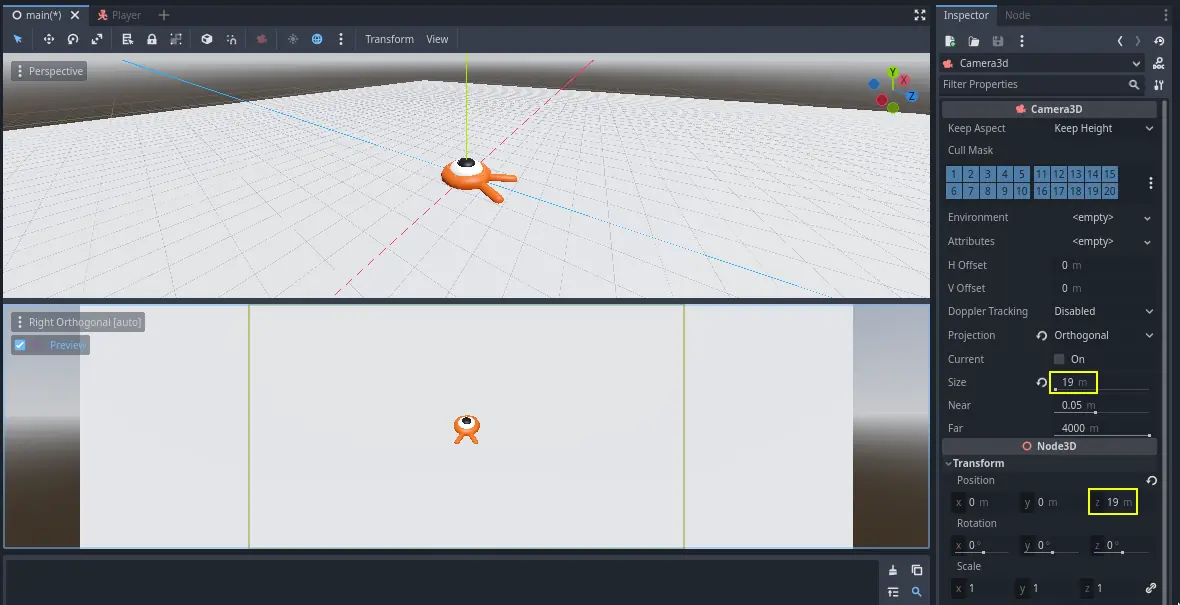
シーンを実行してみましょう。8方向全てに移動ができ、床をすり抜けないことが確認できるはずです!
最終的に、プレイヤーの動きとビューの両方が整いました。次は、モンスターを作成していきます。