Windows用のアプリケーションアイコンの変更
デフォルトでは、エクスポートされたプロジェクトのアイコンはGodotアイコンになります。ほとんどの場合、プロジェクトに合わせてアイコンを変更する必要があります。 Windowsで変更できるアイコンには、ファイル・アイコンとタスクバー・アイコンの2種類があります。
Creating a custom ICO file
注釈
Since Godot 4.1, Godot can create an ICO file for you based on the icon file defined in the Windows export preset. This icon file can be in PNG, WebP or SVG format. If no icon is defined in the Windows export preset, the application/config/icon project setting is used automatically instead.
This means you no longer need to follow the steps in this section to manually create an ICO file, unless you wish to have control over the icon design depending on its displayed size. Note that even if Godot creates the ICO file for you, you still need to set up rcedit so that the file icon actually changes.
Windows does not use formats such as PNG or JPEG for application icons. Instead, it uses a Windows-only format called ICO. You can create your application icon in any program but you will have to convert it to an ICO file using a program such as GIMP.
This video tutorial goes over how to export an ICO file with GIMP.
次の ImageMagick コマンドを使用して、PNG画像をhiDPI対応のICOァイルに変換することもできます。
magick convert icon.png -define icon:auto-resize=256,128,64,48,32,16 icon.ico
Depending on which version of ImageMagick you installed, you might need to leave out the magick and run this command instead:
convert icon.png -define icon:auto-resize=256,128,64,48,32,16 icon.ico
警告
For the ICO file to effectively replace the default Godot icon, it must contain all the sizes included in the default Godot icon: 16×16, 32×32, 48×48, 64×64, 128×128, 256×256. If the ICO file does not contain all the sizes, the default Godot icon will be kept for the sizes that weren't overridden.
The above ImageMagick command takes this into account.
タスクバー・アイコンの変更
タスクバー・アイコンは、プロジェクトの実行中にタスクバーに表示されるアイコンです。

To change the taskbar icon, go to
Project > Project Settings > Application > Config, make sure
Advanced Settings are enabled to see the setting, then go to
Windows Native Icon. Click on the folder icon and select your ICO file.
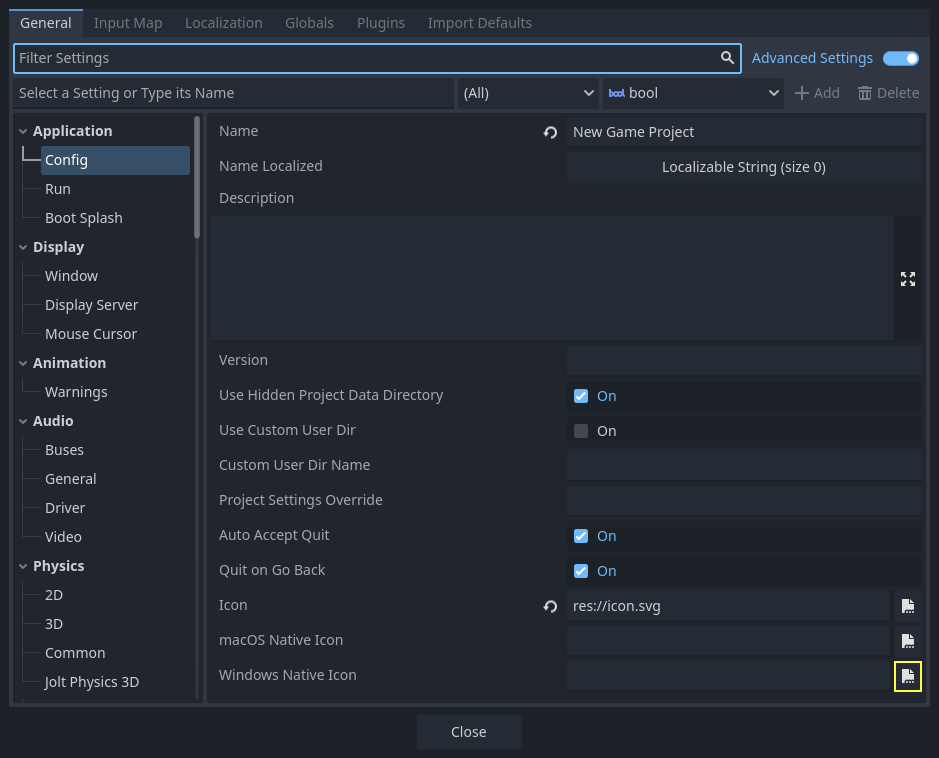
This setting only changes the icon for your exported game on Windows.
To set the icon for macOS, use Macos Native Icon. And for any other platform,
use the Icon setting.
ファイル・アイコンの変更
In Godot 3.5 and later, you can change the file icon without external tools using godoticon. Changing the file icon this way should work for executables containing an embedded PCK.
ファイル・アイコンは、プロジェクトを開始するためにクリックする実行可能ファイルのアイコンです。
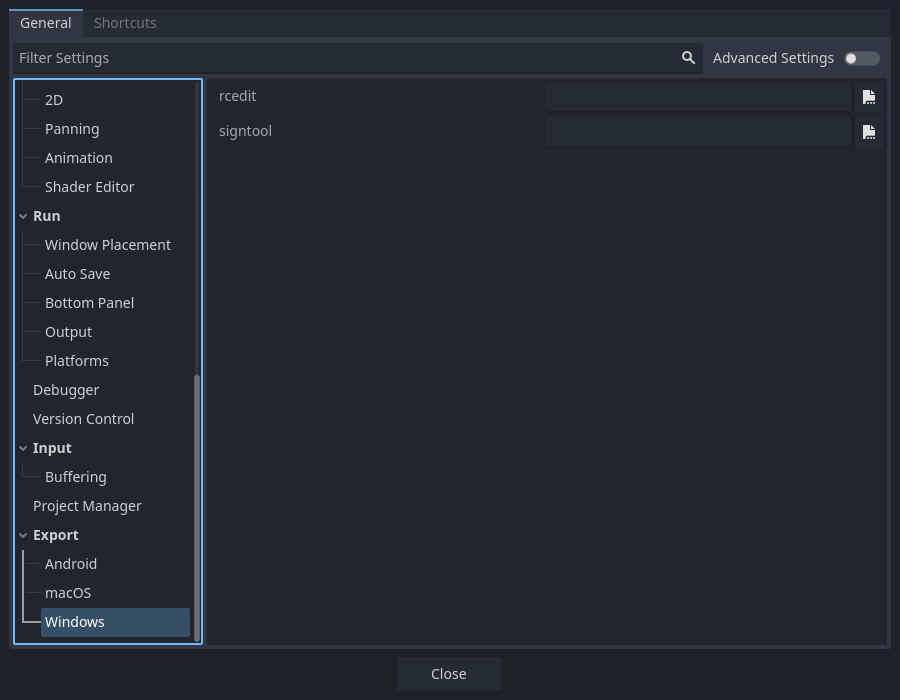
エクスポートオプションで選択する前に、rcedit という追加のツールをインストールする必要があります。こちら<https://github.com/electron/rcedit/releases> からダウンロードできます。
After downloading, you need to tell Godot the path to the rcedit executable on your computer. Go to Editor > Editor Settings > Export > Windows. Click on the folder icon for the rcedit entry. Navigate to and select the rcedit executable.
注釈
rceditをLinuxおよびmacOSユーザーが使用するためには WINE <https://www.winehq.org/> をインストールする必要があります。
On macOS, make sure to use a 64-bit version of both WINE and rcedit since 32-bit applications aren't supported anymore.
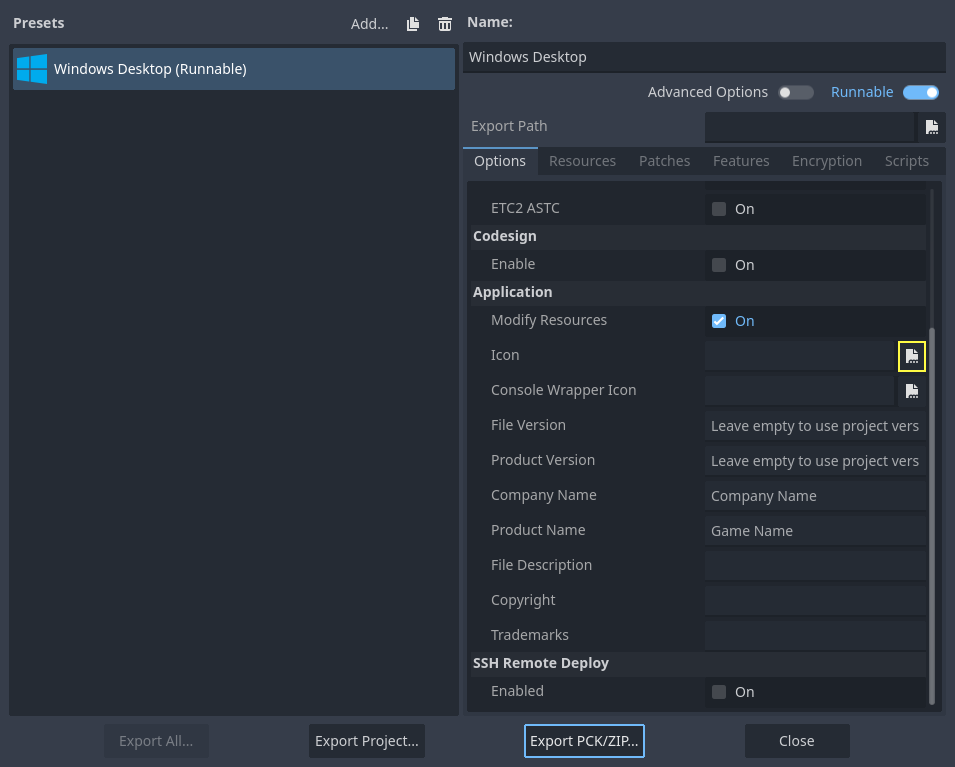
You should now have everything in place to change the file icon. To do that, you will need to specify the icon when exporting. Go to Project > Export. Assuming you have already created a Windows Desktop preset, select your icon in ICO format in the Application > Icon field.
警告
All the supplied metadata must be valid. Most importantly, the version
identifiers must take the form major.minor.patch.revision where
every component is required and is a positive integer. For instance,
1.2.0.0 is valid but 1.2.0 is not.
If you provide invalid metadata in the export preset, the application icon won't change as rcedit will fail to change the executable's metadata.
注釈
If rcedit fails to change the icon, you can instead compile your own Windows export templates with the icon changed. To do so, replace platform/windows/godot.ico with your own ICO file before compiling export templates.
Once this is done, you can specify your export templates as custom export templates in your project's Windows export preset.
結果のテスト
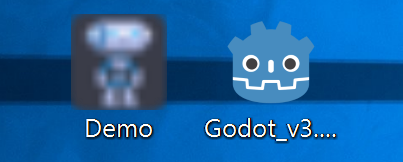
これで、プロジェクトをエクスポートできます。正常に機能した場合、次のように表示されます。
注釈
If your icon isn't showing up properly, on Windows 10, try clearing the icon
cache. To do so, open the Run dialog and enter ie4uinit.exe
-ClearIconCache or ie4uinit.exe -show.