Up to date
This page is up to date for Godot 4.3.
If you still find outdated information, please open an issue.
Creating documentation images and videos
Throughout the documentation, images are often needed to make the explanation of a feature or concept as clear as possible for a reader. This page will explain the process from beginning to end.
Images
建立內容
To take a picture of something in Godot, a screen capture tool can be used.
在 Windows 10 和 11 上,這將是 Snip & Sketch 程式。按:kbd:`Windows + Shift + S`可以截取螢幕一部分的螢幕截圖並儲存到剪貼簿。按下這些按鍵後,按一下並拖曳您想要拍照的區域。
在 macOS 上,按 Shift + Command + 3 具有相同的效果。若要拍攝整個螢幕的照片,請按 Shift + Command + 4。所有截取的螢幕截圖都將儲存到桌面。
每個 Linux 桌面環境都有自己的螢幕截圖工具。例如,在 KDE Plasma 上,Spectacle 程式用於截取螢幕截圖。如果您的發行版預設沒有附帶,請嘗試搜尋其軟體包儲存庫,或者如果支援的話,搜尋 Flathub。
理想情況下,所有螢幕截圖都應在 1080p 螢幕上拍攝。任何更高的解析度都會增加細節,這不會使檔案變得更好,並且會顯著增加檔案大小。如果您在更高解析度的螢幕上截取螢幕截圖,則螢幕截圖應該會按比例縮小。本頁稍後會提供有關如何執行此操作的說明。
Godot 版本
The current format for images in Godot's documentation is WebP (.webp).
While some Linux programs will support saving screenshots in this format, macOS
and the Snip & Sketch program on Windows do not. For images that don't need
editing, such as precise cropping or adding outlines, Squoosh can be used.
Squoosh is a converter developed by Google, is open
source, and doesn't give Google any image rights by using it. When choosing
compression if you can get an image that's under 300KB in size use lossless
compression. If it's over 300KB, use just enough lossy compression to get it
under that size. If this results in noticeable compression artifacts using less
compression is fine, even if the file size is bigger.
如果您已經安裝了 GIMP、Krita 或 Photoshop 等影像編輯器,它可能能夠開啟影像,然後將其儲存為 WebP 檔案。
Looping - 循環
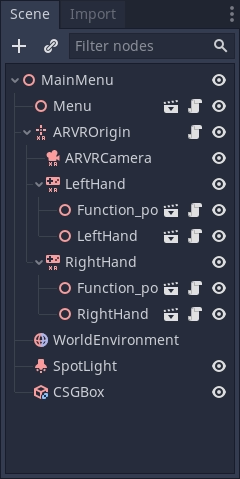
For a screenshot of a 2D or 3D scene in the editor, the above steps will be enough. But for most UI images some extra work should be done, specifically cropping to make an image look clean. Below is an example of good cropping.
對於裁剪,Krita 是推薦的程式。雖然某些螢幕截圖程式確實內建了裁剪功能,但獲得精確的結果並不總是那麼容易。雖然 Krita 被設計為繪畫程式,但裁剪工具預設為您提供像素精度。當然,您可以隨意使用您熟悉的其他程式。
If you've never used Krita before download it from the official Krita website, on Linux you may also be able to download it from your distributions repository, flathub is also an option. Once it's installed on your computer open Krita then open the image you want to crop. This button on the left panel is the crop tool.

選擇它後,單擊圖像,您現在應該可以使用裁剪工具。
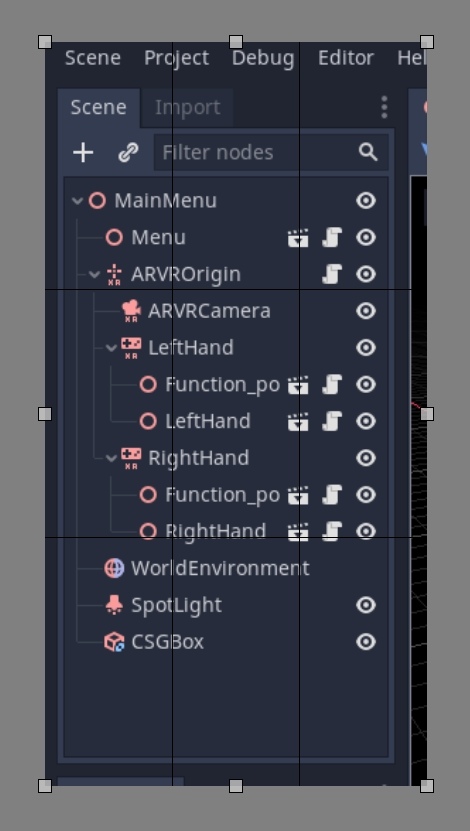
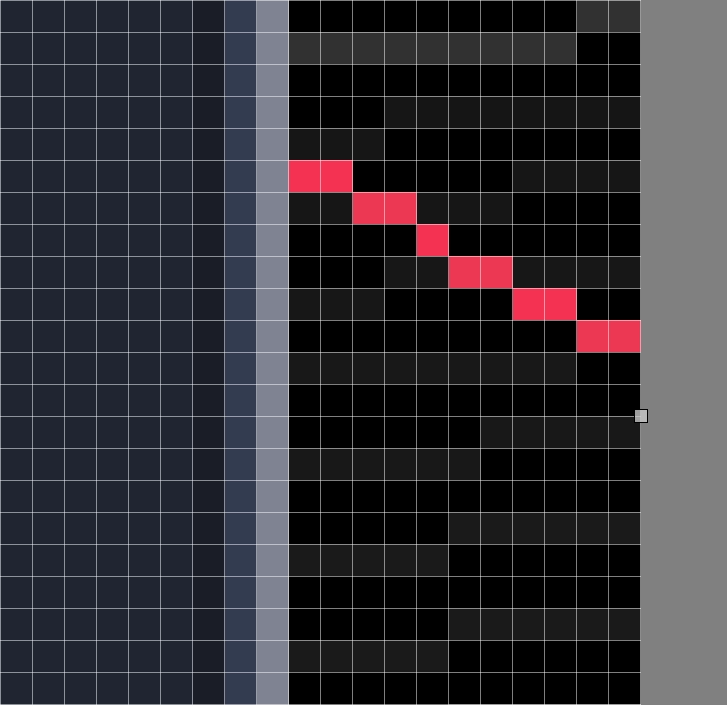
點擊並拖曳白色框以調整裁剪的內容,如果放大到靠近圖像,您將看到圖像中的各個像素,這對於精確度很有用。
如果您犯了錯誤並且過度裁剪,請不要擔心,Krita 中的裁剪是非破壞性的,並且可以進行調整。在仍選擇裁切工具的情況下按一下影像,控制項將會傳回。
本地化說明文件圖片
如本頁前面所解釋的,在解析度高於 1080p 的螢幕上拍攝的所有影像都應按比例縮小。要在 Krita 中執行此操作,請點擊頂部欄上的 圖像,然後從下拉式選單中選擇 將圖像縮放到新尺寸。也可以按 Ctrl + Alt + I 開啟此選單。在此選單上,您要調整像素尺寸。對於在 4K 顯示器上拍攝的任何內容,請將寬度和高度的值變更為其目前值的一半;對於在 1440p 顯示器上拍攝的任何內容,請將寬度和高度乘以 0.75。確保選取選單底部的 約束比例 框,這樣您只需變更 1 個值。
在 Krita 中保存為 WebP
To save an image as webp if it isn't already one, Go to File > Save As. Select webp from the Save as type: dropdown, then choose wherever you want to save it. After clicking Save a menu will popup with webp options. Make sure Lossless is checked and Quality is set to 100%. This means the image will not lose detail and will be as small as possible.
If the image is over 300KB in size try compressing it losslessly using Squoosh. If it's still over 300KB change to lossy compression and slowly increase the compression until it's under 300KB. If this results in noticeable compression artifacts using less compression is fine, even if the file size is bigger.
Outlines, arrows and text
有時,一張圖片需要一些額外的東西來適當的引導讀者的注意力,或者讓一些東西變得清晰。輪廓線和箭頭可以用於此目的。對於這些型別的編輯,Inkscape 是推薦的開來源程式,可以從`Inkscap 官方網站<https://inkscape.org/>`_ 下載 。像 Krita 一樣,如果你在 Linux 上,你也可以檢查你的發行版本倉庫或從 Flatchub 獲取。
這裡沒有提供關於建立輪廓的完整教學,我們建議搜索各種關於如何線上使用它的教學。但是,文件圖像輪廓和箭頭有兩個標準。首先,顏色應該是黃色,特別是這種十六進位顏色: fffb44 (如果有像 Inkscape 中那樣的透明度值,則為 fffb44ff )。選擇這種顏色是為了確保色盲在閱讀文件時不會遇到問題,如果需要在圖像上使用多個輪廓,則除了這種黃色之外,還可以使用其他顏色,應避免使用紅色。第二個標準是所有的輪廓和箭頭線都應該是 2 像素寬。
最後,一些圖像可能需要文字來區分圖像的多個部分。除了使用易讀的非花哨字形外,沒有其他嚴格的要求。至於顏色,也應該使用以前的黃色,但如果合適,可以使用黑色或其他顏色。例如,如果黃色混合到圖像中,或者如果存在多種顏色的多個輪廓。
更新說明文件樣板
完成影像處理後,就可以將它新增到文件中了。所有的圖像都保存在使用它們的頁面旁邊的名為 img 的資料夾中。
要新增圖像,請將其新增到 img 資料夾中,該資料夾與頁面的 .rst 檔位於同一資料夾中(如果不存在,請建立它)。在 .rst 頁面中,圖像應包含在以下程式碼片段中
.. image:: img/documentation_image.webp
其中 documentation_image.webp 將更改為所建立圖像的名稱。以明確的方式為圖像命名,可以的話使用前綴明確表示它們與文件頁面的關係。
Videos
Capturing a video
To record a video of something in Godot, a screen capture tool can be used. Operating systems generally don't come with tools that are flexible enough for this, so you'll need to install a third-party utility.
OBS Studio is the most popular option, but SimpleScreenRecorder can be used as an alternative on Linux. ShareX can be used as an alternative on Windows. All these tools can be configured to record the entire screen, a specific window or a predetermined rectangle.
The recommended framerate for video recordings is 60 FPS, although you can use 30 FPS for longer videos to reduce their file size. For fullscreen videos, use a resolution of 1280×720.
備註
Godot's Movie Maker mode can be used to record the output of a running project, including its audio. This doesn't require installing any third-party software and avoids any frame drops (even when recording on a slow device), but it's less flexible.
Compressing the captured video
The recommendation is to record your video in the highest quality possible (without dropping frames due to excessive CPU/GPU utilization), then re-encode it later to reduce its file size. This results in more efficient compression than directly aiming for a small file size, as real-time compression methods are less efficient than slower compression methods.
To re-encode videos for a smaller file size, use HandBrake or the FFmpeg <https://ffmpeg.org/> command line below:
ffmpeg -i input.mp4 -crf 23 output.webm
The number after -crf adjusts the video quality, with higher numbers
resulting in lower quality (and smaller file sizes). A CRF of 23 is a good
starting point, but you may need to use a higher value for longer videos to
ensure the file size remains reasonable. Try to aim for a file size under 2 MB
if possible.
If the video was recorded in a higher resolution or framerate, you can adjust its output resolution and framerate as follows:
ffmpeg -i input.mp4 -crf 23 -vf scale=1280:-2 -r 30 output.webm
This results in a video resolution around 1280×720 at 30 FPS. The exact video resolution will vary depending on the source's aspect ratio.
小訣竅
If the video was recorded with an audio track but this audio track is not
necessary, consider stripping it by adding the -an option to the FFmpeg
command line (before the output file name). This will reduce file size and
also ensure audio controls don't show up on the video when played in a
browser.
Adding a video to a documentation page
Once you've finished working on your video, it can be added to the documentation.
All videos are stored in folders named video next to the page they are used in.
To add your video, add it to the video folder that's in the same folder as the
.rst file for the page (create it if it doesn't exist). In the .rst page,
videos should be included with the following code snippet:
.. video:: video/csg_tools.webm
   :alt: Put a text description of the video here
   :autoplay:
   :loop:
   :muted:
Where documentation_video.webp would be changed to the name of the video you
created. Name your videos in a way that makes their meaning clear, possibly with
a prefix that makes their relationship to a documentation page explicit.
The :autoplay:, :loop: and :muted: flags should always be specified
unless the video needs to play audio. In this case, do not specify any of these flags.