Up to date
This page is up to date for Godot 4.3.
If you still find outdated information, please open an issue.
除錯工具概述
本指南將概述引擎中可用的除錯工具.
Godot自帶強大的除錯器和剖析器, 可以追蹤bug, 在運作時檢查你的遊戲, 監控重要指標, 並測量性能. 它還提供了在運作遊戲中視覺化碰撞框和導覽多邊形的選項.
最後, 你可以選擇除錯在遠端裝置上運作的遊戲, 並在遊戲運作時重新載入對你的場景或程式碼的修改.
除錯工具
Godot 的許多除錯工具都是“除錯器”面板的一部分,你可以在 除錯工具 中找到相關資訊。
測試
在編輯器中運作遊戲時, 有幾個常見的除錯選項可以切換為開或關, 以幫助你除錯遊戲.
您可以在編輯器功能表**除錯**中找到這些選項。
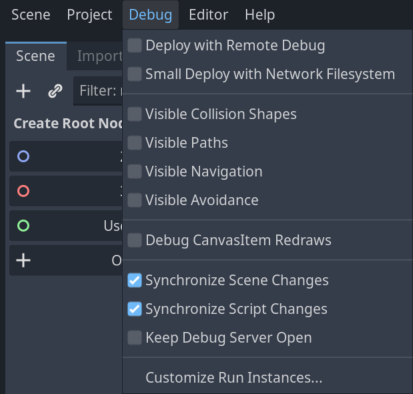
下面是這些選項的說明:
部署並啟用遠端偵錯
When this option is enabled, using one-click deploy will make the executable attempt to connect to this computer's IP so the running project can be debugged. This option is intended to be used for remote debugging (typically with a mobile device). You don't need to enable it to use the GDScript debugger locally.
Small Deploy with Network Filesystem
這個選項加快了在遠端裝置上進行大足跡遊戲的測試.
When Small Deploy with Network Filesystem is on, instead of exporting the full game, deploying the game builds a minimal executable. The editor then provides files from the project over the network.
另外,在 Android 系統上,遊戲採用 USB 線部署,加快部署速度。
顯示碰撞區域
When this option is enabled, collision shapes and raycast nodes (for 2D and 3D) will be visible in the running project.
Visible Paths
When this option is enabled, curve resources used by path nodes will be visible in the running project.
Visible Avoidance
When this option is enabled, avoidance object shapes, radiuses, and velocities will be visible in the running project.
Debug CanvasItem Redraws
When this option is enabled, redraw requests of 2D objects will become visible (as a short flash) in the running project. This is useful to troubleshoot low processor mode.
Synchronize Scene Changes
When this option is enabled, any changes made to the scene in the editor will be replicated in the running project. When used remotely on a device, this is more efficient when the network filesystem option is enabled.
Synchronize Script Changes
When this option is enabled, any changes made to the script in the editor will be reloaded in the running project. When used remotely on a device, this is more efficient with the network filesystem.
Keep Debug Server Open
When this option is enabled, the editor debug server will stay open and listen for new sessions started outside of the editor itself.
Customize Run Instances...
This opens a dialog allowing you to tell Godot to run multiple instances of the game at once, and to specify the command line arguments for each instance. This is especially useful when building and debugging multiplayer games.
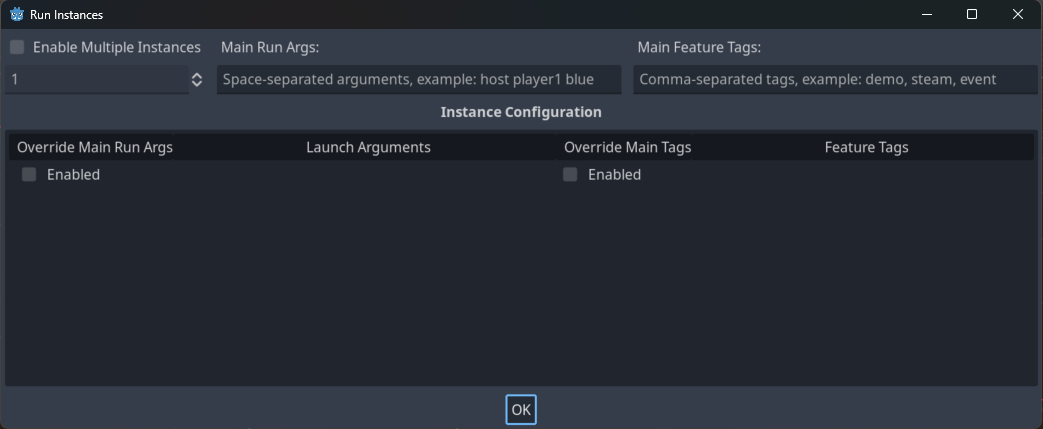
Enable Multiple Instances
When this option is enabled, the editor will run multiple instances of the project at once when you Run Project.
Below this checkbox is a selector to pick how many instances to run.
Checking the box and setting this to only 1 is the same as not checking this box at all.
Main Run Args
These are the arguments that will be passed to every instance of the project when you Run Project, unless you select "Enabled" under "Override Main Run Args" for a specific instance.
Note that these arguments are space-separated.
小訣竅
These arguments can be accessed in your script by using get_cmdline_args.
警告
Even if you uncheck "Enable Multiple Instances" these arguments will be passed when you Run Project.
Override Main Run Args
When this is enabled, the arguments in the "Main Run Args" field will not be passed to this specific instance of the project when you Run Project.
Launch Arguments
These are the arguments that will be passed to this specific instance of the project when you Run Project. They will be combined with the "Main Run Args" unless you select "Enabled" under "Override Main Run Args".
腳本編輯器除錯工具和選項
腳本編輯器有自己的一套除錯工具,用於中斷點和兩個選項。中斷點工具也可以在除錯器的**除錯器**分頁中找到。
小訣竅
您可以透過點選腳本編輯器左側的裝訂線(行號左側)來建立斷點。將滑鼠懸停在該排水溝上時,您會看到出現一個透明的紅點,點擊放置斷點後,該紅點會變成不透明的紅點。再次點選紅點即可刪除斷點。以這種方式建立的斷點在編輯器重新啟動後仍然存在,即使退出編輯器時未儲存腳本也是如此。
You can also use the breakpoint keyword in GDScript to create a
breakpoint that is stored in the script itself. Unlike breakpoints created by
clicking in the gutter, this keyword-based breakpoint is persistent across
different machines when using version control.
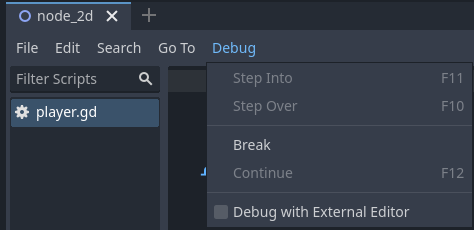
中斷點 按鈕會像中斷點一樣導致腳本的中斷. 繼續 使遊戲在中斷點處暫停後繼續. Step Over 進入下一行程式碼, 如果可能的話, Step Into 進入一個函式. 否則, 它與 Step Over 做同樣的事情.
The Debug with External Editor option lets you debug your game with an external editor. You can set a shortcut for it in Editor Settings > Shortcuts > Debugger.
當偵錯器在斷點處中斷時,腳本編輯器的裝訂線中會顯示綠色三角形箭頭。此箭頭指示偵錯器中斷的程式碼行。
測試
In the project settings, there is a Debug category with subcategories which control different things. Enable Advanced Settings to change these settings.
設定
這些都是一些常規的設定,比如將目前的 FPS 列印到**輸出**面板,剖析時的最大函式量等。
File Logging
These settings allow you to log console output and error messages to files.
GDScript
These settings allow you to toggle specific GDScript warnings, such as for unused variables. You can also turn off warnings completely. See GDScript 警告系統 for more information.
Shader Language
These settings allow you to toggle specific shader warnings, such as for unused variables. You can also turn off warnings completely.
Canvas Items
These settings are for canvas item redraw debugging.
形狀
Shapes中你可以調整形狀的顏色, 這些形狀只出現在除錯的目的, 如碰撞和導覽形狀.
遙控場景面板
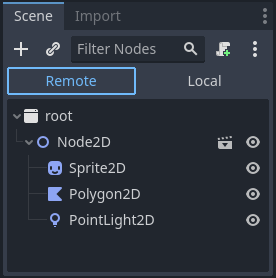
當在編輯器中運作遊戲時,場景**面板頂部會出現兩個選項,即**遠端**和**本地。當使用**遠端**時,你可以檢查或改變運作專案中的節點參數。
備註
一些與除錯有關的編輯器設定可以在 Editor Settings 內找到, 在 Network > Debug and Debugger 部分.