Up to date
This page is up to date for Godot 4.3.
If you still find outdated information, please open an issue.
產生怪物
在這一部分中,我們將沿著一條路徑隨機刷怪。在最後,怪物們就會在遊戲區域到處亂跑了。
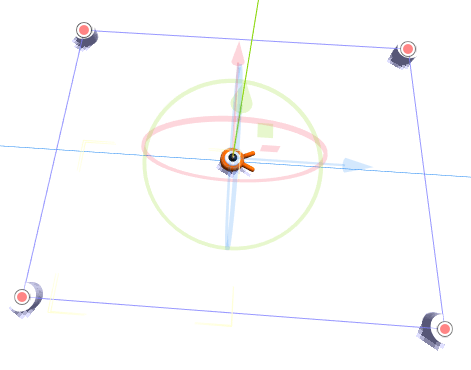
按兩下*檔案系統*停靠面板中的 Main.tscn 打開 Main 場景。
在繪製路徑之前,我們要修改遊戲的解析度。我們的遊戲預設的視窗大小是 1152x648。我們要把它設成 720x540,一個小巧的方塊。
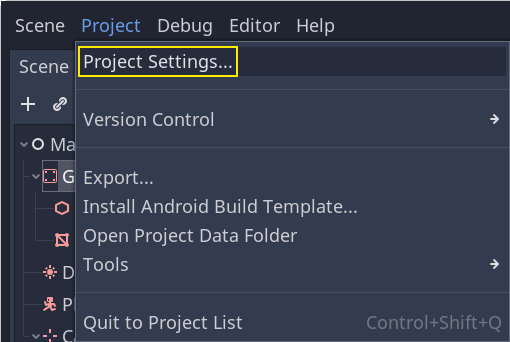
選擇 [專案] -> [專案設定] 來打開這個對話框。現在就試試吧。
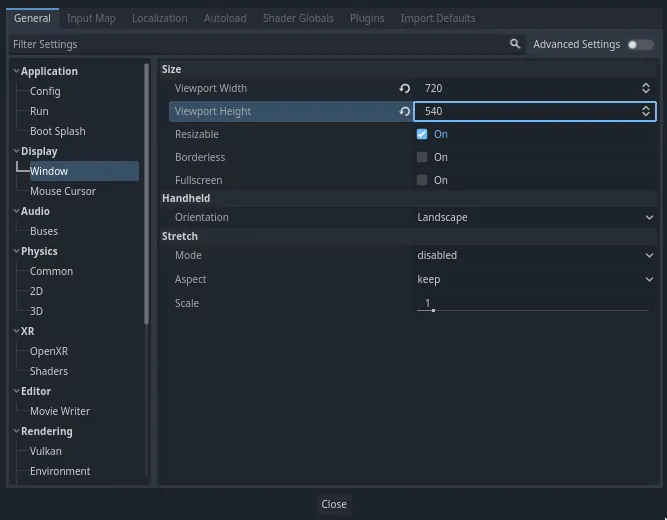
If you still have Input Map open, switch to the General tab.
在左側功能表中,找到 *Display -> Window*(顯示 -> 視窗)。在右側將 *Width*(寬度)設為 720、*Height*(高度)設為 540。
建立動畫
與 2D 遊戲教學中所做的一樣,你要設計一條路徑,使用 PathFollow3D 節點在路徑上隨機取位置。
不過在 3D 中,路徑繪製起來會有一點複雜。我們希望它是圍繞著遊戲視圖的,這樣怪物就會在螢幕外出現。但繪製的路徑也同樣不會在相機預覽中出現。
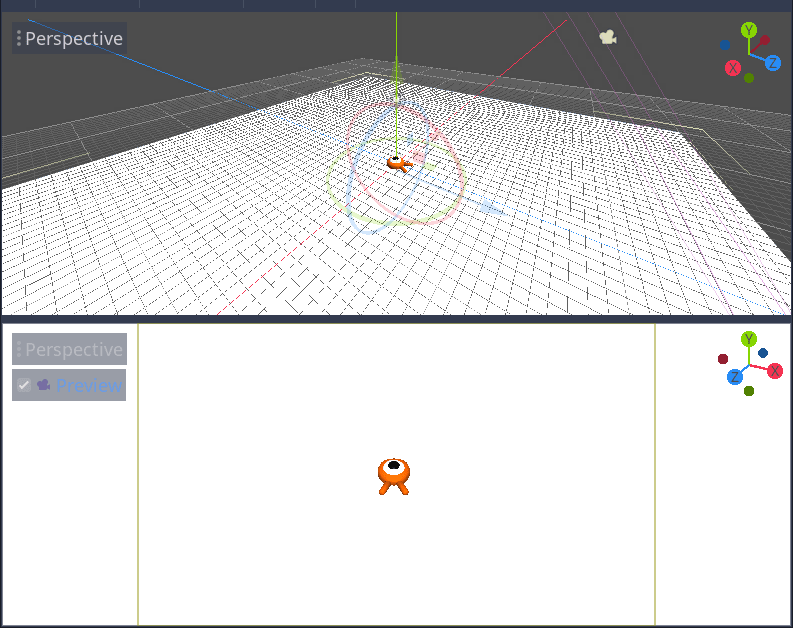
我們可以用一些占位網格來確定視圖的界限。你的視口應該還是分成兩個部分的,底部是相機預覽。如果不是的話,請按 Ctrl + 2`(macOS 上則是 :kbd:`Cmd + 2)將視圖一分為二。選中 Camera3D 節點,然後點擊底部視口的*預覽*核取方塊。
預留位置型
讓我們來新增一些占位網格。為 Main 節點新建一個 Node3D 節點作為子項,命名為 Cylinders。我們會用它將圓柱體進行群組。新增一個 MeshInstance3D 節點作為其子項
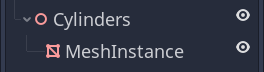
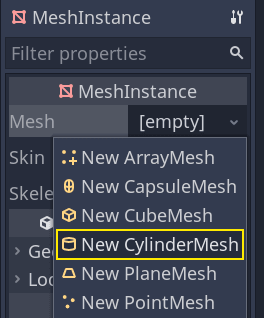
在*屬性面板*中,為 *Mesh*(網格)屬性賦值 *CylinderMesh*(圓柱體網格)。
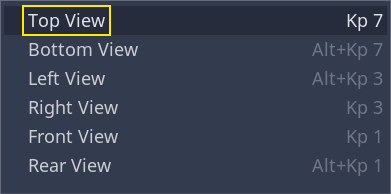
使用視口左上角的功能表,將上面的視口設為正交頂視圖。或者你也可以按小鍵盤的 7。
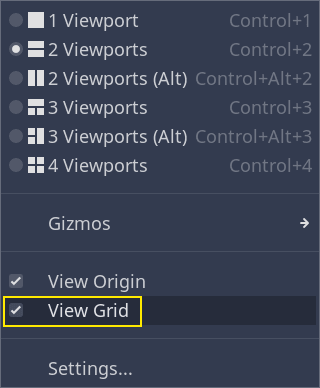
地面柵格可能有一點分散注意力。你可以在工具列的*視圖*功能表中點擊*查看柵格*進行開關。
你現在要沿著地平面移動圓柱體,看底部視口的相機預覽。我推薦使用網格捕捉來做這件事。你可以通過點擊工具列上的磁鐵圖示或按 Y 鍵來切換。
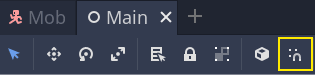
將圓柱體移到相機視圖的左上角,使其正好在視野之外。
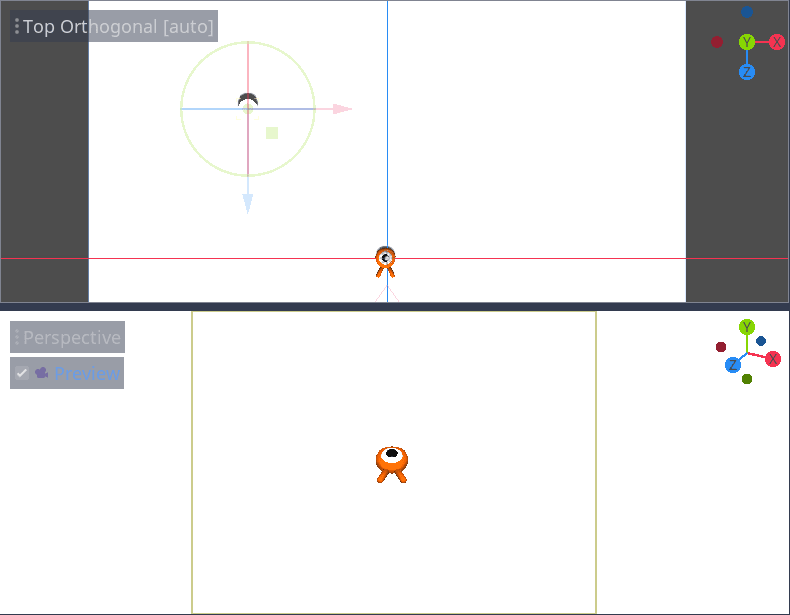
我們將建立網格的副本,並將它們放置在遊戲區域周圍。按 Ctrl + D`(在 macOS 上則為 :kbd:`Cmd + D)來複製節點。你也可以在*場景*面板中右擊節點,選擇*製作副本*。沿著藍色 Z 軸向下移動副本,直到它正好在相機的預覽範圍之外。
按住 Shift 鍵選擇兩個圓柱體,並點擊未選擇的那個圓柱體,然後複製它們。
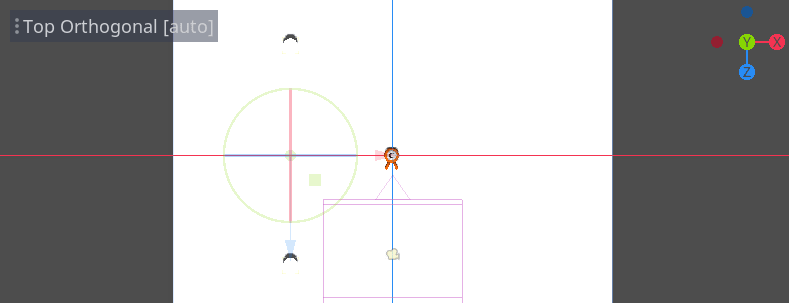
拖拽紅色的 X 軸,將它們移動到右側。
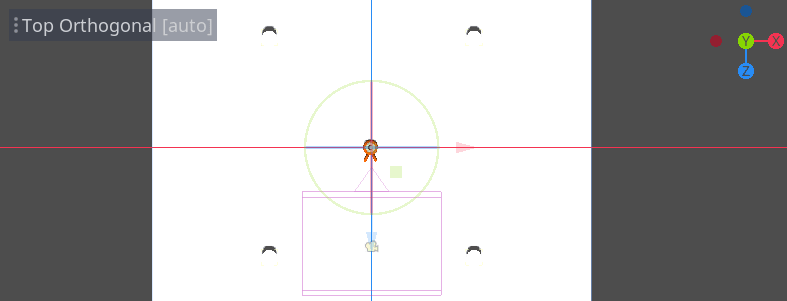
白色的有點難以看清是吧?讓我們給它們一個全新的材質,讓它們凸顯出來。
在 3D 中,材質可以定義表面的外觀屬性,比如顏色、如何反射光照等。我們可以用材質來修改網格的顏色。
我們可以同時更新所有四個圓柱體。在*場景*面板中選中所有網格實例。要實作全選,可以先點擊第一個,然後按住 Shift 點擊最後一個。
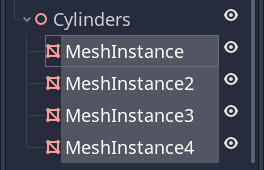
在*屬性面板*中,展開 Material*(材質)部分,為 *0 號插槽分配一個 SpatialMaterial3D。
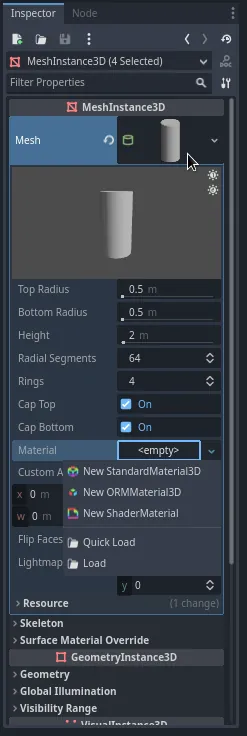
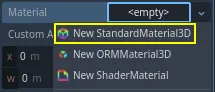
點擊球體圖示來打開材質資源。你會看到材質的預覽和一長串充滿屬性的部分。你可以用這些來建立各種表面,從金屬到岩石或水。
展開 *Albedo*(反照率)部分。
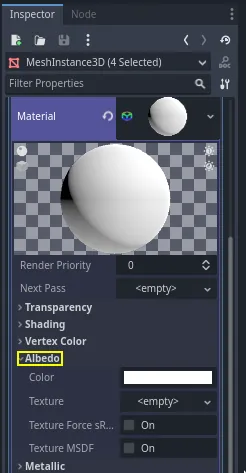
將顏色設為與背景色存在對比的顏色,比如亮橙色。
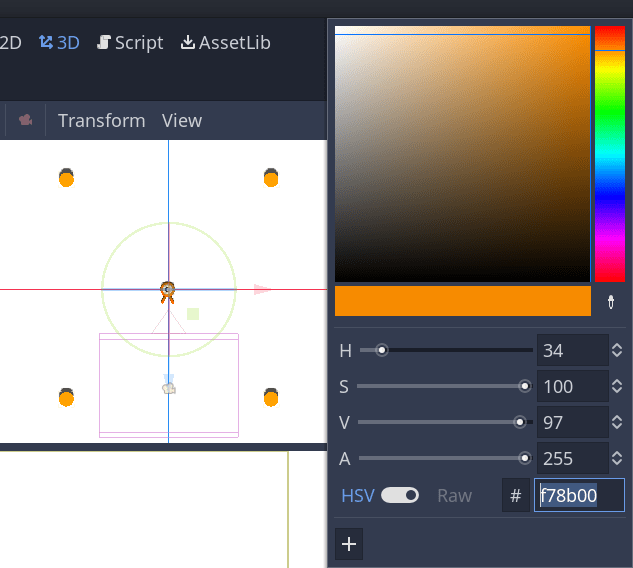
我們現在可以使用圓柱體作為參考。點擊它們旁邊的灰箭頭,將它們折疊在*場景*面板中。你也可以通過點擊 Cylinders 旁邊的眼睛圖示來切換它們的可見性。
新增一個 Path3D 節點作為 Main 的子節點。在工具列中會出現四個圖示。點擊*新增點*工具,即帶有綠色“+”號的圖示。
備註
滑鼠懸停在任意圖示上,就可以看到描述該工具的工具提示。
按一下每個圓柱體的中心以建立一個點。然後,按一下工具列中的*閉合曲線*圖示以關閉路徑。如果有任何一點偏離,您可以按一下並拖動它以重新定位它。
現在場景看起來會這樣:
To sample random positions on it, we need a PathFollow3D node. Add a
PathFollow3D as a child of the Path3D. Rename the two nodes to SpawnLocation and
SpawnPath, respectively. It's more descriptive of what we'll use them for.
這樣,我們就可以著手編寫刷怪機制了。
產生怪物
右鍵點擊 Panel 節點,然後在右鍵選單中選擇 [附加腳本]:
我們首先將一個變數匯出到*屬性面板*中,這樣我們就可以把 mob.tscn 或者其他任何怪物賦值給它。
extends Node

@export var mob_scene: PackedScene
using Godot;

public partial class Main : Node
{
    // Don't forget to rebuild the project so the editor knows about the new export variable.

    [Export]
    public PackedScene MobScene { get; set; }
}
我們希望以固定的時間間隔生成生物。為此,我們需要返回場景中並新增計時器。但是,在此之前,我們需要將 mob.tscn 檔分配給 mob_scene 屬性
回到 3D 螢幕,選中 Main 節點。將 mob.tscn 從*檔案系統*面板拖到*屬性面板*的 Mob Scene 槽中。
Timer ,命名為 MessageTimer 。
在*屬性面板*中,將其 *Wait Time*(等待時間)設為 0.5 秒,然後打開 *Autostart*(自動開始),這樣我們運作遊戲它就會自動開始。
計時器在每次到達 Wait Time 時都會發出 timeout 訊號。計時器預設會自動重啟,迴圈觸發訊號。我們可以將 Main 節點連接到這個訊號,每 0.5 秒生成一隻怪物。
保持選中 MobTimer,在右側的*節點*面板中按兩下 timeout 訊號。
將 HUD 場景連接至 Main 場景
這樣你就會被帶回腳本,其中新建了一個空的 _on_mob_timer_timeout() 函式。
讓我們來編寫刷怪的邏輯吧。我們要做的是:
實體化並建立新的房間。
在生成路徑上隨機選取一個位置。
獲取玩家的位置。
呼叫小怪的
initialize()方法,傳入隨機位置和玩家的位置。將腳本附加到節點。
func _on_mob_timer_timeout():
    # Create a new instance of the Mob scene.
    var mob = mob_scene.instantiate()

    # Choose a random location on the SpawnPath.
    # We store the reference to the SpawnLocation node.
    var mob_spawn_location = get_node("SpawnPath/SpawnLocation")
    # And give it a random offset.
    mob_spawn_location.progress_ratio = randf()

    var player_position = $Player.position
    mob.initialize(mob_spawn_location.position, player_position)

    # Spawn the mob by adding it to the Main scene.
    add_child(mob)
// We also specified this function name in PascalCase in the editor's connection window.
private void OnMobTimerTimeout()
{
    // Create a new instance of the Mob scene.
    Mob mob = MobScene.Instantiate<Mob>();

    // Choose a random location on the SpawnPath.
    // We store the reference to the SpawnLocation node.
    var mobSpawnLocation = GetNode<PathFollow3D>("SpawnPath/SpawnLocation");
    // And give it a random offset.
    mobSpawnLocation.ProgressRatio = GD.Randf();

    Vector3 playerPosition = GetNode<Player>("Player").Position;
    mob.Initialize(mobSpawnLocation.Position, playerPosition);

    // Spawn the mob by adding it to the Main scene.
    AddChild(mob);
}
正如上面所示, randf () 會生成一個介於 0 和 1 之間的隨機值,這個數值是 PathFollow 節點的 progress_ratio 屬性所期望的:0 代表路徑的開始點,1 代表路徑的終點。 我們之前設定的路徑是圍繞著相機視口的,因此任何 0 到 1 之間的隨機值都代表著沿著視口邊緣的隨機位置!
Note that if you remove the Player from the main scene, the following line
var player_position = $Player.position
Vector3 playerPosition = GetNode<Player>("Player").Position;
gives an error because there is no $Player!
這是目前完整的 main.gd 腳本,僅供參考。
extends Node

@export var mob_scene: PackedScene


func _on_mob_timer_timeout():
    # Create a new instance of the Mob scene.
    var mob = mob_scene.instantiate()

    # Choose a random location on the SpawnPath.
    # We store the reference to the SpawnLocation node.
    var mob_spawn_location = get_node("SpawnPath/SpawnLocation")
    # And give it a random offset.
    mob_spawn_location.progress_ratio = randf()

    var player_position = $Player.position
    mob.initialize(mob_spawn_location.position, player_position)

    # Spawn the mob by adding it to the Main scene.
    add_child(mob)
using Godot;

public partial class Main : Node
{
    [Export]
    public PackedScene MobScene { get; set; }

    private void OnMobTimerTimeout()
    {
        // Create a new instance of the Mob scene.
        Mob mob = MobScene.Instantiate<Mob>();

        // Choose a random location on the SpawnPath.
        // We store the reference to the SpawnLocation node.
        var mobSpawnLocation = GetNode<PathFollow3D>("SpawnPath/SpawnLocation");
        // And give it a random offset.
        mobSpawnLocation.ProgressRatio = GD.Randf();

        Vector3 playerPosition = GetNode<Player>("Player").Position;
        mob.Initialize(mobSpawnLocation.Position, playerPosition);

        // Spawn the mob by adding it to the Main scene.
        AddChild(mob);
    }
}
按 F6 即可測試該場景。你應該會看到有怪物刷了出來,然後會進行直線運動。
目前,它們會在路線的交叉點撞到一起滑來滑去。我們會在下一部分解決這個問題。