Up to date
This page is up to date for Godot 4.3.
If you still find outdated information, please open an issue.
群組
Godot 中的群組與其他軟體中的標籤類似。你可以將節點加入任意數量的你想要的群組之中。然後在程式碼中,你可以使用 SceneTree 來:
獲取某個群組中的節點列表。
在群組中的所有節點上呼叫方法。
向群組中的所有節點發送通知。
這個功能可以用來組織大型場景、對程式碼解耦。
管理群組
將節點新增到一個新的群組名稱中即可建立群組,同樣的,將所有節點移出某個給定的群組即為移除群組。
Godot 沒有使用限制
During design, by using the Node dock in the editor, or the Global Groups in project settings.
運作時,呼叫 Node.add_to_group() 或 Node.remove_from_group()。
使用模組
You can create new groups using the Groups tab in the Node dock.
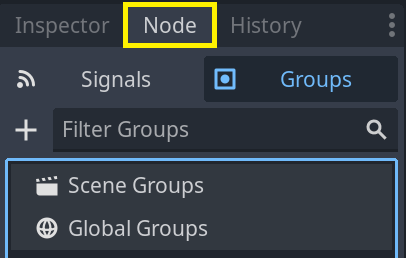
Select one or more nodes in the Scene dock then click the add button with the + symbol.
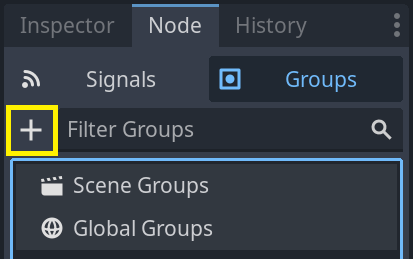
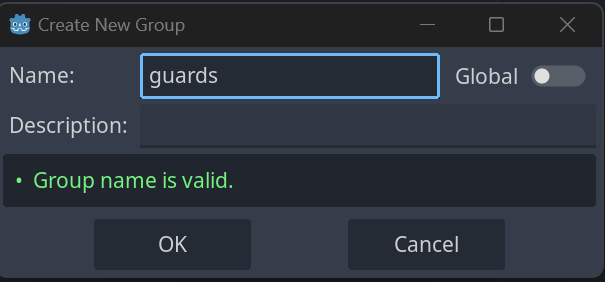
You should now see the Create New Group modal appear. Write the group name in the field.
You can optionally mark the option "Global", which will make the group visible project-wide, and able to be reused in any project scene. This will also allow you to give it a description.
When done, press Ok to create it.
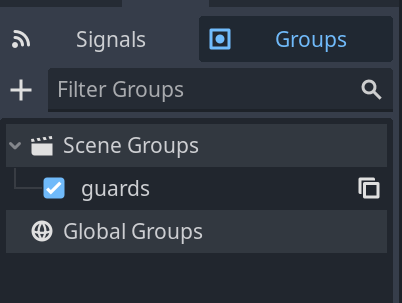
You should see the new groups appear in the Groups tab under Scene Groups if the Global option was unmarked, or under Global Groups if that option was marked.
Selected Node(s) from the Scene dock can be added into groups by marking the checkbox on the left side of the groups in the Groups dock. The node(s) you had selected when creating a new group will be automatically checked.
All groups present in the project that were marked as Global, created from any scene, will be visible under Global Groups.
Any other group derived from nodes in the current scene will appear under Scene Groups.
警告
The same underlying logic is used for both Global and Scene groups. Groups with the same name are considered one and the same. This feature is purely organizational.

You can manage Global Groups in the Global Groups dock, inside Project Settings. There, you will be able to add new global groups, or change existing groups' names and descriptions.
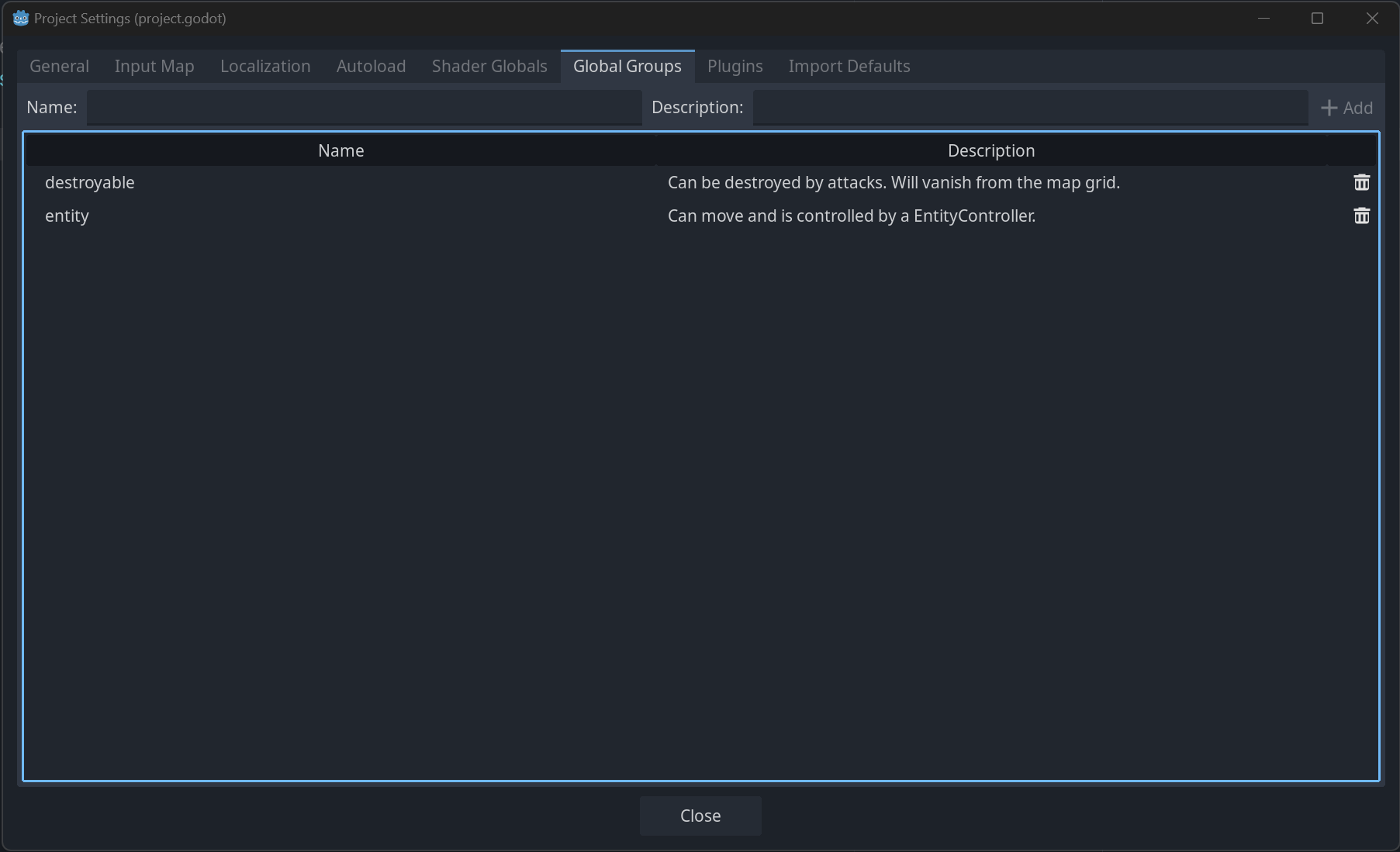
使用空白字元
第二種方法則是使用程式碼。下面這個腳本會在目前節點一進入場景樹後立刻把它新增到 enemies (敵人) 群組中。
func _ready():
    add_to_group("guards")
public override void _Ready()
{
    base._Ready();

    AddToGroup("guards");
}
請想像你正在製作潛入類遊戲。敵人發現玩家後,你會希望所有守衛和機器人都進入警覺狀態。
下面的虛擬例子中,我們使用 SceneTree.call_group() 來通知所有敵人,玩家被發現了。
func _on_player_spotted():
    get_tree().call_group("guards", "enter_alert_mode")
public void _OnPlayerDiscovered()
{
    GetTree().CallGroup("guards", "enter_alert_mode");
}
上面的程式碼會呼叫群組 enemies 裡所有成員的 player_was_discovered 方法。
另外,也可以通過呼叫 SceneTree.get_nodes_in_group() 來取得所有 enemies 群組下的節點:
var guards = get_tree().get_nodes_in_group("guards")
var guards = GetTree().GetNodesInGroup("guards");
SceneTree 類別還提供了很多實用的方法,例如與場景、節點架構、群組等互動。也可以使用 SceneTree 來輕鬆切換場景、重新載入場景、結束遊戲、暫停以及取消暫停。SceneTree 甚至有一些很有趣的訊號。有空的話記得去看看 SceneTree 的手冊。