Up to date
This page is up to date for Godot 4.3.
If you still find outdated information, please open an issue.
為 Android 匯出
也參考
這個頁面描述的是如何將 Godot 專案匯出到 Android。如果你想要找的是從源碼編譯編輯器或匯出範本二進位檔案,請閱讀 為 Android 進行編譯。
匯出至 Android 的需求比為 Android 編譯 Godot 還來得少。下列為設定 SDK 與 Godot 所需的詳細步驟。
注意
Projects written in C# can be exported to Android as of Godot 4.2, but support is experimental and some limitations apply.
Install OpenJDK 17
Download and install OpenJDK 17.
下載 Android SDK
下載與安裝 Android SDK。
You can install the Android SDK using Android Studio Iguana (version 2023.2.1) or later.
依照這裡的 指示 執行一次 Android Studio 來完成設定 SDK。
Ensure that the required packages are installed as well.
Android SDK Platform-Tools version 34.0.0 or later
Android SDK Build-Tools version 34.0.0
Android SDK Platform 34
安裝 Android SDK (命令行版本)
Ensure that the NDK and CMake are installed and configured.
CMake 版本 3.10.2.4988404
NDK 版本 r23c(23.2.8568313)
Alternatively, you can install the Android SDK with the sdkmanager command line tool.
Install the command line tools package using these instructions.
Once the command line tools are installed, run the following sdkmanager command to complete the setup process:
sdkmanager --sdk_root=<android_sdk_path> "platform-tools" "build-tools;34.0.0" "platforms;android-34" "cmdline-tools;latest" "cmake;3.10.2.4988404" "ndk;23.2.8568313"
備註
如果你使用的是 Linux,請勿使用發行版本軟體庫提供的 Android SDK,因為它通常是過時的。
在 Godot 中設定
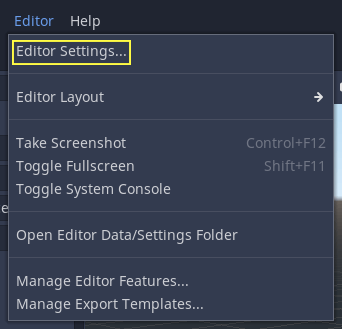
開啟 [編輯器設定] 畫面。該畫面中包含了用於該電腦上目前使用者帳號的設定 (編輯器設定獨立於專案)。
下拉至 Android 設定的部分:
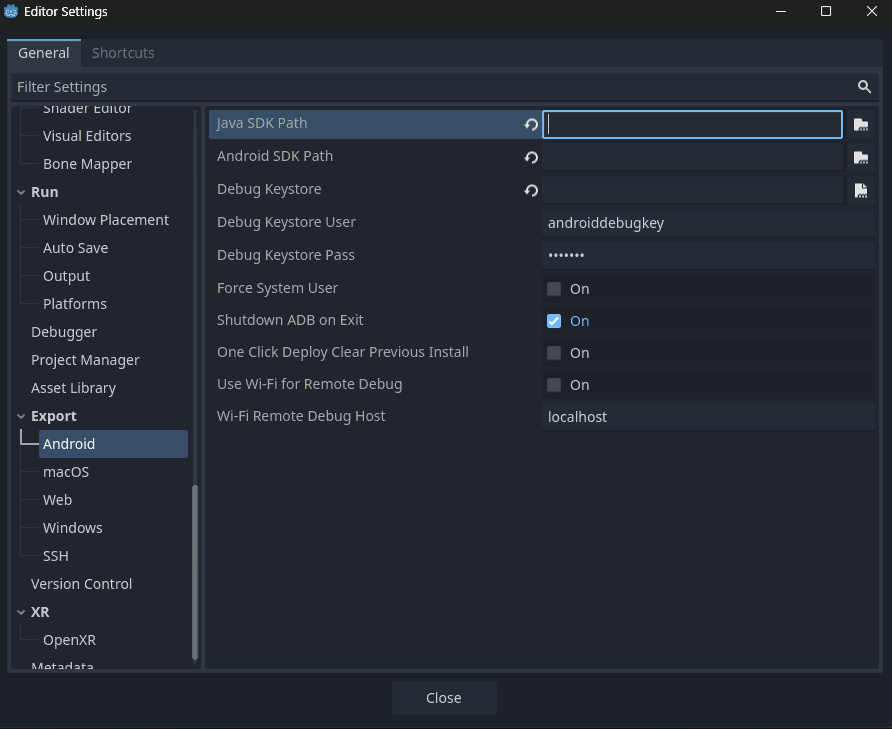
在此畫面中,需要設定 2 個路徑:
Java SDK Pathshould be the location where OpenJDK 17 was installed.Android Sdk Pathshould be the location where the Android SDK was installed. - For example%LOCALAPPDATA%\Android\Sdk\on Windows or/Users/$USER/Library/Android/sdk/on macOS.
設定好了之後,就準備好能匯出到 Android 了!
備註
如果你遇到 “Could not install to device” 的錯誤,請確認裝置上未安裝使用了相同Android包名(但使用不同金鑰進行簽章)的應用。
如果裝置上安裝了 Android 包名相同但簽章金鑰不同的應用,你**必須**先在該 Android 裝置詢問時選擇刪除該應用,但後再重新匯出到 Android。
提供起動器圖示
啟動器圖示是給 Android 起動器應用程式將程式顯示給使用者看的圖示。Godot 中只需要提供高解析度圖示 (用於 xxxhdpi 密度螢幕),就會自動產生各個低解析度的版本。
Godot 中需要的圖示有兩種型別:
主圖示: 即「經典」的圖示。會用於最高至 Android 8 (Orea) 的 Android 版本。必須至少有 192×192 px。
調適性圖示: 自 Android 8 版 (不含) 開始開始引入了 調適性圖示 (英文) 。應用程式需要包含分開的背景與前景圖示來提供原生外觀。使用者的起動器會控制圖示的動畫與遮罩。必須至少有 432×432 px。
Themed Icons: Starting from Android 13 (inclusive), Themed Icons were introduced. Applications will need to include a monochrome icon to enable this feature. The user's launcher application will control the icon's theme. Must be at least 432×432 px.
警示
It is mandatory to provide a monochrome icon. Failure to do so will result in the default Godot monochrome icon being used.
也參考
在設計調適性圖示時,遵守一些規則也很重要。Google Design 發表了一篇很棒的文章 (英文) ,有助於瞭解這些規則以及調適性圖示的一些限制。
警示
調適性圖示設計規則中最重要的一點是要將圖示的關鍵元素放在安全區域內,即為正中間有直徑 66dp 的圓圈 (xxxhdpi 下為 264 像素),才可避免圖示被起動器給剪裁。
若不提供需要的圖示,則 Godot 會自動在遞補鏈中以下一個專案來代替,當遞補鏈中目前專案失敗時,則往下遞補:
Main Icon: 提供的主圖示 -> 專案圖示 -> 預設 Godot 主圖示。
Adaptive Icon Foregrond: 提供的前景圖示 -> 提供的主圖示 -> 專案圖示 -> 預設 Godot 前景圖示。
Adaptive Icon Background: 提供的背景圖示 -> 預設 Godot 背景圖示。
Adaptive Icon Monochrome: Provided monochrome icon -> Default Godot monochrome icon.
強烈建議提供所有需要的圖示,並至少要有指定的解析度。只有這樣才能讓應用程式在所有 Android 裝置與版本中看起來好看。
為 Google Play Store 匯出
All new apps uploaded to Google Play after August 2021 must be an AAB (Android App Bundle) file.
Uploading an AAB or APK to Google's Play Store requires you to sign using a non-debug keystore file; such a file can be generated like this:
keytool -v -genkey -keystore mygame.keystore -alias mygame -keyalg RSA -validity 10000
This keystore and key are used to verify your developer identity, remember the password and keep it in a safe place! It is suggested to use only upper and lowercase letters and numbers. Special characters may cause errors. Use Google's Android Developer guides to learn more about app signing.
接著在 Android 匯出預設中填寫下列表格:
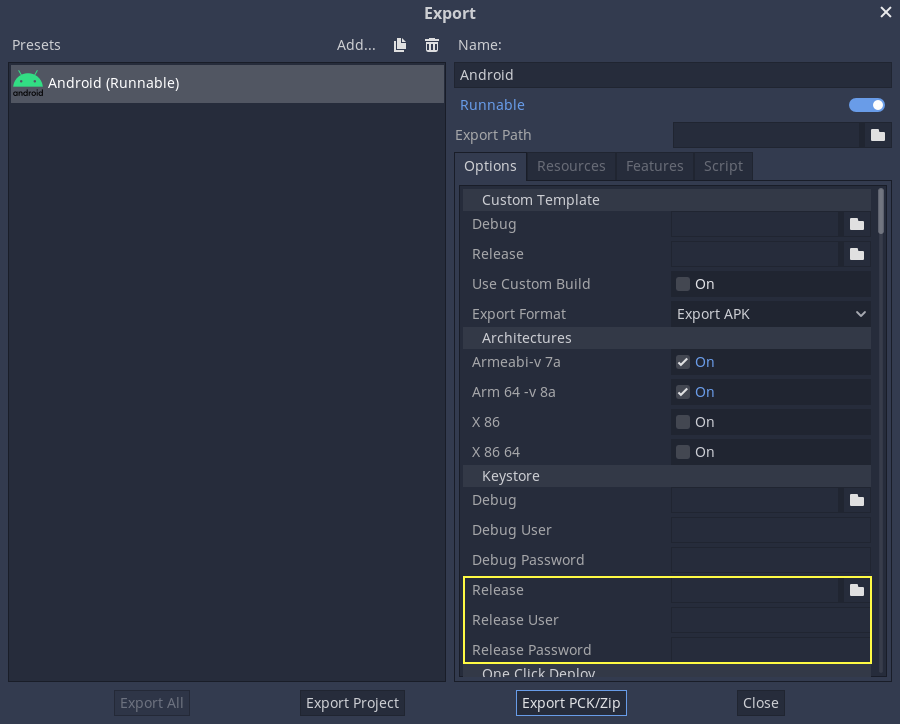
Release: 輸入剛才產生的金鑰儲存區檔案位置。
Release User: 以金鑰別名取代。
Release Password: 金鑰密碼,請注意,目前金鑰儲存區密碼與金鑰的密碼必須相同。
設定 APK 名稱時也別忘了取消勾選 [Export With Debug] 勾選框。

Optimizing the file size
If you're working with APKs and not AABs, by default, the APK will contain native libraries for both ARMv7 and ARMv8 architectures. This increases its size significantly. To create a smaller file, uncheck either Armeabi-v 7a or Arm 64 -v 8a in your project's Android export preset. This will create an APK that only contains a library for a single architecture. Note that applications targeting ARMv7 can also run on ARMv8 devices, but the opposite is not true. The reason you don't do this to save space with AABs is that Google automatically splits up the AAB on their backend, so the user only downloads what they need.
還可以進一步通過編譯只有所需功能的 Android 匯出樣板來進一步最佳化大小。更多資訊請參考 最佳化建置檔案大小 。
環境變數
您可以使用下列環境變數在編輯器外部設定匯出選項。在匯出過程中,這些值會覆寫您在匯出選單中設定的值。
匯出選項 |
環境變數 |
|---|---|
加密/加密金鑰 |
|
選項/金鑰庫/除錯 |
|
選項/金鑰庫/除錯使用者 |
|
選項/金鑰庫/除錯密碼 |
|
選項/金鑰庫/發布 |
|
選項/金鑰庫/釋放使用者 |
|
選項/金鑰庫/釋放密碼 |
|