Attention: Here be dragons
This is the latest
(unstable) version of this documentation, which may document features
not available in or compatible with released stable versions of Godot.
Checking the stable version of the documentation...
Enviando para a Asset Library
Introdução
Este tutorial visa servir como um guia sobre como você pode enviar seus próprios assets para a Godot Asset Library e compartilhá-los com a comunidade do Godot.
Como mencionado no documento Usando a Biblioteca de Ativos, para poder enviar recursos para a Biblioteca de recursos, você vai precisar ter uma conta registrada e estar logado.
Diretrizes de submissão
Antes de enviar seu asset, certifique-se de que ele cumpre todos os requisitos e considere também seguir as recomendações.
Requisitos
De modo geral, a maioria dos assets que as pessoas enviam para a asset library é aceita. No entanto, para que seu asset seja aceito, existem alguns requisitos que ele precisa atender para ser aprovado.
O asset deve funcionar. Se o asset não rodar ou não funcionar na versão especificada do Godot, ele será rejeitado.
O asset deve ter um arquivo .gitignore adequado. É importante manter dados redundantes fora do repositório. Aqui está um modelo.
Sem submódulos, ou quaisquer submódulos devem ser não essenciais. O GitHub não inclui submódulos no arquivo ZIP baixado, portanto, se o asset precisar do conteúdo do submódulo, ele não funcionará.
The license needs to be correct. The license listed on the asset library must match the license in the repository. The repository must have a license file, called either "LICENSE" or "LICENSE.md". This file must contain the license text itself and a copyright statement that includes the year(s) and copyright holder.
Use Inglês adequado para o nome e a descrição do seu ativo. Isso inclui usar capitalização correta e usar frases completas na descrição. Você também pode incluir outros idiomas, mas deve haver pelo menos uma versão em inglês.
O link para o ícone precisa ser um link direto. Para links hospedados no GitHub, o link precisa começar com "raw.githubusercontent.com", não com "github.com".
Recomendações
Estas coisas não são requisito para que seus recursos sejam aprovados, porém, se você seguir estás recomendações você pode ajudar a fazer da biblioteca de recursos um lugar melhor para todos.
Ao criar assets que não são projetos inteiros, é prática comum colocar seus arquivos dentro de uma pasta addons/nome_do_asset/. Faça isso para evitar que seus arquivos entrem em conflito com outros assets ou com os arquivos dos usuários que estão instalando seu asset. Esta pasta não será gerada automaticamente quando um usuário instalar seu asset.
Corrija ou oculte todos os alertas do script. O sistema de alerta está lá para ajuda-lo a identificar problemas no seu código , porém, pessoas usando seus recursos não precisam vê-los.
Make your code conform to the official style guides. Having a consistent style helps other people read your code, and it also helps if other people wish to contribute to your asset. See the Guia de Estilo GDScript or the Guia de Estilo C#.
If you have screenshots in your repository, place them in their own subfolder and add an empty .gdignore file in the same folder (note: gd, not git). This prevents Godot from importing your screenshots. On Windows, open a command prompt in the project folder and run
type nul > .gdignoreto create a file whose name starts with a period.Se os recursos da sua biblioteca interagirem com outros arquivos, considere incluir arquivos de exemplo.
Consider adding a .gitattributes file to your repository. This file allows giving extra instructions to Git, such as specifying line endings and listing files not required for your asset to function with the
export-ignoredirective. This directive removes such files from the resulting ZIP file, preventing them from being downloaded by the asset library users. These are common examples of .gitattributes:# Normalize line endings for all files that Git considers text files. * text=auto eol=lf
# Normalize line endings for all files that Git considers text files.
* text=auto eol=lf
# Only include the addons folder when downloading from the Asset Library. /** export-ignore /addons !export-ignore /addons/** !export-ignore
Se você estiver enviando um plugin, adicione uma cópia da sua licença e do readme na própria pasta do plugin. Esta é a pasta que os usuários com certeza manterão no projeto deles, portanto, uma cópia garante que eles sempre tenham esses arquivos à mão (e os ajuda a cumprir os termos da sua licença).
Embora a asset library permita mais do que apenas o GitHub, considere hospedar o código-fonte do seu asset no GitHub. Outros serviços podem não funcionar de forma confiável, e a falta de familiaridade com eles pode ser uma barreira para os colaboradores.
Enviando
Assim que estiver logado, você poderá acessar a página "Submit Assets" da AssetLib, que se parecerá com isto:
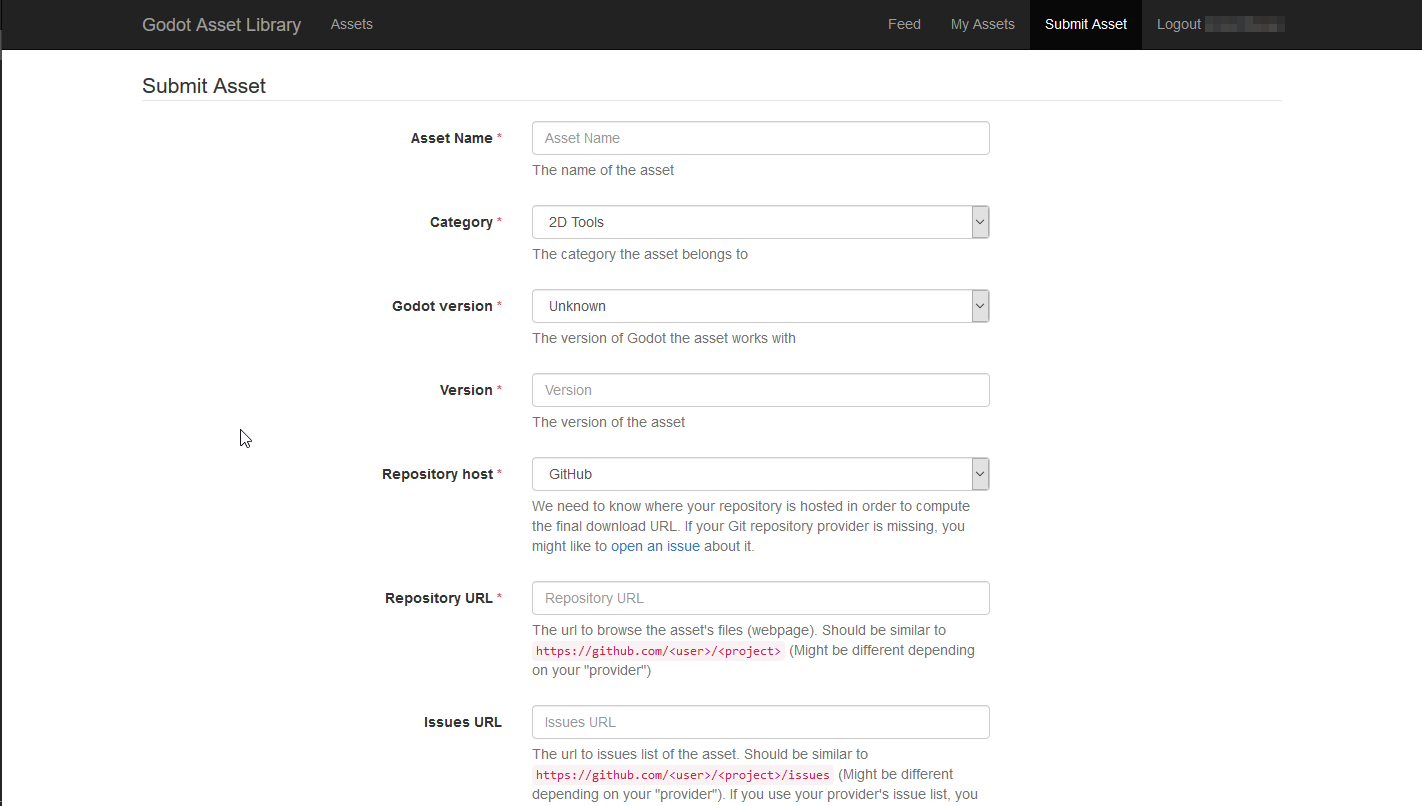
Embora possa parecer que haja muito (e há mais à medida que vai descendo a página), cada campo é intuitivo sobre o que deve se preencher. No entanto, vamos também rever aqui o que é necessário em cada campo do formulário de envio.
- Nome do Recurso:
O nome do seu arquivo. Deve ser único, um titulo que descreva o que seu arquivo é.
- Categoria:
A categoria à qual seu asset pertence e que será mostrada nos resultados da pesquisa. A categoria é dividida em Addons e Projects. No editor, os assets do tipo Project (Templates, Demos, Projects) só aparecem ao visualizar a AssetLib a partir do Gerenciador de Projetos, enquanto os assets do tipo Addon só estarão visíveis de dentro de um projeto.
- Versão da Godot:
A versão da engine com a qual o recurso é compatível. Atualmente, não é possível que um único recurso inclua downloads para várias versões da engine, por isso, poderá ser necessário reenviar o recurso várias vezes, com uma entrada para cada versão do Godot que ele suporta. Isto é particularmente importante quando se trata de versões principais da engine, como o Godot 2.x e o Godot 3.x.
- Versão:
O número da versão do asset. Embora você seja livre para escolher e usar qualquer esquema de versionamento que desejar, você pode querer dar uma olhada em algo como o SemVer se quiser que o esquema de versionamento do seu asset seja claro e consistente. Note que também existe um número de versão interno, incrementado toda vez que a URL de download do asset é alterada ou atualizada.
- Host do repositório:
Os assets enviados para a AssetLib não são hospedados diretamente nela. Em vez disso, eles apontam para repositórios hospedados em provedores Git terceiros, como GitHub, GitLab ou Bitbucket. É aqui que você escolhe qual provedor seu asset usa, para que o site possa calcular o link de download final.
- URL do repositório:
The URL to your asset's files/webpage. This will vary based on your choice of provider, but it should look similar to
https://github.com/<user>/<project>.
- URL de problemas:
The URL to your asset's issue tracker. Again, this will differ from repository host to repository host, but will likely look similar to
https://github.com/<user>/<project>/issues. You may leave this field empty if you use your provider's issue tracker, and it's part of the same repository.
- Baixar Commit:
The commit of the asset. For example,
b1d3172f89b86e52465a74f63a74ac84c491d3e1. The site computes the actual download URL from this.
- URL do ícone:
O URL do ícone do seu recurso (que será utilizado como miniatura nos resultados de pesquisa da AssetLib e na página do recurso). Deve ser uma imagem no formato PNG ou JPG.
O ícone deve ser quadrado (proporção de aspecto 1:1). Ele deve ter uma resolução mínima de 128×128 pixels.
Nota
For icons hosted on GitHub, URLs must be provided in the form of https://raw.githubusercontent.com/<user>/<project>/<branch>/Icon.png.
- Licença:
A licença sob a qual você está distribuindo o asset. A lista inclui uma variedade de licenças de software livre e de código aberto, como GPL (v2 e v3), MIT, BSD e Boost Software License. Você pode visitar o OpenSource.org para obter uma descrição detalhada de cada uma das licenças listadas.
- Descrição:
Por fim, você pode usar o campo Description para uma visão geral em texto do seu asset, seus recursos e comportamento, um histórico de alterações (changelog), etc. No futuro, a formatação com Markdown será suportada, mas atualmente sua única opção é texto puro.
Você também pode incluir até três pré-visualizações de vídeo e/ou imagem, que serão exibidas na parte inferior da página do asset. Use a caixa de seleção "Enable" em cada uma das caixas de envio de pré-visualização para ativá-las.
- Tipo:
Seja uma imagem ou um vídeo.
- URL da Imagem/YouTube:
Ou um link para a imagem, ou para um vídeo, hospedado no YouTube.
- URL da Thumbnail:
Uma URL para uma imagem que será usada como thumbnail para a pré-visualização. Esta opção será removida eventualmente, e as thumbnail serão automaticamente computadas.
Uma vez que terminar, aperte "Enviar". Seu recurso(asset) será enviado para a fila de análise. Você pode checar todos os assets que estão em espera na fila aqui . O processo de aprovação é manual e pode levar até alguns dias para que seu recurso seja aceito (ou rejeitado), então por favor tenha paciência!
Você será informado quando seu asset for revisado. Se ele foi rejeitado, você receberá um porque disso, e você poderá mandá-lo novamente com as mudanças apropriadas.