Attention: Here be dragons
This is the latest
(unstable) version of this documentation, which may document features
not available in or compatible with released stable versions of Godot.
Checking the stable version of the documentation...
Using MultiMeshInstance3D
Introdução
In a normal scenario, you would use a MeshInstance3D node to display a 3D mesh like a human model for the main character, but in some cases, you would like to create multiple instances of the same mesh in a scene. You could duplicate the same node multiple times and adjust the transforms manually. This may be a tedious process and the result may look mechanical. Also, this method is not conducive to rapid iterations. MultiMeshInstance3D is one of the possible solutions to this problem.
MultiMeshInstance3D, as the name suggests, creates multiple copies of a MeshInstance over a surface of a specific mesh. An example would be having a tree mesh populate a landscape mesh with trees of random scales and orientations.
Configurando os nós
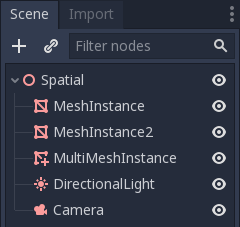
The basic setup requires three nodes: the MultiMeshInstance3D node and two MeshInstance3D nodes.
One node is used as the target, the surface mesh that you want to place multiple meshes on. In the tree example, this would be the landscape.
O outro nó é usado como a fonte, a malha que você quer duplicar. No caso da árvore, isso seria a árvore em si.
In our example, we would use a Node3D node as the root node of the scene. Your scene tree would look like this:
Nota
For simplicity's sake, this tutorial uses built-in primitives.
Now you have everything ready. Select the MultiMeshInstance3D node and look at the
toolbar, you should see an extra button called MultiMesh next to View.
Click it and select Populate surface in the dropdown menu. A new window titled
Populate MultiMesh will pop up.

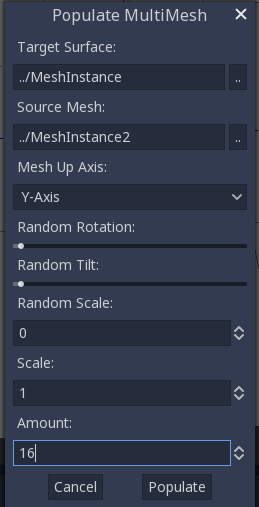
Configurações do MultiMesh
Below are descriptions of the options.
Superfície Alvo
The mesh used as the target surface on which to place copies of your source mesh.
Malha de Origem
The mesh you want duplicated on the target surface.
Mesh Up Axis
The axis used as the up axis of the source mesh.
Rotação aleatória
Randomizing the rotation around the up axis of the source mesh.
Inclinação aleatória
Randomizando a rotação geral da malha de origem.
Escala Aleatória
Randomizando a escala da malha de origem.
Escala
A escala da malha de origem que será colocada sobre a superfície de destino.
Quantidade
A quantidade de instâncias(cópias) da malha que será colocada sobre a superfície de destino.
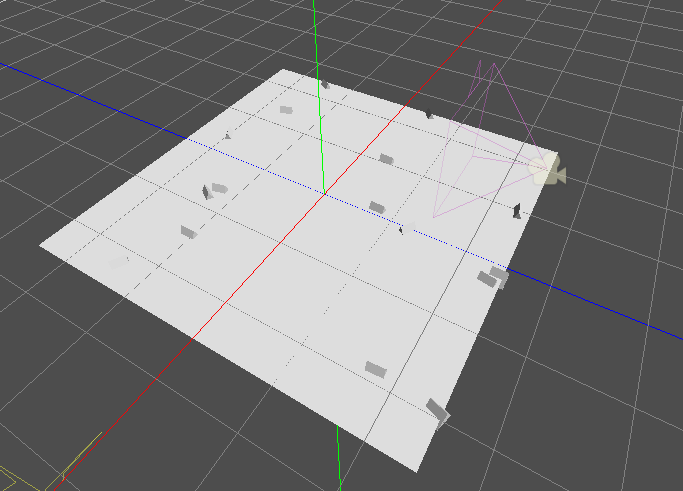
Selecione a superfície do alvo. No caso da árvore, este deve ser o nó da paisagem. A malha de origem deve ser o nó da árvore. Ajuste os outros parâmetros de acordo com sua preferência. Pressione Populate e várias cópias da malha de origem serão colocadas sobre a malha de destino. Se você estiver satisfeito com o resultado, você pode excluir a instância(cópia) de malha usada como malha de origem.
O resultado final deve ser mais ou menos assim:
To change the result, repeat the previous steps with different parameters.