Attention: Here be dragons
This is the latest
(unstable) version of this documentation, which may document features
not available in or compatible with released stable versions of Godot.
Checking the stable version of the documentation...
Usando a iluminação global Lightmap
Os mapas de luz pré-calculados são um fluxo de trabalho alternativo para adicionar iluminação indireta (ou totalmente baked) a uma cena. Ao contrário da abordagem VoxelGI e SDFGI, mapas de luz pré-calculados funcionam bem em PCs e dispositivos móveis de baixo desempenho já que quase não consomem recursos em tempo de execução. Além disso, ao contrário do GIProbe, mapas de luz pré-calculados podem opcionalmente ser usados para armazenar iluminação direta, o que fornece ainda mais ganhos de desempenho.
Ao contrário do VoxelGI e do SDFGI, os lightmaps gerados por bake são completamente estáticos. Depois de gerados, eles não podem ser modificados. Eles também não fornecem reflexões para a cena, portanto utilizar Sondas de reflexos em ambientes internos (ou utilizar um Sky em ambientes externos) é necessário para obter boa qualidade.
Como são gerados por bake, eles apresentam menos problemas de vazamento de luz do que VoxelGI e SDFGI, e a iluminação indireta geralmente terá aparência melhor. A desvantagem é que gerar lightmaps leva mais tempo em comparação ao bake do VoxelGI. Enquanto o bake do VoxelGI pode ser realizado em segundos, o bake de lightmaps pode levar vários minutos ou mais. Isso pode reduzir significativamente a velocidade de iteração, portanto recomenda-se gerar lightmaps apenas quando realmente for necessário visualizar mudanças na iluminação. Os lightmaps são gerados na GPU, tornando o processo mais rápido se você possuir uma GPU dedicada de médio ou alto desempenho.
A geração de lightmaps também reserva o canal UV2 dos materiais gerados por bake, o que significa que você não poderá mais utilizá-lo para outros propósitos em materiais (seja no Material 3D Padrão e Material ORM 3D integrado ou em shaders personalizados).
Apesar de sua falta de flexibilidade, mapas de luz(lightmaps) pré-calculados normalmente oferecem tanto a melhor qualidade e desempenho ao mesmo tempo em (principalmente) cenas estáticas. Isso torna os mapas de luz ainda populares no desenvolvimento do jogo, apesar dos lightmaps serem a técnica mais antiga para a iluminação global em videogames.
Ver também
Não tem certeza se o LightmapGI é adequado às suas necessidades? Veja Qual técnica de iluminação global devo usar? para uma comparação de técnicas GI disponíveis na Godot 4.
Comparação visual
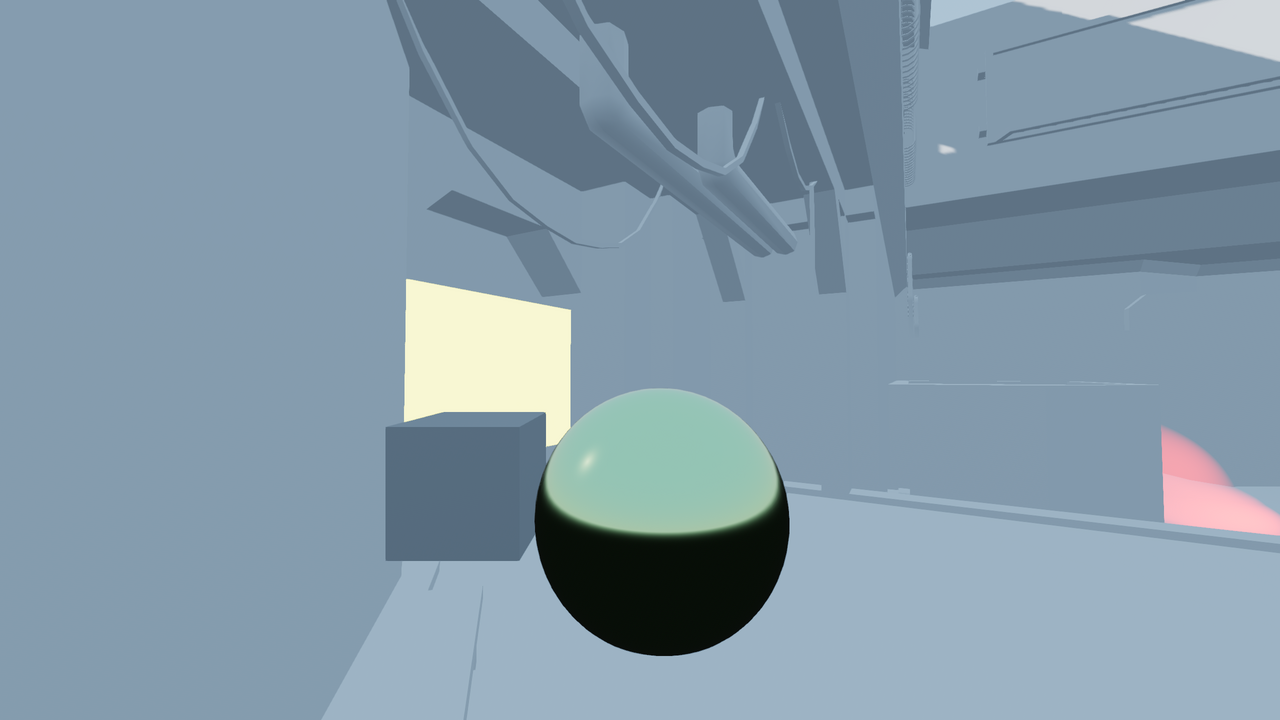
LightmapGI desabilitado.
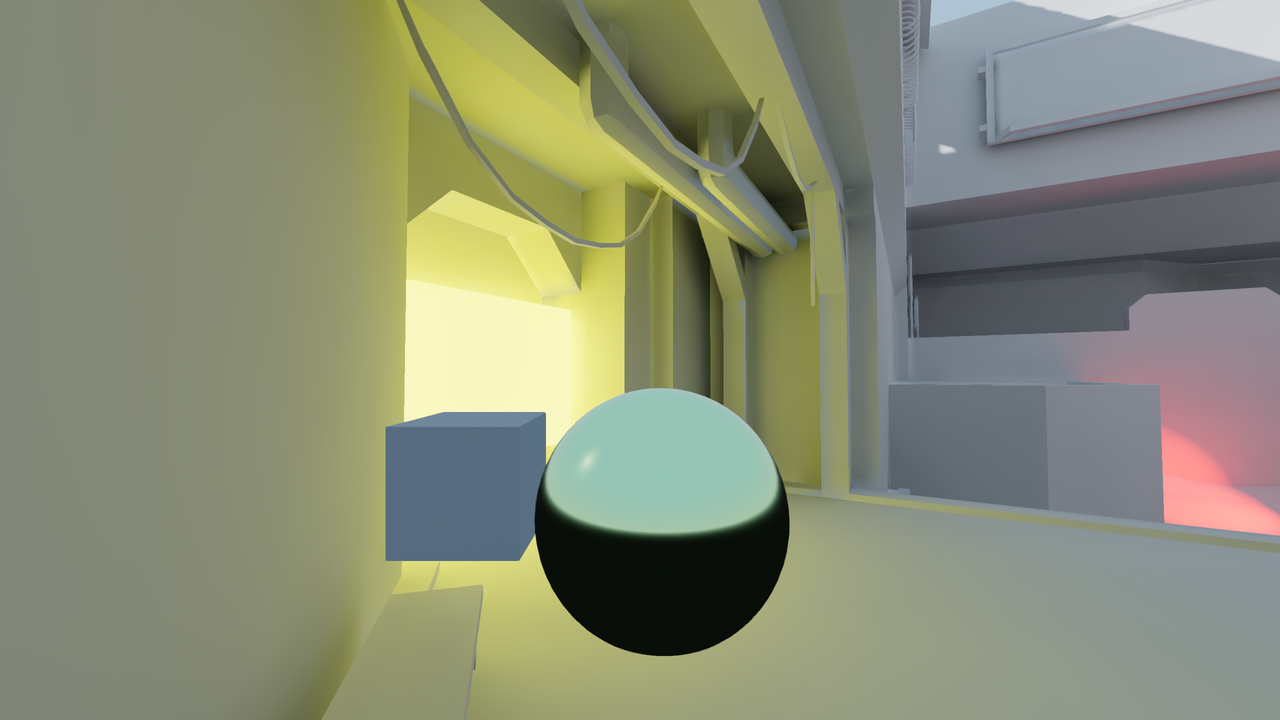
LightmapGI habilitado (apenas com iluminação indireta gerada por bake). A iluminação direta continua em tempo real, permitindo alterações sutis durante a jogabilidade.
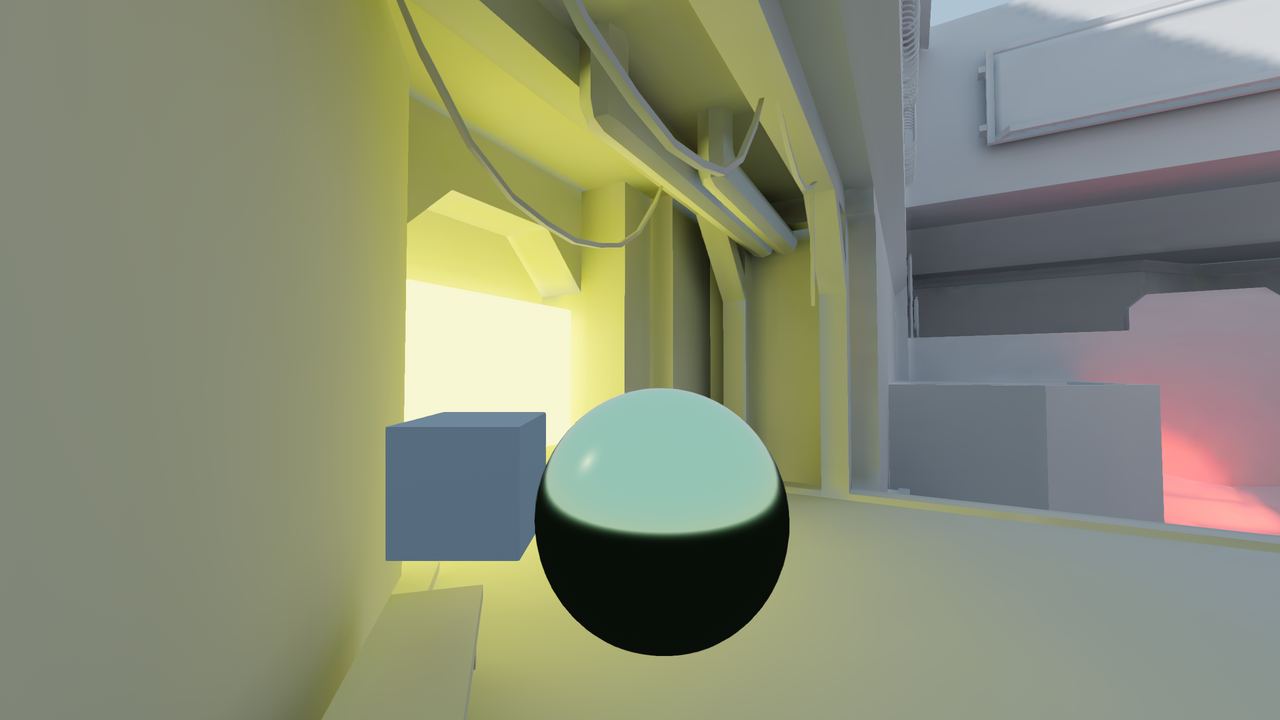
LightmapGI ativado (com luz direta e indireta pré-calculada). Melhor desempenho, mas menor qualidade visual. Repare na sombra do sol mais borrada no canto superior direito.
Aqui estão algumas comparações entre LightmapGI e VoxelGI. Observe que os lightmaps são mais precisos, mas também sofrem com o fato de a iluminação estar em uma textura desdobrada, então as transições e a resolução podem não ser ideais. O VoxelGI parece menos preciso (por ser uma aproximação), mas é mais suave no geral.
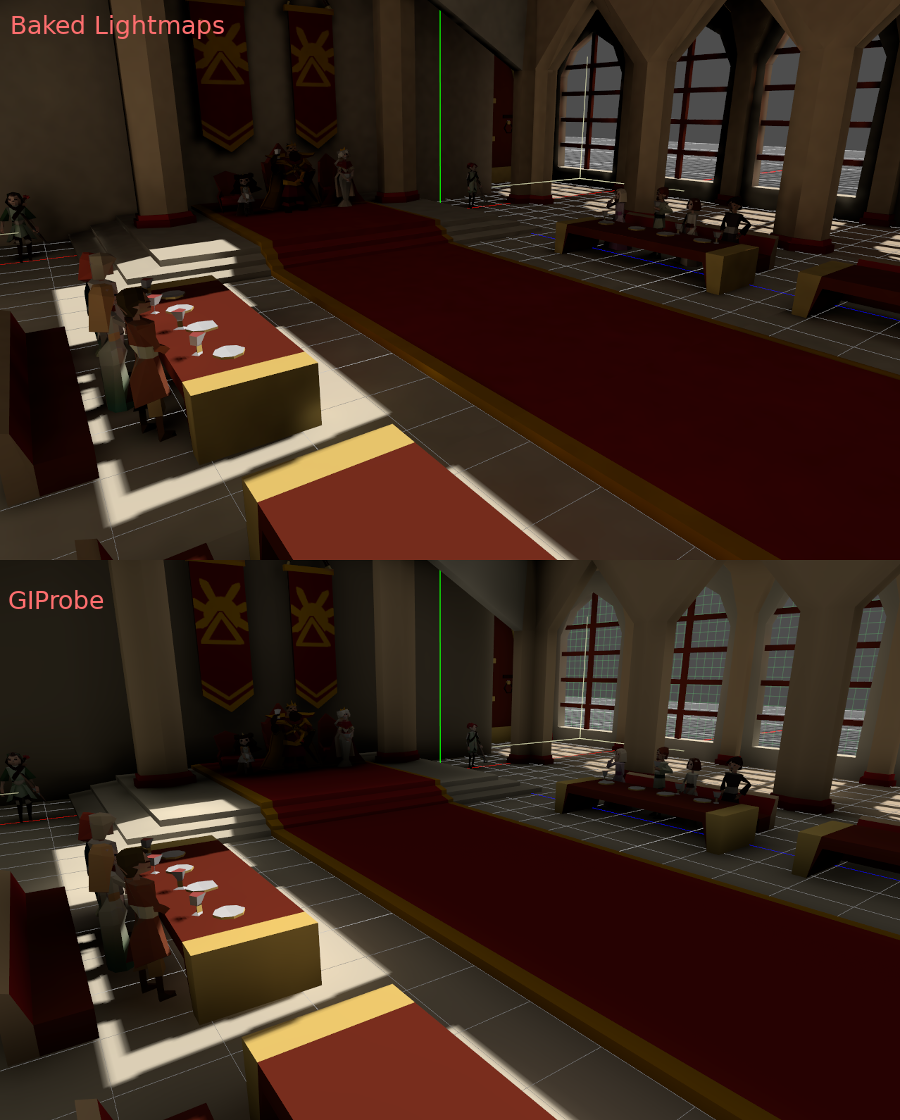
SDFGI também é menos preciso comparado ao LightmapGI. Porém, o SDFGI consegue suportar grandes mundos abertos sem necessidade de Pré-Cálculo.
Configurando
Aviso
Pré-calcular mapas de luz no editor web não é suportado devido à limitações de API gráfica. Na plataforma web, apenas a renderização de mapas de luz que foram pré-calculados em uma plataforma diferente são suportados.
Nota
O nó LightmapGI gera bake apenas para nós que estão no mesmo nível do nó LightmapGI (irmãos) ou que são filhos do nó LightmapGI. Isso permite utilizar vários nós LightmapGI para gerar diferentes partes da cena de forma independente.
Antes de mais nada, para que o gerador de lightmaps possa funcionar, os objetos a serem gerados precisam possuir uma camada UV2 e um tamanho de textura. Uma camada UV2 é um conjunto de coordenadas secundárias de textura que garante que cada face do objeto tenha sua própria posição no mapa UV. As faces não devem compartilhar pixels na textura.
Há algumas maneiras de garantir que seu objeto tenha uma camada UV2 e um tamanho de textura únicos:
Desdobrar na importação da cena (recomendado)
Na maioria dos cenários, esta é a melhor abordagem. A única desvantagem é que, em modelos grandes, o processo de desdobramento pode demorar durante a importação. Ainda assim, o Godot armazenará em cache o UV2 entre reimportações, de modo que ele só será regenerado quando necessário.
Selecione a cena importada no painel de sistema de arquivos e vá para o painel Import. Lá, a seguinte opção pode ser modificada:
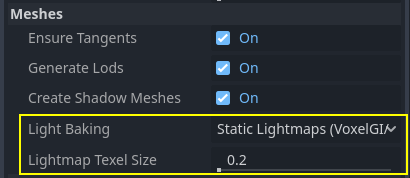
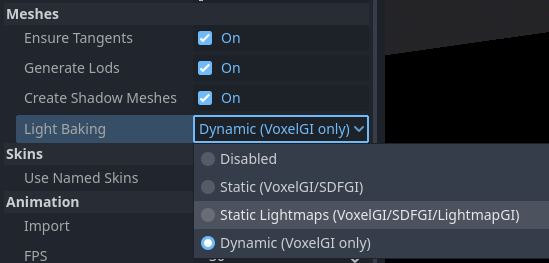
A opção Meshes > Light Baking deve estar definida como Static Lightmaps (VoxelGI/SDFGI/LightmapGI):
Ao desdobrar durante a importação, você pode ajustar o tamanho da textura usando a opção Meshes > Lightmap Texel Size. Valores menores resultarão em lightmaps mais detalhados, possivelmente com melhor qualidade visual, ao custo de tempos de bake maiores e arquivos de lightmap maiores. O valor padrão de 0.2 é adequado para cenas pequenas e médias, mas você pode querer aumentá-lo para 0.5 ou mais em cenas maiores. Isso é especialmente válido se você estiver gerando apenas iluminação indireta, pois a iluminação indireta é um dado de baixa frequência (o que significa que não necessita de texturas de alta resolução para ser representada com precisão).
O efeito de definir esta opção é que todas as malhas dentro da cena terão seus mapas UV2 gerados corretamente.
Aviso
When reusing a mesh within a scene, keep in mind that UVs will be generated for the first instance found. If the mesh is reused with different scales (and the scales are wildly different, more than half or twice), this will result in inefficient lightmaps. To avoid this, adjust the Lightmap Scale property in the GeometryInstance3D section of a MeshInstance3D node. This lets you increase the level of lightmap detail for specific MeshInstance3D nodes (but not decrease it).
Além disso, os arquivos *.unwrap_cache não devem ser ignorados no controle de versão, pois esses arquivos garantem que as reimportações UV2 sejam consistentes entre plataformas e versões de engine.
Desempacotar(Unwrap) de dentro Godot
Aviso
Se esta operação do menu Mesh for usada em uma cena 3D importada, o UV2 gerado será perdido quando a cena for recarregada.
O Godot tem uma opção para desembrulhar (unwrap) malhas e visualizar os canais UV. Depois de selecionar um nó MeshInstance3D, ela pode ser encontrada no menu Mesh no topo da viewport do editor 3D:

Isso gerará um segundo conjunto de coordenadas UV2 que pode ser usado para baking. Também definirá automaticamente o tamanho da textura.
Desdobre no seu software de modelagem 3D
A última opção é fazer isso em seu aplicativo 3D favorito. Essa abordagem geralmente não é recomendada, mas é explicada para que você saiba que ela existe. A principal vantagem é que, em objetos complexos que você pode querer reimportar com frequência, o processo de geração da textura pode ser bastante custoso dentro do Godot, portanto, realizar o unwrap antes da importação pode ser mais rápido.
Basta desempacotar(unwrap) a segunda camada UV2.

Em seguida, importe a cena 3D normalmente. Lembre-se de que você precisará definir o tamanho da textura na malha após a importação.

Se você utilizar malhas externas na importação, o tamanho será preservado. Lembre-se de que a maioria das ferramentas de desdobramento de malha em softwares de modelagem 3D não prioriza a qualidade, pois são projetadas para operar com rapidez. Geralmente, será necessário utilizar costuras ou outras técnicas para obter um mapeamento de melhor qualidade.
Gerando UV2 para malhas primitivas
Nota
Esta opção está disponível apenas para malhas primitivas, como BoxMesh, CylinderMesh, PlaneMesh, etc.
Habilitar UV2 em malhas primitivas permite que você os faça receber e contribuir para a iluminação pré-calculada. Isso pode ser usado em certas configurações de iluminação. Por exemplo, você pode ocultar um torus que tem um material emissivo após pré-calcular lightmaps para criar uma luz de área que segue a forma de um torus.
Por padrão, malhas primitivas não têm UV2 gerado para economizar recursos (já que essas malhas podem ser criadas durante o gameplay). Você pode editar uma malha primitiva no inspetor e ativar Add UV2 para fazer com que a engine gere proceduralmente o UV2 para uma malha primitiva. O valor padrão de UV2 Padding é ajustado para evitar a maioria dos sangramentos de lightmap, sem desperdiçar muito espaço nas bordas. Se você notar sangramento de lightmap apenas em uma malha primitiva específica, talvez precise aumentar o UV2 Padding.
Lightmap Size Hint representa o tamanho ocupado por uma única malha na textura do lightmap, que varia dependendo das propriedades de tamanho da malha e do valor de UV2 Padding. Lightmap Size Hint não deve ser alterado manualmente, pois quaisquer modificações serão perdidas quando a cena for recarregada.
Gerando UV2 para nós CSG
Desde o Godot 4.4, você pode converter um nó CSG e seus filhos em um MeshInstance3D. Isso pode ser usado para gerar lightmaps em um nó CSG seguindo estas etapas:
Selecione o nó CSG raiz e escolha CSG > Bake Mesh Instance na parte superior da viewport do editor 3D.
Oculte o nó CSG raiz que acabou de ser processado (ele não é ocultado automaticamente).
Selecione o nó MeshInstance3D recém-criado e escolha Mesh > Unwrap UV2 for Lightmap/AO.
Lightmaps pré-calculados.
Dica
Lembre-se de manter o nó CSG original na árvore da cena, para que você possa realizar alterações na geometria posteriormente, se necessário. Para modificar a geometria, remova o nó MeshInstance3D e torne o nó CSG raiz visível novamente.
Verificando UV2
No menu Mesh mencionado anteriormente, as coordenadas de textura UV2 podem ser visualizadas. Se algo estiver falhando, verifique novamente se as malhas possuem essas coordenadas UV2:

Configurando a cena
Before anything is done, a LightmapGI node needs to be added to a scene. This will enable light baking on all nodes (and sub-nodes) in that scene, even on instantiated scenes.

A sub-scene can be instantiated several times, as this is supported by the baker. Each instance will be assigned a lightmap of its own. To avoid issues with inconsistent lightmap texel scaling, make sure to respect the rule about mesh scaling mentioned before.
Configuração de malhas
Para que um nó MeshInstance3D participe do processo de baking, ele precisa ter seu modo de baking definido como Static. Malhas cujo modo de baking esteja definido como Disabled ou Dynamic serão ignoradas pelo gerador de lightmaps.

Ao gerar automaticamente mapas de luz na importação de cena, isso é ativado automaticamente.
Configurando luzes
Por padrão, as luzes são processadas apenas com iluminação indireta. Isso significa que o mapeamento de sombras e a iluminação continuam dinâmicos e afetam objetos em movimento, mas os rebotes de luz dessa fonte serão armazenados no lightmap.
As luzes podem ser desativadas (sem bake) ou totalmente pré-calculada (diretamente e indiretamente). Isso pode ser controlado no menu Bake Mode nas luzes:

Os modos são:
Desativado
A luz é ignorada durante o baking de lightmaps. Este é o modo a ser usado para efeitos de iluminação dinâmica, como explosões e efeitos de armas.
Aviso
Ocultar uma luz não tem efeito no resultado do baking do lightmap. Isso significa que você deve usar o modo de baking Disabled em vez de ocultar o nó Light desativando sua propriedade Visible.
Dinâmico(a)
Este é o modo padrão e representa um compromisso entre desempenho e compatibilidade com tempo real. Apenas a iluminação indireta será armazenada. A iluminação direta e as sombras continuarão em tempo real, como aconteceria sem o LightmapGI.
Este modo permite realizar alterações sutis na cor, energia e posição de uma luz enquanto ainda parece razoavelmente correta. Por exemplo, você pode usar isso para criar tochas estáticas cintilantes que têm sua luz indireta pré-calculada(baked).
Dependendo do valor de Shadowmask Mode, ainda é possível obter sombras distantes armazenadas para um DirectionalLight3D. Isso permite que as sombras próximas permaneçam em tempo real e exibam objetos dinâmicos, enquanto objetos estáticos à distância continuam projetando sombras.
Estático(a)
Tanto a iluminação indireta quanto a direta serão bakeadas. Como superfícies estáticas podem pular completamente os cálculos de iluminação e sombra, este modo oferece o melhor desempenho junto com sombras suaves que nunca desaparecem com base na distância. A luz em tempo real não afetará mais superfícies bakeadas, mas ainda afetará objetos dinâmicos. Ao usar o modo de bake All em uma luz, objetos dinâmicos não projetarão sombras em tempo real sobre superfícies bakeadas, então você precisa usar uma abordagem diferente, como sombras tipo "blob". Sombras de blob podem ser implementadas com um nó Decal.
A luz não poderá ser ajustada durante a jogabilidade. Mover a luz ou alterar sua cor (ou energia) não terá efeito em superfícies estáticas.
Como os modos de baking podem ser ajustados individualmente para cada luz, é possível criar configurações híbridas de iluminação armazenada. Uma opção popular é usar uma DirectionalLight em tempo real com o modo de baking definido como Dynamic, e utilizar o modo Static para OmniLights e SpotLights. Isso fornece bom desempenho enquanto ainda permite que objetos dinâmicos projetem sombras em tempo real em áreas externas.
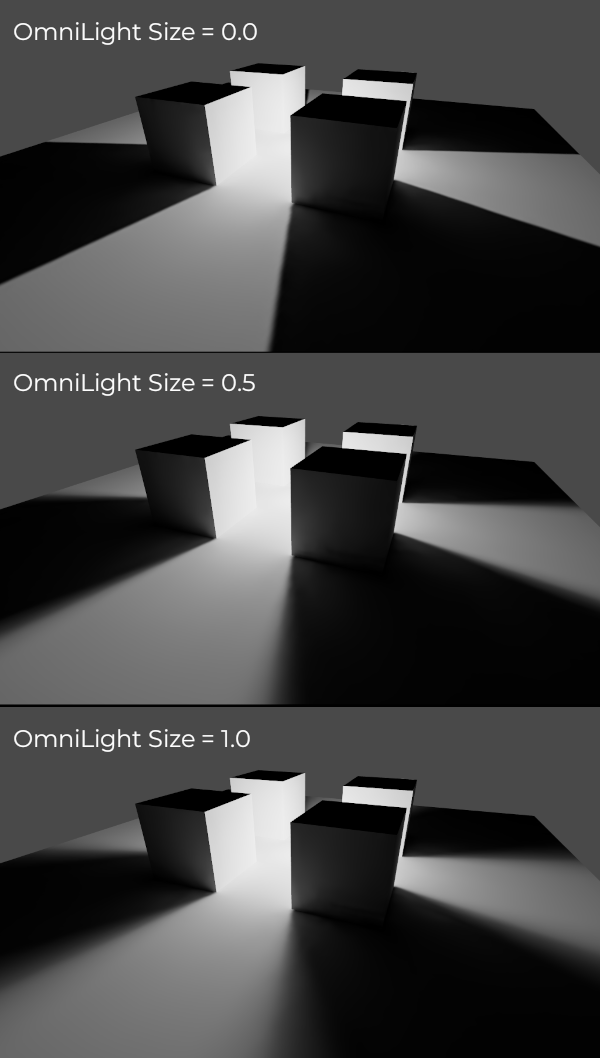
Luzes totalmente armazenadas também podem utilizar as propriedades Size (omni/spot) ou Angular Distance (direcional) dos nós de luz. Isso permite sombras com penumbra realista que aumenta conforme cresce a distância entre o objeto e sua sombra. Além disso, possui um custo de desempenho menor em comparação com sombras PCSS em tempo real, já que apenas objetos dinâmicos precisam ter sombras renderizadas em tempo real.
Pré-Calculo
Para iniciar o processo de baking, clique no botão Bake Lightmaps na parte superior da viewport do editor 3D ao selecionar o nó LightmapGI:

Isso pode levar de segundos a minutos (ou horas), dependendo do tamanho da cena, do método de pré-calculo e da qualidade selecionada.
Aviso
O baking de lightmaps é um processo que pode exigir muita memória de vídeo, especialmente se a textura resultante for grande. Devido a limitações internas, o mecanismo também pode travar se o tamanho da textura gerada for muito grande (mesmo em sistemas com muita memória de vídeo).
Para evitar travamentos, certifique-se de que o tamanho do texel do lightmap no painel Import esteja definido para um valor suficientemente alto.
Ajustes
Quality: Quatro modos de qualidade de baking são fornecidos: Low, Medium, High e Ultra. Qualidades mais altas levam mais tempo, mas resultam em lightmaps visualmente melhores e com menos ruído. A diferença é especialmente perceptível em materiais emissivos ou áreas que recebem pouca ou nenhuma iluminação direta. Cada modo de qualidade pode ser ajustado adicionalmente nas Configurações do Projeto.
Supersampling: Cria o lightmap em uma resolução mais alta e depois o reduz. Isso reduz ruído e vazamento de luz, além de produzir sombras melhores com detalhes em pequena escala. Entretanto, aumenta o tempo de baking e o uso de memória durante o processo. O Supersampling Factor altera o tamanho em que o lightmap é renderizado antes da redução.
Bounces: O número de rebotes usados para iluminação indireta. O valor padrão (
3) representa um bom equilíbrio entre tempo de baking e qualidade. Valores mais altos fazem a luz ricochetear mais vezes antes de parar, tornando a iluminação indireta mais suave (mas também potencialmente mais brilhante, dependendo dos materiais e da geometria).Energia Indireta de Quicada: O multiplicador global a ser usado ao assar a energia indireta das luzes. Isso multiplica o valor Energia Indireta próprio de cada luz. Valores diferentes de
1.0não são fisicamente precisos, mas podem ser usados para um efeito artístico.Direcional: Se ativado, armazena informações direcionais para lightmaps. Isso melhora a aparência de materiais com normal map em superfícies pré-calculadas (baked), especialmente com luzes totalmente pré-calculadas (já que elas também têm luz direta incluída no pré-cálculo). A desvantagem é que lightmaps direcionais são um pouco mais caros de renderizar. Eles também exigem mais tempo para gerar o pré-cálculo e resultam em tamanhos de arquivo maiores.
Modo Shadowmask: Se definido para um modo diferente de None (Nenhum), a primeira DirectionalLight3D (Luz Direcional 3D) na cena com o modo de iluminação global Dynamic (Dinâmico) terá suas sombras estáticas pré-calculadas em uma textura separada chamada shadowmask (máscara de sombra). Isso pode ser usado para permitir que objetos estáticos distantes projetem sombras em outros objetos estáticos independentemente da distância da câmera. Veja a seção sobre shadowmasking para mais detalhes.
Interior: Quando habilitado, a iluminação do ambiente não será utilizada. Use esta opção para cenas totalmente internas, evitando vazamentos de luz.
Usar Textura para Reflexões: Se ativado, uma textura com as informações de iluminação será gerada para acelerar a geração da iluminação indireta ao custo de alguma precisão. A geometria pode apresentar artefatos extras de vazamento de luz ao usar lightmaps (mapas de luzes) de baixa resolução ou UVs que esticam significativamente o lightmap (mapa de luz) pelas superfícies. Deixe isso ativado se não tiver certeza.
Usar Redutor de Ruído: Se ativado, utiliza um algoritmo de redução de ruído para tornar o lightmap significativamente menos ruidoso. Isso aumenta os tempos de pré-cálculo e pode, ocasionalmente, introduzir artefatos, mas o resultado geralmente compensa. Consulte Denoising para mais informações.
Força do Denoiser (Remoção de Ruídos): A intensidade da etapa de remoção de ruídos aplicada aos lightmaps gerados. Valores mais altos são mais eficazes na remoção de ruídos, mas podem reduzir o detalhe das sombras estáticas. Só tem efeito se a remoção de ruídos estiver ativada e o método de remoção for JNLM (OIDN não possui uma configuração de força de denoiser).
Bias: O valor de deslocamento usado para sombras em unidades 3D. Normalmente não é necessário alterar esse valor, exceto se você encontrar problemas de vazamento de luz ou manchas escuras em seu lightmap após o baking. Essa configuração não afeta sombras em tempo real projetadas sobre superfícies armazenadas (para luzes com modo de baking Dynamic).
Tamanho Máximo da Textura: O tamanho máximo da textura gerada para o atlas de texturas. Valores mais altos resultarão em menos fatias sendo geradas, mas podem não funcionar em todo hardware devido às limitações de tamanho de textura. Deixe isso no valor padrão de
16384se não tiver certeza.Ambiente > Modo: Controla como a iluminação do ambiente é fornecida ao gerar lightmaps pré-calculados. O valor padrão Scene é adequado para níveis com partes externas visíveis. Para cenas puramente internas, defina como Disabled para evitar vazamentos de luz e acelerar o pré-cálculo. Isso também pode ser definido como Custom Sky (Céu personalizado) ou Custom Color (Cor personalizada) para usar uma iluminação de ambiente diferente do céu do ambiente real da cena.
Gen Probes > Subdiv: Consulte Objetos dinâmicos.
Data > Light Data: Consulte Dados de Lighmap.
Usando máscaras de sombra, para sombras direcionais distantes
Ao utilizar uma DirectionalLight3D, a distância máxima em que ela pode desenhar sombras em tempo real é limitada pela propriedade Shadow Max Distance. Isso pode ser um problema em cenas grandes, pois objetos distantes parecerão não ter sombras da DirectionalLight3D. Embora isso possa ser resolvido utilizando o modo de iluminação global Static na DirectionalLight3D, isso possui várias desvantagens:
Como tanto a luz direta quanto a indireta são armazenadas, não há maneira de objetos dinâmicos projetarem sombras sobre superfícies estáticas de forma realista. Nesse caso, o Godot ignora completamente a amostragem de sombras para evitar artefatos de "iluminação dupla".
Sombras estáticas vistas de perto carecem de detalhes, pois elas dependem apenas da textura do mapa de luz e não de cascatas de sombras em tempo real.
Podemos evitar essas desvantagens enquanto ainda aproveitamos sombras distantes utilizando shadowmasking. Embora objetos dinâmicos não recebam sombras do shadowmask, a qualidade visual ainda melhora bastante, já que a maioria das cenas é composta principalmente por objetos estáticos.
Como a textura do lightmap sozinha não contém informações de sombra, podemos armazenar essas informações em uma textura separada chamada shadowmask.
O shadowmasking afeta apenas a primeira DirectionalLight3D da cena (determinada pela ordem na árvore) que possua o modo de iluminação global Dynamic. Não é possível usar shadowmasking com o modo de iluminação global Static, pois esse modo ignora completamente a amostragem de sombras em objetos estáticos. Isso ocorre porque o modo Static armazena tanto a luz direta quanto a indireta.
Três modos de Mascara de Sombra estão disponíveis:
Nenhum(Padrão): Não gera uma textura de Máscara de sombra. Sombras direcionais não serão visíveis fora da área especificada pela propriedade Máxima distância de sombra da LuzDirecional3D.
Replace: Gera uma textura de shadowmask e a utiliza para desenhar sombras direcionais quando estiver fora do alcance definido pela propriedade Shadow Max Distance da DirectionalLight3D. Sombras dentro desse alcance permanecem totalmente em tempo real. Esta opção geralmente faz mais sentido para a maioria das cenas, pois lida bem com objetos estáticos que apresentam movimento sutil (por exemplo, sombras de folhagem).
Overlay: Gera uma textura de shadowmask e a utiliza para desenhar sombras direcionais independentemente da distância da câmera. Sombras dentro do alcance definido por Shadow Max Distance da DirectionalLight3D serão sobrepostas com sombras em tempo real. Isso pode tornar a transição entre sombras em tempo real e armazenadas menos perceptível, ao custo de um efeito de "arrasto" nas sombras de objetos estáticos, dependendo da densidade de texels do lightmap. Além disso, esse modo não lida tão bem com objetos estáticos que apresentam movimento sutil (como folhagens), já que as sombras armazenadas não podem ser animadas ao longo do tempo. Ainda assim, em cenas onde a câmera se move rapidamente, essa pode ser uma escolha melhor que Replace.
Aqui temos uma comparação visual dos modos de máscaras de sombra em uma cena em que a Distância máxima de sombra foi definida para muito baixo, a propósitos de comparação. As caixas azuis são objetos dinâmicos, enquanto o restante da cena é um objeto estático. Há apenas uma LuzDirecional3D na cena com o modo de iluminação global Dinâmico:

Comparação entre os modos de mascara de sombra
Nota
É possível alternar entre os modos Substituir e Sobrepor máscaras de sombras sem a necessidade de gerar mapas de luz novamente.
Equilibrando tempos de pré-calculo (bake) com a qualidade
Como bakes de alta qualidade podem levar muito tempo (até dezenas de minutos em cenas grandes e complexas), recomenda-se usar configurações de qualidade mais baixas inicialmente. Depois que você estiver satisfeito com a configuração de iluminação da cena, aumente a qualidade e realize um baking "final" antes de exportar o projeto.
Reduzir a resolução do lightmap aumentando Lightmap Texel Size nas cenas 3D importadas também acelerará significativamente o baking. Entretanto, isso exigirá que todas as cenas 3D com lightmaps sejam reimportadas antes que você possa gerar lightmaps novamente.
Denoising
Como o baking de lightmaps depende de ray tracing, sempre haverá ruído visível no lightmap gerado "bruto". O ruído é especialmente visível em áreas difíceis de alcançar pela luz refletida, como ambientes internos com pequenas aberturas por onde a luz solar pode entrar. O ruído pode ser reduzido aumentando a qualidade do baking, mas isso aumentará significativamente o tempo de processamento.
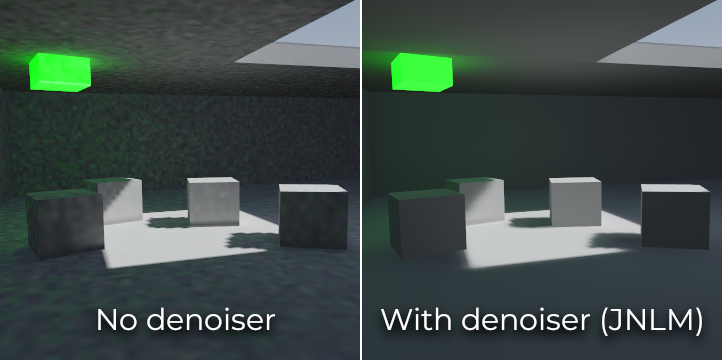
Comparação entre o desruído desabilitado e habilitado (com o desruidor JNLM padrão).
Para combater o ruído sem aumentar muito o tempo do pré-cálculo, um denoiser pode ser usado. Um denoiser é um algoritmo executado no final pré-calculado do lightmap , ele detecta padrões de ruído e os suaviza enquanto está tentando o melhor para preservar os detalhes. E a Godot oferece dois algoritmos de remoção de ruído(denoising) :
JNLM (Meios Não Locais com Filtragem Conjunta, ou Non-Local Means with Joint Filtering)
JNLM é o método de eliminação de ruído mais comum e está incluído em Godot . Ele usa um algoritmo de eliminação de ruído simples, mas eficiente, conhecido como meios não locais. JNLM é executado na GPU usando uma computação de shaders , e é compatível com qualquer GPU que possa rodar os renderizadores RenderingDevice-based da Godot 4. Nenhuma configuração adicional é necessária.
A remoção de ruídos do JNLM pode ser ajustada usando a propriedade Denoiser Strength que fica visível quando Use Denoiser está ativado. Valores mais altos podem ser mais efetivos na remoção de ruídos, ao custo de suprimir os detalhes de sombras para sombras estáticas.
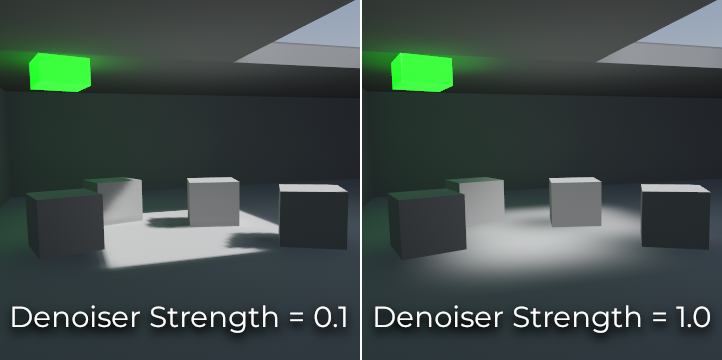
Comparação entre os valores de resistência do denoiser JNLM. Valores mais altos podem reduzir os detalhes.
OIDN (Abrir Imagem de Denoise ou, Open Image Denoise)
Ao contrário do JNLM, o OIDN utiliza uma abordagem de aprendizado de máquina para desabilitar os lightmaps. Ele apresenta um modelo treinado especificamente para remover ruído dos lightmaps, preservando mais detalhes de sombras na maioria das cenas em comparação com o JNLM.
O OIDN pode ser executado na GPU se a aceleração de hardware estiver configurada. Com uma GPU moderna de ponta, isso pode proporcionar uma aceleração de mais de 50 vezes em relação à remoção de ruídos baseada na CPU:
Nas GPUs da AMD, o HIP deve ser instalado e configurado.
Nas GPUs NVIDIA, o CUDA deve estar instalado e configurado. Isso pode ser feito automaticamente pelo instalador NVIDIA, mas no Linux, as bibliotecas CUDA podem não ser instaladas por padrão. Verifique novamente se os pacotes CUDA da sua distribuição Linux estão instalados.
Nas GPUs Intel, o SYCL deve ser instalado e configurado.
Se a aceleração de hardware não estiver disponível, o OIDN usará eliminação de ruído baseada em CPU multithread. Para confirmar se a remoção de ruído baseada em GPU está funcionando, use um monitor de utilização de GPU enquanto cria mapas de luz e observe a porcentagem de utilização de GPU e a utilização de VRAM enquanto a etapa de remoção de ruído é mostrada no editor do Godot. A ferramenta de linha de comando nvidia-smi pode ser útil para isso.
OIDN não está incluído no Godot devido ao seu tamanho de download relativamente grande. Você pode baixar pacotes binários OIDN pré-compilados em seu website. Extraia o pacote para um local no seu PC e especifique o caminho para o executável oidnDenoise nas Configurações do Editor (Arquivos > Ferramentas > OIDN > Caminho do OIDN Denoise). Este executável está localizado na pasta bin do pacote binário que você extraiu.
Depois de especificar o caminho para o executável de remoção de ruído OIDN, altere o método de remoção de ruído nas Configurações do Projeto definindo Renderização > Lightmapping > Redução de Ruído como OIDN. Isso afetará todos os lightmaps neste projeto depois que a configuração for alterada.
Nota
O método de eliminação de ruído é configurado nas configurações do projeto em vez das configurações do editor. Isso é feito para que diferentes membros da equipe que trabalham no mesmo projeto tenham a garantia de usar o mesmo método de remoção de ruído para obter resultados consistentes.
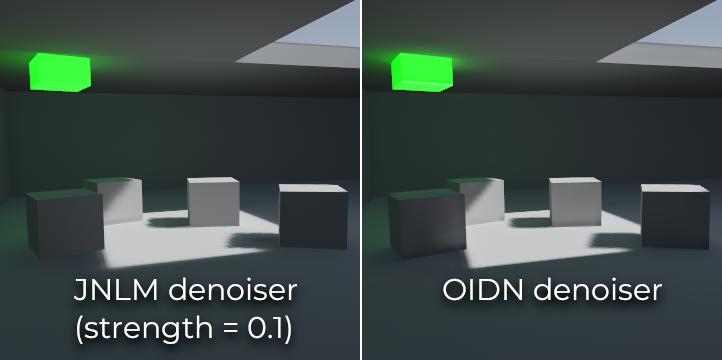
Comparação entre denoisers JNLM e OIDN. Observe como o OIDN preserva melhor os detalhes e reduz as costuras em diferentes objetos.
Objetos dinâmicos
Ao contrário do VoxelGI e do SDFGI, os objetos dinâmicos recebem iluminação indireta de maneira diferente em comparação aos objetos estáticos. Isso ocorre porque o lightmapping só é executado em objetos estáticos.
Para exibir iluminação indireta em objetos dinâmicos, é utilizado um sistema de sonda 3D, com sondas de luz espalhadas por toda a cena. Ao criar mapas de luz, o lightmapper calculará a quantidade de luz indireta recebida pela sonda. A luz direta não é armazenada nas sondas de luz, mesmo para luzes cujo modo de pré-cálculo está definido como Estático (já que os objetos dinâmicos continuam a ser acesos em tempo real).
Existem 2 maneiras de adicionar sondas de luz (light probes) a uma cena:
Automático: Defina Gen Probes > Subdiv para um valor diferente de Desabilitado e, em seguida, crie mapas de luz. O padrão é
8, mas você pode escolher um valor maior para melhorar a precisão ao custo de tempos de pré-cálculo mais longos e tamanho de arquivo de saída maior.Manual: Além ou como alternativa à geração automática de sondas, você pode adicionar sondas de luz manualmente adicionando nós LightmapProbe à cena. Isso pode ser usado para melhorar os detalhes de iluminação em áreas frequentemente percorridas por objetos dinâmicos. Depois de colocar os nós LightmapProbe na cena, você deve preparar os mapas de luz novamente para que sejam eficazes.
Nota
Depois de criar mapas de luz, você notará esferas brancas na cena 3D que representam como a iluminação preparada afetará os objetos dinâmicos. Essas esferas não aparecem no projeto em execução.
Se você quiser ocultar essas esferas no editor, altere Visualizar > Gizmos > LightmapGI na parte superior do editor 3D (um ícone de "olho fechado" indica que o gizmo está oculto).
Dados de Lighmap
A propriedade Data > Light Data no nó LightmapGI contém os dados do lightmap após o baking. As texturas são salvas em disco, mas ela também contém os dados de captura para objetos dinâmicos, que podem ser pesados. Se você estiver utilizando uma cena no formato .tscn, deve salvar esse recurso em um arquivo binário externo .lmbake para evitar inflar a cena .tscn com dados binários codificados em Base64.
Dica
O arquivo EXR gerado pode ser visto ou mesmo editado usando um editor de imagens para realizar pós-processamento se necessário. Porém, lembre-se de que mudanças no arquivo EXR serão perdidas quando gerar os lightmaps novamente.
Reduzindo os artefatos de LightmapGI
Se você notar nós LightmapGI aparecendo e desaparecendo conforme a câmera se move, isso provavelmente ocorre porque a engine está renderizando muitas instâncias LightmapGI de uma vez. Godot está limitado a renderizar 8 nós LightmapGI de uma vez, o que significa que até 8 instâncias podem estar na visualização da câmera antes que algumas delas comecem a piscar.