Qt Creator
Qt Creator 是免費、開放原始碼,支援所有桌面平台的 IDE。
匯入專案
在 Qt Creator 主畫面選擇 New Project > Import Project > Import Existing Project。
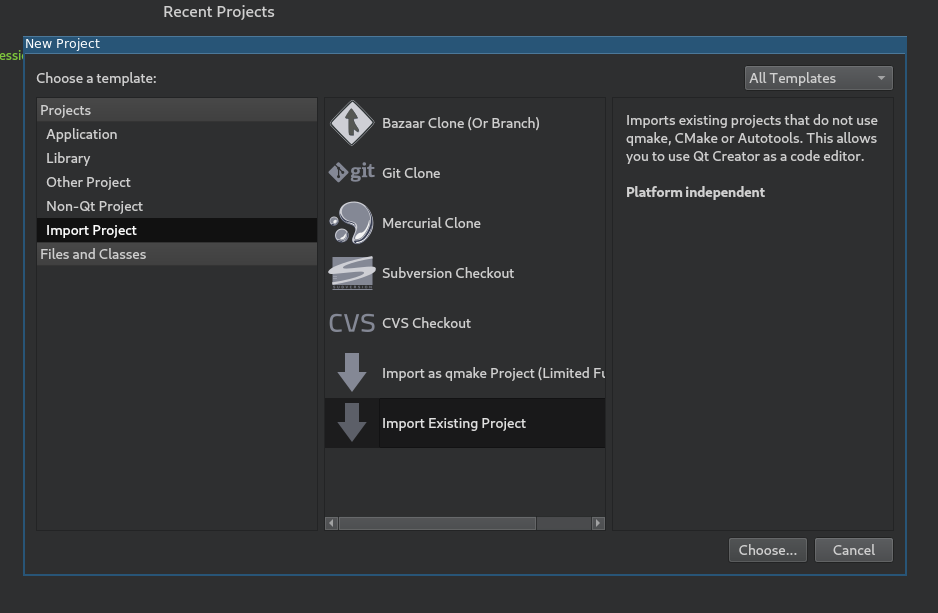
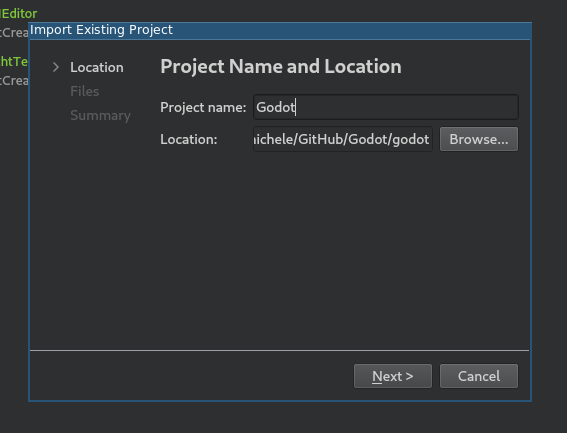
於 Location 選擇 Godot 根目錄。
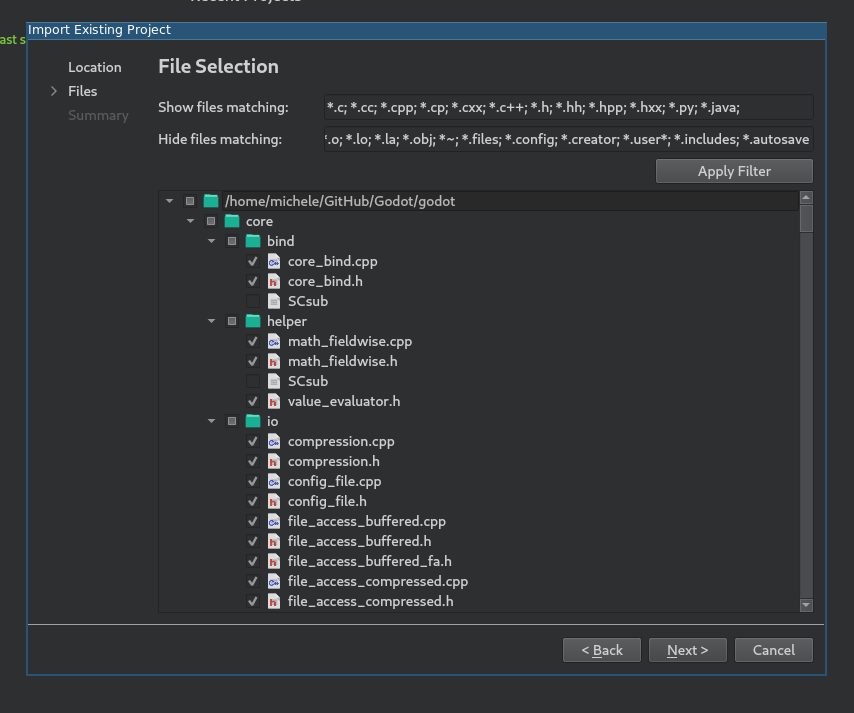
接下來你可以選擇要讓哪些資料夾與檔案在專案中可見。C/C++ 檔案會自動加入,也可考慮加入其它副檔名如:著色器檔案
*.glsl、建置系統*.py、Android 平台用*.java、macOS 平台用*.mm等。
備註
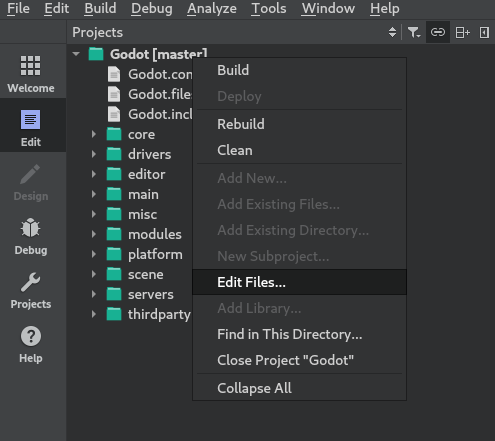
日後可在專案上點右鍵,選擇 Edit Files... 來調整這些設定。
完成匯入。
打開
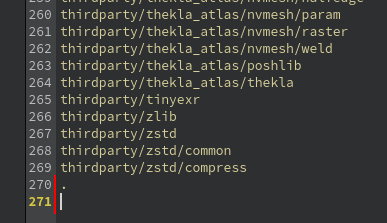
project_name.includes檔案,加入一行.以正確啟用程式碼補全。
於左側選單選擇 Projects,並切到 Build 分頁。
刪除預設的
make建置步驟。
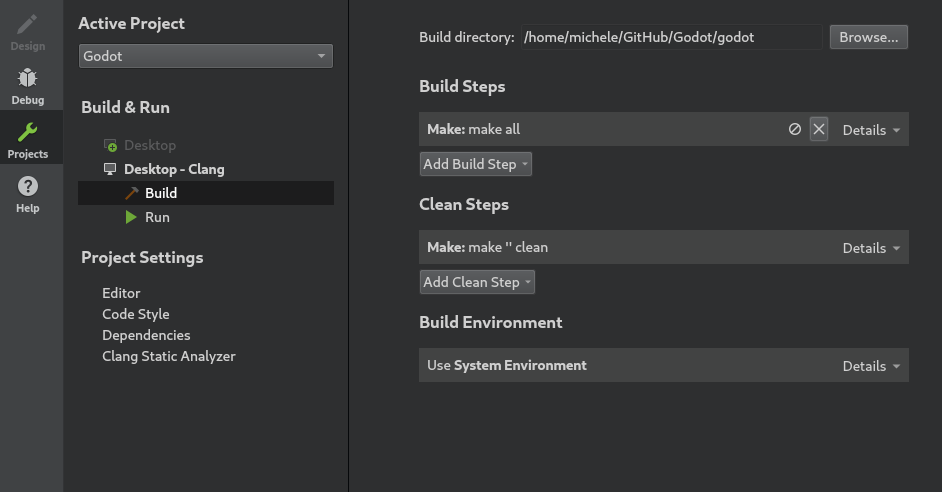
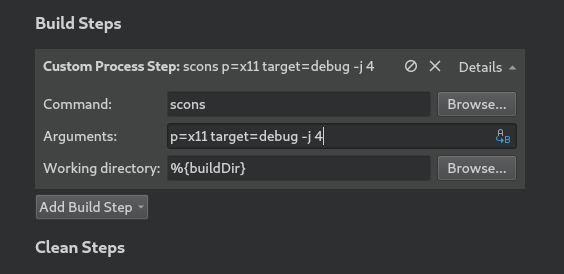
點擊 Add Build Step > Custom Process Step 新增建置步驟,內容如下:
命令
scons
參數
所有可用參數請見 建置系統介紹。
備註
如果出現 Could not start process "scons" 等錯誤,代表 scons 沒有在你的 PATH 環境變數中,請填入 SCons 執行檔的完整路徑。
除錯專案
於左側選單選擇 Projects,切到 Run 分頁。
於 Executable 欄位指定你在
<Godot 根目錄>/bin下的執行檔。檔名會依建置設定而異,例如 64 位元 LinuxBSD 編輯器開發版會是godot.linuxbsd.editor.dev.x86_64。你也可用%{buildDir}來參照專案根目錄,例如%{buildDir}/bin/godot.linuxbsd.editor.dev.x86_64。若要執行特定 Godot 專案,請在 Working directory 指定該專案資料夾。
若想啟動 Godot 編輯器,請在 Command line arguments 加入
-e。
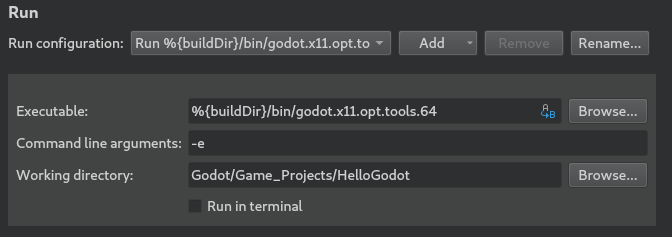
更多命令列參數資訊請參考 命令列教學。
程式碼風格設定
開發者必須遵循專案的 程式碼風格,IDE 可以協助你自動套用。Qt Creator 預設以空白鍵縮排,這與 Godot 標準不合,請到 Tools > Options > C++ 的 Code Style 調整為符合 Godot 規範。
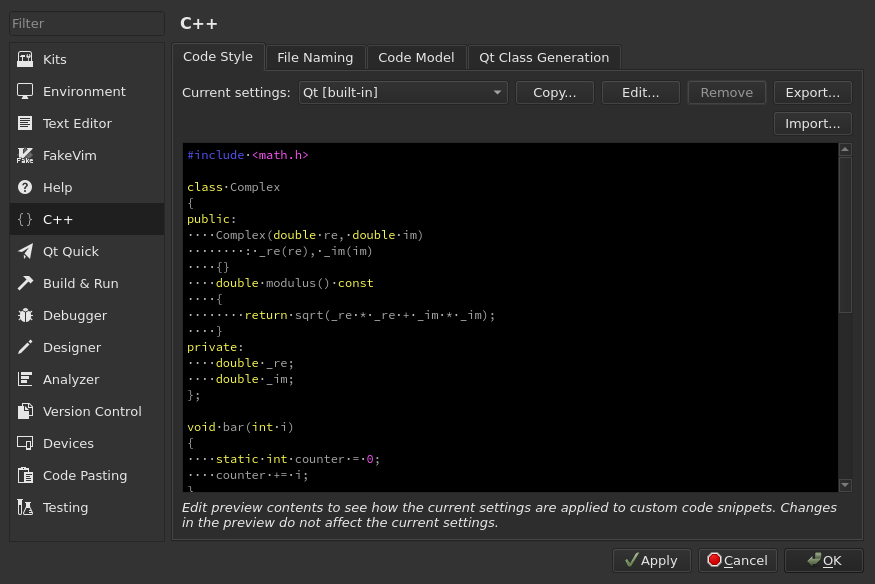
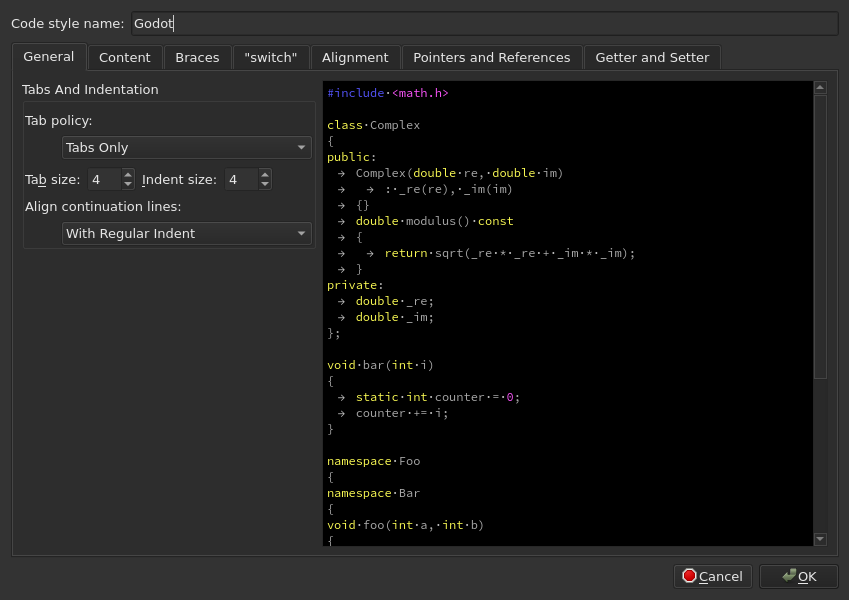
點選 Edit 編輯目前設定,按 Copy Built-in Code Style 建立新風格,命名(例如 Godot),將縮排類型(Tab policy)設為 Tabs Only。
如遇問題,歡迎到 Godot 社群頻道 求助。