Player 場景與輸入事件
在接下來的兩節課程中,我們將會設計玩家場景、註冊自訂輸入動作、編寫玩家移動程式碼。在最後,你將會得到一個可以八方向移動的可遊玩角色。
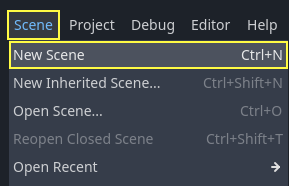
Create a new scene by going to the Scene menu in the top-left and clicking New Scene.
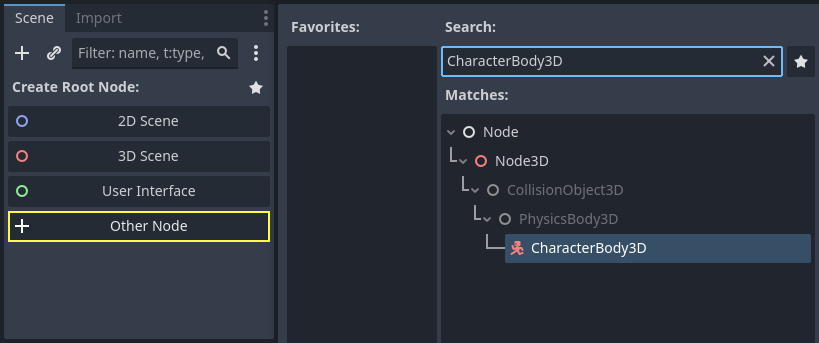
Click the Other Node button and select the CharacterBody3D node type
to create a CharacterBody3D as the root node.
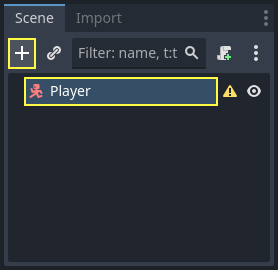
Rename the CharacterBody3D to Player.
Character bodies are complementary to the area and rigid bodies used in the 2D
game tutorial. Like rigid bodies, they can move and collide with the
environment, but instead of being controlled by the physics engine, you dictate
their movement. You will see how we use the node's unique features when we code
the jump and squash mechanics.
也參考
要學習更多關於不同物理節點型別的內容,請參閱 物理系統簡介。
現在,我們將為角色的 3D 模型建立一個基本的裝備。稍後我們將在播放動畫時通過程式碼旋轉模型。
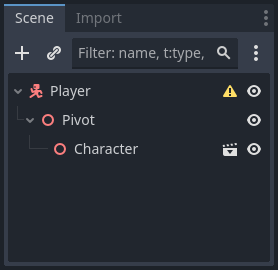
Add a Node3D node as a child of Player.
Select the Player node in the Scene tree and click the "+" button to add a child node.
Rename it to Pivot.
然後在檔案系統面板中,按兩下展開 art/ 資料夾,將 player.glb 拖放到 Pivot 節點上。
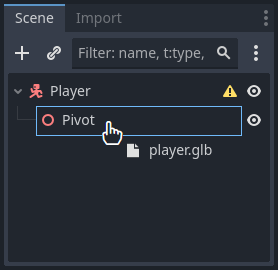
這樣應該就會把這個模型產生實體為 Pivot 的子項。你可以將其重命名為 Character 。
備註
.glb 檔案包含基於開放原始碼 glTF 2.0 規格的 3D 場景資料。它們是現代且強大的替代方案,可取代像 FBX 這樣的專有格式,而 Godot 也支援 FBX。為了產生這些檔案,我們在 Blender 3D 中設計模型,並將其匯出為 glTF。
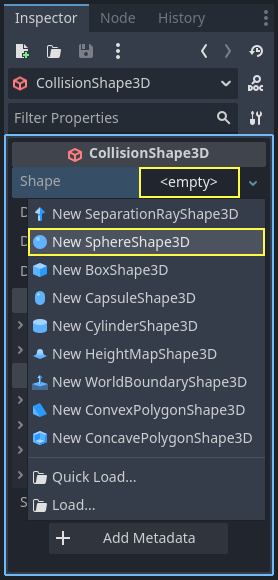
As with all kinds of physics nodes, we need a collision shape for our character
to collide with the environment. Select the Player node again and add a child node
CollisionShape3D. In the Inspector, on the Shape property,
add a new SphereShape3D.
球體的線框出現在角色的下面。
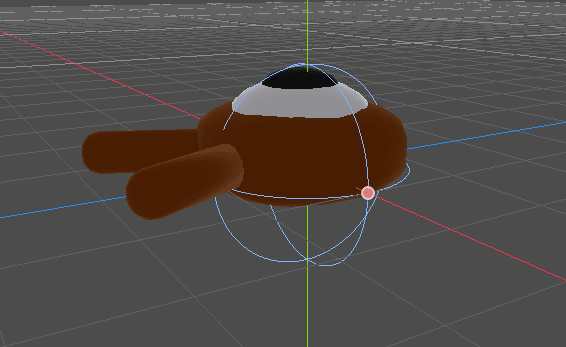
這將會是物理引擎用來與環境碰撞的形狀,所以我們希望它能更貼合 3D 模型。在視埠中拖曳橘色圓點,將它稍微放大一點。我的球體的半徑大約是 0.8 公尺。
然後,將碰撞形狀向上移動,使其底部大致對齊格線平面。
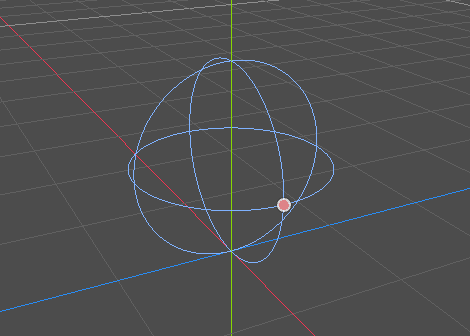
To make moving the shape easier, you can toggle the model's visibility by clicking
the eye icon next to the Character or the Pivot nodes.
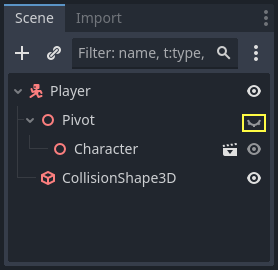
Save the scene as player.tscn.
節點準備就緒後,我們開始編寫程式。但首先,我們需要定義一些輸入動作。
建立圖示
要移動角色,我們就要監聽玩家的輸入,比如按下方向鍵。在 Godot 中,我們能夠使用程式碼來綁定按鍵,但還有一個非常強大的系統,可以讓你為一系列按鍵和按鈕設定標籤。這樣可以簡化我們的腳本,讓它們更易讀。
This system is the Input Map. To access its editor, head to the Project menu and select Project Settings....
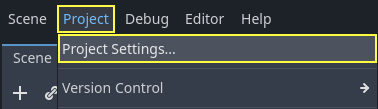
At the top, there are multiple tabs. Click on Input Map. This window allows you to add new actions at the top; they are your labels. In the bottom part, you can bind keys to these actions.
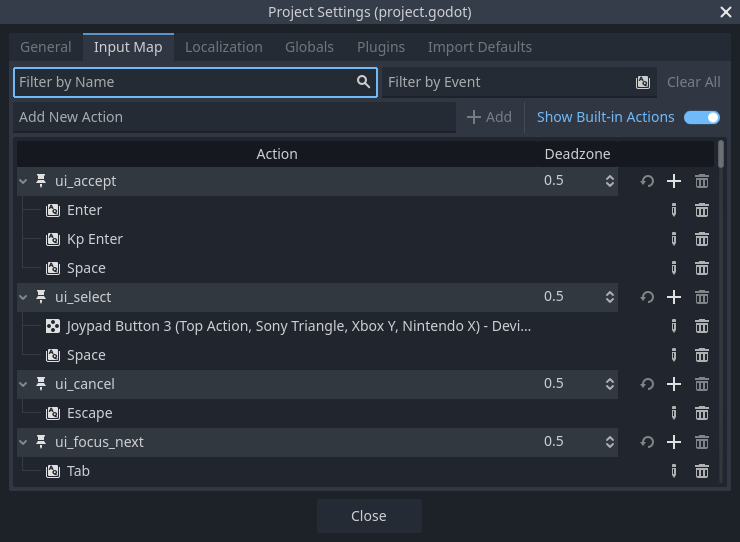
Godot projects come with some predefined actions designed for user interface design (see above screenshot). These will become visible if you enable the Show Built-in Actions toggle. We could use these here, but instead we're defining our own to support gamepads. Leave Show Built-in Actions disabled.
我們將把我們的動作命名為 move_left、move_right、move_forward、move_back 和 jump。
To add an action, write its name in the bar at the top and press Enter or click the Add button.

有下列事項需注意:
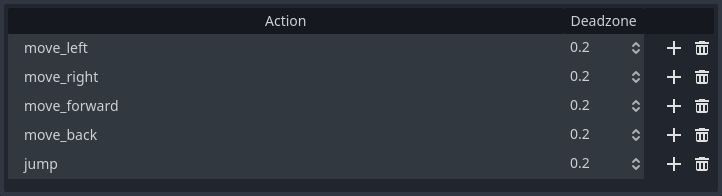
To bind a key or button to an action, click the "+" button to its right. Do this
for move_left. Press the left arrow key and click OK.
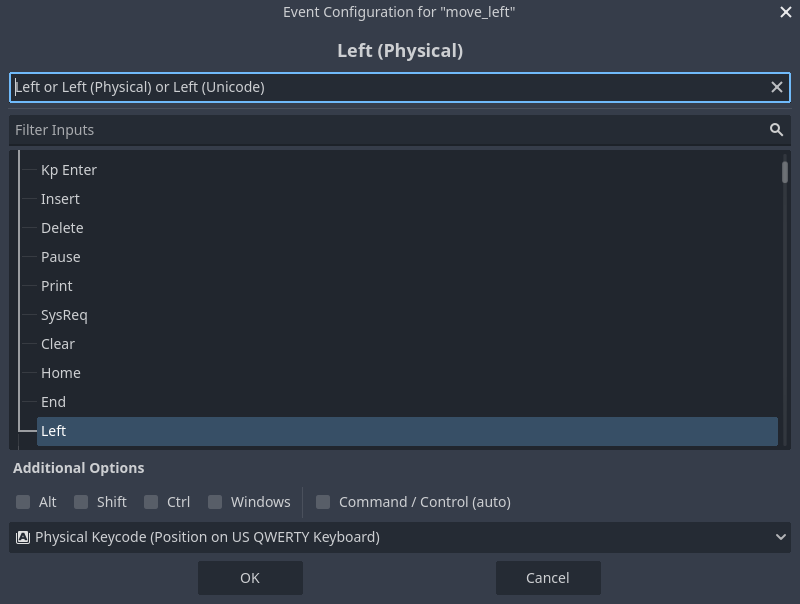
將 A 鍵也綁定在動作 move_left 上面。

Let's now add support for a gamepad's left joystick. Click the "+" button again but this time, select the input within the input tree yourself. Select the negative X axis of the left joystick under Joypad Axes.
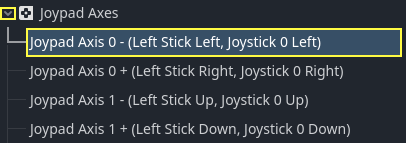
Leave the other values as default and press OK.
備註
如果你想讓多個手柄有不同的輸入動作,你需要在額外選項中使用裝置選項。裝置 0 對應的是第一個插入的手柄,裝置 1 對應的是第二個插入的手柄,以此類推。
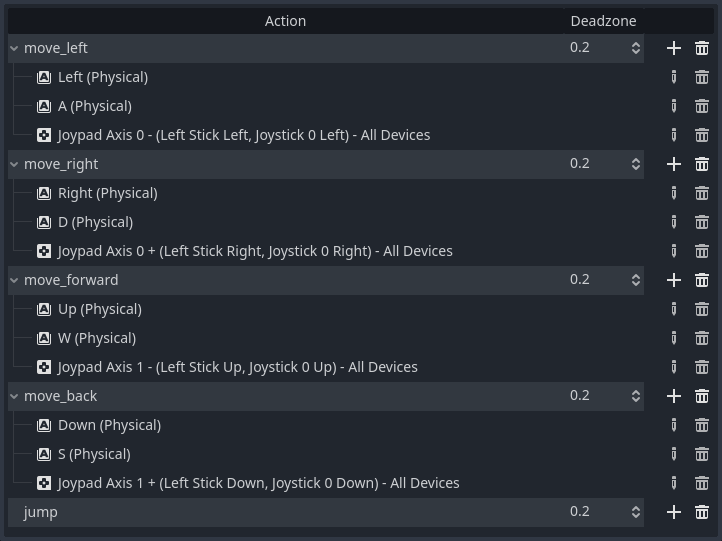
為其他輸入動作也執行同樣的操作。比如將右方向鍵、D、左搖桿的正軸綁定給 move_right。全部綁定完後,你的介面應該類似這樣。
The final action to set up is the jump action. Bind the Space key and the gamepad's
A button located under Joypad Buttons.
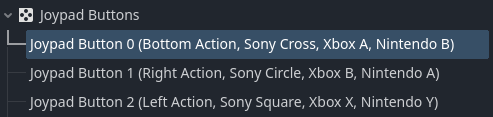
你的跳躍輸入動作應該會像這樣。

這些就是這個遊戲所需的所有動作了。你可以使用這個功能表來對專案中的任意按鍵和按鈕組進行標記。
在下一部分,我們將為玩家的移動進行程式設計和測試。