Visual Studio Code
備註
This documentation is for contributions to the game engine, and not using Visual Studio Code as a C# or GDScript editor. To code C# or GDScript in an external editor, see the C# guide to configure an external editor.
Visual Studio Code 是由 Microsoft 推出的免費跨平台程式碼編輯器(請勿與 Visual Studio 搞混)。
匯入專案
若使用 clangd 擴充,請執行
scons compiledb=yes。於 Visual Studio Code 主畫面,透過 File > Open Folder... 開啟 Godot 根目錄。
按下 Ctrl + Shift + P 開啟命令面板,輸入 Configure Task。
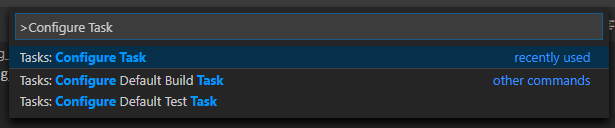
選擇 Create tasks.json file from template 選項。

然後選擇 Others。
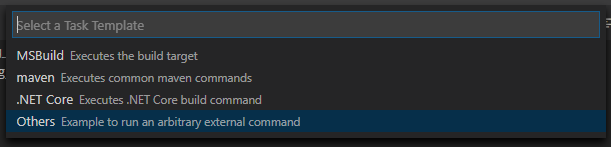
如果沒有 Create tasks.json file from template 這個選項,請確認資料夾內沒有同名檔案,或自行手動建立
.vscode/tasks.json。更多工作相關資訊請見:Tasks in Visual Studio Code。在
tasks.json檔案找到"tasks"陣列,新增一組設定內容:.vscode/tasks.json{ "label": "build", "group": "build", "type": "shell", "command": "scons", "args": [ // enable for debugging with breakpoints "dev_build=yes", ], "problemMatcher": "$msCompile" }
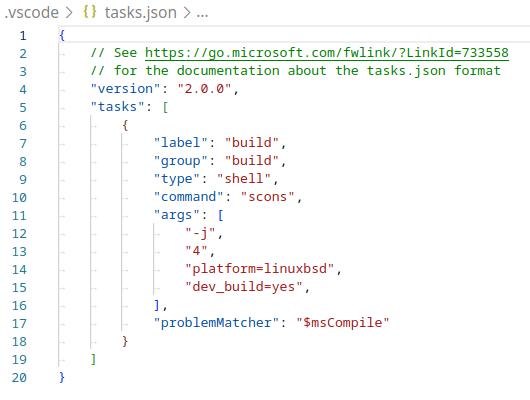
填妥的 tasks.json 範例。
參數可依你自身需求調整,完整參數列表請見 建置系統介紹。
除錯專案
如需執行與除錯專案,必須在 launch.json 新增設定。
按下 Ctrl + Shift + D 開啟執行(Run)面板。
若缺少
launch.json,系統會提示你建立新檔案。
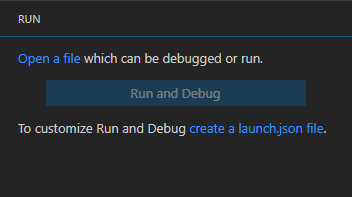
選擇 C++ (GDB/LLDB),若有平台專屬選項請依需求選擇,並依實際情況調整下方範例設定。
在
launch.json檔案找到"configurations"陣列,新增一組設定內容:
{
  "name": "Launch Project",
  "type": "lldb",
  "request": "launch",
  // Change to godot.linuxbsd.editor.dev.x86_64.llvm for llvm-based builds.
  "program": "${workspaceFolder}/bin/godot.linuxbsd.editor.dev.x86_64",
  // Change the arguments below for the project you want to test with.
  // To run the project instead of editing it, remove the "--editor" argument.
  "args": [ "--editor", "--path", "path-to-your-godot-project-folder" ],
  "stopAtEntry": false,
  "cwd": "${workspaceFolder}",
  "environment": [],
  "externalConsole": false,
  "preLaunchTask": "build"
}
{
  "name": "Launch Project",
  "type": "cppdbg",
  "request": "launch",
  // Change to godot.linuxbsd.editor.dev.x86_64.llvm for llvm-based builds.
  "program": "${workspaceFolder}/bin/godot.linuxbsd.editor.dev.x86_64",
  // Change the arguments below for the project you want to test with.
  // To run the project instead of editing it, remove the "--editor" argument.
  "args": [ "--editor", "--path", "path-to-your-godot-project-folder" ],
  "stopAtEntry": false,
  "cwd": "${workspaceFolder}",
  "environment": [],
  "externalConsole": false,
  "setupCommands":
  [
    {
      "description": "Enable pretty-printing for gdb",
      "text": "-enable-pretty-printing",
      "ignoreFailures": true
    },
    {
        "description": "Load custom pretty-printers for Godot types.",
        "text": "source ${workspaceRoot}/misc/utility/godot_gdb_pretty_print.py"
    }
  ],
  "preLaunchTask": "build"
}
{
  "name": "Launch Project",
  "type": "cppvsdbg",
  "request": "launch",
  "program": "${workspaceFolder}/bin/godot.windows.editor.dev.x86_64.exe",
  // Change the arguments below for the project you want to test with.
  // To run the project instead of editing it, remove the "--editor" argument.
  "args": [ "--editor", "--path", "path-to-your-godot-project-folder" ],
  "stopAtEntry": false,
  "cwd": "${workspaceFolder}",
  "environment": [],
  "console": "internalConsole",
  "visualizerFile": "${workspaceFolder}/platform/windows/godot.natvis",
  "preLaunchTask": "build"
}
{
  "name": "Launch Project",
  "type": "lldb",
  "request": "custom",
  "targetCreateCommands": [
    "target create ${workspaceFolder}/bin/godot.macos.editor.dev.x86_64"
  ],
  // Change the arguments below for the project you want to test with.
  // To run the project instead of editing it, remove the "--editor" argument.
  "processCreateCommands": [
    "process launch -- --editor --path path-to-your-godot-project-folder"
  ]
}
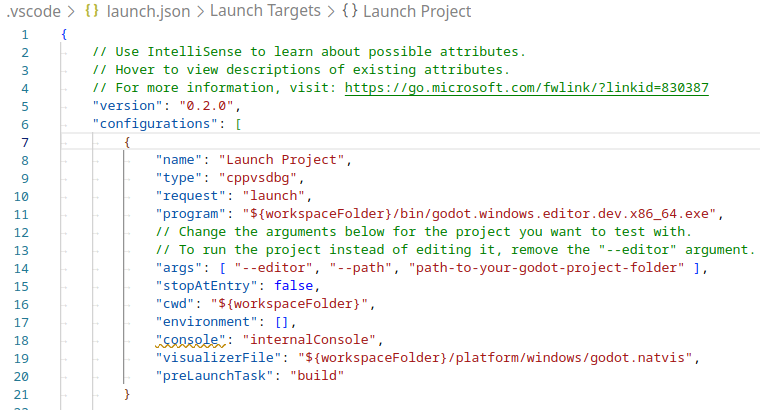
填妥的 launch.json 範例。
備註
因偶有效能問題,建議在 Unix 系統上使用 LLDB 而非 GDB。請確認已安裝 CodeLLDB 擴充。
若遇到 lldb 問題,可考慮改用 gdb(參考 LinuxBSD_gdb 設定)。
注意 lldb 在 LLVM 編譯環境下表現較佳,詳情請參考 在 Linux、*BSD 上編譯。
program 欄位的名稱依你建置參數而異,例如 64 位元 LinuxBSD 編輯器開發版為 godot.linuxbsd.editor.dev.x86_64。
設定 Intellisense
針對 C/C++ 擴充模組:
若遇到標頭檔 include 錯誤,請調整 c_cpp_properties.json 設定檔。
首先請先建置專案,因為某些檔案需先產生。
你可透過圖形介面或直接編輯文字檔來調整 C/C++ 設定檔:

針對你的平台新增 include 路徑,例如
${workspaceFolder}/platform/windows。新增編輯器
TOOLS_ENABLED、除錯版DEBUG_ENABLED,以及測試TESTS_ENABLED等巨集定義。請確認 compiler path 指向你實際使用的編譯器。不同平台細節可參考 建置系統介紹。
Windows 下的
c_cpp_properties.json範例:.vscode/c_cpp_properties.json{ "configurations": [ { "name": "Win32", "includePath": [ "${workspaceFolder}/**", "${workspaceFolder}/platform/windows" ], "defines": [ "_DEBUG", "UNICODE", "_UNICODE", "TOOLS_ENABLED", "DEBUG_ENABLED", "TESTS_ENABLED" ], "windowsSdkVersion": "10.0.22621.0", "compilerPath": "C:/Program Files/Microsoft Visual Studio/2022/Community/VC/Tools/MSVC/14.39.33519/bin/Hostx64/x64/cl.exe", "cStandard": "c17", "cppStandard": "c++17", "intelliSenseMode": "windows-msvc-x64" } ], "version": 4 }
你也可以用 scons 參數
compiledb=yes,並在 C/C++ 設定介面進階選項將compileCommands設為compile_commands.json。這個參數可加入
tasks.json的建置任務,方便每次新增或移動檔案時重新產生。
如遇問題,歡迎到 Godot 社群頻道 求助。
小訣竅
如需對 class reference XML 檔案進行語法檢查,請安裝 vscode-xml 擴充套件。