Visual Studio
Visual Studio Community 是 Microsoft 推出的僅限 Windows 的 IDE,個人或組織非商業用途可免費使用。它具備許多實用功能,如記憶體檢視、效能檢視、版本控制等。
備註
This documentation is for contributions to the game engine, and not using Visual Studio as a C# editor. To code C# in an external editor, see the C# guide to configure an external editor.
匯入專案
Visual Studio 需要 solution 檔(.sln)才能開發專案。雖然 Godot 預設沒有附 solution 檔,可以透過 SCons 產生。
前往 Godot 根目錄並開啟命令提示字元或 PowerShell 視窗。
- 執行
scons platform=windows vsproj=yes dev_build=yes來產生含偵錯符號的 solution。vsproj參數用來要求產生 Visual Studio solution。dev_build參數可讓建置檔案包含偵錯符號,方便你用斷點逐步除錯程式碼。 你現在可以直接在專案根目錄雙擊
godot.sln開啟,或於 Visual Studio 內選擇 Open a project or solution 開啟。使用上方選單的 Build 來建置專案。
警告
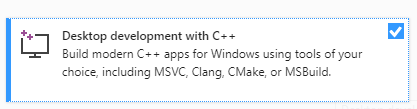
必須於安裝 Visual Studio 時選取 C++ 套件,於安裝程式內可勾選安裝:
除錯專案
Visual Studio 內建強大的偵錯工具,可讓你檢查 Godot 原始碼、在指定位置中斷、檢查執行狀態,也能即時修改程式內容。
你可以從上方選單 Debug > Start Debugging (啟動偵錯)直接用偵錯器執行專案。但如果你想直接偵錯 Godot 編輯器(而不是專案管理員),需先手動設定啟動參數,因為專案管理員開啟專案後會終止原本的執行程序,導致偵錯器自動退出。
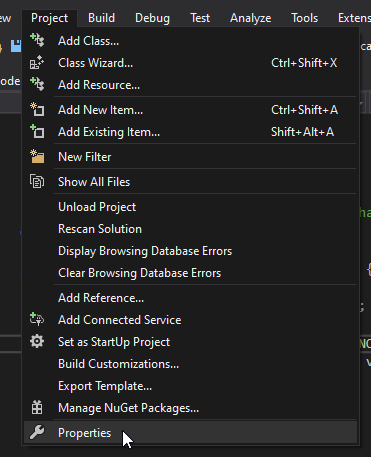
要設定偵錯器啟動選項,請於上方選單點選 Project > Properties:
於 Debugging 區段的 Command Arguments 欄位,加入兩個參數:「-e」代表直接開啟編輯器(不經專案管理員),「--path」指定要開啟的專案(需填寫專案根目錄的 絕對路徑,而非 project.godot 檔名;若路徑含空格請加雙引號)。
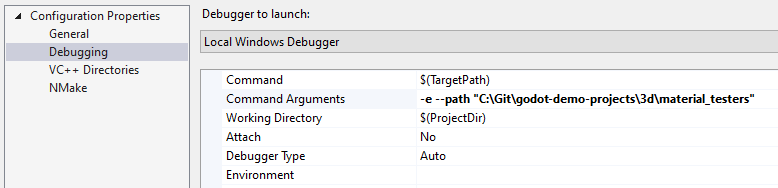
更多命令列參數資訊請參考 命令列教學。
即使沒有從一開始用偵錯器啟動專案,也能在執行中時以 Debug > Attach to Process... (附加至處理序)功能連接現有程序進行除錯。
要確認一切運作正常,請在 main.cpp 設斷點後,按 F5 啟動偵錯。

如遇問題,歡迎到 Godot 社群頻道 求助。