Основы C#
Введение
Эта страница содержит краткое введение в C# — что это такое и как использовать его в Godot. После прочтения вы можете изучить как использовать определённые возможности, прочитать о различиях между C# и GDScript API и (пере)посетить раздел Скриптинг в пошаговом руководстве.
C# - это высоко-уровневый язык программирования, разработанный Microsoft. В Godot, это язык внедрён при помощи .NET 8.0.
Внимание
Projects written in C# using Godot 4 currently cannot be exported to the web platform. To use C# on the web platform, consider Godot 3 instead. Android and iOS platform support is available as of Godot 4.2, but is experimental and some limitations apply.
Примечание
Это не полномасштабное руководство по целому языку C#. Если вы не знакомы с его синтаксисом или возможностями, посмотрите Microsoft C# руководство или поищите подходящее введение где-нибудь ещё.
Требования
Godot включает части .NET, необходимые для запуска уже скомпилированных игр. Однако Godot не включает инструменты, требуемые для сборки и компиляции игр, такие как MSBuild и компилятор C#. Они входят в состав .NET SDK и должны быть установлены отдельно.
Таким образом, у вас должны быть установлены .NET SDK и версия Godot с поддержкой .NET.
Скачайте и установите последнюю стабильную версию SDK с .NET download page.
Важно
Обязательно установите 64-битную версию SDK, если вы используете 64-битную версию Godot.
Если вы собираете Godot из исходного кода, обязательно выполните шаги по включению поддержки .NET в вашей сборке, как описано на странице Compiling with .NET.
Настройка внешнего редактора
C# support in Godot's built-in script editor is minimal. Consider using an external IDE or editor, such as Visual Studio Code or Visual Studio. These provide autocompletion, debugging, and other useful features for C#. To select an external editor in Godot, click on Editor → Editor Settings and scroll down to Dotnet. Under Dotnet, click on Editor, and select your external editor of choice. Godot currently supports the following external editors:
Visual Studio 2022
Visuаl Studio Code
MonоDevelop
Visual Studio для MacOS
JetBrains rider
См. cледующие разделы, чтобы узнать, как настроить внешний редактор:
JetBrains rider
Прочитав раздел «Предварительные требования», вы можете загрузить и установить JetBrains Rider.
В меню Редактор→ Настройки редактора Godot:
Set Dotnet -> Editor -> External Editor to JetBrains Rider.
В Rider:
Установите MSBuild version на .NET Core.
If you are using a Rider version below 2024.2, install the Godot support plugin. This functionality is now built into Rider.
Visuаl Studio Code
После прочтения раздела "Предварительные условия" вы можете загрузить и установить ` Visual Studio Code <https://code.visualstudio.com/download>`__ (он же VS Code).
В меню Редактор→ Настройки редактора Godot:
Set Dotnet -> Editor -> External Editor to Visual Studio Code.
В Visual Studio Code:
Установите расширение C# .
To configure a project for debugging, you need a tasks.json and launch.json file in
the .vscode folder with the necessary configuration.
Here is an example launch.json:
{
    "version": "0.2.0",
    "configurations": [
        {
            "name": "Play",
            "type": "coreclr",
            "request": "launch",
            "preLaunchTask": "build",
            "program": "${env:GODOT4}",
            "args": [],
            "cwd": "${workspaceFolder}",
            "stopAtEntry": false,
        }
    ]
}
For this launch configuration to work, you need to either setup a GODOT4
environment variable that points to the Godot executable, or replace program
parameter with the path to the Godot executable.
Here is an example tasks.json:
{
    "version": "2.0.0",
    "tasks": [
        {
            "label": "build",
            "command": "dotnet",
            "type": "process",
            "args": [
                "build"
            ],
            "problemMatcher": "$msCompile"
        }
    ]
}
Now, when you start the debugger in Visual Studio Code, your Godot project will run.
Visual Studio (Только windows)
Загрузите и установите последнюю версию Visual Studio <https://visualstudio.microsoft.com/downloads/>`__. Visual Studio будет включать необходимые SDK, если у вас выбраны правильные рабочие нагрузки, поэтому вам не нужно вручную устанавливать вещи, перечисленные в разделе "Предварительные условия".
While installing Visual Studio, select this workload:
.NET desktop development
В меню Редактор→ Настройки редактора Godot:
Set Dotnet -> Editor -> External Editor to Visual Studio.
Примечание
If you see an error like "Unable to find package Godot.NET.Sdk", your NuGet configuration may be incorrect and need to be fixed.
Простой способ исправить файл конфигурации NuGet - его восстановление. На вашем проводнике, перейдите к директорию %AppData%\NuGet. Переименуйте или удалите файл NuGet.Config`. При повторной сборки проекта Godot, файл будет автоматически создан с стардартными значениями.
Чтобы отладить ваши C# скрипты с использованием Visual Studio, откройте файл .sln, который создается после открытия первого C# скрипта в редакторе. В меню Отладка перейдите к элементу меню Свойства отладки для вашего проекта. Нажмите кнопку Создать новый профиль и выберите Исполняемый файл. В поле Исполняемый файл укажите путь к версии редактора Godot для C#, или введите %GODOT4%, если вы создали переменную среды для пути к исполняемому файлу Godot. Это должен быть путь к основному исполняемому файлу Godot, а не к 'консольной' версии. В поле Рабочая директория введите одну точку, ., что означает текущую директорию. Также отметьте чекбокс Включить отладку нативного кода. Теперь вы можете закрыть это окно, нажать на стрелку вниз в выпадающем списке профилей отладки и выбрать ваш новый профиль запуска. Нажмите на зеленую кнопку старт, и ваша игра начнет запускаться в режиме отладки.
Создание C# скрипта
После успешной настройки C# в Godot, вы должны увидеть новую опцию выбора — из контекстного меню прикрепляемого к сцене скрипта:
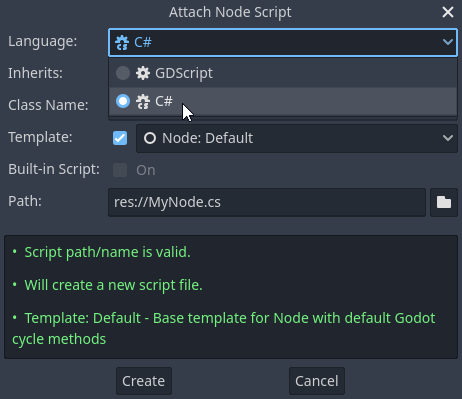
Note that while some specifics change, most concepts work the same when using C# for scripting. If you're new to Godot, you may want to follow the tutorials on Скриптовые языки at this point. While some documentation pages still lack C# examples, most notions can be transferred from GDScript.
Настройка проекта и рабочего процесса
When you create the first C# script, Godot initializes the C# project files
for your Godot project. This includes generating a C# solution (.sln)
and a project file (.csproj), as well as some utility files and folders
(.godot/mono).
All of these but .godot/mono are important and should be committed to your
version control system. Everything under .godot can be safely added to the
ignore list of your VCS.
When troubleshooting, it can sometimes help to delete the .godot/mono folder
and let it regenerate.
Пример
Это пустой C# скрипт с некоторыми комментариями, чтобы продемонстрировать, как он работает.
using Godot;

public partial class YourCustomClass : Node
{
    // Member variables here, example:
    private int _a = 2;
    private string _b = "textvar";

    public override void _Ready()
    {
        // Called every time the node is added to the scene.
        // Initialization here.
        GD.Print("Hello from C# to Godot :)");
    }

    public override void _Process(double delta)
    {
        // Called every frame. Delta is time since the last frame.
        // Update game logic here.
    }
}
As you can see, functions normally in global scope in GDScript like Godot's
print function are available in the GD static class which is part of
the Godot namespace. For a full list of methods in the GD class, see the
class reference pages for
@GDScript and @GlobalScope.
Примечание
Имейте в виду, что класс, который вы хотите прикрепить к своему узлу, должен иметь то же имя, что и файл .cs. В противном случае вы получите следующую ошибку:
"Cannot find class XXX for script res://XXX.cs"
Основные различия между C# и GDScript
В языке C# всё API использует стиль записи PascalCase вместо snake_case, принятого в GDScript/C++. Поля и getters/setters представленны в виде свойств, там где это допустимо. В целом, Godot API на C# стримится быть наиболее наглядным, насколько это возможно.
За дополнительно информацией, обратитесь к странице: API различия C# и GDScript.
Предупреждение
You need to (re)build the project assemblies whenever you want to see new exported variables or signals in the editor. This build can be manually triggered by clicking the Build button in the top right corner of the editor.

Вам также потребуется перестроить сборки проекта, чтобы применить изменения в скриптовых "инструментах".
Текущие ограничения и известные проблемы
As C# support is quite new in Godot, there are some growing pains and things that need to be ironed out. Below is a list of the most important issues you should be aware of when diving into C# in Godot, but if in doubt, also take a look over the official issue tracker for .NET issues.
Написание плагинов для редактора возможно, но в настоящее время это довольно затруднительно.
В данный момент, при выполнении горячей-перезагруки, состояние не сохраняется и не восстанавливается, за исключением экспортируемых переменных.
Прикрепленные C# скрипты должны относиться к классу, который имеет имя класса, соответствующее имени файла.
There are some methods such as
Get()/Set(),Call()/CallDeferred()and signal connection methodConnect()that rely on Godot'ssnake_caseAPI naming conventions. So when using e.g.CallDeferred("AddChild"),AddChildwill not work because the API is expecting the originalsnake_caseversionadd_child. However, you can use any custom properties or methods without this limitation. Prefer using the exposedStringNamein thePropertyName,MethodNameandSignalNameto avoid extraStringNameallocations and worrying about snake_case naming.
As of Godot 4.0, exporting .NET projects is supported for desktop platforms (Linux, Windows and macOS). Other platforms will gain support in future 4.x releases.
Common pitfalls
You might encounter the following error when trying to modify some values in Godot
objects, e.g. when trying to change the X coordinate of a Node2D:
public partial class MyNode2D : Node2D
{
    public override void _Ready()
    {
        Position.X = 100.0f;
        // CS1612: Cannot modify the return value of 'Node2D.Position' because
        // it is not a variable.
    }
}
This is perfectly normal. Structs (in this example, a Vector2) in C# are
copied on assignment, meaning that when you retrieve such an object from a
property or an indexer, you get a copy of it, not the object itself. Modifying
said copy without reassigning it afterwards won't achieve anything.
The workaround is simple: retrieve the entire struct, modify the value you want to modify, and reassign the property.
var newPosition = Position;
newPosition.X = 100.0f;
Position = newPosition;
Since C# 10, it is also possible to use with expressions on structs, allowing you to do the same thing in a single line.
Position = Position with { X = 100.0f };
You can read more about this error on the C# language reference.
Производительность C# в Godot
См. также
For a performance comparison of the languages Godot supports, see Какой язык программирования самый быстрый?.
Most properties of Godot C# objects that are based on GodotObject
(e.g. any Node like Control or Node3D like Camera3D) require native (interop) calls as they talk to
Godot's C++ core.
Consider assigning values of such properties into a local variable if you need to modify or read them multiple times at
a single code location:
using Godot;

public partial class YourCustomClass : Node3D
{
    private void ExpensiveReposition()
    {
        for (var i = 0; i < 10; i++)
        {
            // Position is read and set 10 times which incurs native interop.
            // Furthermore the object is repositioned 10 times in 3D space which
            // takes additional time.
            Position += new Vector3(i, i);
        }
    }

    private void Reposition()
    {
        // A variable is used to avoid native interop for Position on every loop.
        var newPosition = Position;
        for (var i = 0; i < 10; i++)
        {
            newPosition += new Vector3(i, i);
        }
        // Setting Position only once avoids native interop and repositioning in 3D space.
        Position = newPosition;
    }
}
Passing raw arrays (such as byte[]) or string to Godot's C# API requires marshalling which is
comparatively pricey.
The implicit conversion from string to NodePath or StringName incur both the native interop and marshalling
costs as the string has to be marshalled and passed to the respective native constructor.
Использование пакетов NuGet в Godot
NuGet пакеты могут быть установлены и использованы вместе с Godot, как и в любом другом C# проекте. Множество IDE способны добавлять пакеты напрямую. Если необходимо, вы можете добавить их вручную, добавив ссылку на пакет в .csproj файл, который расположен в корне проекта:
    <ItemGroup>
        <PackageReference Include="Newtonsoft.Json" Version="11.0.2" />
    </ItemGroup>
    ...
</Project>
Начиная с Godot 3.2.3, Godot автоматически загружает и устанавливает недавно добавленные пакеты NuGet при следующей сборке проекта.
Профилирование вашего C# кода
The following tools may be used for performance and memory profiling of your managed code:
JetBrains Rider with dotTrace/dotMemory plugin.
Standalone JetBrains dotTrace/dotMemory.
Visual Studio.
Profiling managed and unmanaged code at once is possible with both JetBrains tools and Visual Studio, but limited to Windows.