Группы
Группы в Godot работают как тэги в других программах. Вы можете добавить узел в то количество грууп, которое вам необходимо. Тогда, в коде, вы можете использовать SceneTree чтобы:
Получить список узлов в группе.
Вызвать метод на всех узлах группы.
Отправить уведомление ко всем узлам группы.
Это полезное свойство для организации больших сцен и разделения кода.
Управление группами
Группы создаются с помощью добавления узла к новому имени группы, и аналогично, они удаляются путём удаления всех узлов из данной группы.
Есть два пути для добавления/удаления узлов в группах:
During design, by using the Node dock in the editor, or the Global Groups in project settings.
Во время выполнения, с помощью вызова Node.add_to_group() или Node.remove_from_group().
Использование панели Узел
You can create new groups using the Groups tab in the Node dock.
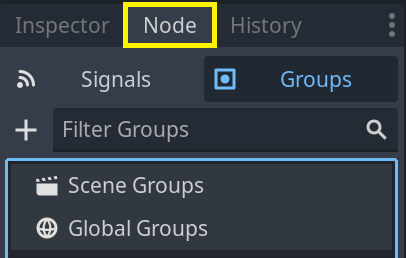
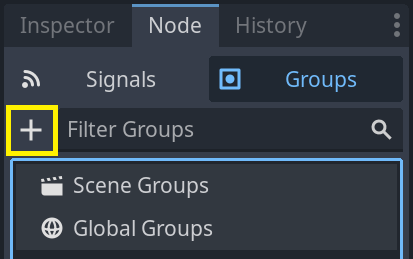
Select a node in the Scene dock then click the add button with the + symbol.
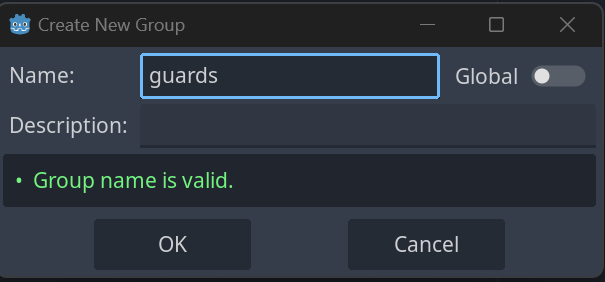
You should now see the Create New Group modal appear. Write the group name in the field.
You can optionally mark the option "Global", which will make the group visible project-wide, and able to be reused in any project scene. This will also allow you to give it a description.
When done, press Ok to create it.
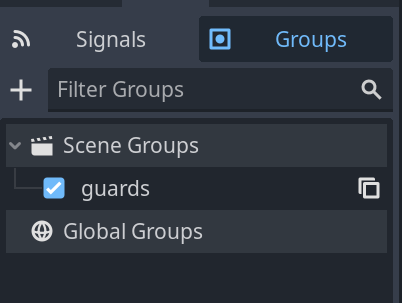
You should see the new groups appear in the Groups tab under Scene Groups if the Global option was unmarked, or under Global Groups if that option was marked.
A selected Node from the Scene dock can be added into groups by marking the checkbox on the left side of the groups in the Groups dock. The node you had selected when creating a new group will be automatically checked.
All groups present in the project that were marked as Global, created from any scene, will be visible under Global Groups.
Any other group derived from nodes in the current scene will appear under Scene Groups.
Предупреждение
The same underlying logic is used for both Global and Scene groups. Groups with the same name are considered one and the same. This feature is purely organizational.

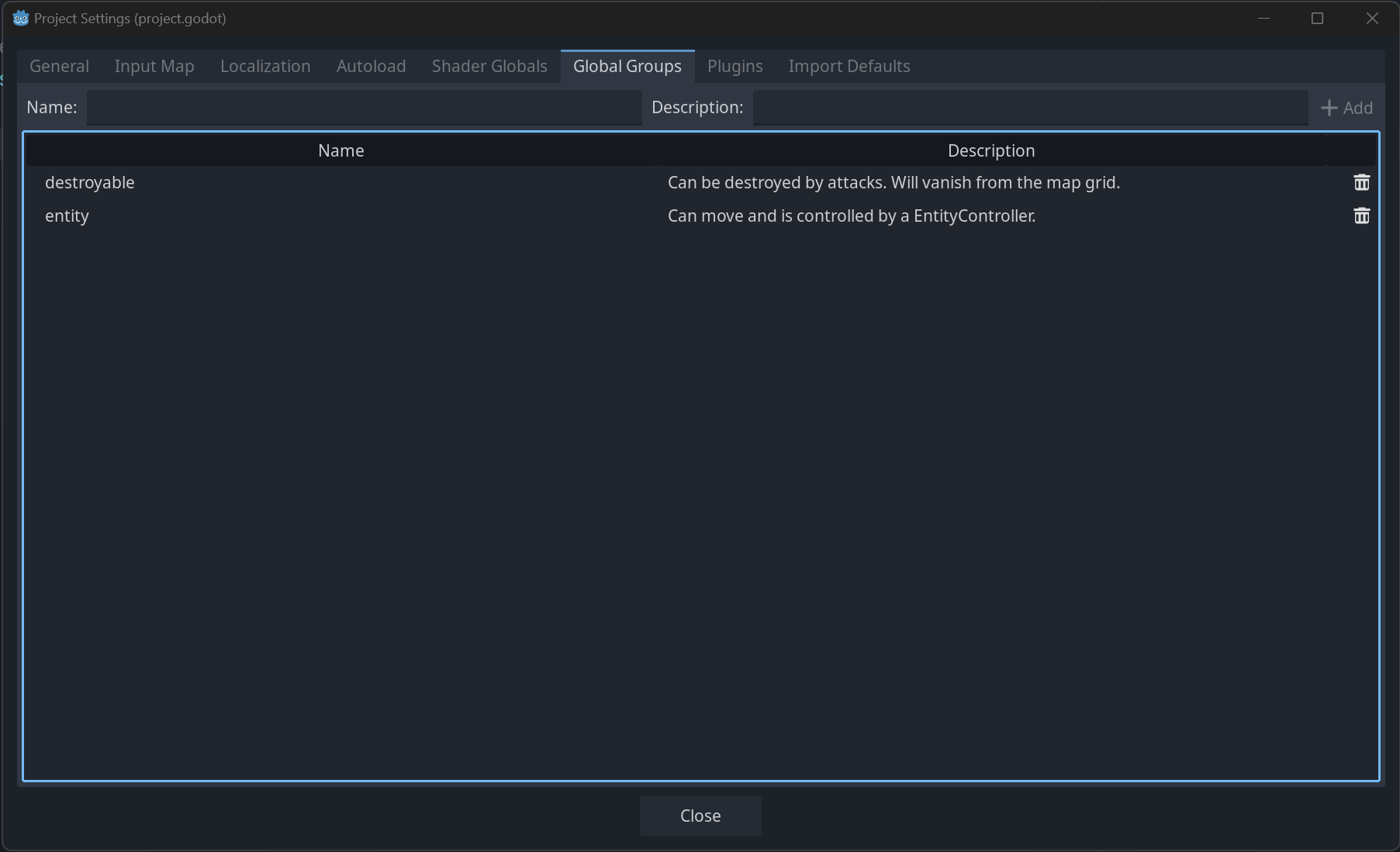
You can manage Global Groups in the Global Groups dock, inside Project Settings. There, you will be able to add new global groups, or change existing groups' names and descriptions.
Использование кода
Вы также можете управлять группами из скриптов. Следующий код добавит узел, к которому вы прикрепите скрипт, к группе guards как только она появится в дереве сцены.
func _ready():
    add_to_group("guards")
public override void _Ready()
{
    base._Ready();

    AddToGroup("guards");
}
Представьте, что вы создаёте игру с проникновением в тыл противника. Когда враг замечает игрока, вы хотите, чтобы все стражники и роботы были начеку.
В вымышленном примере снизу, мы используем SceneTree.call_group() чтобы предупредить всех врагов о том, что игрок был замечен.
func _on_player_spotted():
    get_tree().call_group("guards", "enter_alert_mode")
public void _OnPlayerDiscovered()
{
    GetTree().CallGroup("guards", "enter_alert_mode");
}
Вышеупомянутый код вызывает функцию enter_alert_mode для каждого члена группы guards.
Чтобы получить полный список узлов в группе guards в качестве массива, вы можете вызвать SceneTree.get_nodes_in_group():
var guards = get_tree().get_nodes_in_group("guards")
var guards = GetTree().GetNodesInGroup("guards");
Класс SceneTree предоставляет множество других полезных методов для взаимодействия со сценами, их иерархией узлов и группами. Он позволяет легко переключаться между сценами или перезагружать их, выходить из игры или ставить и снимать ее с паузы. Он также предоставляет полезные сигналы.