Work in progress
The content of this page was not yet updated for Godot
4.5
and may be outdated. If you know how to improve this page or you can confirm
that it's up to date, feel free to open a pull request.
Using SoftBody3D
Soft Bodys (oder Soft-Body-Dynamik) simulieren Bewegungen, Änderungen der Form und andere physikalische Eigenschaften verformbarer Objekte. Dies kann zum Beispiel verwendet werden, um Stoff zu simulieren oder realistischere Charaktere zu erstellen.
Grundlegende Einrichtung
Ein SoftBody3D-Node wird für Soft Body-Simulationen verwendet.
Wir werden einen elastischen Würfel erstellen, um die Einrichtung eines Soft Body zu demonstrieren.
Create a new scene with a Node3D node as root. Then, create a SoftBody3D node. Add a CubeMesh in the mesh property of the node in the inspector and increase the subdivision of the mesh for simulation.
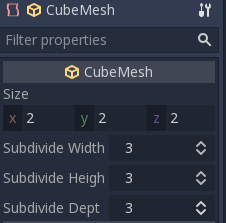
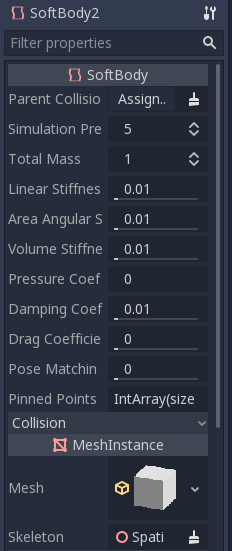
Stellen Sie die Parameter ein, um den gewünschten Soft Body-Typ zu erhalten. Versuchen Sie, die Simulationsgenauigkeit über 5 zu halten, da sonst der Soft Body zusammenbrechen kann.
Bemerkung
Gehen Sie vorsichtig mit einigen Parametern um, da gewisse Werte zu seltsamen Ergebnissen führen können. Wenn beispielsweise die Shape nicht vollständig geschlossen ist und Sie den Druck auf mehr als 0 einstellen, fliegt der Soft Body bei starkem Wind wie eine Plastiktüte herum.
Starten Sie die Szene, um sich die Simulation anzusehen.
Tipp
Um das Simulationsergebnis zu verbessern, erhöhen Sie die Simulationsgenauigkeit. Dies führt zu einer signifikanten Verbesserung der Performance.
Stoffsimulation
Erstellen wir einen Umhang in der Platformer3D-Demo.
Bemerkung
Sie können die Platformer3D-Demo auf GitHub oder aus der Asset-Bibliothek herunterladen.
Open the Player scene, add a SoftBody3D node and assign a PlaneMesh to it.
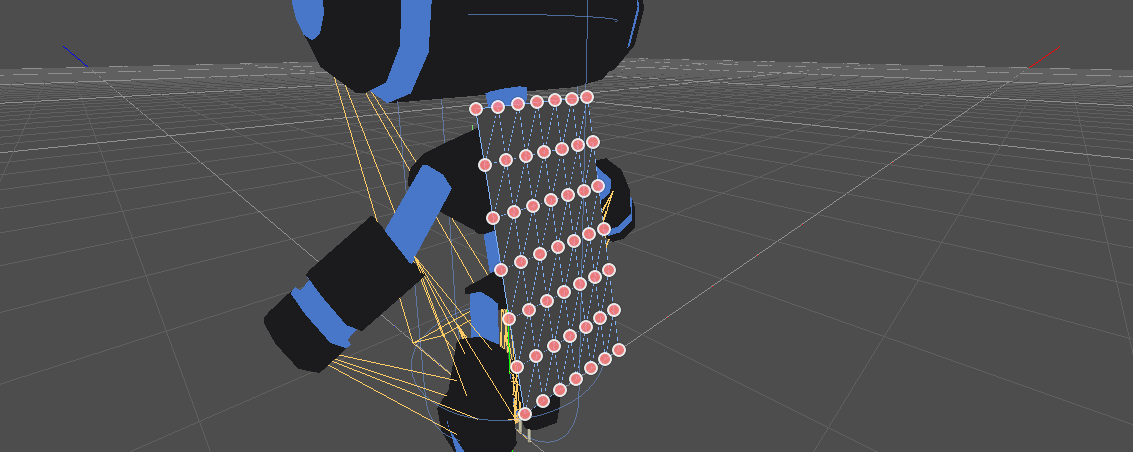
Open the PlaneMesh properties and set the size(x: 0.5 y: 1) then set Subdivide Width and Subdivide Depth to 5. Adjust the SoftBody3D's position. You should end up with something like this:
Tipp
Die Unterteilung erzeugt ein stärker mosaikartiges Mesh für bessere Simulationen.
Füge einen BoneAttachment3D-Node unter dem Skeleton-Node hinzu und wähle den Hals-Knochen aus, um den Umhang am Charakterskelett zu befestigen.
Bemerkung
Der Node BoneAttachment3D dient zum Anhängen von Objekten an einen Bone einer Armatur. Das angehängte Objekt wird der Bewegung des Knochens folgen, Waffen eines Charakters können auf diese Weise angehängt werden.
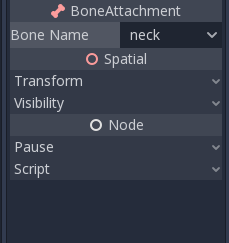
To create pinned joints, select the upper vertices in the SoftBody3D node:
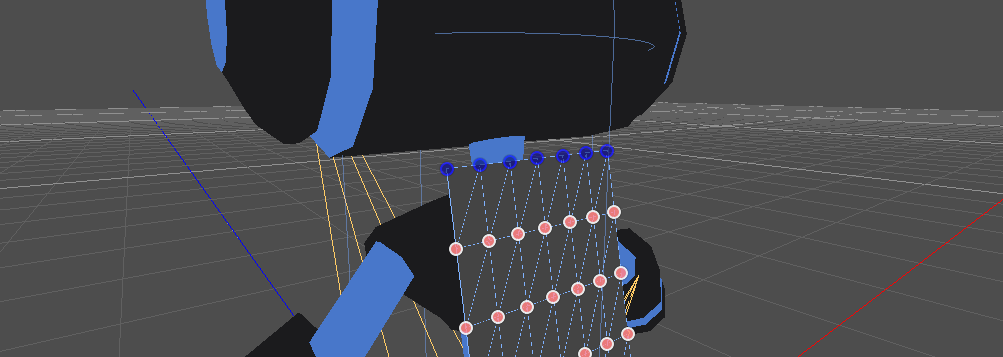
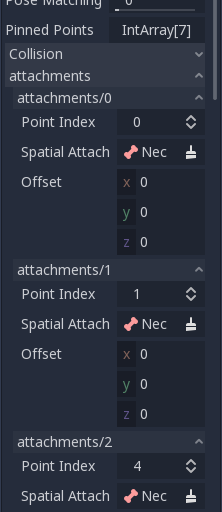
The pinned joints can be found in SoftBody3D's Attachments property, choose the BoneAttachment as the SpatialAttachment for each pinned joints, the pinned joints are now attached to the neck.
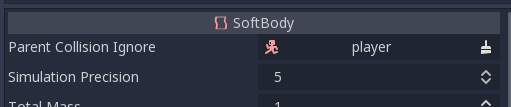
Last step is to avoid clipping by adding the Kinematic Body Player to Parent Collision Ignore of the SoftBody3D.
Spielen Sie die Szene ab und der Umhang sollte korrekt simuliert werden.
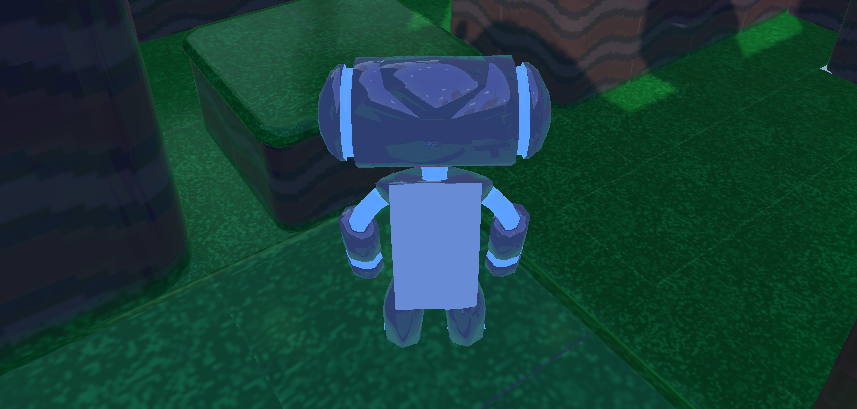
Experimentieren Sie mit den Parametern, um den Effekt zu erzielen, den Sie bei der Entwicklung Ihres Spiels anstreben.
Using Imported Meshes
The Save to File option in the Advanced Import Settings dialog allows you
to save a mesh to a standalone resource file that you can then attach to
SoftBody3D nodes.
You may also want to disable LOD generation or change the LOD generation options
when importing a mesh for use with SoftBody3D. The default import settings
will produce an LOD that merges adjacent faces that are nearly flat with
respect to each other, even at very close render distances. This works well for
static meshes, but is often undesirable for use with SoftBody3D if you want
these faces to be able to bend and move with respect to each other, instead of
being rendered as a single plane.
See Import-Konfiguration and Mesh-Level of Detail (LOD) for more details.