Attention: Here be dragons
This is the latest
(unstable) version of this documentation, which may document features
not available in or compatible with released stable versions of Godot.
Checking the stable version of the documentation...
Запуск коду в редакторі
Що таке @tool?
@tool — це потужний рядок коду, який, доданий у верхній частині вашого сценарію, змушує його виконуватися в редакторі. Ви також можете вирішити, які частини сценарію виконуватимуться в редакторі, які в грі, а які в обох.
Ви можете використовувати його для багатьох речей, але в основному він корисний у дизайні рівнів для візуального представлення речей, які важко передбачити самим. Ось кілька випадків використання:
Якщо у вас є гармата, яка стріляє гарматними ядрами під впливом фізики (гравітації), ви можете намалювати траєкторію гарматного ядра в редакторі, що значно полегшить дизайн рівнів.
Якщо у вас є стрибки з різною висотою стрибка, ви можете намалювати максимальну висоту стрибка, яку досягне гравець, якщо стрибнути на ньому, що також полегшить проектування рівнів.
Якщо ваш гравець не використовує спрайт, а малює себе за допомогою коду, ви можете змусити цей код для малювання виконуватися в редакторі, щоб побачити ваш гравець.
Небезпека
Сценарії @tool запускаються всередині редактора та дають вам доступ до дерева сцени поточної редагованої сцени. Це потужна функція, яка також має застереження, оскільки редактор не містить засобів захисту від можливого неправильного використання сценаріїв @tool. Будьте надзвичайно обережні, маніпулюючи деревом сцени, особливо через Node.queue_free, оскільки це може спричинити збої, якщо ви звільните вузол, поки редактор виконує логіку, що включає його.
Як використовувати @tool
Щоб перетворити скрипт на інструмент, додайте анотацію @tool у верхній частині коду.
Щоб перевірити, чи ви зараз у редакторі, скористайтеся: Engine.is_editor_hint().
Наприклад, якщо ви хочете виконати якийсь код лише в редакторі, використовуйте:
if Engine.is_editor_hint():
    # Code to execute when in editor.
if (Engine.IsEditorHint())
{
    // Code to execute when in editor.
}
З іншого боку, якщо ви хочете виконувати код лише в грі, просто заперечуйте той самий оператор:
if not Engine.is_editor_hint():
    # Code to execute when in game.
if (!Engine.IsEditorHint())
{
    // Code to execute when in game.
}
Фрагменти коду, які не мають жодної з 2 наведених вище умов, запускатимуться як у редакторі, так і в грі.
Ось як може виглядати функція _process():
func _process(delta):
    if Engine.is_editor_hint():
        # Code to execute in editor.

    if not Engine.is_editor_hint():
        # Code to execute in game.

    # Code to execute both in editor and in game.
public override void _Process(double delta)
{
    if (Engine.IsEditorHint())
    {
        // Code to execute in editor.
    }

    if (!Engine.IsEditorHint())
    {
        // Code to execute in game.
    }

    // Code to execute both in editor and in game.
}
Важлива інформація
Загальне правило полягає в тому, що будь-який інший GDScript, який використовує ваш скрипт інструмента, *також* має бути інструментом. Редактор не може створювати екземпляри з файлів GDScript без @tool, що означає, що ви не можете викликати методи або посилатися на змінні-члени з них іншим чином. Однак, оскільки статичні методи, константи та перерахування можна використовувати без створення екземпляра, їх можна викликати або посилатися на них зі скрипта @tool на інші скрипти, що не є інструментами. Одним винятком є static variables. Якщо ви спробуєте прочитати значення статичної змінної у скрипті, який не має @tool, він завжди повертатиме null, але не виводитиме попередження чи помилку під час цього. Це обмеження не стосується статичних методів, які можна викликати незалежно від того, чи знаходиться цільовий скрипт у режимі інструмента.
Розширення скрипта @tool не робить автоматично розширювальний скрипт @tool. Виключення @tool з розширювального скрипта вимкне поведінку інструмента з суперкласу. Тому розширювальний скрипт також повинен вказувати анотацію @tool.
Зміни в редакторі є постійними, скасування/повторення неможливі. Наприклад, у наступному розділі, коли ми видаляємо скрипт, вузол збереже свою ротацію. Будьте обережні, щоб уникнути небажаних змін. Розгляньте можливість налаштування version control, щоб уникнути втрати роботи у разі помилки.
Діагностика
Хоча налагоджувач та точки зупинки не можна використовувати безпосередньо зі скриптами інструментів, можна запустити новий екземпляр редактора та налагоджувати звідти. Для цього перейдіть до Налагодження > Налаштування екземплярів запуску... та вкажіть --editor в Основних аргументах запуску.
Див. Огляд засобів налагодження для отримання додаткової інформації.
Крім того, для відображення вмісту змінних можна використовувати оператори print.
Спробуйте @tool
Додайте вузол Sprite2D до вашої сцени та встановіть текстуру на значок Godot. Прикріпіть і відкрийте скрипт і змініть його на це:
@tool
extends Sprite2D

func _process(delta):
    rotation += PI * delta
using Godot;

[Tool]
public partial class MySprite : Sprite2D
{
    public override void _Process(double delta)
    {
        Rotation += Mathf.Pi * (float)delta;
    }
}
Збережіть скрипт і поверніться до редактора. Тепер ви повинні побачити, як ваш об’єкт обертається. Якщо запустити гру, вона також буде обертатися.
Попередження
Можливо, вам доведеться перезапустити редактор. Це відома помилка, виявлена в усіх версіях Godot 4: GH-66381.
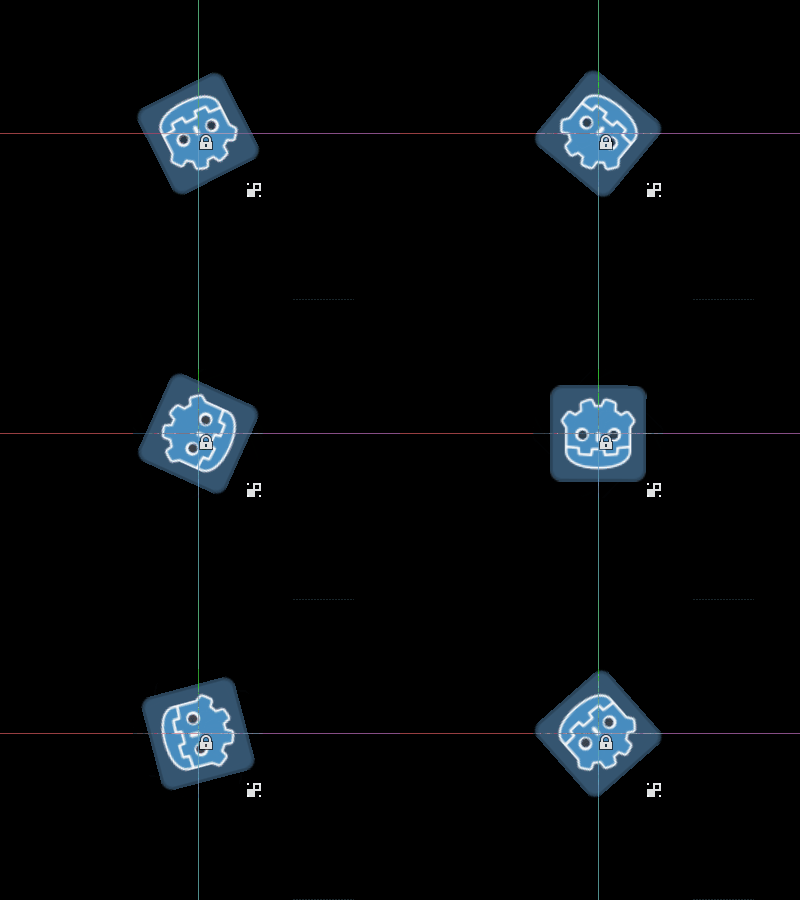
Примітка
Якщо ви не бачите змін, перезавантажте сцену (закрийте її та відкрийте знову).
Тепер давайте виберемо, який код запускатиметься коли. Змініть свою функцію _process() так, щоб вона виглядала так:
func _process(delta):
    if Engine.is_editor_hint():
        rotation += PI * delta
    else:
        rotation -= PI * delta
public override void _Process(double delta)
{
    if (Engine.IsEditorHint())
    {
        Rotation += Mathf.Pi * (float)delta;
    }
    else
    {
        Rotation -= Mathf.Pi * (float)delta;
    }
}
Збережіть скрипт. Тепер об’єкт обертатиметься за годинниковою стрілкою в редакторі, але якщо ви запустите гру, він обертатиметься проти годинникової стрілки.
Редагування змінних
Додайте та експортуйте змінну швидкість до сценарію. Щоб оновити швидкість, а також скинути кут повороту, додайте установщик set(new_speed), який виконується за допомогою введення з інспектора. Змініть _process(), щоб включити швидкість обертання.
@tool
extends Sprite2D


@export var speed = 1:
    # Update speed and reset the rotation.
    set(new_speed):
        speed = new_speed
        rotation = 0


func _process(delta):
    rotation += PI * delta * speed
using Godot;

[Tool]
public partial class MySprite : Sprite2D
{
    private float _speed = 1;

    [Export]
    public float Speed
    {
        get => _speed;
        set
        {
            // Update speed and reset the rotation.
            _speed = value;
            Rotation = 0;
        }
    }

    public override void _Process(double delta)
    {
        Rotation += Mathf.Pi * (float)delta * _speed;
    }
}
Примітка
Код з інших вузлів не працює в редакторі. Ваш доступ до інших вузлів обмежений. Ви можете отримати доступ до дерева та вузлів, а також до їхніх властивостей за замовчуванням, але не можете отримати доступ до змінних користувача. Якщо ви хочете це зробити, інші вузли також повинні працювати в редакторі.
Getting notified when arrays or dictionaries change
You can use an Array or Dictionary as an @export variable. In a @tool
script, you can react to any changes to that collection by using a setter.
Normally, at runtime, such a setter is only called when you assign to the
variable, but when you modify an Array or Dictionary in the inspector, the
setter will also be called.
@tool
class_name MyTool
extends Node

@export var my_array = []:
    set(new_array):
        my_array = new_array
        print("My array just changed!")

@export var my_dictionary = {}:
    set(new_dictionary):
        my_dictionary = new_dictionary
        print("My dictionary just changed!")
using Godot;

[Tool]
public partial class MyTool : Node
{
    private Array _myArray = new();
    private Dictionary _myDictionary = new();

    [Export]
    public Array MyArray
    {
        get => _myArray;
        set
        {
            _myArray = value;
            GD.Print("My array just changed!");
        }
    }

    [Export]
    public Dictionary MyDictionary
    {
        get => _myDictionary;
        set
        {
            _myDictionary = value;
            GD.Print("My dictionary just changed!");
        }
    }
}
Отримання сповіщень про зміну ресурсів
Іноді ви хочете, щоб ваш інструмент використовував ресурс. Однак, коли ви змінюєте властивість цього ресурсу в редакторі, метод set() вашого інструменту не буде викликатися.
@tool
class_name MyTool
extends Node

@export var resource: MyResource:
    set(new_resource):
        resource = new_resource
        _on_resource_set()

# This will only be called when you create, delete, or paste a resource.
# You will not get an update when tweaking properties of it.
func _on_resource_set():
    print("My resource was set!")
using Godot;

[Tool]
public partial class MyTool : Node
{
    private MyResource _resource;

    [Export]
    public MyResource Resource
    {
        get => _resource;
        set
        {
            _resource = value;
            OnResourceSet();
        }
    }

    // This will only be called when you create, delete, or paste a resource.
    // You will not get an update when tweaking properties of it.
    private void OnResourceSet()
    {
        GD.Print("My resource was set!");
    }
}
Щоб вирішити цю проблему, вам спочатку потрібно зробити свій ресурс інструментом і змусити його видавати сигнал changed щоразу, коли встановлено властивість:
# Make Your Resource a tool.
@tool
class_name MyResource
extends Resource

@export var property = 1:
    set(new_setting):
        property = new_setting
        # Emit a signal when the property is changed.
        changed.emit()
using Godot;

[Tool]
public partial class MyResource : Resource
{
    private float _property = 1;

    [Export]
    public float Property
    {
        get => _property;
        set
        {
            _property = value;
            // Emit a signal when the property is changed.
            EmitChanged();
        }
    }
}
Потім ви хочете підключити сигнал, коли встановлено новий ресурс:
@tool
class_name MyTool
extends Node

@export var resource: MyResource:
    set(new_resource):
        resource = new_resource
        # Connect the changed signal as soon as a new resource is being added.
        if resource != null:
            resource.changed.connect(_on_resource_changed)

func _on_resource_changed():
    print("My resource just changed!")
using Godot;

[Tool]
public partial class MyTool : Node
{
    private MyResource _resource;

    [Export]
    public MyResource Resource
    {
        get => _resource;
        set
        {
            _resource = value;
            // Connect the changed signal as soon as a new resource is being added.
            if (_resource != null)
            {
                _resource.Changed += OnResourceChanged;
            }
        }
    }

    private void OnResourceChanged()
    {
        GD.Print("My resource just changed!");
    }
}
Нарешті, пам’ятайте про від’єднання сигналу, оскільки старий ресурс, який використовується та змінюється в іншому місці, спричинить непотрібні оновлення.
@export var resource: MyResource:
    set(new_resource):
        # Disconnect the signal if the previous resource was not null.
        if resource != null:
            resource.changed.disconnect(_on_resource_changed)
        resource = new_resource
        if resource != null:
            resource.changed.connect(_on_resource_changed)
[Export]
public MyResource Resource
{
    get => _resource;
    set
    {
        // Disconnect the signal if the previous resource was not null.
        if (_resource != null)
        {
            _resource.Changed -= OnResourceChanged;
        }
        _resource = value;
        if (_resource != null)
        {
            _resource.Changed += OnResourceChanged;
        }
    }
}
Повідомлення про попередження конфігурації вузла
Godot використовує систему попередження про конфігурацію вузла, щоб попередити користувачів про неправильно налаштовані вузли. Якщо вузол налаштовано неправильно, біля назви вузла в док-станції Scene з’являється жовтий попереджувальний знак. Коли ви наводите курсор або клацаєте піктограму, з’являється попередження. Ви можете використовувати цю функцію у своїх сценаріях, щоб допомогти вам і вашій команді уникнути помилок під час налаштування сцен.
Під час використання попереджень конфігурації вузла, коли змінюється будь-яке значення, яке має вплинути на попередження або видалити його, потрібно викликати update_configuration_warnings. За замовчуванням попередження оновлюється лише під час закриття та повторного відкриття сцени.
# Use setters to update the configuration warning automatically.
@export var title = "":
    set(p_title):
        if p_title != title:
            title = p_title
            update_configuration_warnings()

@export var description = "":
    set(p_description):
        if p_description != description:
            description = p_description
            update_configuration_warnings()


func _get_configuration_warnings():
    var warnings = []

    if title == "":
        warnings.append("Please set `title` to a non-empty value.")

    if description.length() >= 100:
        warnings.append("`description` should be less than 100 characters long.")

    # Returning an empty array means "no warning".
    return warnings
Запуск одноразових сценаріїв за допомогою EditorScript
Іноді вам потрібно запустити код лише один раз, щоб автоматизувати певне завдання, яке недоступне в редакторі з коробки. Деякі приклади можуть бути:
Використовуйте як майданчик для створення сценаріїв GDScript або C# без необхідності запускати проект. Вихід
print()відображається на панелі виводу редактора.Змініть масштаб усіх світлових вузлів у поточній редагованій сцені, оскільки ви помітили, що ваш рівень виглядає занадто темним або занадто яскравим після розміщення світла, де потрібно.
Замініть вузли, які було скопійовано вставлено, екземплярами сцени, щоб полегшити їх зміну пізніше.
Це доступно в Godot шляхом розширення EditorScript у сценарії. Це дає можливість запускати окремі сценарії в редакторі без необхідності створення плагіна редактора.
Щоб створити EditorScript, клацніть правою кнопкою миші папку або порожнє місце в док-станції FileSystem, а потім виберіть Новий > Скрипт.... У діалоговому вікні створення скрипта клацніть піктограму дерева, щоб вибрати об’єкт для розширення (або введіть EditorScript безпосередньо в поле ліворуч, але зауважте, що це чутливо до регістру):

Створення сценарію редактора в діалоговому вікні створення редактора сценаріїв
Це автоматично вибере шаблон сценарію, який підходить для EditorScripts, із уже вставленим методом _run():
@tool
extends EditorScript

# Called when the script is executed (using File -> Run in Script Editor).
func _run():
    pass
using Godot;

[Tool]
public partial class MyEditorScript : EditorScript
{
    // Called when the script is executed (right-click on Script -> Run in FileSystem dock).
    public override void _Run()
    {
        // ...
    }
}
This _run() method is executed when you use any of the 4 approaches that can be
used to run an EditorScript:
Use at the top of the script editor with the EditorScript being the current tab.
Press the keyboard shortcut Ctrl + Shift + X while the EditorScript is the current tab. This keyboard shortcut is only effective when focused on the script editor.
Right-click the script in the FileSystem dock and choose .
Add a
class_name <name>at the top of the script, bring up the command palette by pressing Ctrl + Shift + P, and enter the class name to run it. The entry will be named according to the class name, with automatic capitalization applied.
Scripts that extend EditorScript must be @tool scripts to function.
Примітка
EditorScripts can only be run from the Godot script editor. If you are using an external editor, use one of the last two approaches to run the script.
Примітка
C# EditorScripts cannot be run from the script editor as it only supports GDScript. Please refer to the above alternative approaches to run custom C# EditorScripts.
Keep in mind C# tool scripts will only appear in the command palette when denoted by the GlobalClass attribute.
Небезпека
EditorScript не має функцій скасування/повторення, тому переконайтесь, що зберегли свою сцену перед її запуском, якщо скрипт розроблено для зміни будь-яких даних.
To access nodes in the currently edited scene, use the EditorInterface.get_edited_scene_root() method which returns the root Node of the currently edited scene. Here's an example that recursively gets all nodes in the currently edited scene and doubles the range of all OmniLight3D nodes:
@tool
# Thanks to the class name, we can run this script by bringing up
# the command palette and searching "Scale Omni Lights".
class_name ScaleOmniLights
extends EditorScript

func _run():
    for node in EditorInterface.get_edited_scene_root().find_children("", "OmniLight3D"):
        # Don't operate on instanced subscene children, as changes are lost
        # when reloading the scene.
        # See the "Instancing scenes" section below for a description of `owner`.
        var is_instanced_subscene_child = node != get_scene() and node.owner != get_scene()
        if not is_instanced_subscene_child:
            node.omni_range *= 2.0
            EditorInterface.mark_scene_as_unsaved()
using Godot;

[GlobalClass, Tool]
// Thanks to the GlobalClass attribute, we can run this script by bringing up
// the command palette and searching "Scale Omni Lights".
public partial class ScaleOmniLights : EditorScript
{
    public override void _Run()
    {
        var sceneNode = EditorInterface.Singleton.GetEditedSceneRoot();

        foreach (OmniLight3D node in sceneNode.FindChildren("", "OmniLight3D"))
        {
            // Don't operate on instanced subscene children, as changes are lost
            // when reloading the scene.
            // See the "Instancing scenes" section below for a description of `owner`.
            var isInstancedSubsceneChild = node != sceneNode && node.Owner != sceneNode;
            if (!isInstancedSubsceneChild)
            {
                node.OmniRange *= 2.0f;
                EditorInterface.Singleton.MarkSceneAsUnsaved();
            }
        }
    }
}
In the above example, we also call EditorScript.mark_scene_as_unsaved() after any modification that affects the scene's state. This allows the editor to display the scene as "unsaved" (i.e. with an asterisk next to the name). This way, you also get a confirmation when trying to close the scene with unsaved changes.
Порада
You can change the currently edited scene at the top of the editor even while the Script view is open. This will affect the return value of EditorInterface.get_edited_scene_root, so make sure you've selected the scene you intend to iterate upon before running the script.
Інстансування сцени
Ви можете створити екземпляр упакованих сцен у звичайний спосіб і додати їх до сцени, наразі відкритої в редакторі. За замовчуванням вузли або сцени, додані за допомогою Node.add_child(node), не відображаються в доці дерева сцен і не зберігаються на диску. Якщо ви бажаєте, щоб вузол або сцена були видимими в доці дерева сцен і зберігалися на диску під час збереження сцени, вам потрібно встановити властивість дочірнього вузла owner на поточний відредагований корінь сцени.
Якщо ви використовуєте @tool:
func _ready():
    var node = Node3D.new()
    add_child(node) # Parent could be any node in the scene

    # The line below is required to make the node visible in the Scene tree dock
    # and persist changes made by the tool script to the saved scene file.
    node.owner = get_tree().edited_scene_root
public override void _Ready()
{
    var node = new Node3D();
    AddChild(node); // Parent could be any node in the scene

    // The line below is required to make the node visible in the Scene tree dock
    // and persist changes made by the tool script to the saved scene file.
    node.Owner = GetTree().EditedSceneRoot;
}
If you are using EditorScript:
func _run():
    # `parent` could be any node in the scene.
    var parent = get_scene().get_node("Parent")
    var node = Node3D.new()
    parent.add_child(node)

    # The line below is required to make the node visible in the Scene tree dock
    # and persist changes made by the tool script to the saved scene file.
    node.owner = get_scene()
public override void _Run()
{
    // `parent` could be any node in the scene.
    var parent = GetScene().GetNode("Parent");
    var node = new Node3D();
    parent.AddChild(node);

    // The line below is required to make the node visible in the Scene tree dock
    // and persist changes made by the tool script to the saved scene file.
    node.Owner = GetScene();
}
Примітка
Changes made by tool scripts and EditorScript (such as adding nodes or modifying properties)
do not automatically mark the scene as unsaved. To show the asterisk (*)
and prevent accidental data loss, call
EditorInterface.mark_scene_as_unsaved()
after modifications, or use EditorUndoRedoManager for undo support.
Попередження
Неналежне використання @tool може призвести до багатьох помилок. Рекомендується спочатку написати код, як ви хочете, і лише потім додавати анотацію @tool у верхній частині. Крім того, не забудьте відокремити код, який запускається в редакторі, від коду, який запускається в грі. Таким чином ви зможете легше знаходити помилки.