Attention: Here be dragons
This is the latest
(unstable) version of this documentation, which may document features
not available in or compatible with released stable versions of Godot.
Checking the stable version of the documentation...
モブシーンをデザイン
このパートでは、モンスター(ここではモブと呼びます)のコードを作成します。次のレッスンでは、モンスターをプレイエリアのあちこちにランダムに配置します。
新しいシーンでモンスター自体を設計しましょう。ノード構造は player.tscn シーンに似ています。
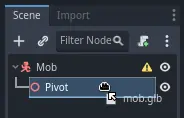
もう一度 CharacterBody3D ノードをルートとしてシーンを作ります。このノードを Mob と名付けます。次に、その子ノードとして Node3D ノードを追加し、 Pivot と名付けます。そして、 ファイルシステム ドックから mob.glb ファイルを Pivot にドラッグ&ドロップすることで、モンスターの3Dモデルがシーンに追加されます。
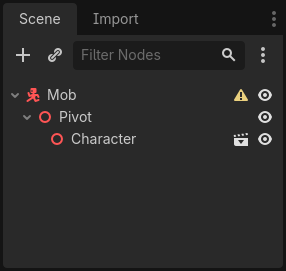
新たに作成された mob ノードの名前を Character に変更できます。
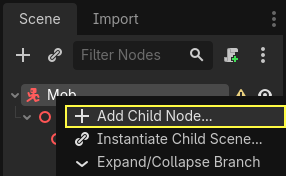
体が機能するために衝突形状を追加する必要があります。シーンのルートノード Mob を右クリックし、 子ノードを追加 をクリックしてください。
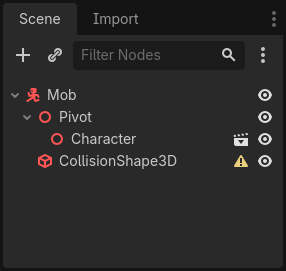
CollisionShape3Dを追加します。
Inspector で、 Shape プロパティに BoxShape3D を割り当てます。

3 Dモデルによりよく適応するために、そのサイズを変更しなければなりません。オレンジ色の点をクリックしてドラッグすることで、インタラクティブに操作できます。
衝突ボックスは地面に接触していて、モデルより少し小さくする必要があります。物理エンジンは、プレイヤーの衝突球体がこの衝突ボックスの端に触れただけでも、衝突したと判定します。もし衝突ボックスが 3D モデルより少し大きかった場合、モンスターからまだ距離があるのに死んでしまい、プレイヤーは不公平だと感じるでしょう。
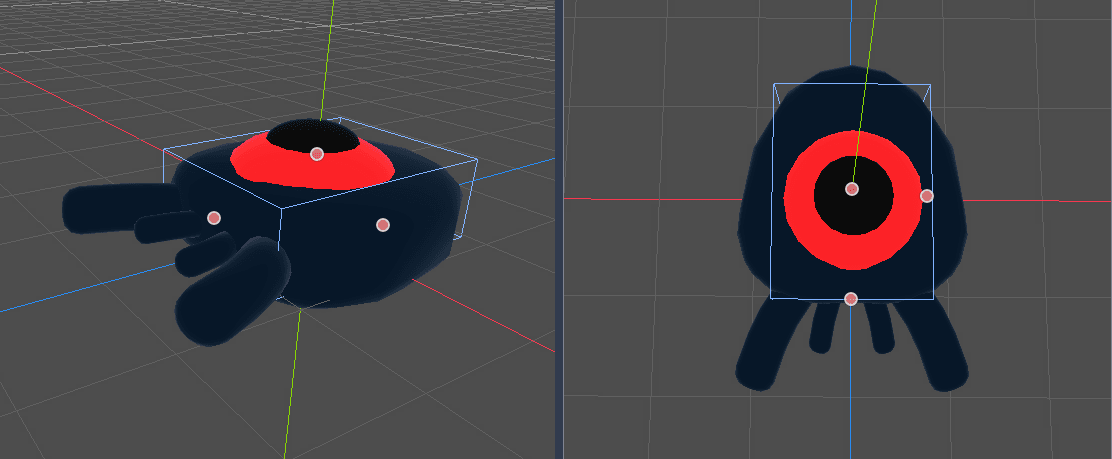
ボックスがモンスターより高さがあることに注意してください。このゲームでは、シーンを上から見て、固定されたパースペクティブを使っているので、大丈夫です。コリジョン形状は、モデルと完全に一致する必要はありません。ゲームをテストしたときの感触で、形や大きさを決めるといいでしょう。
古い「モンスター」を削除する
私たちはこのゲームレベルで一定時間ごとにモンスターを生成します。もし私たちがうっかりしていたら、それらの数は無限大に増えるかもしれませんが、私たちはそれを望んでいません。モブの各インスタンスにはメモリと処理コストがあり、モブが画面の外にいるときは、私たちはそのためにコストを払いたくありません。
モンスターが画面から離れたら、もう必要ないので、削除してしまいましょう。Godotには、 VisibleOnScreenNotifier3D という、ノードが画面から離れるのを検知するノードがあるので、それを使ってモブを破壊することにします。
注釈
オブジェクトのインスタンスを生成し続ける場合に、インスタンスを常に生成・破棄するコストを回避するための手法にプーリングというものがあります。これは、オブジェクトの配列をあらかじめ作成しておき、それを何度も再利用するというものです。
When working with GDScript, this usually isn't needed. The main reason to use pools is to avoid freezes with garbage-collected languages like C# or Lua. GDScript uses a different technique to manage memory, reference counting, which doesn't have that caveat. You can learn more about that here: メモリ管理.
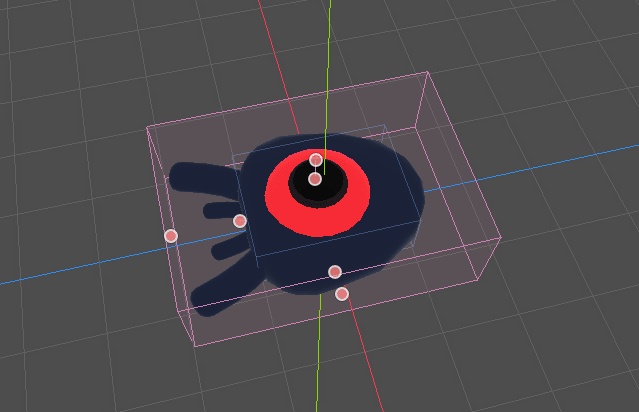
Mob ノードを選択し、VisibleOnScreenNotifier3Dをその子として追加してください。すると、今度はピンク色のボックスが現れます。このボックスが完全に画面から消えると、ノードがシグナルを発信します。
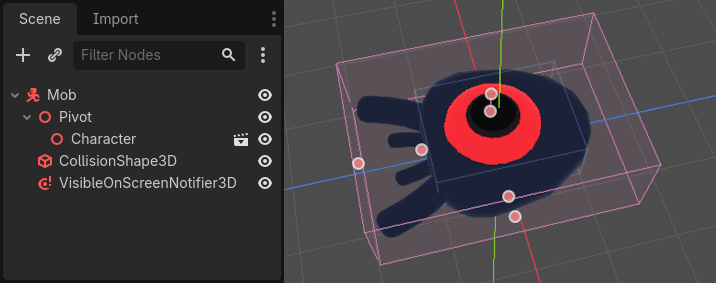
3D モデル全体を覆うように、オレンジのドットでサイズを変更します。
モブの動きをコード化する
それでは、モンスターの動きを組み込んでみましょう。2ステップに分けて行います。まず、モンスターを初期化する関数を含むスクリプトを、 Mob ノードに作成します。次に、ランダム生成メカニズムを main.tscn シーン内に作成し、モンスターを初期化する関数を実行します。
Mob ノードにスクリプトを追加します。
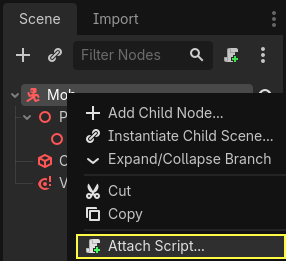
これが最初の動きのコードです。 min_speed と max_speed の2つのプロパティを定義し、ランダムな速度範囲を定義します。これは後で CharacterBody3D.velocity で使います。
extends CharacterBody3D

# Minimum speed of the mob in meters per second.
@export var min_speed = 10
# Maximum speed of the mob in meters per second.
@export var max_speed = 18


func _physics_process(_delta):
    move_and_slide()
using Godot;

public partial class Mob : CharacterBody3D
{
    // Don't forget to rebuild the project so the editor knows about the new export variable.

    // Minimum speed of the mob in meters per second
    [Export]
    public int MinSpeed { get; set; } = 10;
    // Maximum speed of the mob in meters per second
    [Export]
    public int MaxSpeed { get; set; } = 18;

    public override void _PhysicsProcess(double delta)
    {
        MoveAndSlide();
    }
}
プレイヤーと同様に、 CharacterBody3D.move_and_slide() 関数を呼び出してモブを毎フレーム動かします。このとき、 velocity は毎フレーム更新しません。たとえ障害物に当たったとしても、モンスターが画面外に出るまで等速で動かすのです。
他に CharacterBody3D.velocity を計算する関数を定義する必要があります。この関数はモンスターをプレイヤーの方へ向かせ動きの角度と速度をランダムにします。
この関数は引数に start_position (モブの出現位置)と player_position (プレイヤーの位置)をとります。
モブを start_position に置いて look_at_from_position() を使いプレイヤーの方に向かせ、Y軸を中心にランダムなだけ回転させて角度をランダムにします。以下の randf_range() は -PI / 4 から PI / 4 までのランダムな角度を出力します。
# This function will be called from the Main scene.
func initialize(start_position, player_position):
    # We position the mob by placing it at start_position
    # and rotate it towards player_position, so it looks at the player.
    look_at_from_position(start_position, player_position, Vector3.UP)
    # Rotate this mob randomly within range of -45 and +45 degrees,
    # so that it doesn't move directly towards the player.
    rotate_y(randf_range(-PI / 4, PI / 4))
// This function will be called from the Main scene.
public void Initialize(Vector3 startPosition, Vector3 playerPosition)
{
    // We position the mob by placing it at startPosition
    // and rotate it towards playerPosition, so it looks at the player.
    LookAtFromPosition(startPosition, playerPosition, Vector3.Up);
    // Rotate this mob randomly within range of -45 and +45 degrees,
    // so that it doesn't move directly towards the player.
    RotateY((float)GD.RandRange(-Mathf.Pi / 4.0, Mathf.Pi / 4.0));
}
ランダムな場所を得て、次は random_speed が必要です。 randi_range() がランダムな整数範囲を得るのに有用で、これに min_speed と max_speed を使います。 random_speed はただの整数で、 CharacterBody3D.velocity に掛けるだけです。 random_speed が適用された後、 CharacterBody3D.velocity Vector3をプレイヤーの方へ回転させます。
func initialize(start_position, player_position):
    # ...

    # We calculate a random speed (integer)
    var random_speed = randi_range(min_speed, max_speed)
    # We calculate a forward velocity that represents the speed.
    velocity = Vector3.FORWARD * random_speed
    # We then rotate the velocity vector based on the mob's Y rotation
    # in order to move in the direction the mob is looking.
    velocity = velocity.rotated(Vector3.UP, rotation.y)
public void Initialize(Vector3 startPosition, Vector3 playerPosition)
{
    // ...

    // We calculate a random speed (integer).
    int randomSpeed = GD.RandRange(MinSpeed, MaxSpeed);
    // We calculate a forward velocity that represents the speed.
    Velocity = Vector3.Forward * randomSpeed;
    // We then rotate the velocity vector based on the mob's Y rotation
    // in order to move in the direction the mob is looking.
    Velocity = Velocity.Rotated(Vector3.Up, Rotation.Y);
}
画面から離れる
画面を離れた時にモブを破壊する必要があります。 そのためには、 VisibleOnScreenNotifier3D ノードの `screen_exited シグナルを Mob に接続します。
Select the VisibleOnScreenNotifier3D node and on the right side of the interface,
navigate to the Signals dock. Double-click the screen_exited() signal.
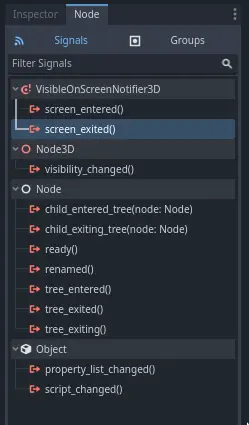
シグナルをMobへ接続します
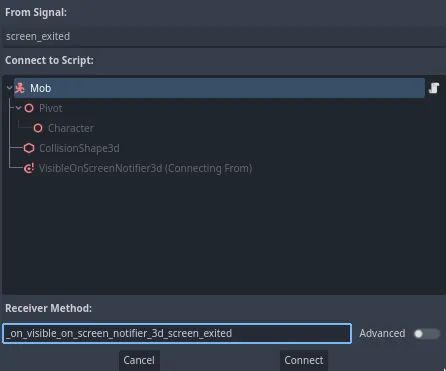
これでモブスクリプトに _on_visible_on_screen_notifier_3d_screen_exited() という新しい関数が追加されます。ここから queue_free() メソッドを呼びます。この関数はこれが呼ばれたインスタンスを破壊します。
func _on_visible_on_screen_notifier_3d_screen_exited():
    queue_free()
// We also specified this function name in PascalCase in the editor's connection window.
private void OnVisibilityNotifierScreenExited()
{
    QueueFree();
}
私たちのモンスターがゲームに参加する準備ができました。次のパートでは、ゲームレベルにモンスターを出現させます。
参考までに、mob.gdスクリプトの完成版を以下に示します。
extends CharacterBody3D

# Minimum speed of the mob in meters per second.
@export var min_speed = 10
# Maximum speed of the mob in meters per second.
@export var max_speed = 18

func _physics_process(_delta):
    move_and_slide()

# This function will be called from the Main scene.
func initialize(start_position, player_position):
    # We position the mob by placing it at start_position
    # and rotate it towards player_position, so it looks at the player.
    look_at_from_position(start_position, player_position, Vector3.UP)
    # Rotate this mob randomly within range of -45 and +45 degrees,
    # so that it doesn't move directly towards the player.
    rotate_y(randf_range(-PI / 4, PI / 4))

    # We calculate a random speed (integer)
    var random_speed = randi_range(min_speed, max_speed)
    # We calculate a forward velocity that represents the speed.
    velocity = Vector3.FORWARD * random_speed
    # We then rotate the velocity vector based on the mob's Y rotation
    # in order to move in the direction the mob is looking.
    velocity = velocity.rotated(Vector3.UP, rotation.y)

func _on_visible_on_screen_notifier_3d_screen_exited():
    queue_free()
using Godot;

public partial class Mob : CharacterBody3D
{
    // Minimum speed of the mob in meters per second.
    [Export]
    public int MinSpeed { get; set; } = 10;
    // Maximum speed of the mob in meters per second.
    [Export]
    public int MaxSpeed { get; set; } = 18;

    public override void _PhysicsProcess(double delta)
    {
        MoveAndSlide();
    }

    // This function will be called from the Main scene.
    public void Initialize(Vector3 startPosition, Vector3 playerPosition)
    {
        // We position the mob by placing it at startPosition
        // and rotate it towards playerPosition, so it looks at the player.
        LookAtFromPosition(startPosition, playerPosition, Vector3.Up);
        // Rotate this mob randomly within range of -45 and +45 degrees,
        // so that it doesn't move directly towards the player.
        RotateY((float)GD.RandRange(-Mathf.Pi / 4.0, Mathf.Pi / 4.0));

        // We calculate a random speed (integer).
        int randomSpeed = GD.RandRange(MinSpeed, MaxSpeed);
        // We calculate a forward velocity that represents the speed.
        Velocity = Vector3.Forward * randomSpeed;
        // We then rotate the velocity vector based on the mob's Y rotation
        // in order to move in the direction the mob is looking.
        Velocity = Velocity.Rotated(Vector3.Up, Rotation.Y);
    }

    // We also specified this function name in PascalCase in the editor's connection window.
    private void OnVisibilityNotifierScreenExited()
    {
        QueueFree();
    }
}