Attention: Here be dragons
This is the latest
(unstable) version of this documentation, which may document features
not available in or compatible with released stable versions of Godot.
Checking the stable version of the documentation...
빌드 커스터마이징하기
전체적인 디자인에 맞게 게임에서 마우스 커서의 모양을 변경하고 싶을 수도 있습니다. 마우스 커서를 사용자 정의하는 방법에는 두 가지가 있습니다.
프로젝트 설정을 사용합니다. 이는 더 간단하지만 더 제한적입니다.
스크립트를 사용합니다. 이는 더 쉽게 사용자 정의할 수 있지만 스크립팅이 필요합니다.
참고
_process() 메서드에서 마우스 커서를 숨기고 Sprite2D를 커서 위치로 이동하여 "소프트웨어" 마우스 커서를 표시할 수 있지만 이렇게 하면 "하드웨어" 마우스 커서에 비해 최소 한 프레임의 대기 시간이 추가됩니다. 따라서 가능하면 여기에 설명된 접근 방식을 사용하는 것이 좋습니다.
"소프트웨어" 접근 방식을 사용해야 하는 경우 실제 마우스 입력을 더 잘 표시하기 위해 외삽 단계를 추가하는 것을 고려하십시오.
프로젝트 설정 사용
**프로젝트 설정**를 열고 **디스플레이 > 마우스 커서**로 이동합니다. Custom Image, Custom Image Hotspot 및 Tooltip Position 설정이 표시됩니다. Offset.
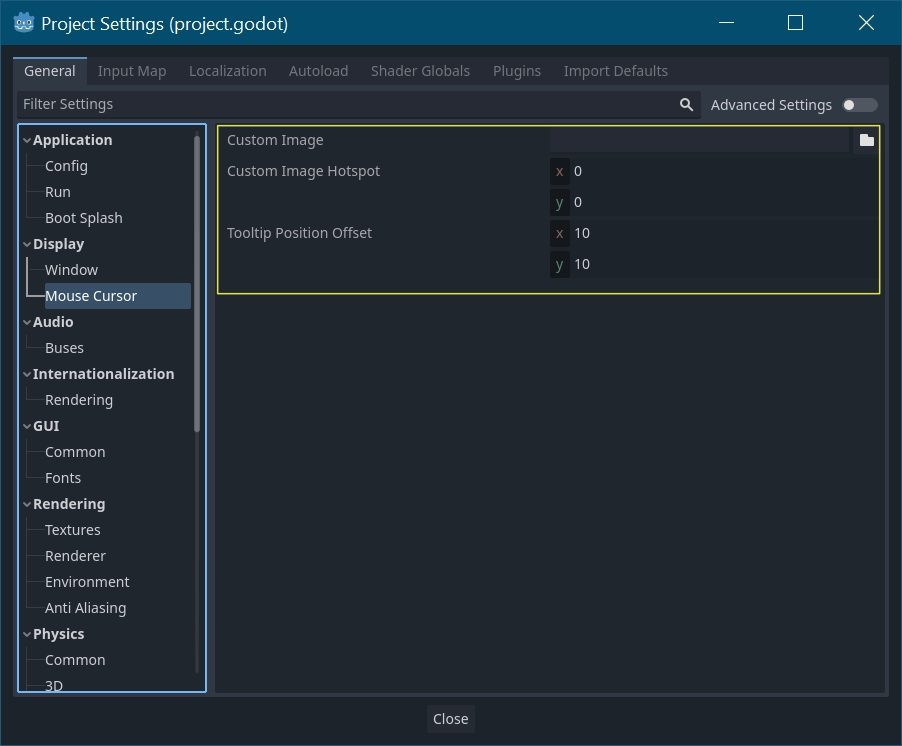
**사용자 정의 이미지**는 마우스 커서로 설정하고 싶은 이미지입니다. **사용자 정의 핫스팟**은 커서의 감지 지점으로 사용하려는 이미지의 지점입니다.
경고
사용자 정의 이미지는 반드시 최대 256×256픽셀이어야 합니다. 렌더링 문제를 방지하려면 128×128 이하의 크기를 권장합니다.
웹 플랫폼에서 허용되는 최대 커서 이미지 크기는 128×128입니다.
스크립트 사용
만들기 a 노드를 선택하고 다음 스크립트를 연결합니다.
extends Node


# Load the custom images for the mouse cursor.
var arrow = load("res://arrow.png")
var beam = load("res://beam.png")


func _ready():
    # Changes only the arrow shape of the cursor.
    # This is similar to changing it in the project settings.
    Input.set_custom_mouse_cursor(arrow)

    # Changes a specific shape of the cursor (here, the I-beam shape).
    Input.set_custom_mouse_cursor(beam, Input.CURSOR_IBEAM)
using Godot;

public partial class MyNode : Node
{
    public override void _Ready()
    {
        // Load the custom images for the mouse cursor.
        var arrow = ResourceLoader.Load("res://arrow.png");
        var beam = ResourceLoader.Load("res://beam.png");

        // Changes only the arrow shape of the cursor.
        // This is similar to changing it in the project settings.
        Input.SetCustomMouseCursor(arrow);

        // Changes a specific shape of the cursor (here, the I-beam shape).
        Input.SetCustomMouseCursor(beam, Input.CursorShape.Ibeam);
    }
}
더 보기
사용법 및 플랫폼별 주의 사항에 대한 자세한 내용은 Input.set_custom_mouse_cursor() 문서를 확인하세요.
커서 목록
Input.CursorShape 열거형에 설명된 정의할 수 있는 여러 마우스 커서가 있습니다. 어떤 것을 사용하고 싶은지는 사용 사례에 따라 다릅니다.