Attention: Here be dragons
This is the latest
(unstable) version of this documentation, which may document features
not available in or compatible with released stable versions of Godot.
Checking the stable version of the documentation...
CLion
CLion is a JetBrains IDE for C++ that's free for individual, non-commercial development.
Projekt importieren
CLion kann die Kompilierungsdatenbankdatei eines Projekts importieren, die üblicherweise compile_commands.json heißt. Um die Kompilierungsdatenbankdatei zu erzeugen, öffnen Sie das Terminal, wechseln Sie in das Godot-Stammverzeichnis und führen Sie aus:
scons compiledb=yes compile_commands.json
Then, open the Godot root directory with CLion and wait for the project to be fully
indexed. If code completion, parameter information, or refactoring are not enabled,
you will need to load the project with CMake. To do this, find the CMakeLists.txt
file in the platform\android\java\nativeSrcsConfigs directory, right click and
select . Once the project reloads, a godot build configuration
will be added. This configuration can be safely deleted as the CMake file will not
build the project and only exists for loading the project in JetBrains IDEs.
Bemerkung
Windows Users:
For
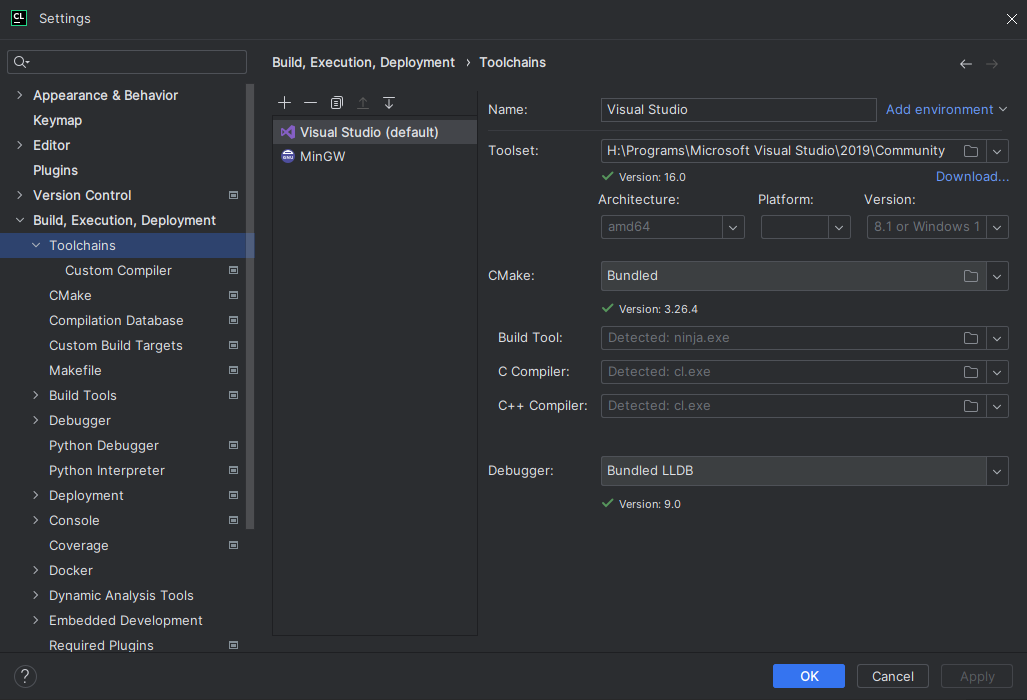
compile_commands.jsonto load correctly in CLion, you must first have the Visual Studio toolchain configured for CLion.
Navigate to Preferences > Build, Execution, Deployment > Toolchains
Click the + button and select
Visual StudioCLion will attempt to detect your Visual Studio installation. If it is unsuccessful, use the file icon to the right of
Toolset:to select the directory with your Visual Studio installation.You may exit and reload CLion and it will reload
compile_commands.json
Kompilieren und Debuggen des Projekts
CLion unterstützt das Kompilieren und Debuggen von Godot über SCons nicht von Haus aus. Dies kann durch die Erstellung eines benutzerdefinierten Build-Targets und einer Run-Konfiguration in CLion erreicht werden. Bevor Sie ein benutzerdefiniertes Build-Target erstellen, müssen Sie Godot einmal auf der Kommandozeile kompilieren, um die ausführbare Godot-Datei zu erzeugen. Öffnen Sie das Terminal, wechseln Sie in das Godot-Stammverzeichnis und führen Sie aus:
scons dev_build=yes
So fügen Sie ein benutzerdefiniertes Build-Target hinzu, das SCons zur Kompilierung aufruft:
Öffnen Sie CLion und navigieren Sie zu Preferences > Build, Execution, Deployment > Custom Build Targets
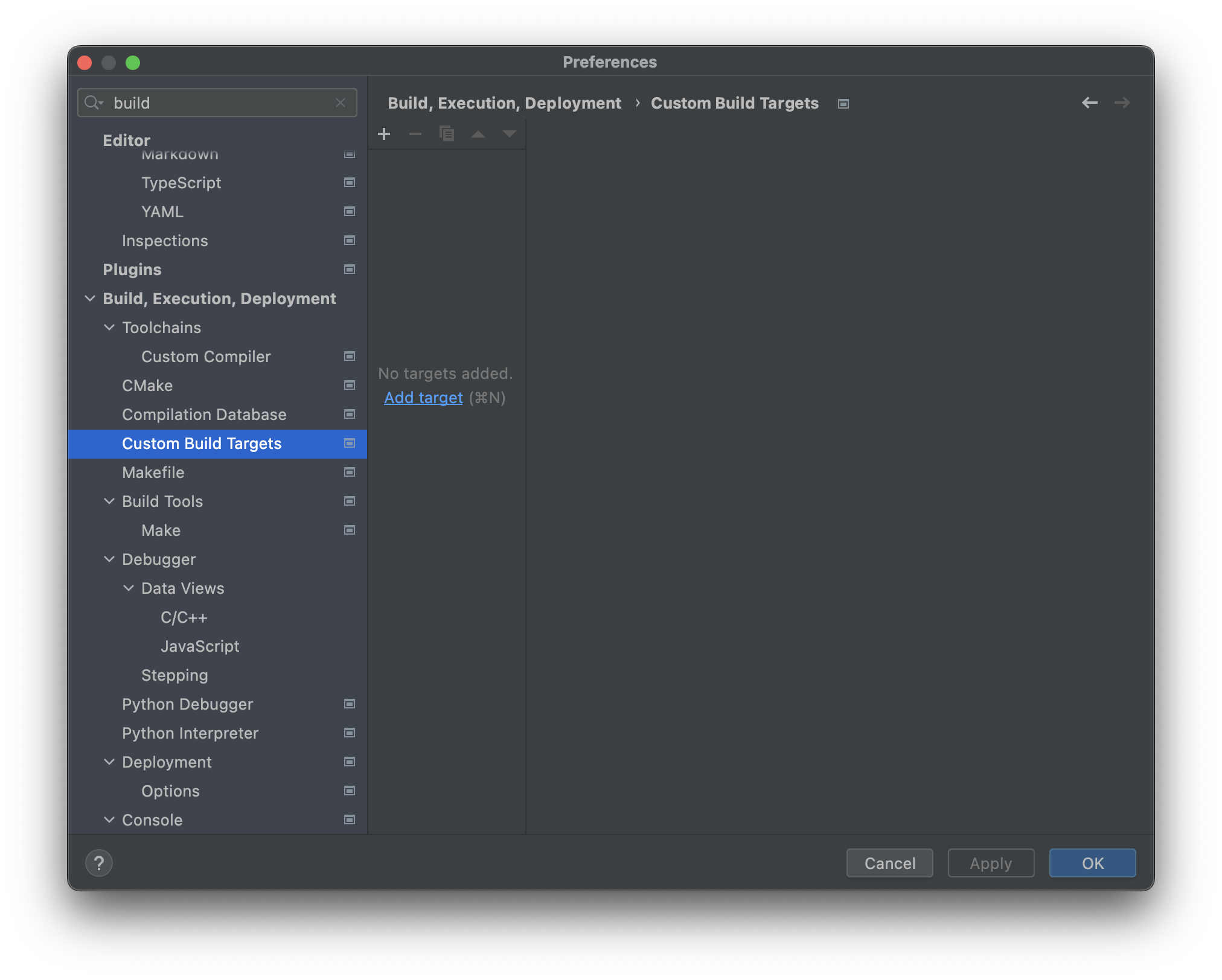
Klicken Sie auf Add target und geben Sie dem Ziel einen Namen, z.B.
Godot debug.
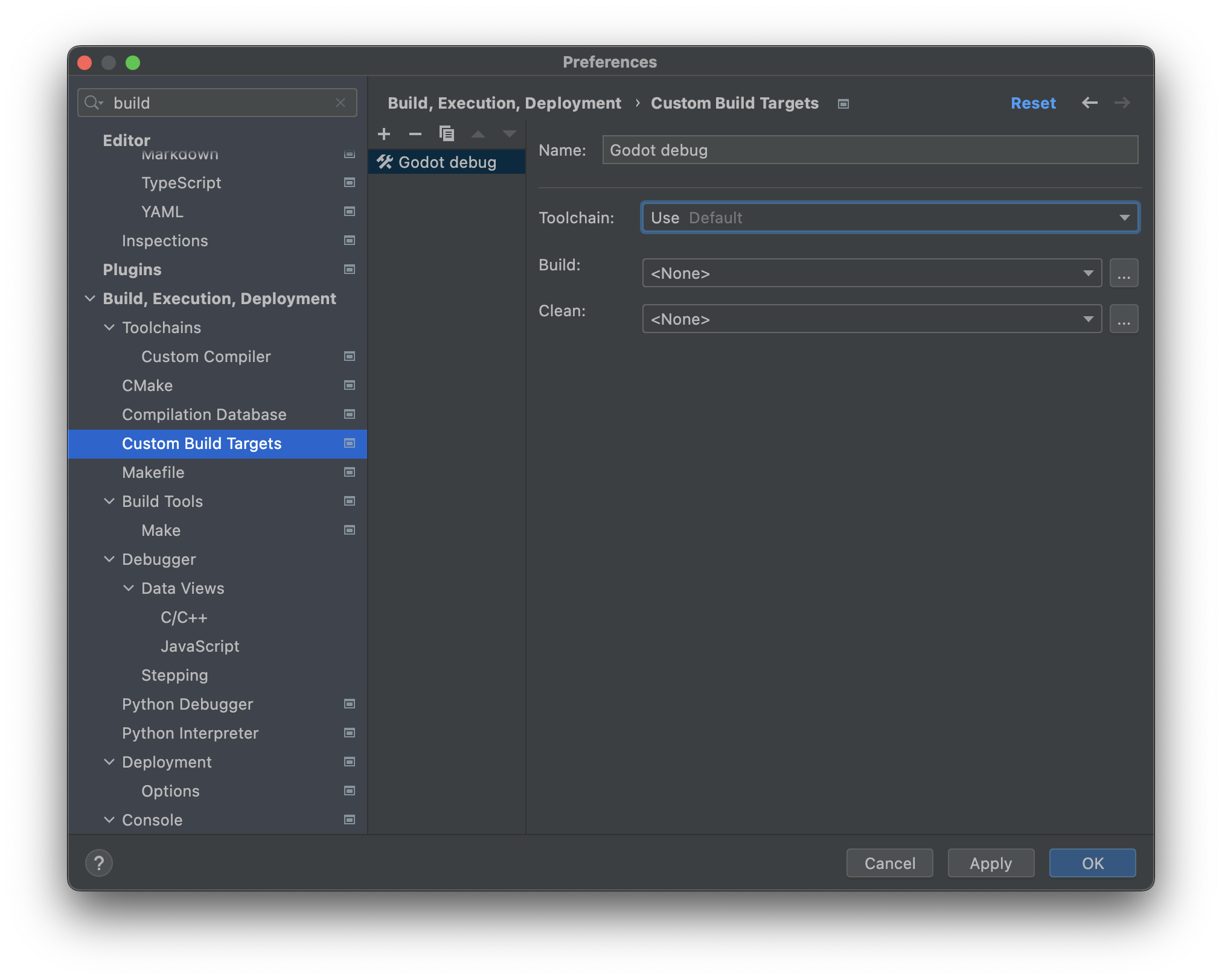
Klicken Sie auf ... neben dem Auswahlfeld Build: und dann auf den Button + im Dialogfeld External Tools, um ein neues externes Tool hinzuzufügen.
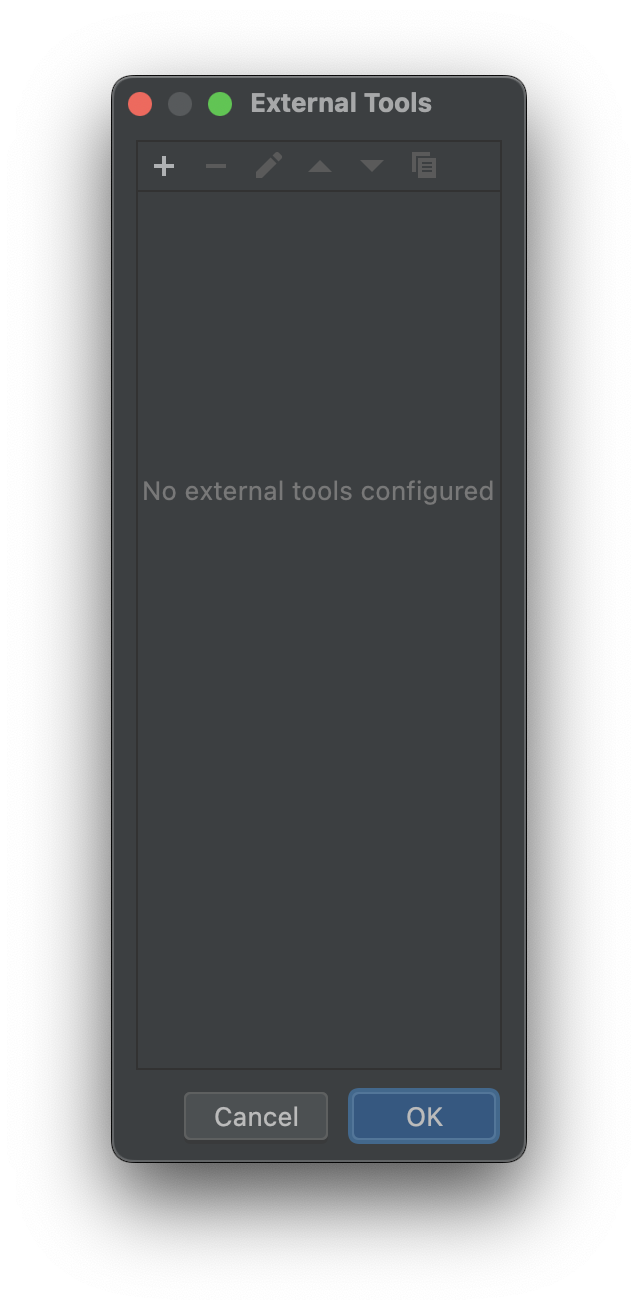
Geben Sie dem Tool einen Namen, z.B.
Build Godot debug, setzen Sie Program aufscons, setzen Sie Arguments auf die gewünschten Kompilierungseinstellungen (siehe Godot kompilieren), und setzen Sie das Working directory auf$ProjectFileDir$, was dem Godot-Stammverzeichnis entspricht. Klicken Sie auf OK, um das Tool zu erstellen.Bemerkung
CLion expandiert keine Shell-Befehle wie
scons -j$(nproc). Verwenden Sie stattdessen konkrete Werte, z.B.scons -j8.
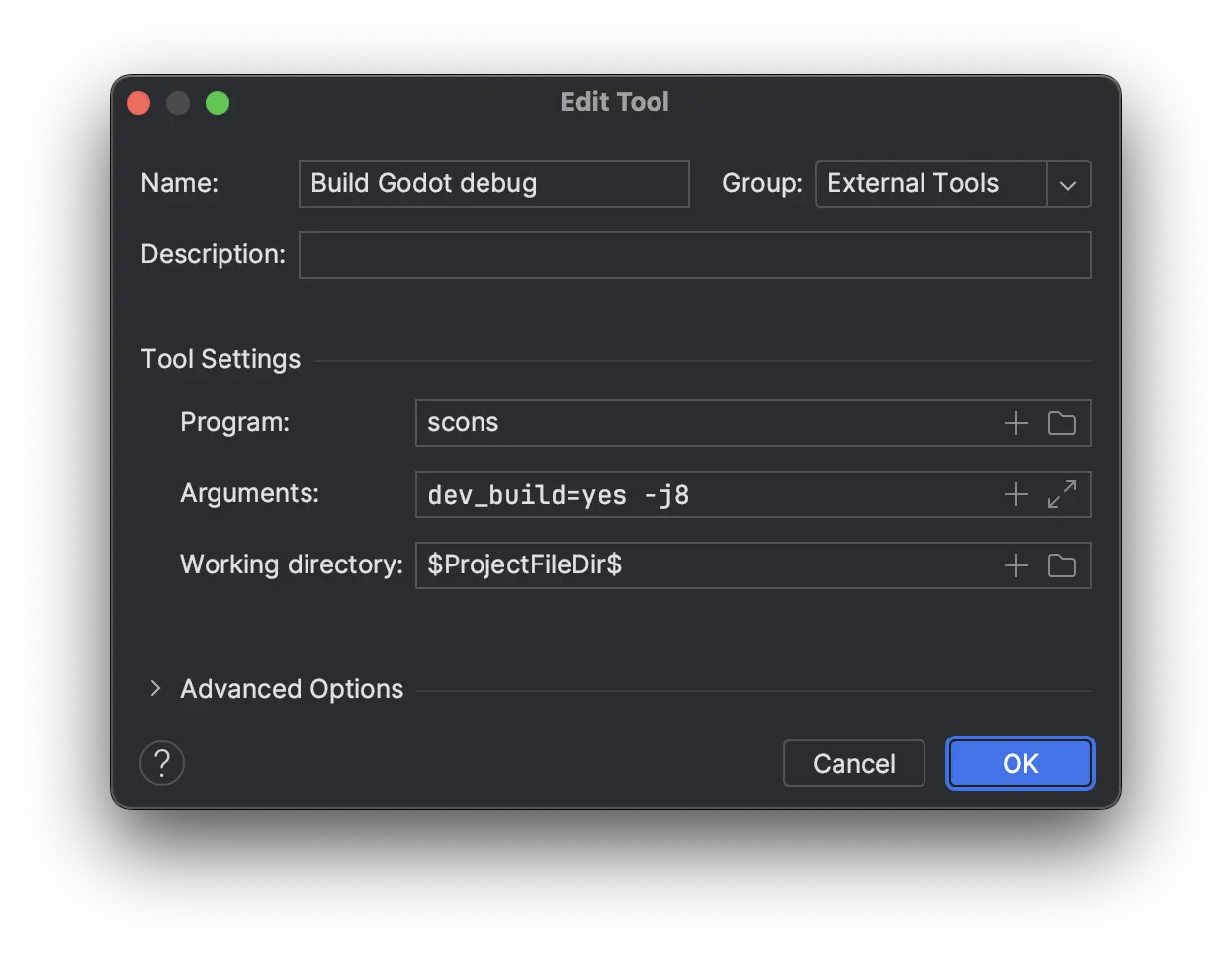
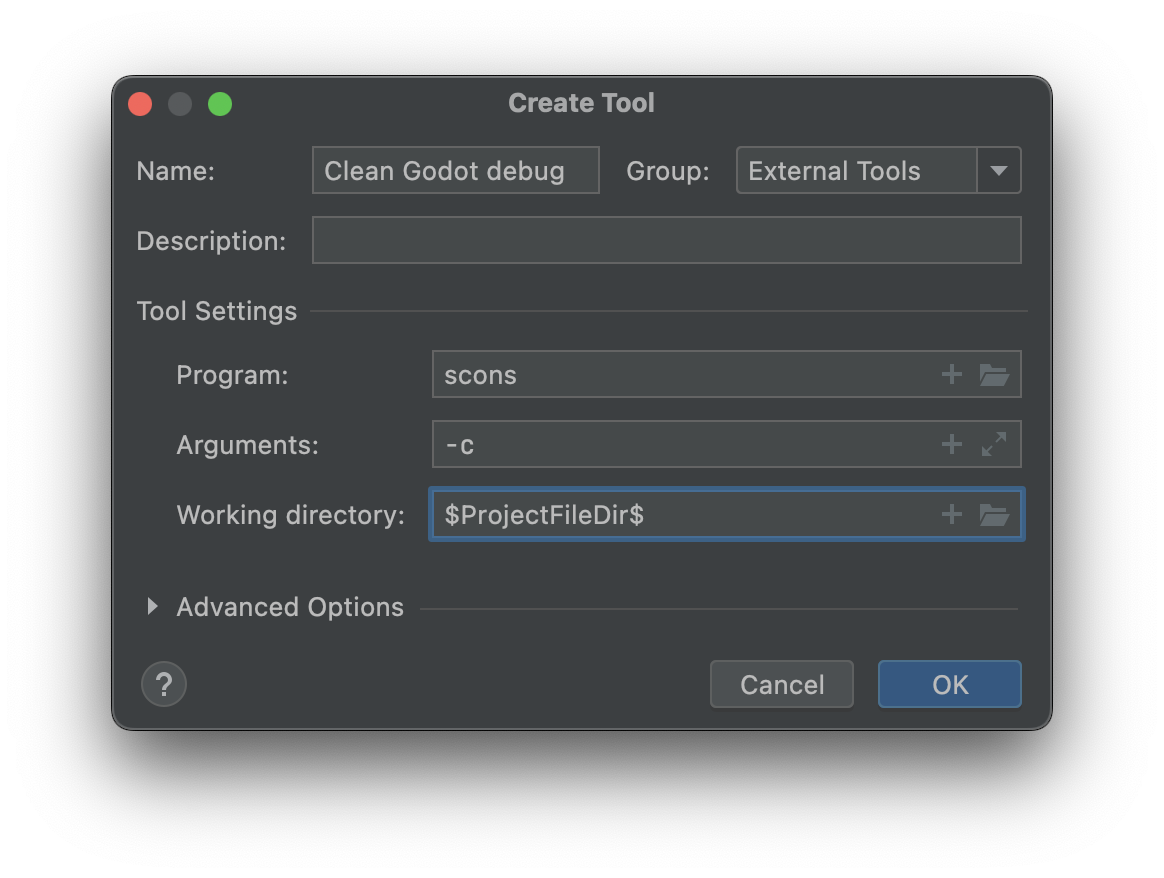
Zurück im External Tools-Dialog, klicken Sie erneut auf +, um ein zweites externes Tool für die Bereinigung des Godot-Builds über SCons hinzuzufügen. Geben Sie dem Tool einen Namen, z.B.
Clean Godot debug, setzen Sie Program aufscons, setzen Sie Arguments auf-c(was den Build bereinigt), und setzen Sie das Working directory auf$ProjectFileDir$. Klicken Sie OK, um das Tool zu erstellen.
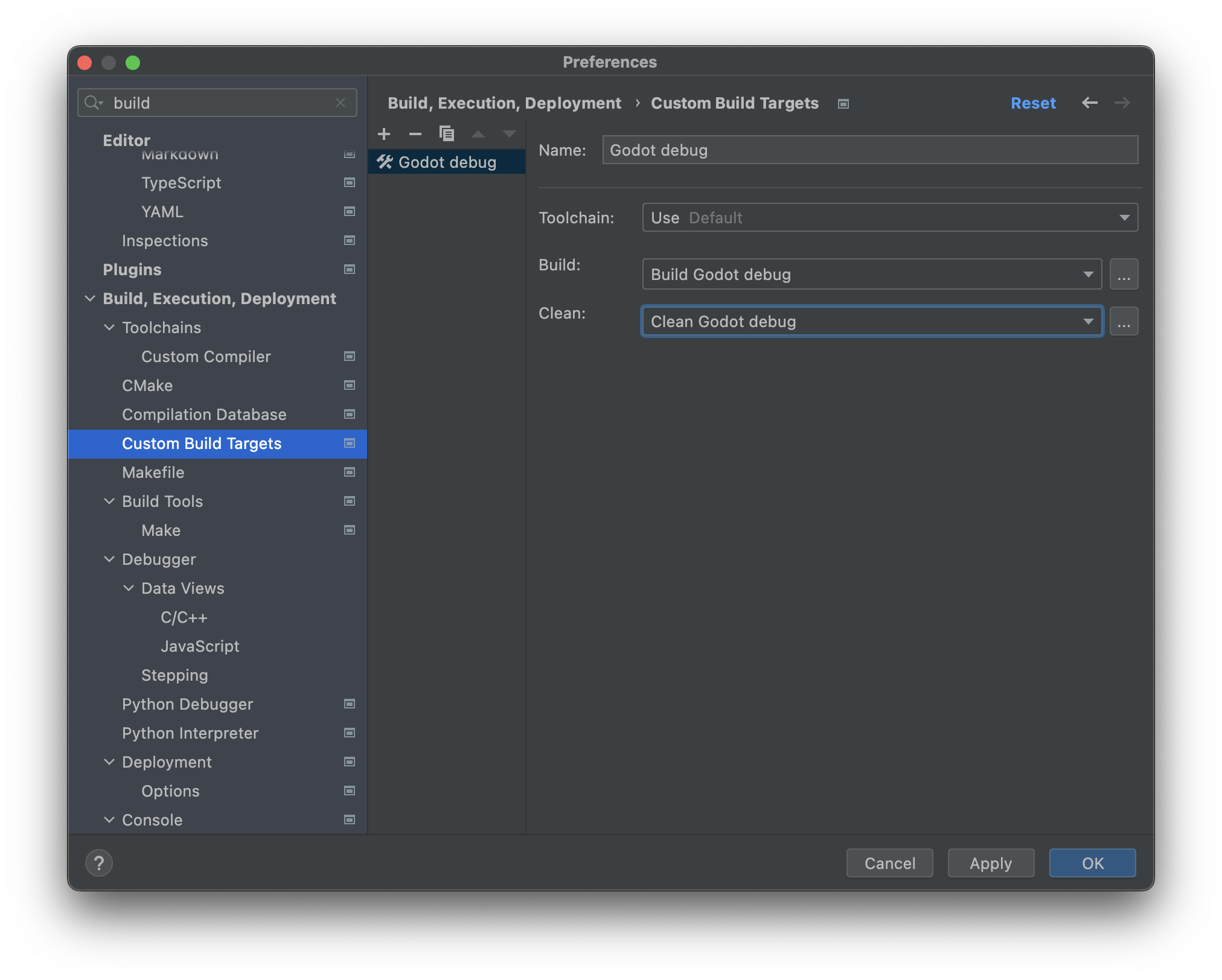
Schließen Sie das Dialogfeld External Tools. Im Dialog Custom Build Target für das benutzerdefinierte
Godot-Debug-Build-Target, wählen Sie das Build Godot debug-Tool aus dem Build-Auswahlfeld, und wählen Sie das Clean Godot Debug-Tool aus dem Clean-Auswahlfeld. Klicken Sie auf OK, um das benutzerdefinierte Build-Target zu erstellen.
Klicken Sie im IDE-Hauptfenster auf Add Configuration.
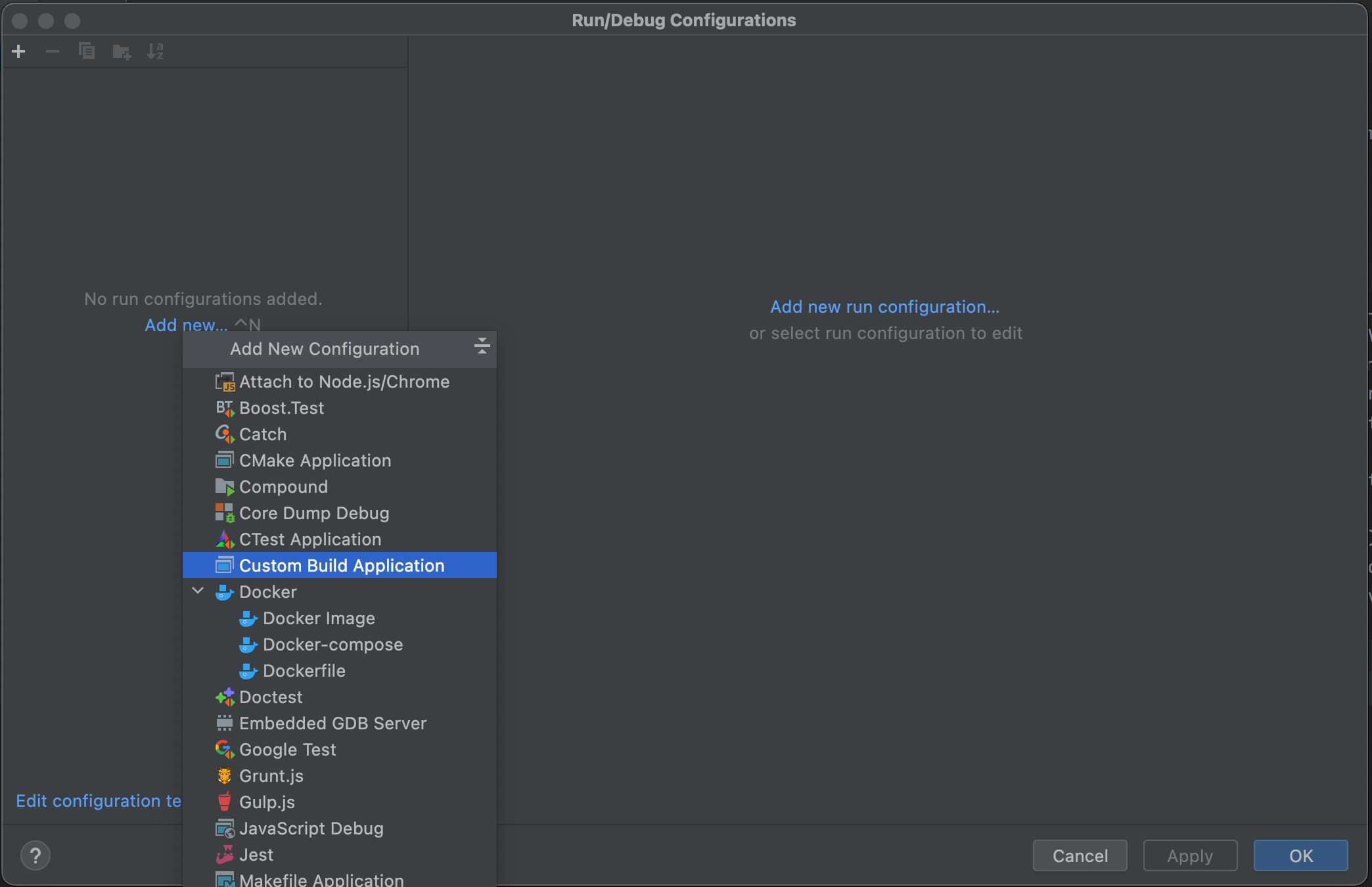
Klicken Sie im Dialogfeld Run/Debug Configuration auf Add new..., und wählen Sie dann Custom Build Application, um eine neue benutzerdefinierte Run/Debug-Konfiguration zu erstellen.
Geben Sie der Run/Debug-Konfiguration einen Namen, z.B.
Godot debug, wählen Sie das benutzerdefinierte Build-TargetGodot debugals Target. Wählen Sie die ausführbare Godot-Datei imbin/-Ordner als Executable, und setzen Sie Program arguments auf--editor --path path-to-your-project/, wobeipath-to-your-project/ein Pfad sein sollte, der auf ein existierendes Godot-Projekt zeigt. Wenn Sie das Argument--pathweglassen, können Sie nur das Godot-Projektmanager-Fenster debuggen. Klicken Sie auf OK, um die Run/Debug-Konfiguration zu erstellen.
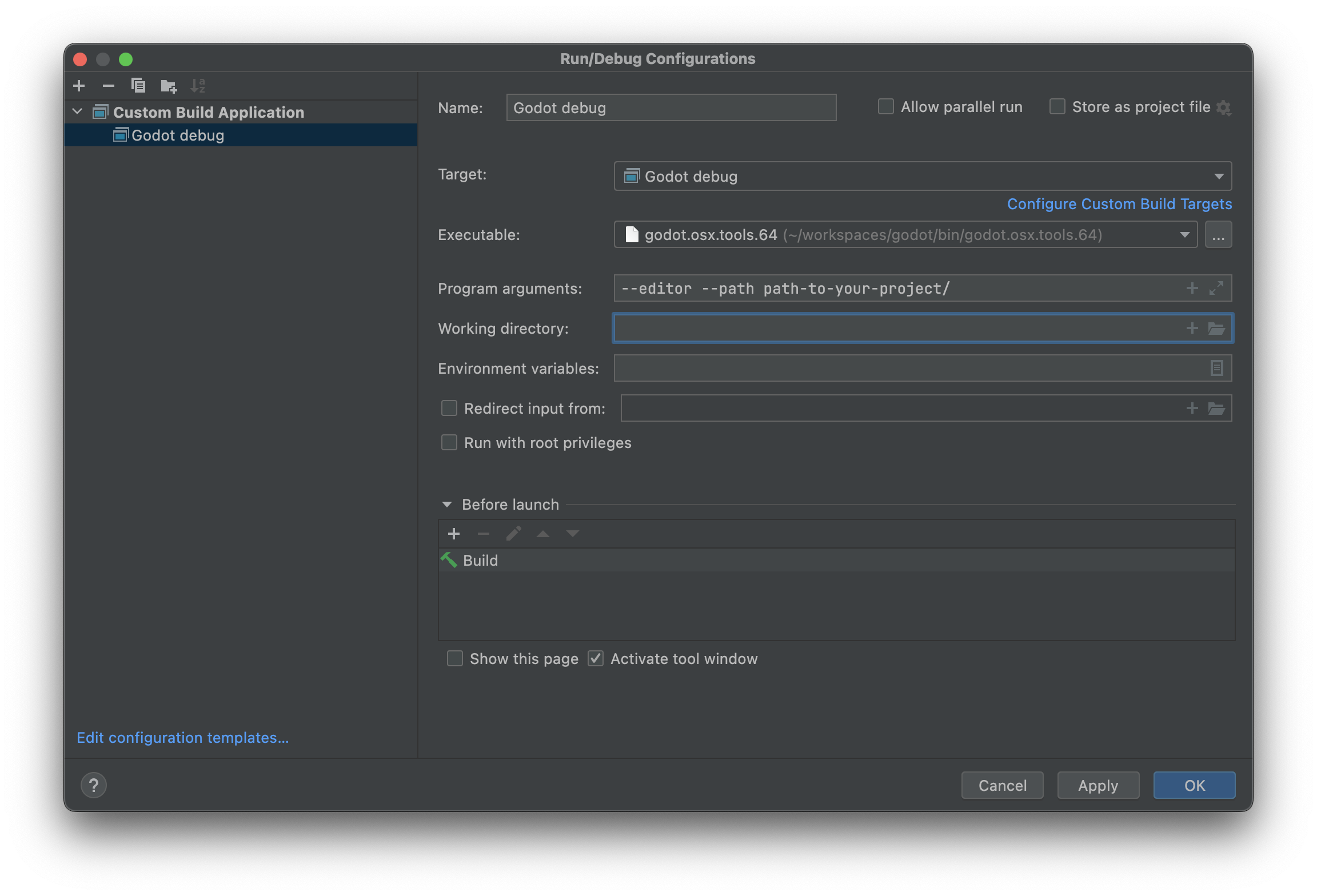
Sie können jetzt den Godot-Editor über die Run-Konfiguration bauen, ausführen, debuggen, profilen und mit Valgrind prüfen.

Wenn eine Szene abgespielt wird, erzeugt der Godot-Editor einen separaten Prozess. Sie können diesen Prozess in CLion debuggen, indem Sie Run > Attach to process... aufrufen, godot eingeben und den Godot-Prozess mit der höchsten pid (Prozess-ID) auswählen, was normalerweise das laufende Projekt ist.
Ignoring object and library files
After building Godot in CLion, you may see the object and library files showing up in the Project view.
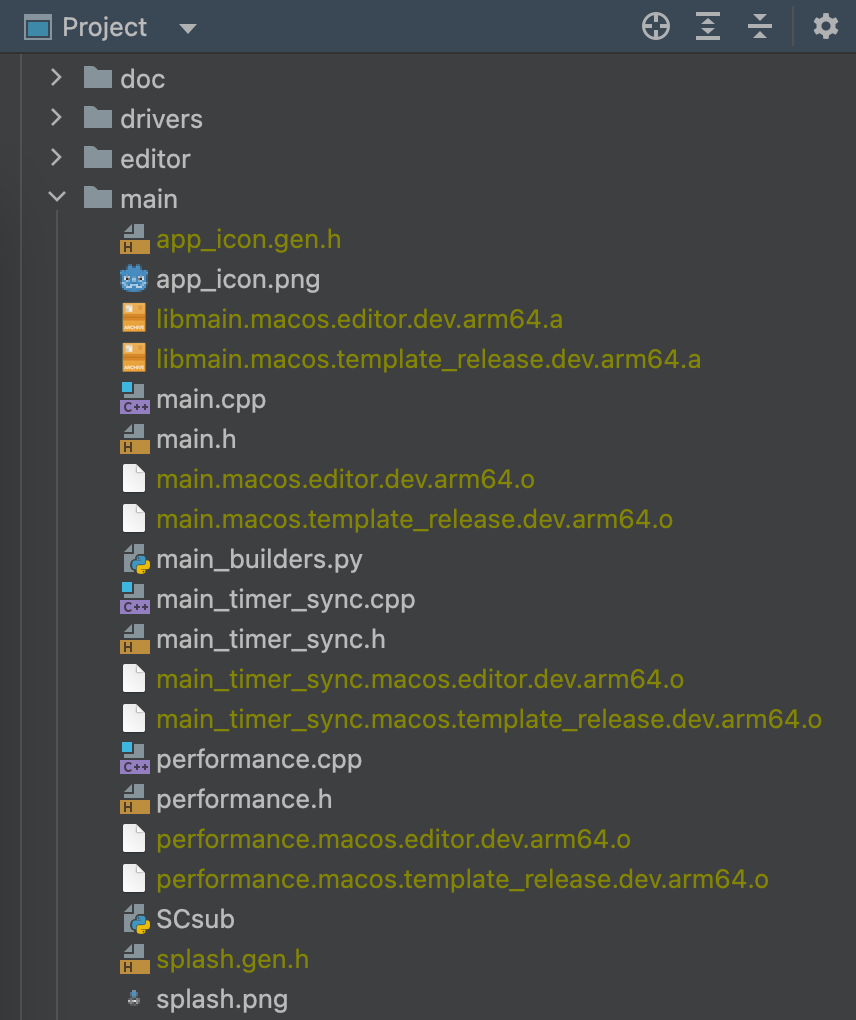
You can configure CLion to ignore those files:
Open CLion and navigate to Preferences > Editor > File Types > Ignored Files and Folders
Click the + button to add
*.oand*.ato the list. In Windows, you would add*.objand*.dll.
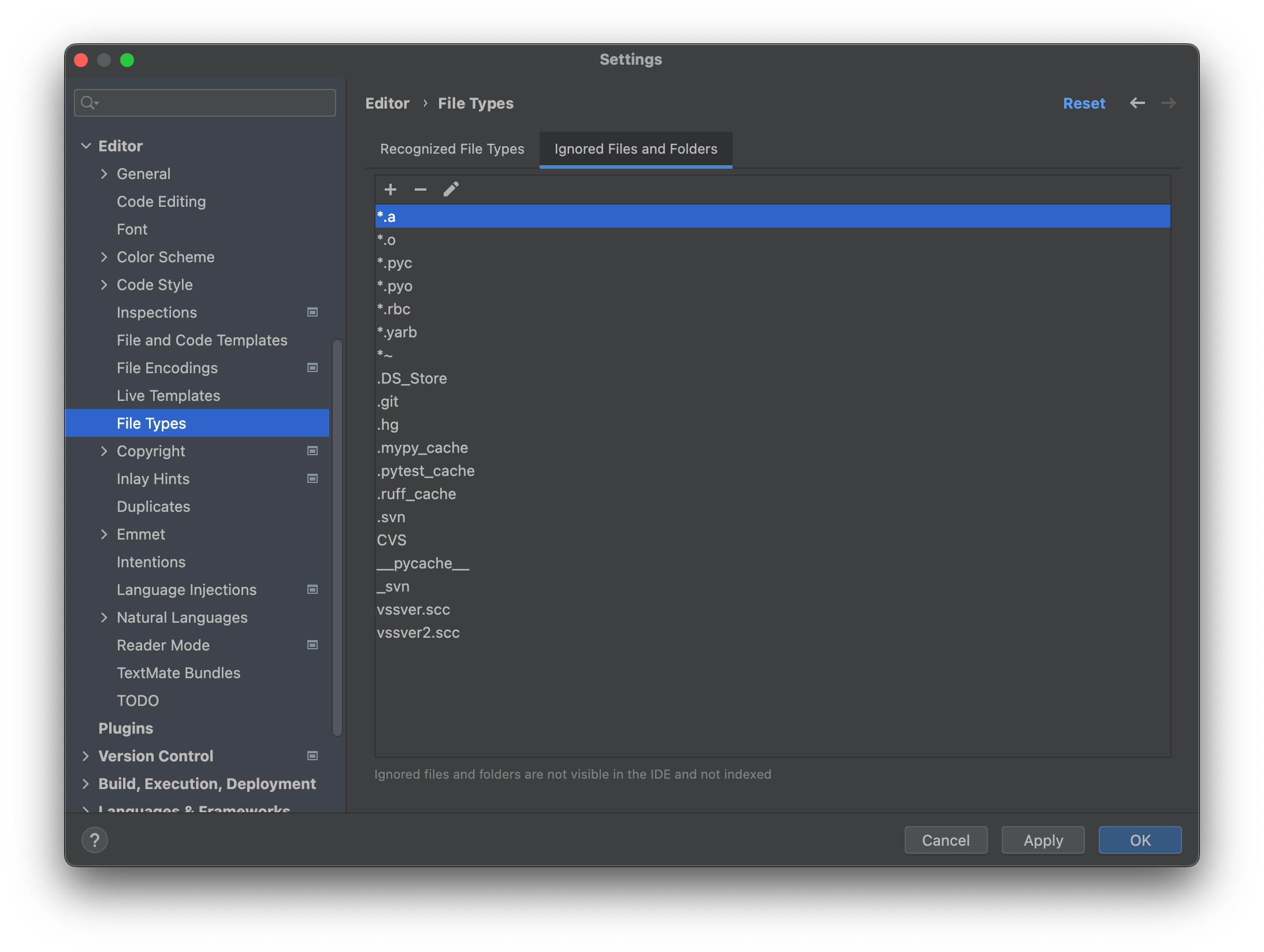
Now, the files should be ignored in the Project view.