Attention: Here be dragons
This is the latest
(unstable) version of this documentation, which may document features
not available in or compatible with released stable versions of Godot.
Checking the stable version of the documentation...
Projetando a cena inimigo
Nesta parte, você vai programar os monstros, que chamaremos de inimigos. Na próxima lição, vamos fazê-los surgir aleatoriamente ao redor da área jogável.
Vamos projetar os próprios monstros em uma nova cena. A estrutura do nó vai ser semelhante à cena player.tscn.
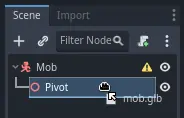
Crie uma cena com, mais uma vez, um nó CharacterBody3D como sua raiz. Nomeie-o Mob. Adicione um nó Node3D como filho dele, nomeie-o Pivô. E arraste e solte o arquivo mob.glb do painel Sistema de Arquivos no Pivô para adicionar o modelo 3D do monstro à cena.
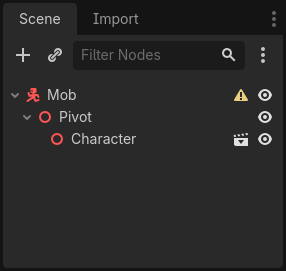
Você pode renomear o nó recém-criado mob para Character.
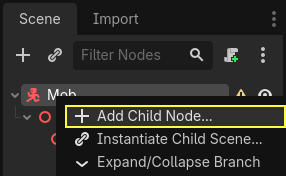
Precisamos de uma forma de colisão para que nosso corpo funcione. Clique com o botão direito do mouse sobre o nó Mob, a cena raiz, e clique em Adicionar nó Filho(a).
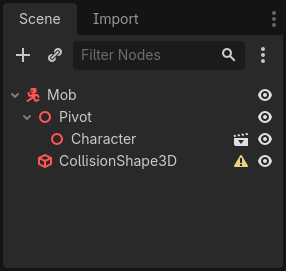
Adicione um CollisionShape3D.
No Inspetor, atribua um BoxShape3D à propriedade Shape.

Devemos mudar seu tamanho para adequá-lo melhor ao modelo 3D. Você pode fazer isso interativamente clicando e arrastando os pontos laranja.
A caixa deve tocar o chão e ser um pouco mais fina do que o modelo. Os motores físicos funcionam de tal forma que se a esfera do jogador tocar até mesmo o canto da caixa, ocorrerá uma colisão. Se a caixa for um pouco grande demais em comparação com o modelo 3D, você pode morrer a uma distância do monstro, e o jogo será injusto para os jogadores.
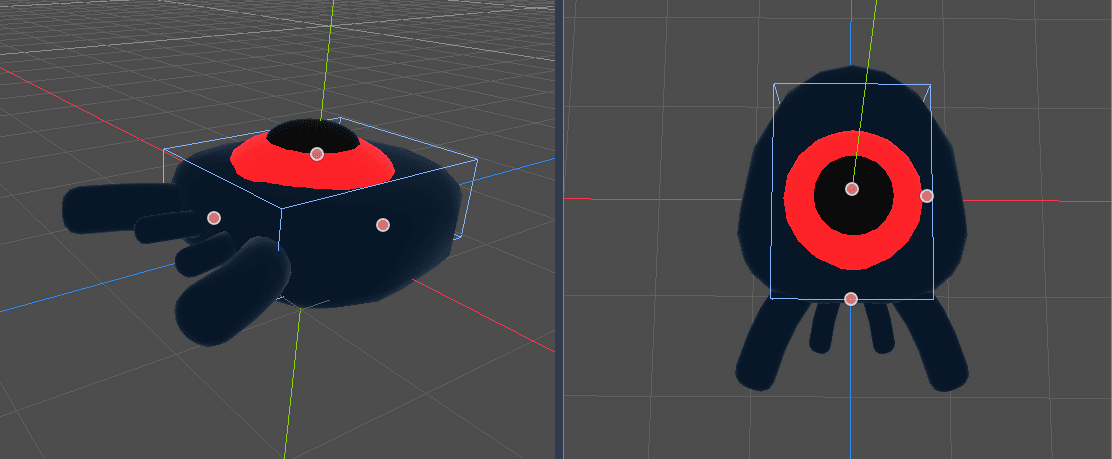
Note que minha caixa é mais alta do que o monstro. Está tudo bem neste jogo porque estamos olhando para a cena de cima e usando uma perspectiva fixa. As formas de colisão não têm que combinar exatamente com o modelo. É o modo como você sente o jogo quando o testa que deve ditar sua a forma e tamanho.
Removendo monstros fora da tela
Vamos fazer os monstros surgirem em intervalos regulares de tempo no nível do jogo. Se não tivermos cuidado, sua contagem pode aumentar até o infinito, e não queremos isso. Cada instância do Inimigo tem tanto uma memória quanto um custo de processamento, e não queremos pagar por isso quando o inimigo está fora da tela.
Depois que um monstro sai da tela, não precisamos mais dele, então podemos excluí-lo. Godot tem um nó que detecta quando os objetos saem da tela, VisibleOnScreenNotifier3D, e vamos usá-lo para destruir nossos inimigos.
Nota
When you keep instancing an object, there's a technique you can use to avoid the cost of creating and destroying instances all the time called pooling. It consists of pre-creating an array of objects and reusing them over and over.
When working with GDScript, this usually isn't needed. The main reason to use pools is to avoid freezes with garbage-collected languages like C# or Lua. GDScript uses a different technique to manage memory, reference counting, which doesn't have that caveat. You can learn more about that here: Gerenciamento de memória.
Selecione o nó Mob e adicione um VisibleOnScreenNotifier3D como filho dele. Outra caixa, rosa desta vez, aparece. Quando essa caixa sair completamente da tela, o nó emitirá um sinal.
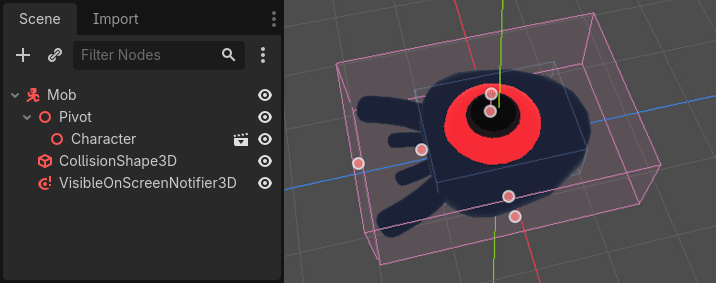
Redimensione-a usando os pontos laranja até cobrir todo o modelo 3D.
Programando a movimentação dos inimigos
Let's implement the monster's motion. We're going to do this in two steps.
First, we'll write a script on the Mob that defines a function to initialize
the monster. We'll then code the randomized spawn mechanism in the main.tscn scene
and call the function from there.
Attach a script to the Mob.
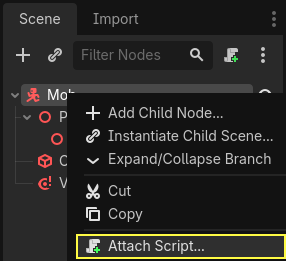
Here's the movement code to start with. We define two properties, min_speed
and max_speed, to define a random speed range, which we will later use to define CharacterBody3D.velocity.
extends CharacterBody3D

# Minimum speed of the mob in meters per second.
@export var min_speed = 10
# Maximum speed of the mob in meters per second.
@export var max_speed = 18


func _physics_process(_delta):
    move_and_slide()
using Godot;

public partial class Mob : CharacterBody3D
{
    // Don't forget to rebuild the project so the editor knows about the new export variable.

    // Minimum speed of the mob in meters per second
    [Export]
    public int MinSpeed { get; set; } = 10;
    // Maximum speed of the mob in meters per second
    [Export]
    public int MaxSpeed { get; set; } = 18;

    public override void _PhysicsProcess(double delta)
    {
        MoveAndSlide();
    }
}
Similarly to the player, we move the mob every frame by calling the function
CharacterBody3D.move_and_slide(). This time, we don't update
the velocity every frame; we want the monster to move at a constant speed
and leave the screen, even if it were to hit an obstacle.
We need to define another function to calculate the CharacterBody3D.velocity. This
function will turn the monster towards the player and randomize both its angle
of motion and its velocity.
The function will take a start_position,the mob's spawn position, and the
player_position as its arguments.
We position the mob at start_position and turn it towards the player using
the look_at_from_position() method, and randomize the angle by rotating a
random amount around the Y axis. Below, randf_range() outputs a random value
between -PI / 4 radians and PI / 4 radians.
# This function will be called from the Main scene.
func initialize(start_position, player_position):
    # We position the mob by placing it at start_position
    # and rotate it towards player_position, so it looks at the player.
    look_at_from_position(start_position, player_position, Vector3.UP)
    # Rotate this mob randomly within range of -45 and +45 degrees,
    # so that it doesn't move directly towards the player.
    rotate_y(randf_range(-PI / 4, PI / 4))
// This function will be called from the Main scene.
public void Initialize(Vector3 startPosition, Vector3 playerPosition)
{
    // We position the mob by placing it at startPosition
    // and rotate it towards playerPosition, so it looks at the player.
    LookAtFromPosition(startPosition, playerPosition, Vector3.Up);
    // Rotate this mob randomly within range of -45 and +45 degrees,
    // so that it doesn't move directly towards the player.
    RotateY((float)GD.RandRange(-Mathf.Pi / 4.0, Mathf.Pi / 4.0));
}
Temos uma posição aleatória, agora precisamos de um random_speed . randi_range() que será útil, pois dá valores inteiros aleatórios, e usaremos min_speed e max_speed . random_speed que é apenas um número inteiro, e nós só o usamos para multiplicar nosso CharacterBody3D.velocity. Depois que random_speed é aplicado, giramos o Vector3 do CharacterBody3D.velocity para o jogador.
func initialize(start_position, player_position):
    # ...

    # We calculate a random speed (integer)
    var random_speed = randi_range(min_speed, max_speed)
    # We calculate a forward velocity that represents the speed.
    velocity = Vector3.FORWARD * random_speed
    # We then rotate the velocity vector based on the mob's Y rotation
    # in order to move in the direction the mob is looking.
    velocity = velocity.rotated(Vector3.UP, rotation.y)
public void Initialize(Vector3 startPosition, Vector3 playerPosition)
{
    // ...

    // We calculate a random speed (integer).
    int randomSpeed = GD.RandRange(MinSpeed, MaxSpeed);
    // We calculate a forward velocity that represents the speed.
    Velocity = Vector3.Forward * randomSpeed;
    // We then rotate the velocity vector based on the mob's Y rotation
    // in order to move in the direction the mob is looking.
    Velocity = Velocity.Rotated(Vector3.Up, Rotation.Y);
}
Saindo da tela
We still have to destroy the mobs when they leave the screen. To do so, we'll
connect our VisibleOnScreenNotifier3D node's screen_exited signal to the Mob.
Select the VisibleOnScreenNotifier3D node and on the right side of the interface,
navigate to the Signals dock. Double-click the screen_exited() signal.
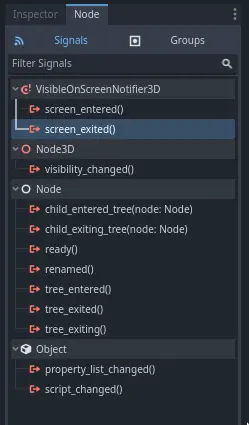
Conecte o sinal para o Mob
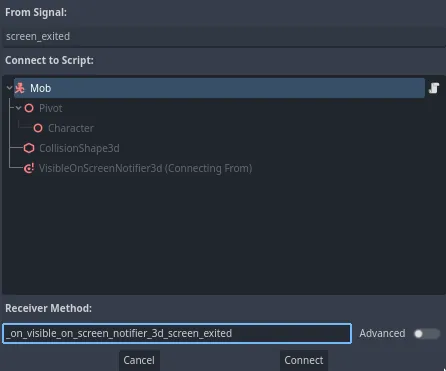
This will add a new function for you in your mob script,
_on_visible_on_screen_notifier_3d_screen_exited(). From it, call the queue_free()
method. This function destroys the instance it's called on.
func _on_visible_on_screen_notifier_3d_screen_exited():
    queue_free()
// We also specified this function name in PascalCase in the editor's connection window.
private void OnVisibilityNotifierScreenExited()
{
    QueueFree();
}
Nosso monstro está pronto para entrar no jogo! Na próxima parte, você fará os monstros surgirem na fase do jogo.
Here is the complete mob.gd script for reference.
extends CharacterBody3D

# Minimum speed of the mob in meters per second.
@export var min_speed = 10
# Maximum speed of the mob in meters per second.
@export var max_speed = 18

func _physics_process(_delta):
    move_and_slide()

# This function will be called from the Main scene.
func initialize(start_position, player_position):
    # We position the mob by placing it at start_position
    # and rotate it towards player_position, so it looks at the player.
    look_at_from_position(start_position, player_position, Vector3.UP)
    # Rotate this mob randomly within range of -45 and +45 degrees,
    # so that it doesn't move directly towards the player.
    rotate_y(randf_range(-PI / 4, PI / 4))

    # We calculate a random speed (integer)
    var random_speed = randi_range(min_speed, max_speed)
    # We calculate a forward velocity that represents the speed.
    velocity = Vector3.FORWARD * random_speed
    # We then rotate the velocity vector based on the mob's Y rotation
    # in order to move in the direction the mob is looking.
    velocity = velocity.rotated(Vector3.UP, rotation.y)

func _on_visible_on_screen_notifier_3d_screen_exited():
    queue_free()
using Godot;

public partial class Mob : CharacterBody3D
{
    // Minimum speed of the mob in meters per second.
    [Export]
    public int MinSpeed { get; set; } = 10;
    // Maximum speed of the mob in meters per second.
    [Export]
    public int MaxSpeed { get; set; } = 18;

    public override void _PhysicsProcess(double delta)
    {
        MoveAndSlide();
    }

    // This function will be called from the Main scene.
    public void Initialize(Vector3 startPosition, Vector3 playerPosition)
    {
        // We position the mob by placing it at startPosition
        // and rotate it towards playerPosition, so it looks at the player.
        LookAtFromPosition(startPosition, playerPosition, Vector3.Up);
        // Rotate this mob randomly within range of -45 and +45 degrees,
        // so that it doesn't move directly towards the player.
        RotateY((float)GD.RandRange(-Mathf.Pi / 4.0, Mathf.Pi / 4.0));

        // We calculate a random speed (integer).
        int randomSpeed = GD.RandRange(MinSpeed, MaxSpeed);
        // We calculate a forward velocity that represents the speed.
        Velocity = Vector3.Forward * randomSpeed;
        // We then rotate the velocity vector based on the mob's Y rotation
        // in order to move in the direction the mob is looking.
        Velocity = Velocity.Rotated(Vector3.Up, Rotation.Y);
    }

    // We also specified this function name in PascalCase in the editor's connection window.
    private void OnVisibilityNotifierScreenExited()
    {
        QueueFree();
    }
}