Attention: Here be dragons
This is the latest
(unstable) version of this documentation, which may document features
not available in or compatible with released stable versions of Godot.
Checking the stable version of the documentation...
Limitações da renderização 3D
Introdução
Devido a seu foco no desempenho, os motores de renderização em tempo real têm muitas limitações. O renderizador Godot não é exceção. Para trabalhar eficazmente com essas limitações, você precisa compreendê-las.
Limites de tamanho da textura
Em desktops e laptops, texturas maiores que 8192×8192 podem não ser suportadas em dispositivos mais antigos. Você pode verificar as limitações de sua GPU de destino em GPUinfo.org.
As GPUs mobiles são tipicamente limitadas a 4096×4096 texturas. Além disso, algumas GPUs mobiles não suportam a repetição de texturas sem poder de dois tamanhos. Portanto, se você quiser que sua textura seja exibida corretamente em todas as plataformas, você deve evitar usar texturas maiores que 4096×4096 e usar uma potência de dois tamanhos se a textura precisar repetir.
Para limitar o tamanho de uma textura específica que pode ser grande demais para renderizar, você pode definir a opção de importação Process > Size Limit para um valor maior que 0. Isso reduzirá as dimensões da textura na importação (preservando a proporção) sem afetar o arquivo de origem.
Faixas de cores
Ao usar os métodos de renderização Forward+ ou Mobile, o motor 3D do Godot renderiza internamente em HDR. No entanto, a saída de renderização geralmente será gravada em um buffer de precisão menor. Isso pode resultar em faixas visíveis (banding), especialmente ao usar materiais sem textura. Por motivos de desempenho, a precisão da cor também é menor ao usar o método de renderização Mobile em comparação ao Forward+.
Ao usar o método de renderização Compatibility, a renderização interna HDR não é usada e a precisão da cor é a mais baixa de todos os métodos de renderização. Isso também se aplica à renderização 2D, onde faixas podem ficar visíveis ao usar texturas de gradiente suaves.
Existem duas maneiras principais de aliviar as bandas:
Se estiver usando os métodos de renderização Avançado+ ou Forward Mobile, ative Use Debanding em Configurações do Projeto > Rendering > Anti Aliasing. Isso aplica um shader de debanding em tela cheia como um efeito de pós-processamento e tem custo muito baixo.
Como alternativa, incorpore ruído às suas texturas. Isso é especialmente eficaz em 2D, por exemplo, para efeitos de vinheta. Em 3D, você também pode usar um shader personalizado de redução de faixas aplicado aos seus materiais. Essa técnica funciona mesmo se o seu projeto for renderizado com baixa precisão de cor, o que significa que ela funcionará ao utilizar os métodos de renderização Mobile e Compatibility.
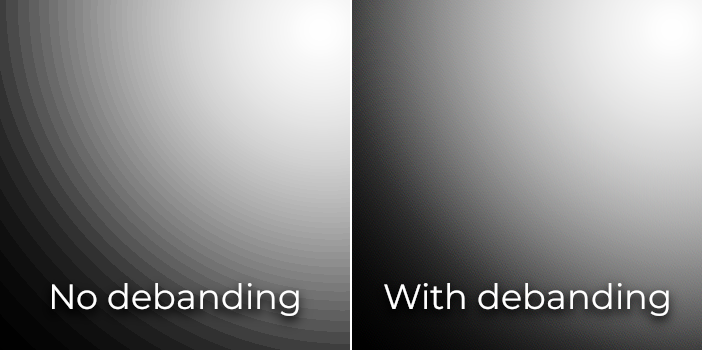
Comparação de faixas de cor (contraste aumentado para maior visibilidade)
Ver também
Veja Banding in Games: A Noisy Rant (PDF) para mais detalhes sobre banding e maneiras de combatê-lo.
Precisão do buffer de profundidade
Para ordenar objetos no espaço 3D, as engines de renderização dependem de um buffer de profundidade (também chamado de Z-buffer). Este buffer possui uma precisão finita: 32 bits em plataformas desktop e 24 bits em plataformas móveis (por motivos de desempenho). Se dois objetos diferentes terminarem com o mesmo valor de buffer, ocorrerá o Z-fighting (conflito de Z). Isso se materializará como texturas piscando de um lado para o outro conforme a câmera se move ou rotaciona.
Para tornar o buffer de profundidade mais preciso sobre a área renderizada, você deve aumentar a propriedade Near do nó da câmera. No entanto, tenha cuidado: se você definir muito alto, os jogadores poderão ver através da geometria próxima. Você também deve diminuir a propriedade Far do nó Câmera para o menor valor permitido para o seu caso de uso, embora tenha em mente que isso não afetará a precisão tanto quanto a propriedade Near.
Se você só precisa de alta precisão quando o jogador pode ver de longe, você pode mudá-lo dinamicamente com base nas condições do jogo. Por exemplo, se o jogador entrar em um avião, a propriedade Perto pode ser temporariamente aumentada para evitar a luta Z na distância. Ela pode então ser diminuída quando o jogador deixa o avião.
Dependendo da cena e das condições de visualização, você também pode ser capaz de mover os objetos na luta em Z mais distantes, sem que a diferença seja visível para o jogador.
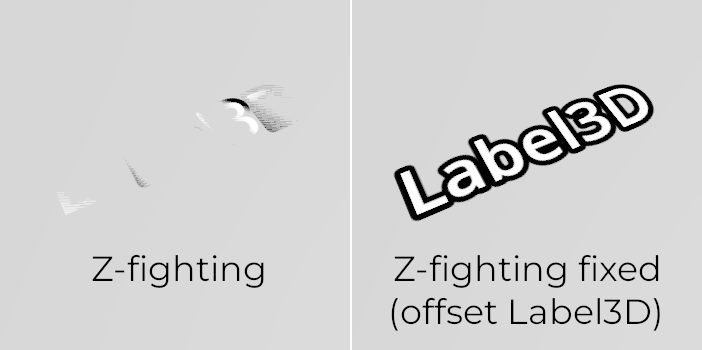
Comparação de Z-fighting (antes e depois de ajustar a cena deslocando o Label3D para longe do chão)
Classificação por transparência
Na Godot, materiais transparentes são desenhados após os materiais opacos. Os objetos transparentes são ordenados de trás para frente antes de serem desenhados com base na posição do Node3D, não na posição do vértice no espaço do mundo. Devido a isso, objetos sobrepostos muitas vezes podem ser ordenados fora de ordem. Para corrigir objetos ordenados incorretamente, ajuste a propriedade Render Priority do material ou o Sorting Offset do nó. O Render Priority forçará materiais específicos a aparecerem na frente ou atrás de outros materiais transparentes, enquanto o Sorting Offset moverá o objeto para frente ou para trás para fins de ordenação. Mesmo assim, isso pode não ser sempre suficiente.
Objetos transparentes não são renderizados para o buffer de normais/rugosidade, pois são desenhados após a geometria opaca. Como resultado, recursos que dependem desse buffer não afetarão materiais transparentes.
Alguns mecanismos de renderização apresentam técnicas de transparência independente da ordem para aliviar isso, mas isso é caro para a GPU. Godot atualmente não fornece esse recurso. Ainda existem várias maneiras de evitar esse problema:
Torne materiais transparentes apenas quando realmente necessário. Se um material possuir apenas uma pequena parte transparente, considere separá-la em outro material. Isso permitirá que a parte opaca projete sombras e também melhorará o desempenho.
Se a sua textura tiver em sua maior parte áreas totalmente opacas e totalmente transparentes, você pode usar o teste de alfa (alpha testing) em vez da mistura de alfa (alpha blending). Este modo de transparência é mais rápido para renderizar e não sofre com problemas de transparência. Ative Transparency > Transparency para Alpha Scissor no StandardMaterial3D e ajuste o Transparency > Alpha Scissor Threshold de acordo, se necessário. Observe que o MSAA não aplicará antialiasing nas bordas da textura a menos que o antialiasing de alfa esteja ativado nas propriedades do material. No entanto, o FXAA, TAA e supersampling serão capazes de aplicar antialiasing nas bordas da textura independentemente de o antialiasing de alfa estar ativado no material.
Se você precisar renderizar áreas semi-transparentes da textura, o alfa scissor não é adequado. Em vez disso, definir a propriedade Transparency > Transparency do StandardMaterial3D como Depth Pre-Pass às vezes pode funcionar (com um custo de desempenho). Você também pode tentar o modo Alpha Hash.
Se desejar que um material desapareça gradualmente com a distância, utilize os modos de desvanecimento por distância Pixel Dither ou Object Dither do StandardMaterial3D em vez de Pixel Alpha. Isso tornará o material opaco, o que também acelera a renderização.
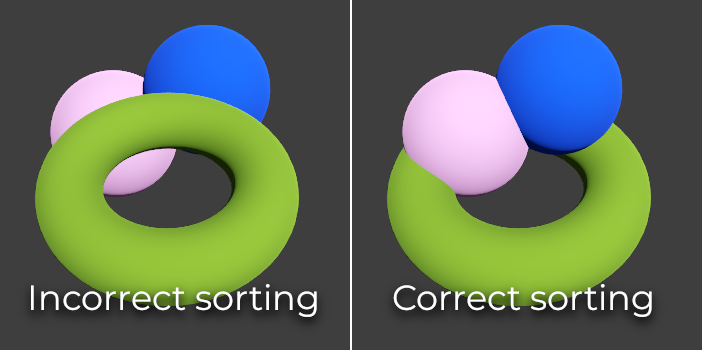
Comparação de ordenação de transparência (materiais com mistura alfa à esquerda, materiais com recorte alfa à direita)