Attention: Here be dragons
This is the latest
(unstable) version of this documentation, which may document features
not available in or compatible with released stable versions of Godot.
Checking the stable version of the documentation...
Localization using spreadsheets
Spreadsheets are one of the most common formats for localizing games. In Godot, spreadsheets are supported through the CSV format. This guide explains how to work with CSVs.
The CSV files must be saved with UTF-8 encoding without a byte order mark.
警告
By default, Microsoft Excel will always save CSV files with ANSI encoding rather than UTF-8. There is no built-in way to do this, but there are workarounds as described here.
We recommend using LibreOffice or Google Sheets instead.
書式設定
CSVファイルは次の形式にする必要があります:
keys |
<lang1> |
<lang2> |
<langN> |
|---|---|---|---|
KEY1 |
string |
string |
string |
KEY2 |
string |
string |
string |
KEYN |
string |
string |
string |
The "lang" tags must represent a language, which must be one of the valid
locales supported by the engine, or they must start with an underscore (_),
which means the related column is served as comment and won't be imported.
The KEY tags must be unique and represent a string universally. By convention, these are
usually in uppercase to differentiate them from other strings. These keys will be replaced at
runtime by the matching translated string. Note that the case is important:
KEY1 and Key1 will be different keys.
The top-left cell is ignored and can be left empty or having any content.
Here's an example:
keys |
en |
es |
ja |
|---|---|---|---|
GREET |
Hello, friend! |
Hola, amigo! |
こんにちは |
ASK |
How are you? |
Cómo está? |
元気ですか |
BYE |
Goodbye |
Adiós |
さようなら |
QUOTE |
"Hello" said the man. |
"Hola" dijo el hombre. |
「こんにちは」男は言いました |
同じ例を、コンマ区切りのプレーンテキストファイルとして以下に示します。これは、スプレッドシートで上記を編集した結果です。プレーンテキストバージョンを編集するときは、コンマ、区切り、または二重引用符を含むメッセージを二重引用符で囲むようにしてください。その場合、含まれるコンマは区切り文字として解析されず、同様に改行は新しいエントリを作成せず、そして二重引用符は囲み文字として解析されません。メッセージに含まれる可能性のある二重引用符は、その前に別の二重引用符を付けてエスケープしてください。または、インポートオプションでコンマ以外の区切り文字を選択することもできます。
keys,en,es,ja
GREET,"Hello, friend!","Hola, amigo!",こんにちは
ASK,How are you?,Cómo está?,元気ですか
BYE,Goodbye,Adiós,さようなら
QUOTE,"""Hello"" said the man.","""Hola"" dijo el hombre.",「こんにちは」男は言いました
Specifying plural forms
Since Godot 4.6, it is possible to specify plural forms in CSV files.
This is done by adding a column named ?plural anywhere in the table
(except on the first column, which is reserved for translation keys).
By convention, it's recommended to place it on the second column.
Note that in the example below, the key column is the one that contains English
localization.
en,?plural,fr,ru,ja,zh
?pluralrule,,nplurals=2; plural=(n >= 2);,,
There is %d apple,There are %d apples,Il y a %d pomme,Есть %d яблоко,リンゴが%d個あります,那里有%d个苹果
,,Il y a %d pommes,Есть %d яблока,,
,,,Есть %d яблок,,
注釈
Automatic Control translation is not supported when using plural forms. You must translate the string manually using tr_n().
Specifying translation contexts
Since Godot 4.6, it is possible to specify
translation contexts
in CSV files. This can be used to disambiguate identical source strings that
have different meanings. While this is generally not needed when using translation
keys LIKE_THIS, it's useful when using plain English text as translation keys.
This is done by adding a column named ?context column anywhere in the table
(except on the first column, which is reserved for translation keys).
By convention, it's recommended to place it on the second column, or after
?plural if it's also used. Note that in the example below, the key column
is the one that contains English localization.
en,?context,fr,ru,ja,zh
Letter,Alphabet,Lettre,Буква,字母,字母
Letter,Message,Courrier,Письмо,手紙,信件
CSVインポーター
GodotはデフォルトでCSVファイルを翻訳として扱います。インポートし、その横に 1つ以上の圧縮翻訳リソースファイルを生成します。
読み込むと、project.godot(またはプロジェクト設定)で指定された、ゲームの実行時に読み込む翻訳の一覧にも翻訳が追加されます。Godotでは、実行時に翻訳を読み込み、削除することもできます。
Select the .csv file and access the Import dock to define import
options. You can toggle the compression of the imported translations, and
select the delimiter to use when parsing the CSV file.
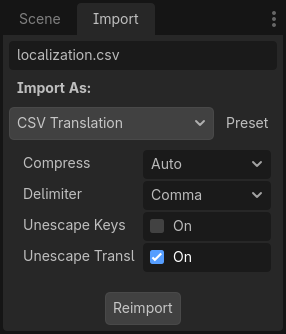
Be sure to click after any change to these options.
Loading the CSV file as a translation
Once a CSV file is imported, it is not automatically registered as a translation source for the project. Remember to follow the steps described in インポートされた翻訳の構成 so that the translation is actually used when running the project.