Attention: Here be dragons
This is the latest
(unstable) version of this documentation, which may document features
not available in or compatible with released stable versions of Godot.
Checking the stable version of the documentation...
グループ
Godotのグループは他のソフトウェアのタグと同じような機能です。ノードは複数のグループへ追加できます。次にコードではSceneTreeを使用して以下のことを行うことができます。
グループ内のノードのリストを取得。
グループ内のすべてのノードのメソッドを呼び出し。
グループ内のすべてのノードへ通知を送信。
これは大規模なシーンを整理し、コードを分離するのに便利な機能です。
グループの管理
グループは新しいグループ名へノードを追加することによって作成され、同様に特定のグループからすべてのノードを削除することによって削除されます。
グループにノードを追加/削除するには2つの方法があります。
During design, by using the Groups dock in the editor, or the Groups tab in the Globals dock in project settings.
実行中に Node.add_to_group() または Node.remove_from_group() を呼び出します。
Tip
While not strictly required, it's recommended to use the snake_case naming
convention for group names.
Using the Groups dock
You can create new groups using the Groups dock.
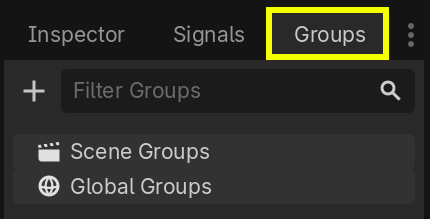
Select a node in the Scene dock then click the add button with the + symbol.
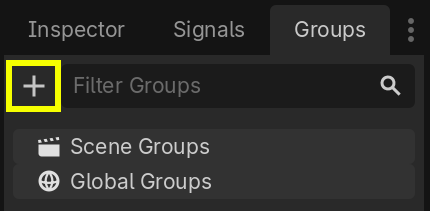
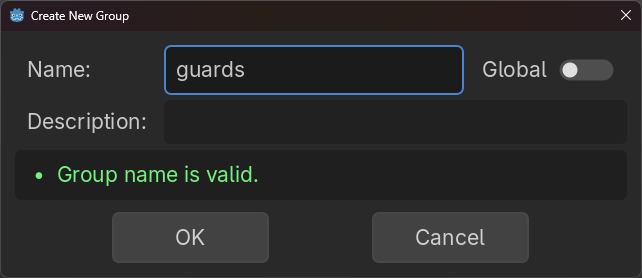
"新規グループの作成" というモーダルダイアログが表示されるはずです。フィールドにグループ名を打ち込みます。
オプションで"グローバル"オプションをマークすると、グループがプロジェクト全体で表示され、任意のプロジェクトシーンで再利用できるようになります。グローバルグループは説明を付けることもできます。
入力が完了したら、"OK"を押すとグループが作成されます。
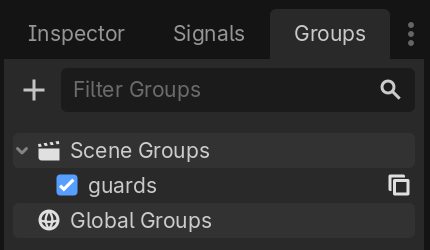
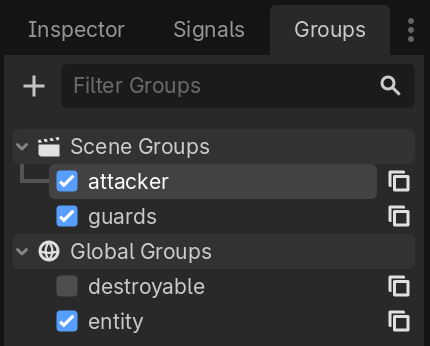
You should see the new groups appear in the Groups dock under Scene Groups if the Global option was unmarked, or under Global Groups if that option was marked.
A selected Node from the Scene dock can be added into groups by marking the checkbox on the left side of the groups in the Groups dock. The node you had selected when creating a new group will be automatically checked.
プロジェクト内に存在する、グローバルとしてマークされ、任意のシーンから作成されたすべてのグループは、グローバルグループの下に表示されます。
現在のシーンのノードから派生した他のグループは、シーングループ の下に表示されます。
警告
同じベースとなるロジックがグローバルグループとシーングループの両方に使用されます。同じ名前のグループは同一とみなされます。この機能は純粋に組織的なものです。
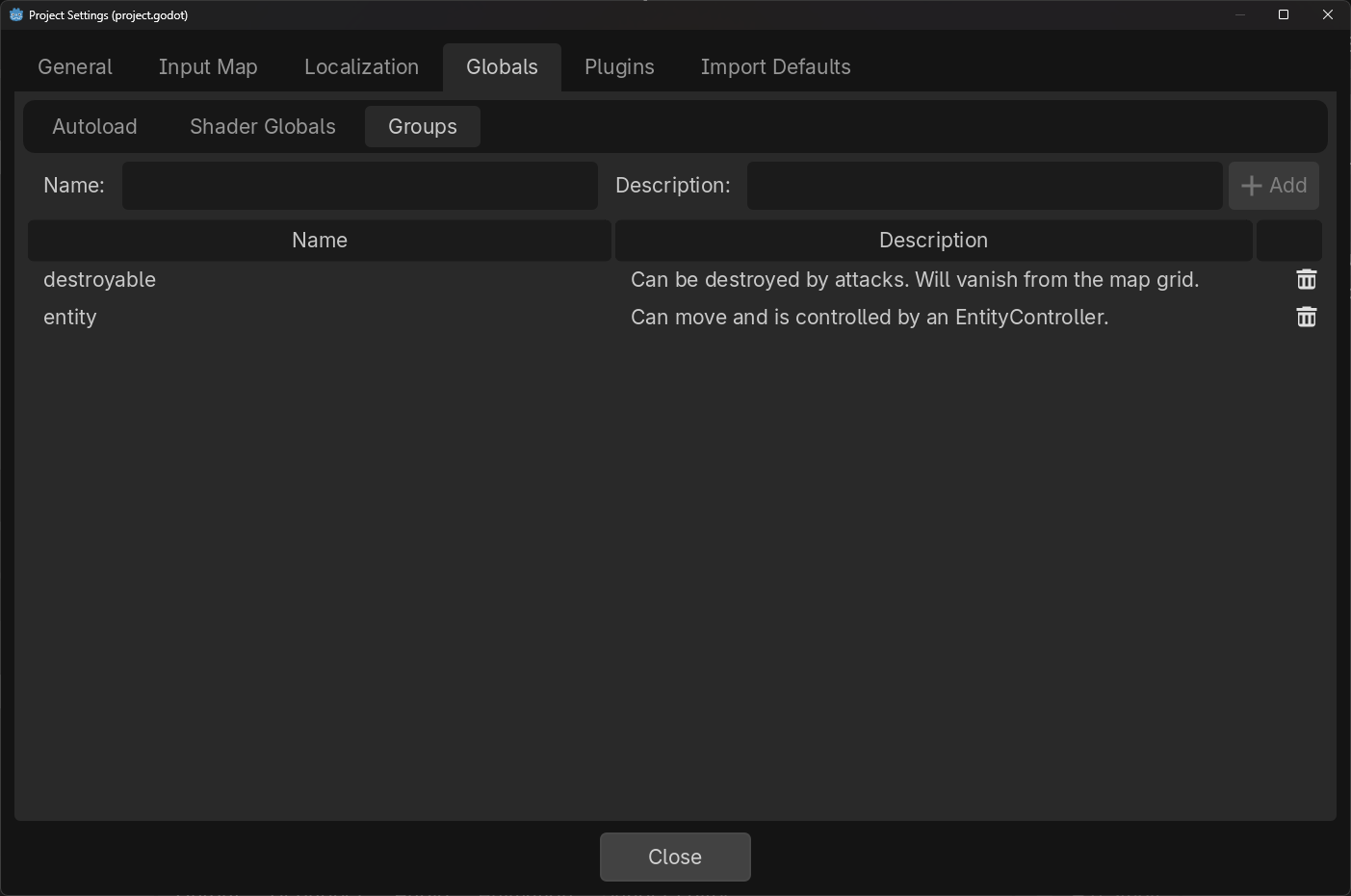
You can manage Global Groups in the Groups tab of the Globals dock, inside Project Settings. There, you will be able to add new global groups, or change existing groups' names and descriptions.
コードの使用
スクリプトからグループを管理することもできます。次のコードはスクリプトをアタッチするノードがシーンツリーに入ったときに guards グループに追加します。
func _ready():
    add_to_group("guards")
public override void _Ready()
{
    base._Ready();

    AddToGroup("guards");
}
潜入ゲームを作成していると想像してください。敵がプレイヤーを発見したら、すべての警備員とロボットが警戒する必要があります。
以下の例では SceneTree.call_group() を使用して、プレイヤーが発見されたことをすべての敵にアラートします。
func _on_player_spotted():
    get_tree().call_group("guards", "enter_alert_mode")
public void _OnPlayerDiscovered()
{
    GetTree().CallGroup("guards", "enter_alert_mode");
}
上記のコードは、グループ guards のすべてのメンバーに対して関数 enter_alert_mode を呼び出します。
guards グループ内のノードの完全なリストを配列として取得するには、 SceneTree.get_nodes_in_group() を呼び出すことができます。
var guards = get_tree().get_nodes_in_group("guards")
var guards = GetTree().GetNodesInGroup("guards");
SceneTreeクラスは、シーン、ノードの階層、ノードのグループとの対話など、多くの便利なメソッドを提供します。シーンを簡単に切り替えたり、リロード、ゲーム終了、一時停止、一時停止の解除もできます。そのうえ、興味深いシグナルもあります。時間があればチェックしてみてください。