Attention: Here be dragons
This is the latest
(unstable) version of this documentation, which may document features
not available in or compatible with released stable versions of Godot.
Checking the stable version of the documentation...
Running Godot apps on macOS
参考
This page covers running Godot projects on macOS. If you haven't exported your project yet, read macOS用にエクスポート first.
デフォルトでは、macOSは署名かつ公証されたアプリケーションのみを実行します。
注釈
When running an app from the Downloads folder or when still in quarantine,
Gatekeeper will perform path randomization as a security measure.
This breaks access to relative paths from the app, which the app relies upon to work.
To resolve this issue, move the app to the /Applications folder.
In general, macOS apps should avoid relying on relative paths from the application folder.
Depending on the way a macOS app is signed and distributed, the following scenarios are possible:
App Storeで配布された署名かつ公証されたアプリ
注釈
App developers need to join the Apple Developer Program, and configure signing and notarization options during export, then upload the app to the App Store.
The app should run out of the box, without extra user interaction required.
App Store外で配布された署名かつ公証されたアプリ
注釈
App developers need to join the Apple Developer Program, and configure signing and notarization options during export, then distribute the app as ".DMG" or ".ZIP" archive.
When you run the app for the first time, the following dialog is displayed:
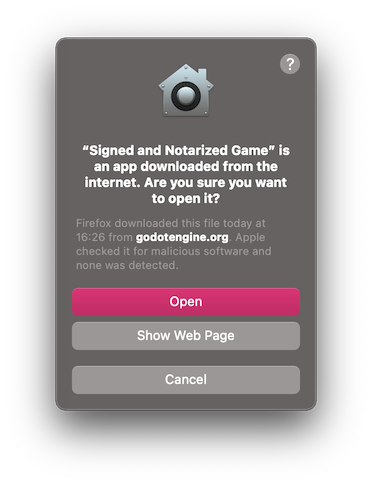
Click Open to start the app.
以下の警告ダイアログが表示された場合、お使いのMacはApp Storeからのアプリのみを許可するように設定されています。
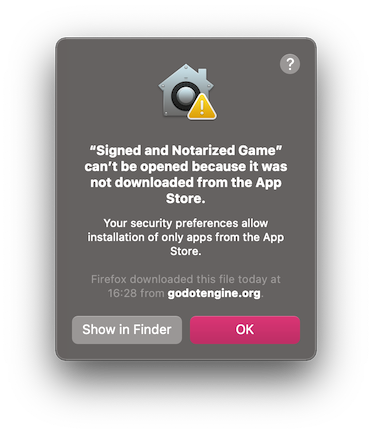
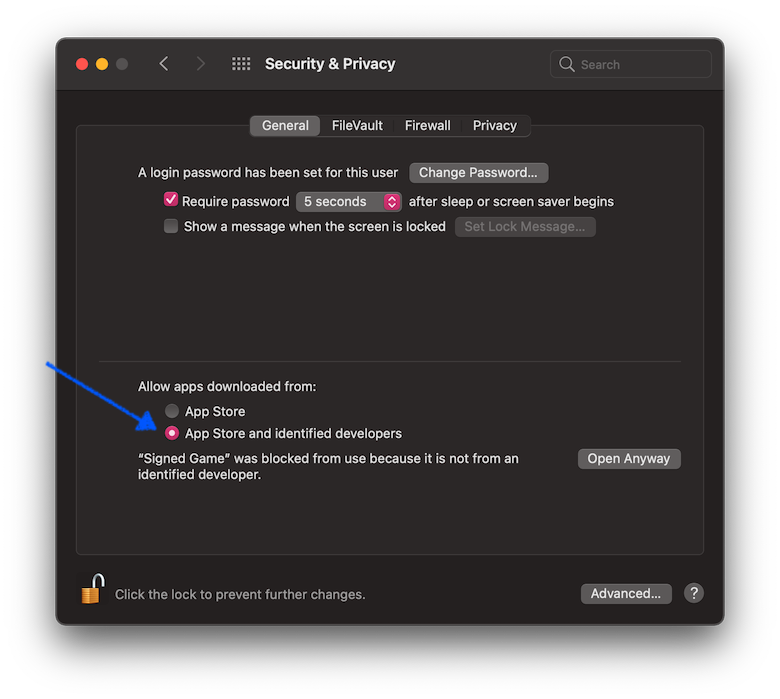
To allow third-party apps, open System Preferences, click Security & Privacy, then click General, unlock settings, and select App Store and identified developers.
署名はされているが(アドホック署名を含む)、公証されていないアプリ
注釈
App developer used self-signed certificate or ad-hoc signing (default Godot behavior for exported project).
When you run the app for the first time, the following dialog is displayed:
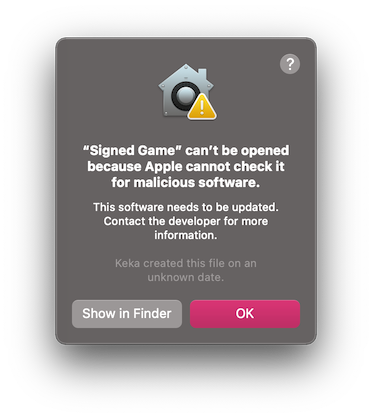
To run this app, you can temporarily override Gatekeeper:
Either open
System Preferences, clickSecurity & Privacy, then clickGeneral, and clickOpen Anyway.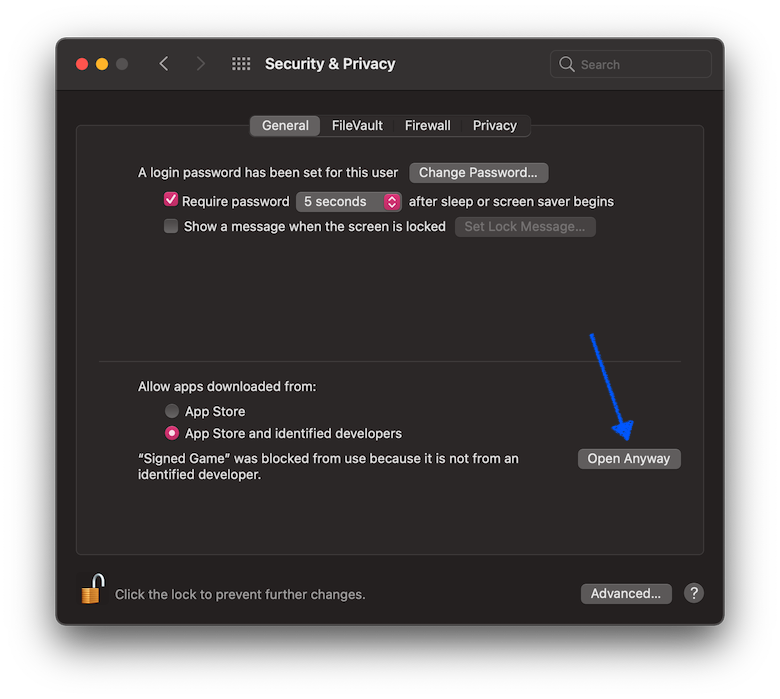
Or, right-click (Control-click) on the app icon in the Finder window and select
Openfrom the menu.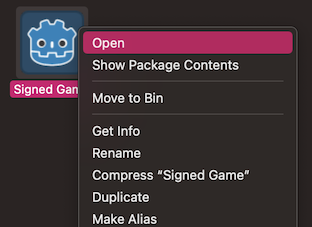
Then click
Openin the confirmation dialog.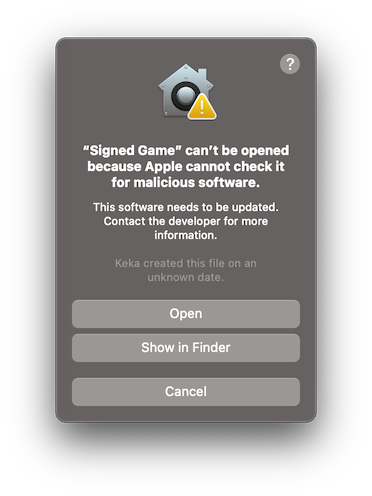
プロンプトが表示されたら、パスワードを入力してください。
Another option is to disable Gatekeeper entirely. Note that this does decrease
the security of your computer by allowing you to run any software you want.
To do this, run sudo spctl --master-disable in the Terminal, enter your
password, and then the Anywhere option will be available:
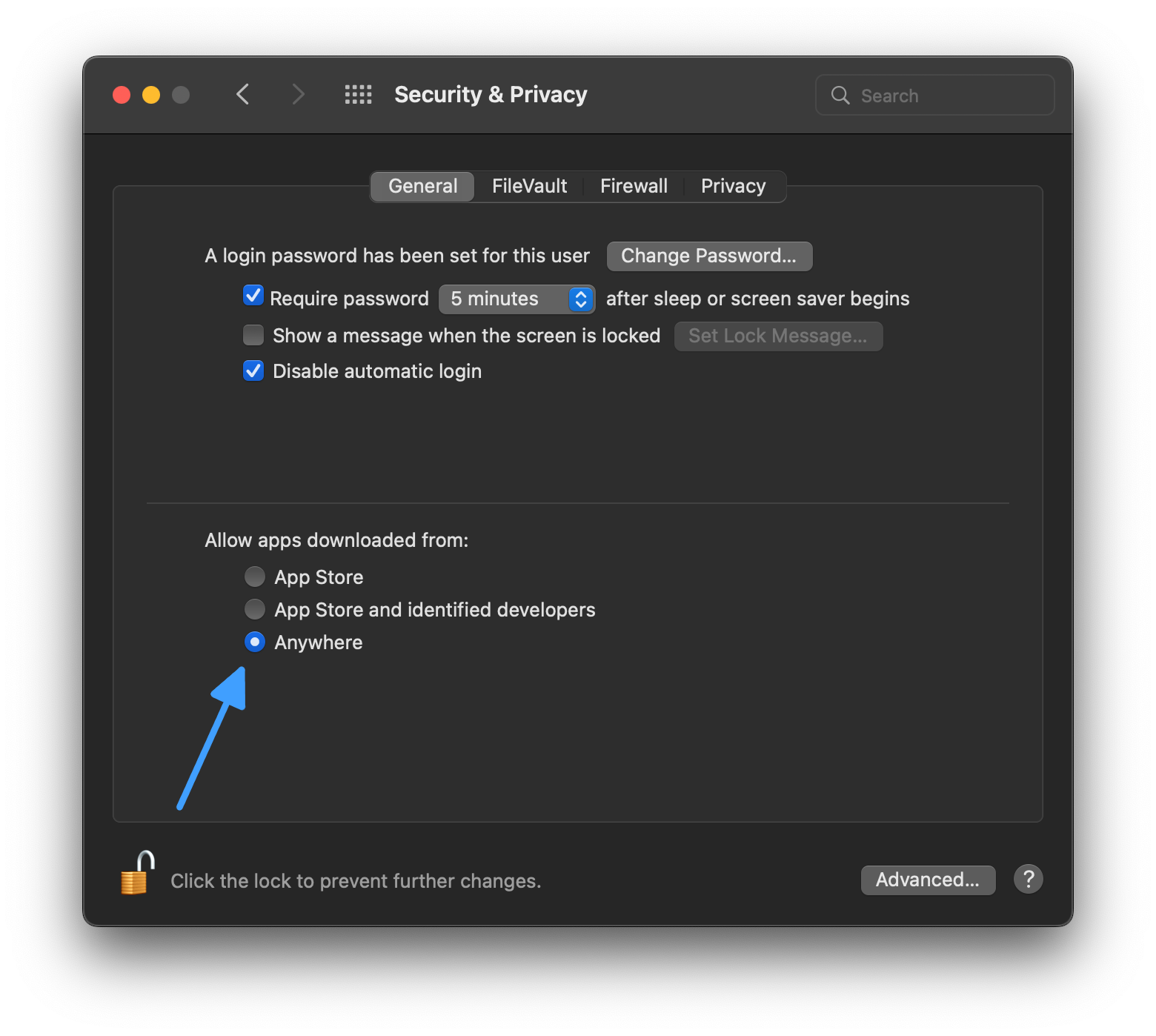
Note that Gatekeeper will re-enable itself when macOS updates.
App is not signed, executable is linker-signed
注釈
公式のエクスポートテンプレートを使って作られているが、署名はされていないアプリ
When you run the app for the first time, the following dialog is displayed:
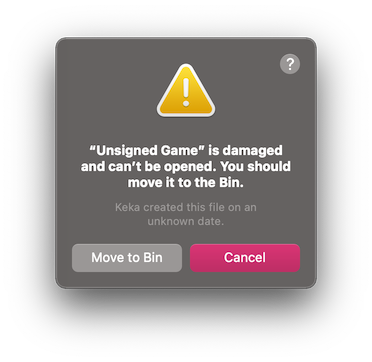
To run this app, you should remove the quarantine extended file attribute manually:
Open
Terminal.app(press Cmd + Space and enterTerminal).Navigate to the folder containing the target application.
Use the
cd path_to_the_app_foldercommand, e.g.cd ~/Downloads/if it's in theDownloadsfolder.Run the command
xattr -dr com.apple.quarantine "Unsigned Game.app"(including quotation marks and.appextension).
Neither app nor executable is signed (relevant for Apple Silicon Macs only)
注釈
App is built using custom export templates, compiled using OSXCross, and it is not signed at all.
When you run the app for the first time, the following dialog is displayed:
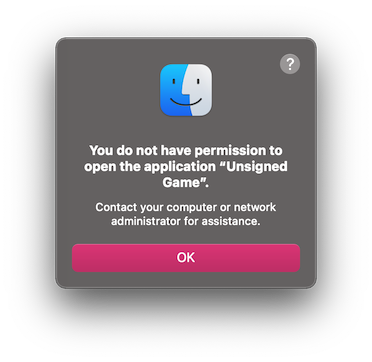
To run this app, you can ad-hoc sign it yourself:
App Storeの``Xcode``をインストールし、起動して、コマンドラインツールのインストールを確認する。
Open
Terminal.app(press Cmd + Space and enterTerminal).Navigate to the folder containing the target application.
Use the
cd path_to_the_app_foldercommand, e.g.cd ~/Downloads/if it's in theDownloadsfolder.Run the following commands:
xattr -dr com.apple.quarantine "Unsigned Game.app"(including quotation marks and ".app" extension).codesign -s - --force --deep "Unsigned Game.app"(including quotation marks and ".app" extension).