動畫軌編輯器
本頁概述了預設屬性軌道之上的 Godot 動畫播放器節點可用的軌道型別。
也參考
我們假設您已經閱讀了 動畫功能介紹,其中涵蓋了基礎知識,包括屬性軌道。
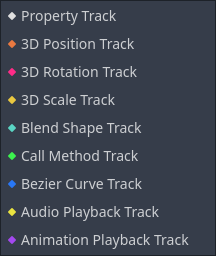
屬性軌道
最基本的軌道型別。見 動畫功能介紹。
3D 位置、旋轉、縮放軌道
這些 3D 變換軌道控制的是 3D 物件的位置、旋轉和縮放。這樣為 3D 物件的變換做動畫相比於使用普通屬性軌道更方便。
它專為從外部3D模型匯入的動畫而設計,可以透過壓縮來減少資源容量。
混合形狀軌道
混合形狀軌跡針對 MeshInstance3D 中的混合形狀動畫進行了最佳化。
它專為從外部3D模型匯入的動畫而設計,可以透過壓縮來減少資源容量。
呼叫方法
呼叫方法軌道允許您在動畫中的精確時間呼叫函式。例如,您可以呼叫“queue_free()”在死亡動畫結束時刪除節點。
備註
為了安全起見,在編輯器中預覽動畫時,不會執行放置在呼叫方法軌道上的事件。
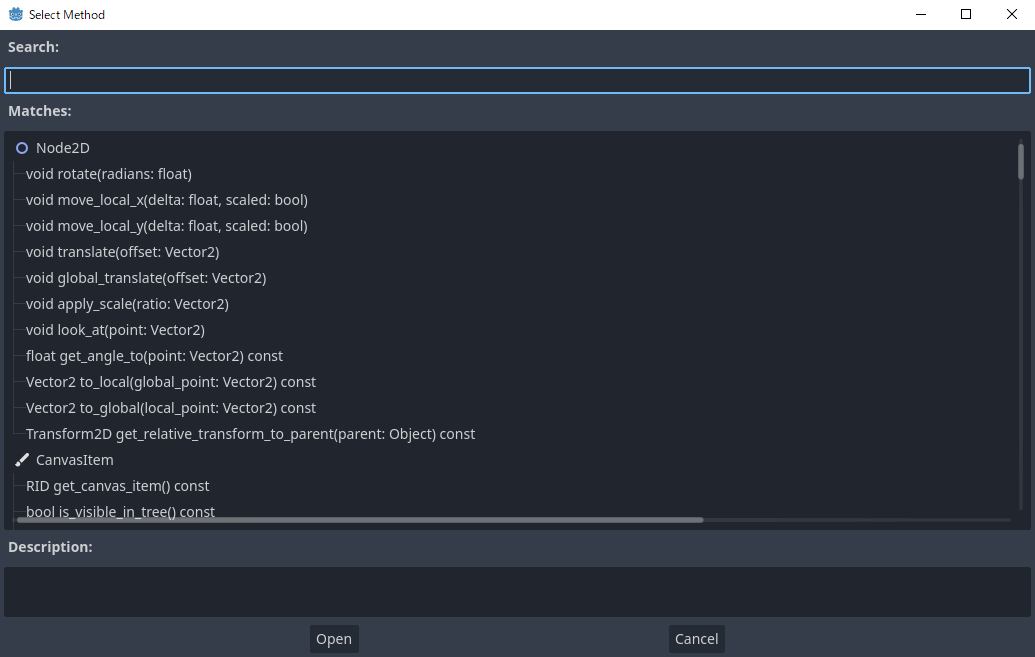
若要在編輯器中建立這樣的軌道,請點擊「新增軌道 -> 呼叫方法軌道」。然後,一個視窗會開啟並讓您選取要與軌道關聯的節點。若要呼叫節點的其中一個方法,請在時間軸上按下滑鼠右鍵並選取「插入 Key」。一個視窗會開啟並顯示可用方法的清單。滑鼠連按兩下其中一個以完成建立關鍵影格。
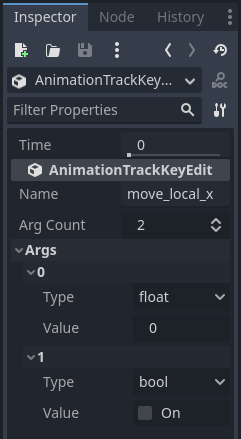
若要變更方法呼叫或其參數,請按一下該鍵並前往屬性檢視器停靠列。在那裡,您可以更改要呼叫的方法。如果展開「Args」部分,您將看到可以編輯的參數列表。
若要透過程式碼建立此類軌道,請在 Animation.track_insert_key() 的 key 參數傳入一個包含目標方法名稱與參數的字典。各鍵與預期值如下:
鍵名 |
值 |
|---|---|
|
方法名稱,型別為 |
|
傳遞給方法的參數,型別為 |
# Create a call method track.
func create_method_animation_track():
    # Get or create the animation the target method will be called from.
    var animation = $AnimationPlayer.get_animation("idle")
    # Get or create the target method's animation track.
    var track_index = animation.add_track(Animation.TYPE_METHOD)
    # Make the arguments for the target method jump().
    var jump_velocity = -400.0
    var multiplier = randf_range(.8, 1.2)
    # Get or create a dictionary with the target method's name and arguments.
    var method_dictionary = {
        "method": "jump",
        "args": [jump_velocity, multiplier],
    }

    # Set scene-tree path to node with target method.
    animation.track_set_path(track_index, ".")
    # Add the dictionary as the animation method track's key.
    animation.track_insert_key(track_index, 0.6, method_dictionary, 0)


# The target method that will be called from the animation.
func jump(jump_velocity, multiplier):
    velocity.y = jump_velocity * multiplier
// Create a call method track.
public void CreateAnimationTrack()
{
    // Get reference to the AnimationPlayer.
    var animationPlayer = GetNode<AnimationPlayer>("AnimationPlayer");
    // Get or create the animation the target method will be called from.
    var animation = animationPlayer.GetAnimation("idle");
    // Get or create the target method's animation track.
    var trackIndex = animation.AddTrack(Animation.TrackType.Method);
    // Make the arguments for the target method Jump().
    var jumpVelocity = -400.0;
    var multiplier = GD.RandRange(.8, 1.2);
    // Get or create a dictionary with the target method's name and arguments.
    var methodDictionary = new Godot.Collections.Dictionary
    {
        { "method", MethodName.Jump },
        { "args", new Godot.Collections.Array { jumpVelocity, multiplier } }
    };

    // Set scene-tree path to node with target method.
    animation.TrackSetPath(trackIndex, ".");
    // Add the dictionary as the animation method track's key.
    animation.TrackInsertKey(trackIndex, 0.6, methodDictionary, 0);
}


// The target method that will be called from the animation.
private void Jump(float jumpVelocity, float multiplier)
{
    Velocity = new Vector2(Velocity.X, jumpVelocity * multiplier);
}
貝茲曲線軌道
貝塞爾曲線軌道與屬性軌道類似,不同之處在於它允許您使用貝塞爾曲線為屬性值設定動畫。
備註
貝塞爾曲線軌跡和屬性軌跡不能在 AnimationPlayer 和 AnimationTree 中混合。
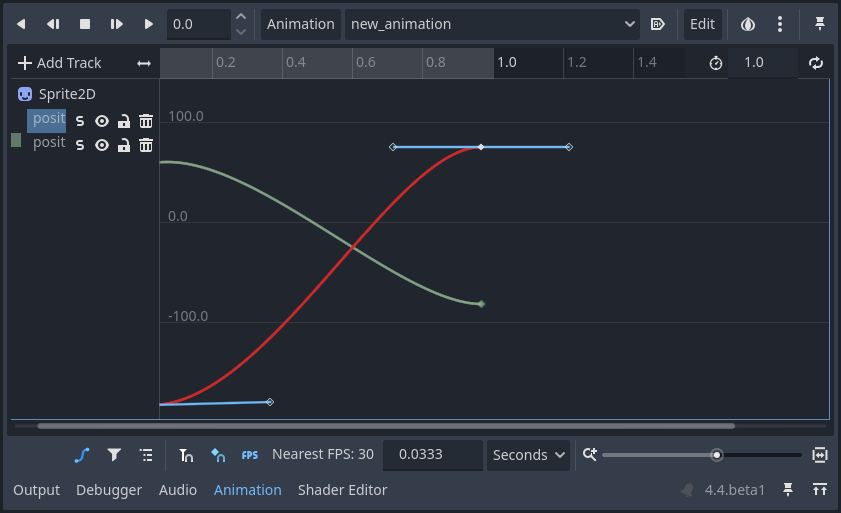
若要建立一個,請按一下「新增軌跡 -> 貝塞爾曲線軌跡」。與屬性軌跡一樣,您需要選擇要設定動畫的節點和屬性。若要開啟貝塞爾曲線編輯器,請點選動畫軌道右側的曲線圖示。
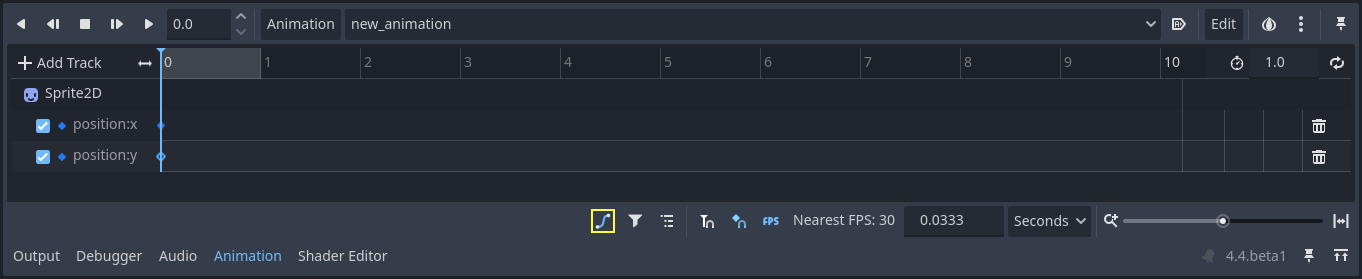
在編輯器中,鍵由實心菱形表示,輪廓菱形透過線控製曲線的形狀連接到它們。
小訣竅
為了在手動編輯曲線時獲得更精確的控制,你可以調整編輯器的縮放等級。在編輯器右下角的滑桿可用於縮放時間軸,也可以使用 Ctrl + Shift + 滑鼠滾輪 來縮放時間軸。使用 Ctrl + Alt + 滑鼠滾輪 則可以縮放 Y 軸
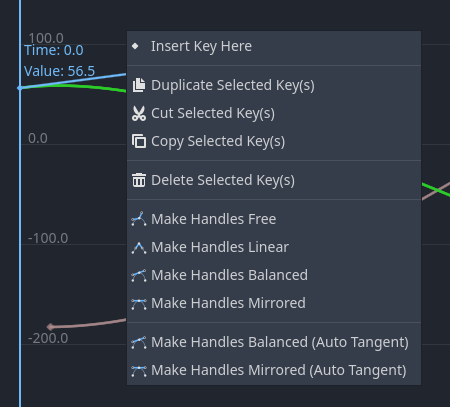
當選取關鍵影格(不是控制手把)時,可以在編輯器的右鍵選單中選擇手把模式:
自由:允許您將操縱器定向到任何方向,而不影響另一個操縱器的位置。
線性:不允許機械手旋轉,繪製線性圖形。
平衡:使操縱器一起旋轉,但鍵和操縱器之間的距離不鏡像。
鏡像:使一個操縱器的位置完美鏡像另一個操縱器,包括它們到關鍵點的距離。
音訊播放軌道
如果要建立具有音訊的動畫,則需要建立音訊播放軌道。要建立一個,您的場景必須具有 AudioStreamPlayer、AudioStreamPlayer2D 或 AudioStreamPlayer3D 節點。建立軌道時,您必須選擇這些節點之一。
若要在動畫中播放聲音,請將音訊檔案從檔案系統停靠欄拖曳到動畫軌道上。您應該在軌道中看到音訊檔案的波形。

要從動畫中刪除聲音,您可以右鍵單擊它並選擇“刪除關鍵點”或單擊它並按 Del 鍵。
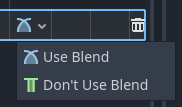
混合模式可讓您選擇在 AnimationTree 中混合時是否調整音訊音量。
動畫播放軌道
動畫播放軌道可讓您對場景中其他動畫播放器節點的動畫進行排序。例如,您可以使用它為過場動畫中的多個角色製作動畫。
若要建立動畫播放軌道,請選擇「新軌道 -> 動畫播放軌道」
然後,選擇要與軌道關聯的動畫播放器。
要將動畫新增至軌道,請右鍵單擊它並插入關鍵點。選擇您剛剛建立的鍵以在屬性檢視器面板中選擇動畫。
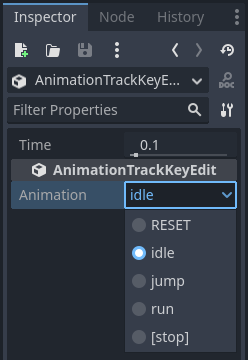
如果動畫已經在播放並且您想要提前停止它,您可以建立一個關鍵點並將其在屬性檢視器中設定為「[STOP]」。
備註
如果您在場景中實例化了包含動畫播放器的場景,則需要在場景樹中啟用「可編輯子專案」才能存取其動畫播放器。此外,動畫播放器無法引用自身。