入門
工作流程總覽
作為 GDExtension,godot-cpp 的使用會比 GDScript 與 C# 複雜。若你決定使用它,你的工作流程大致如下:
建立新的 godot-cpp 專案(可使用 範本,或依下文從零開始)。
在本機使用你 偏好的 IDE 進行開發。
使用最早支援的 Godot 版本建置並測試你的程式碼。
為你要支援的所有平台建立建置(例如使用 GitHub Actions)。
可選:發佈到 Godot 資產庫。
範例專案
第一次使用 godot-cpp 時,建議先依本指南了解 godot-cpp 涉及的技術。完成後,你可以改用 godot-cpp 範本,它涵蓋更多功能,例如 GitHub 動作工作流程與實用的 SConstruct 樣板程式碼。不過該範本本身沒有提供詳細說明,因此我們建議先讀完本指南。
設定專案
你需要先準備以下幾項:
Godot 4 可執行檔。
C++ 編譯器。
SCons 作為建置工具。
一份 godot-cpp 儲存庫 的複本。
另請參閱 設定 IDE 與 編譯,因為這些建構工具與從原始碼編譯 Godot 使用的工具相同。
你可以從 GitHub 下載 godot-cpp 倉庫,或用 Git 指令自動抓取。請注意,這個倉庫針對不同的 Godot 版本有不同分支。GDExtension 僅支援 Godot 4 及以上版本,且不同版本之間不相容,所以請務必下載正確的分支。
備註
要使用 GDExtension,你必須使用與目標 Godot 版本相符的 godot-cpp 分支。例如,如果你的目標是 Godot 4.1,請使用 4.1 分支。本教學以 4.x 為例,實際操作時請依你的目標版本替換分支名稱。
master 分支是開發中的分支,會定期與 Godot 的 master 分支同步更新。
警告
以較早的 Godot 版本為目標所建置的 GDExtension 通常可在後續的小版本中運作,反之則不行。例如,目標為 Godot 4.2 的 GDExtension 在 Godot 4.3 應可正常運作,但目標為 Godot 4.3 的 GDExtension 無法在 Godot 4.2 運作。
此規則有一個例外: 以 Godot 4.0 為目標的擴充在 Godot 4.1 及後續版本中將 無法 運作 (請見 將 GDExtension 更新到 4.1)。
如果你有用 Git 進行專案版本管理,建議將它加為 Git 子模組:
mkdir gdextension_cpp_example
cd gdextension_cpp_example
git init
git submodule add -b 4.x https://github.com/godotengine/godot-cpp
cd godot-cpp
git submodule update --init
你也可以直接將它 clone 到專案目錄下:
mkdir gdextension_cpp_example
cd gdextension_cpp_example
git clone -b 4.x https://github.com/godotengine/godot-cpp
備註
如果你選擇直接下載或 clone 倉庫到資料夾,請務必保持資料夾結構與本教學一致,因為後續範例程式碼都假設你的專案有這樣的結構。
如果你是從前面介紹的連結 clone 範例,子模組預設並不會自動初始化,你需要手動執行以下指令:
cd gdextension_cpp_example
git submodule update --init
這會在你的專案資料夾中初始化所需的子模組。
建構 C++ 綁定
先決條件都備齊後,接下來開始建構 C++ 綁定。
倉庫裡包含了目前 Godot 版本的中繼資料副本,但如果你要針對較新版本建構綁定,請用 Godot 執行檔產生:
godot --dump-extension-api
產生的 extension_api.json 會出現在執行檔所在資料夾。請將它複製到專案資料夾,並在下方 scons 指令中加上 custom_api_file=<檔案路徑>。
要產生並編譯綁定,請使用下列指令(依你的作業系統將 <platform> 替換為 windows、linux 或 macos):
建構過程會自動偵測可用的 CPU 執行緒數量以進行平行建構。若要自訂執行緒數,可在 SCons 指令結尾加上 -jN,其中 N 是你想使用的執行緒數。
cd godot-cpp
scons platform=<platform> custom_api_file=<PATH_TO_FILE>
cd ..
這個步驟會花一點時間。完成後,你會在 godot-cpp/bin/ 看到可供專案編譯連結的靜態函式庫。
備註
在 Windows 或 Linux 下可能要在指令後加上 bits=64。
建立簡單外掛
現在來實作一個真正的外掛。我們將先建立一個空的 Godot 專案,並在裡面放入一些檔案。
開啟 Godot,建立一個新專案。這裡我們會將專案放在 GDExtension 資料夾結構下的 demo 資料夾中。
在 demo 專案裡,建立一個名為「Main」的節點並儲存為 main.tscn 場景。我們稍後會再回來用到它。
回到 GDExtension 模組的根目錄,再建立一個名為 src 的子資料夾,這之後會用來放我們的原始碼檔案。
你的 GDExtension 模組目錄下,現在應該有 demo、godot-cpp 和 src 三個資料夾。
目前的資料夾結構應該長這樣:
gdextension_cpp_example/
|
+--demo/                  # game example/demo to test the extension
|
+--godot-cpp/             # C++ bindings
|
+--src/                   # source code of the extension we are building
在 src 資料夾下,先建立我們要用來擴充的 GDExtension 節點的標頭檔,我們把它命名為 gdexample.h:
#pragma once

#include <godot_cpp/classes/sprite2d.hpp>

namespace godot {

class GDExample : public Sprite2D {
    GDCLASS(GDExample, Sprite2D)

private:
    double time_passed;

protected:
    static void _bind_methods();

public:
    GDExample();
    ~GDExample();

    void _process(double delta) override;
};

} // namespace godot
上面程式碼有幾點要注意。我們引入了 sprite2d.hpp,這個檔案包含對 Sprite2D 類的綁定。我們會以這個類別做為擴充的基礎。
我們使用 godot 命名空間,因為 GDExtension 所有內容都定義在此命名空間中。
接下來是類別定義,這裡我們透過容器類別繼承自 Sprite2D。GDCLASS 巨集會幫我們處理一些必要的內部註冊。
接著宣告了一個名為 time_passed 的成員變數。
在接下來的方法區塊中,除了建構子和解構子,還有兩個你可能很熟悉的方法,另外還有一個新方法。
第一個是 _bind_methods,Godot 會呼叫這個靜態方法來註冊可以被呼叫的方法和屬性。第二個是 _process,它的功能就跟你在 GDScript 使用的 _process 一樣。
接下來,實作這些方法並建立 gdexample.cpp 檔案:
#include "gdexample.h"
#include <godot_cpp/core/class_db.hpp>

using namespace godot;

void GDExample::_bind_methods() {
}

GDExample::GDExample() {
    // Initialize any variables here.
    time_passed = 0.0;
}

GDExample::~GDExample() {
    // Add your cleanup here.
}

void GDExample::_process(double delta) {
    time_passed += delta;

    Vector2 new_position = Vector2(10.0 + (10.0 * sin(time_passed * 2.0)), 10.0 + (10.0 * cos(time_passed * 1.5)));

    set_position(new_position);
}
這部分很直接,就是把我們在標頭檔定義的每個方法實作出來。
請注意 _process 方法,它會累計經過的時間,並用正弦、餘弦計算新的精靈位置。
我們還需要另外一個 C++ 檔案,命名為 register_types.cpp。一個 GDExtension 外掛可以有多個類別,每個類別有自己的標頭和原始檔,像前面那樣實作 GDExample。現在我們需要一小段程式碼告訴 Godot 外掛裡有哪些類別。
#include "register_types.h"

#include "gdexample.h"

#include <gdextension_interface.h>
#include <godot_cpp/core/defs.hpp>
#include <godot_cpp/godot.hpp>

using namespace godot;

void initialize_example_module(ModuleInitializationLevel p_level) {
    if (p_level != MODULE_INITIALIZATION_LEVEL_SCENE) {
        return;
    }

    GDREGISTER_RUNTIME_CLASS(GDExample);
}

void uninitialize_example_module(ModuleInitializationLevel p_level) {
    if (p_level != MODULE_INITIALIZATION_LEVEL_SCENE) {
        return;
    }
}

extern "C" {
// Initialization.
GDExtensionBool GDE_EXPORT example_library_init(GDExtensionInterfaceGetProcAddress p_get_proc_address, const GDExtensionClassLibraryPtr p_library, GDExtensionInitialization *r_initialization) {
    godot::GDExtensionBinding::InitObject init_obj(p_get_proc_address, p_library, r_initialization);

    init_obj.register_initializer(initialize_example_module);
    init_obj.register_terminator(uninitialize_example_module);
    init_obj.set_minimum_library_initialization_level(MODULE_INITIALIZATION_LEVEL_SCENE);

    return init_obj.init();
}
}
Godot 載入外掛時會呼叫 initialize_example_module,解除安裝時則呼叫 uninitialize_example_module。這邊我們只做初始化綁定模組,依需求你也可以設定其他內容。對於每個類別都要呼叫 GDREGISTER_RUNTIME_CLASS 巨集,代表它們只會在遊戲執行時註冊,這與 GDScript 預設行為相同。
第三個函式 example_library_init 很重要。我們會先呼叫綁定庫的初始化函式來建立初始化物件,這個物件會註冊 GDExtension 的初始化與終結函式,也能設定初始化階段(如 core、servers、scene、editor、level)。
最後,還需要為 register_types.cpp 建立標頭檔 register_types.h。
#pragma once

#include <godot_cpp/core/class_db.hpp>

using namespace godot;

void initialize_example_module(ModuleInitializationLevel p_level);
void uninitialize_example_module(ModuleInitializationLevel p_level);
編譯外掛
要編譯這個專案,我們需要以 SConstruct 檔案定義 SCons 應如何編譯,並引用 godot-cpp 中的那一份。從零撰寫不在本教學範圍內,不過你可以 下載我們準備好的 SConstruct 檔。在後續教學中,我們會介紹更可自訂、也更詳細的建置檔使用方式。
備註
這個 SConstruct 檔案是針對最新的 godot-cpp master 分支撰寫的,如要與舊版搭配使用,可能需做些微調整或參考 Godot 4.x 文件的 SConstruct 範例。
下載好 SConstruct 檔案後,請將它放在 GDExtension 目錄下,跟 godot-cpp、src 和 demo 目錄同一層,然後執行:
scons platform=<platform>
此時你應該可以在 demo/bin/<platform> 下找到編譯出來的模組。
若要為 iOS 編譯,需將模組包裝成靜態 .xcframework,可以用以下指令完成:
# compile simulator and device modules
scons arch=universal ios_simulator=yes platform=ios target=<target>
scons arch=arm64 ios_simulator=no platform=ios target=<target>

# assemble xcframeworks
xcodebuild -create-xcframework -library demo/bin/libgdexample.ios.<target>.a -library demo/bin/libgdexample.ios.<target>.simulator.a -output demo/bin/libgdexample.ios.<target>.xcframework
xcodebuild -create-xcframework -library godot-cpp/bin/libgodot-cpp.ios.<target>.arm64.a -library godot-cpp/bin/libgodot-cpp.ios.<target>.universal.simulator.a  -output demo/bin/libgodot-cpp.ios.<target>.xcframework
備註
此範例同時將 godot-cpp 和 gdexample 函式庫都編譯為 debug 版本。若要釋出版或最佳化,請將指令加上 target=template_release 參數。
使用 GDExtension 模組
回到 Godot 之前,還需在 demo/bin/ 新增一個檔案。
這個檔案讓 Godot 知道要針對各平台載入哪些動態函式庫,以及模組的進入點。名稱為 gdexample.gdextension。
[configuration]

entry_symbol = "example_library_init"
compatibility_minimum = "4.1"
reloadable = true

[libraries]

macos.debug = "res://bin/libgdexample.macos.template_debug.framework"
macos.release = "res://bin/libgdexample.macos.template_release.framework"
ios.debug = "res://bin/libgdexample.ios.template_debug.xcframework"
ios.release = "res://bin/libgdexample.ios.template_release.xcframework"
windows.debug.x86_32 = "res://bin/libgdexample.windows.template_debug.x86_32.dll"
windows.release.x86_32 = "res://bin/libgdexample.windows.template_release.x86_32.dll"
windows.debug.x86_64 = "res://bin/libgdexample.windows.template_debug.x86_64.dll"
windows.release.x86_64 = "res://bin/libgdexample.windows.template_release.x86_64.dll"
linux.debug.x86_64 = "res://bin/libgdexample.linux.template_debug.x86_64.so"
linux.release.x86_64 = "res://bin/libgdexample.linux.template_release.x86_64.so"
linux.debug.arm64 = "res://bin/libgdexample.linux.template_debug.arm64.so"
linux.release.arm64 = "res://bin/libgdexample.linux.template_release.arm64.so"
linux.debug.rv64 = "res://bin/libgdexample.linux.template_debug.rv64.so"
linux.release.rv64 = "res://bin/libgdexample.linux.template_release.rv64.so"
android.debug.x86_64 = "res://bin/libgdexample.android.template_debug.x86_64.so"
android.release.x86_64 = "res://bin/libgdexample.android.template_release.x86_64.so"
android.debug.arm64 = "res://bin/libgdexample.android.template_debug.arm64.so"
android.release.arm64 = "res://bin/libgdexample.android.template_release.arm64.so"

[dependencies]
ios.debug = {
    "res://bin/libgodot-cpp.ios.template_debug.xcframework": ""
}
ios.release = {
    "res://bin/libgodot-cpp.ios.template_release.xcframework": ""
}
此檔案包含 configuration 區段,用於控制模組的進入點函式。你也應以 compatibility_minimum 設定最低相容的 Godot 版本,避免舊版 Godot 嘗試載入你的擴充。reloadable 旗標可讓你在每次重新編譯後,由編輯器自動重新載入擴充,而不必重新啟動編輯器。這僅在以除錯模式(預設)編譯擴充時有效。
libraries 區段很重要:它會告訴 Godot 每個支援平台下動態函式庫的路徑。這也確保你匯出專案時只會包含目標平台需要的函式庫,不會把不相容的函式庫一併打包。
最後,dependencies 區段可讓你指定其他需要一併包含的動態函式庫。當你的 GDExtension 外掛依賴第三方函式庫時,這部分就很重要。
以下是正確檔案結構的總覽:
gdextension_cpp_example/
|
+--demo/                  # game example/demo to test the extension
|   |
|   +--main.tscn
|   |
|   +--bin/
|       |
|       +--gdexample.gdextension
|
+--godot-cpp/             # C++ bindings
|
+--src/                   # source code of the extension we are building
|   |
|   +--register_types.cpp
|   +--register_types.h
|   +--gdexample.cpp
|   +--gdexample.h
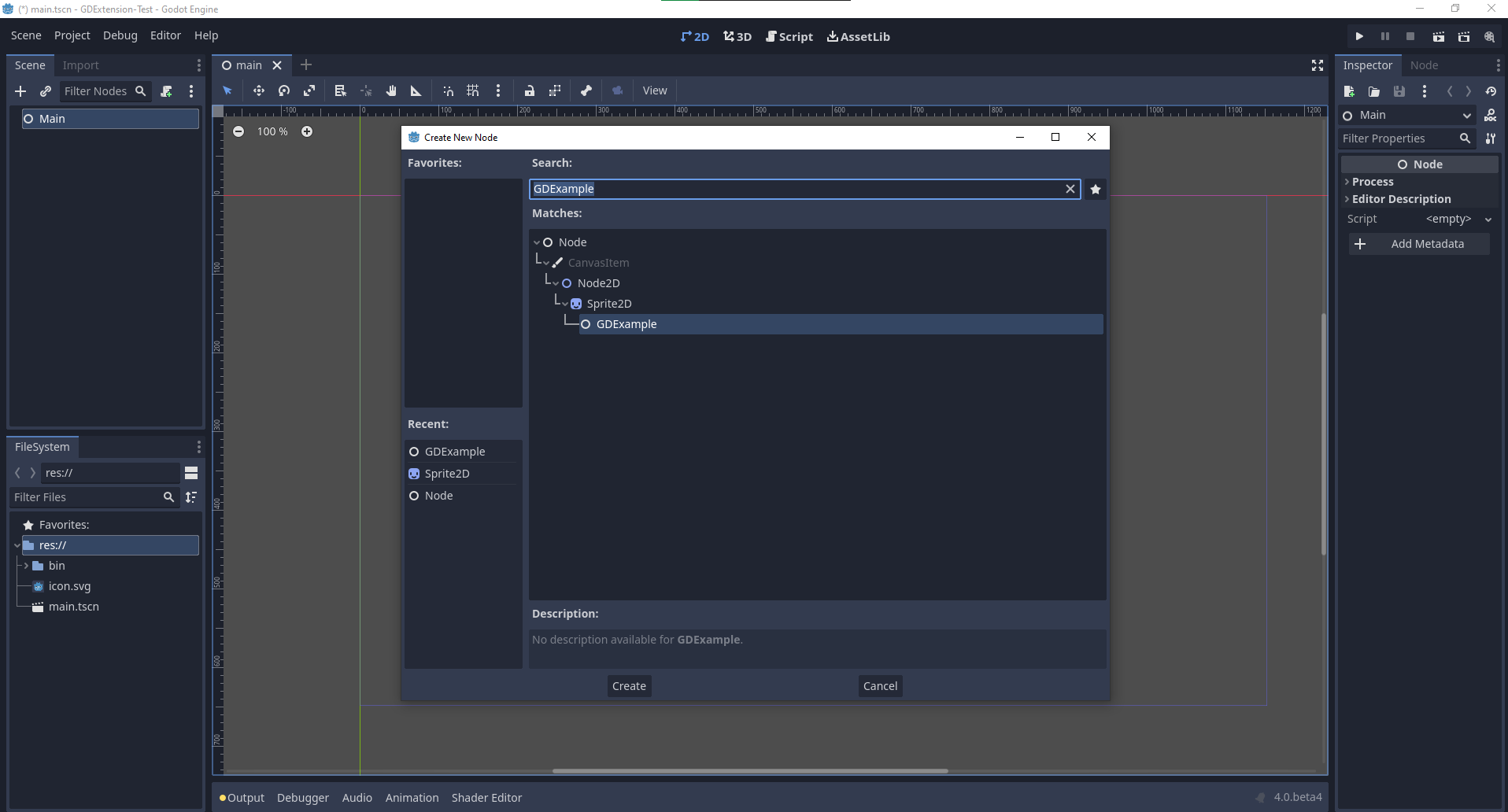
現在可以回到 Godot。請打開一開始建立的主場景,並新增一個 GDExample 節點到場景中:
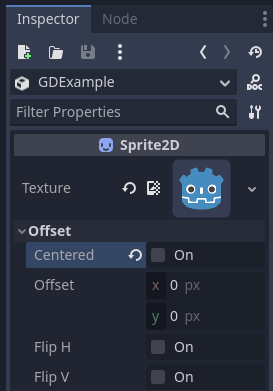
我們將 Godot 標誌指定為這個節點的紋理,並將 centered 屬性關閉:
現在一切就緒,可以執行專案了:
新增屬性
GDScript 可以用 export 關鍵字讓腳本有可編輯屬性。在 GDExtension 則需用 getter 和 setter 方法註冊屬性,或直接實作物件的 _get_property_list、_get、_set 方法(但這屬進階內容,不在本教學範圍)。
現在我們來新增一個屬性,讓我們可以調整波動的振幅。
在 gdexample.h 檔案中,新增一個成員變數及 getter/setter 方法:
...
private:
    double time_passed;
    double amplitude;

public:
    void set_amplitude(const double p_amplitude);
    double get_amplitude() const;
...
在 gdexample.cpp 中也需做一些變動,以下只列出有異動的方法,未提及的行請勿移除:
void GDExample::_bind_methods() {
    ClassDB::bind_method(D_METHOD("get_amplitude"), &GDExample::get_amplitude);
    ClassDB::bind_method(D_METHOD("set_amplitude", "p_amplitude"), &GDExample::set_amplitude);

    ADD_PROPERTY(PropertyInfo(Variant::FLOAT, "amplitude"), "set_amplitude", "get_amplitude");
}

GDExample::GDExample() {
    // Initialize any variables here.
    time_passed = 0.0;
    amplitude = 10.0;
}

void GDExample::_process(double delta) {
    time_passed += delta;

    Vector2 new_position = Vector2(
        amplitude + (amplitude * sin(time_passed * 2.0)),
        amplitude + (amplitude * cos(time_passed * 1.5))
    );

    set_position(new_position);
}

void GDExample::set_amplitude(const double p_amplitude) {
    amplitude = p_amplitude;
}

double GDExample::get_amplitude() const {
    return amplitude;
}
將這些變動編譯完成後,就會看到介面多了一個屬性。你可以隨時調整它,執行專案時 Godot 圖示就會隨之變動軌跡幅度。
我們再來對動畫速度做同樣的處理,一樣用 getter 與 setter。在 gdexample.h 標頭檔只需再加幾行:
...
    double amplitude;
    double speed;
...
    void _process(double delta) override;
    void set_speed(const double p_speed);
    double get_speed() const;
...
gdexample.cpp 檔案還要再做幾個小改動,以下只列出異動的部份,其餘請保留原本內容:
void GDExample::_bind_methods() {
    ...
    ClassDB::bind_method(D_METHOD("get_speed"), &GDExample::get_speed);
    ClassDB::bind_method(D_METHOD("set_speed", "p_speed"), &GDExample::set_speed);

    ADD_PROPERTY(PropertyInfo(Variant::FLOAT, "speed", PROPERTY_HINT_RANGE, "0,20,0.01"), "set_speed", "get_speed");
}

GDExample::GDExample() {
    time_passed = 0.0;
    amplitude = 10.0;
    speed = 1.0;
}

void GDExample::_process(double delta) {
    time_passed += speed * delta;

    Vector2 new_position = Vector2(
        amplitude + (amplitude * sin(time_passed * 2.0)),
        amplitude + (amplitude * cos(time_passed * 1.5))
    );

    set_position(new_position);
}

...

void GDExample::set_speed(const double p_speed) {
    speed = p_speed;
}

double GDExample::get_speed() const {
    return speed;
}
這樣編譯後你會看到介面多一個 speed 屬性。調整它就能改變動畫快慢。此外,我們還加上了屬性範圍,前兩個參數為最小與最大值,第三個為步進值。
備註
這裡我們只用到 property 方法的 hint_range 屬性。事實上還有更多選項可以自訂屬性在 Godot 裡的顯示與設定方式。
訊號
最後,GDExtension 也完整支援訊號。如果想讓你的擴充對其他物件發出的訊號有反應,須先對該物件呼叫 connect。我們的 Godot 圖示搖擺例子不太適合這種情境,如果要示範需要更完整的範例。
語法如下:
some_other_node->connect("the_signal", Callable(this, "my_method"));
要將某個節點的 the_signal 訊號連結到我們的 my_method 方法,需在 connect 方法中指定訊號名稱與一個 Callable。Callable 持有待呼叫方法的物件資訊。本例中,它把目前物件實例 this 與 my_method 方法綁定,之後 connect 會將這個 Callable 加入 the_signal 的觀察者。每當 the_signal 發射時,Godot 就知道要呼叫對應物件的方法。
請注意,只有在你事先於 _bind_methods 註冊過 my_method,Godot 才會知道這個方法的存在,才能將訊號連結過來。
如需更多 Callable 相關資訊,請參考類別文件:Callable。
讓你的物件發出訊號也是很常見的需求。這裡我們用搖擺的 Godot 圖示作為例子,每過一秒就發出一個訊號並傳送新的座標。
在 gdexample.h 標頭檔加上新的成員變數 time_emit:
...
    double time_passed;
    double time_emit;
    double amplitude;
...
這次 gdexample.cpp 的變更較多。首先,要在 _init 方法或建構子裡設定 time_emit = 0.0 。剩下兩項修改我們分開說明。
在 _bind_methods 方法中要註冊我們的訊號,範例如下:
void GDExample::_bind_methods() {
    ...
    ADD_PROPERTY(PropertyInfo(Variant::FLOAT, "speed", PROPERTY_HINT_RANGE, "0,20,0.01"), "set_speed", "get_speed");

    ADD_SIGNAL(MethodInfo("position_changed", PropertyInfo(Variant::OBJECT, "node"), PropertyInfo(Variant::VECTOR2, "new_pos")));
}
ADD_SIGNAL 巨集的參數是 MethodInfo。第一個參數為訊號名稱,後續每個參數都是 PropertyInfo,描述訊號會帶入的資料型別與名稱。
這裡我們新增一個名為 "position_changed" 的訊號,有兩個參數:一個是 Object 型別叫做 "node",另一個是 Vector2 型別叫做 "new_pos"。
接下來修改 _process 方法:
void GDExample::_process(double delta) {
    time_passed += speed * delta;

    Vector2 new_position = Vector2(
        amplitude + (amplitude * sin(time_passed * 2.0)),
        amplitude + (amplitude * cos(time_passed * 1.5))
    );

    set_position(new_position);

    time_emit += delta;
    if (time_emit > 1.0) {
        emit_signal("position_changed", this, new_position);

        time_emit = 0.0;
    }
}
每經過一秒,就發送訊號並重設計時器。我們可以直接把參數丟給 emit_signal。
編譯好 GDExtension 後,回到 Godot 選取精靈節點,在 節點 面板就會看到剛剛新增的訊號,可以按 連接 或直接點兩下連結。主節點加上一個腳本後,訊號可以這樣處理:
extends Node

func _on_Sprite2D_position_changed(node, new_pos):
    print("The position of " + node.get_class() + " is now " + str(new_pos))
每過一秒,我們就會將座標輸出到主控台。
下一步
希望以上範例能讓你掌握基礎。你可以在此基礎上以 C++ 撰寫完整的腳本來控制 Godot 的節點!
與其以以上的範例設定為基礎,我們建議你現在改為複製 godot-cpp 範本,並以它作為專案的起點。該範本涵蓋更多功能,例如 GitHub 建置動作與額外實用的 SConstruct 樣板。