Attention: Here be dragons
This is the latest
(unstable) version of this documentation, which may document features
not available in or compatible with released stable versions of Godot.
Checking the stable version of the documentation...
macOS용 컴파일
참고
이 페이지는 소스로부터 macOS 편집기와 내보내기 템플릿 바이너리를 컴파일하는 방법을 설명합니다. 프로젝트를 macOS로 내보내고자 한다면, 대신 macOS로 내보내기를 읽으세요.
요구 사항
macOS에서 컴파일하려면 다음이 필요합니다.
SCons 4.4+ build system.
`Xcode <https://apps.apple.com/us/app/xcode/id497799835>`_(또는 Xcode용 더 가벼운 명령줄 도구).
MoltenVK용 `Vulkan SDK <https://sdk.lunarg.com/sdk/download/latest/mac/vulkan-sdk.dmg>`_(macOS는 기본적으로 Vulkan을 지원하지 않습니다). 최신 Vulkan SDK 버전은 Godot 소스 저장소 내에서 ``misc/scripts/install_vulkan_sdk_macos.sh``를 실행하여 빠르게 설치할 수 있습니다.
참고
`Homebrew <https://brew.sh/>`_이 설치되어 있는 경우 다음 명령을 사용하여 SCons를 쉽게 설치할 수 있습니다.
brew install scons
Homebrew를 설치하면 Xcode용 명령줄 도구가 아직 없는 경우 자동으로 가져옵니다.
마찬가지로 `MacPorts <https://www.macports.org/>`_이 설치되어 있는 경우 다음 명령을 사용하여 SCons를 쉽게 설치할 수 있습니다.
sudo port install scons
컴파일링
터미널을 시작하고 엔진 소스 코드의 루트 디렉터리로 이동합니다.
Intel(x86-64) 기반 Mac용으로 컴파일하려면 다음을 사용하세요.
scons platform=macos arch=x86_64
Apple Silicon(ARM64) 기반 Mac용으로 컴파일하려면 다음을 사용하세요.
scons platform=macos arch=arm64
팁
엔진을 변경하거나 기여하기 위해 Godot를 컴파일하는 경우 SCons 옵션 dev_build=yes 또는 ``dev_mode=yes``를 사용할 수 있습니다. 자세한 내용은 :ref:`doc_introduction_to_the_buildsystem_development_and_production_aliases`를 참조하세요.
모든 것이 순조롭게 진행되면 결과 바이너리 실행 파일이 bin/ 하위 디렉터리에 배치됩니다. 이 실행 파일에는 전체 엔진이 포함되어 있으며 종속성 없이 실행됩니다. 이를 실행하면 프로젝트 관리자가 나타납니다.
참고
독립형 편집기 실행 파일을 사용하는 것은 권장되지 않습니다. UI 활성화 문제를 방지하려면 항상 .app 번들로 패키지해야 합니다.
ANGLE 지원으로 컴파일하기
AccessKit은 스크린 리더를 지원합니다.
Compiling with AccessKit requires additional dependencies to be installed.
If you wish to skip this step, you can use the accesskit=no SCons option.
You can install the required dependencies by running
python misc/scripts/install_accesskit.py
in the Godot source repository. After running this script, compile Godot as usual.
참고
You can optionally build the godot-accesskit-static libraries yourself with the following steps:
godot-cpp 저장소 의 사본.
다음 예제에서:
cd accesskit-c
cmake -S . -B build -DCMAKE_BUILD_TYPE=Release
cmake --build build
cmake --install build
AccessKit 정적 라이브러리는 Godot 빌드에 사용하는 것과 동일한 컴파일러를 사용하여 빌드해야 합니다.
To compile Godot with a custom build of AccessKit, add accesskit_sdk_path={path} to
tell SCons where to look for the AccessKit libraries:
scons platform=macos accesskit_sdk_path=<...>
ANGLE 지원으로 컴파일하기
ANGLE provides a translation layer from OpenGL ES 3.x to Metal and can be used to improve support for the Compatibility renderer on some older GPUs with outdated OpenGL drivers.
Compiling with ANGLE requires additional dependencies to be installed.
If you wish to skip this step, you can use the angle=no SCons option.
You can install the required dependencies by running
python misc/scripts/install_angle.py
in the Godot source repository. After running this script, compile Godot as usual.
참고
선택적으로 다음 단계에 따라 godot-angle-static 라이브러리를 직접 구축할 수 있습니다:
godot-cpp 저장소 의 사본.
다음 예제에서:
git submodule update --init
./update_angle.sh
scons
You can also specify the build architecture using arch={architecture}.
The ANGLE static library should be built using the same compiler you are using for building Godot.
To compile Godot with a custom build of ANGLE, add angle_libs={path} to
tell SCons where to look for the ANGLE libraries:
scons platform=macos angle_libs=<...>
자동 .app 번들 생성
공식 빌드처럼 .app 번들을 자동으로 생성하려면 편집기를 빌드하는 데 사용된 마지막 SCons 명령에서 generate_bundle=yes 옵션을 사용하세요.
scons platform=macos arch=x86_64
scons platform=macos arch=arm64 generate_bundle=yes
벡터 보간
단일 "Universal 2" 바이너리에서 두 아키텍처를 모두 지원하려면 위의 두 명령을 실행한 다음 ``lipo``를 사용하여 함께 묶습니다.
lipo -create bin/godot.macos.editor.x86_64 bin/godot.macos.editor.arm64 -output bin/godot.macos.editor.universal
.app 번들을 생성하려면 misc/dist/macos_tools.app``에 있는 템플릿을 사용해야 합니다. Typically, for an optimized editor binary built with ``dev_build=yes:
cp -r misc/dist/macos_tools.app ./bin/Godot.app
mkdir -p bin/Godot.app/Contents/MacOS
cp bin/godot.macos.editor.universal bin/Godot.app/Contents/MacOS/Godot
chmod +x bin/Godot.app/Contents/MacOS/Godot
codesign --force --timestamp --options=runtime --entitlements misc/dist/macos/editor.entitlements -s - bin/Godot.app
참고
master 브랜치를 구축하는 경우 MoltenVK Vulkan 이식성 라이브러리에 대한 지원도 포함해야 합니다. 기본적으로 macOS용 Vulkan SDK 설치에서 정적으로 연결됩니다. use_volk=yes``를 전달하고 ``.app 번들에 동적 라이브러리를 포함하여 동적으로 연결하도록 선택할 수도 있습니다.
mkdir -p <Godot bundle name>.app/Contents/Frameworks
cp <Vulkan SDK path>/macOS/lib/libMoltenVK.dylib <Godot bundle name>.app/Contents/Frameworks/libMoltenVK.dylib
출시 빌드에서 실행 중
자동화된 방식으로 프로젝트를 내보내는 편집기 기능을 제공하는 헤드리스 모드에서 실행하려면 일반 빌드를 사용하십시오.
scons platform=macos target=editor
사용자 지정 명령줄 인수를 파싱합니다.
./bin/godot.macos.editor.x86_64 --headless
:ref:`원격 디버깅 도구 <doc_command_line_tutorial>`과 함께 사용할 수 있는 디버그 서버 빌드를 컴파일하려면 다음을 사용하세요.
scons platform=macos target=template_debug
전용 게임 서버를 실행하도록 최적화된 릴리스 서버 빌드를 컴파일하려면 다음을 사용하세요.
scons platform=macos target=template_release production=yes
내보내기 템플릿 구축
macOS 내보내기 템플릿을 빌드하려면 편집기 없이 target=template_release``(릴리스 템플릿) 및 ``target=template_debug 대상을 사용하여 컴파일해야 합니다.
Official templates are Universal 2 binaries which support both ARM64 and Intel x86_64 architectures.
ARM64(Apple Silicon) + Intel x86_64를 지원하려면:
scons platform=macos target=template_debug arch=arm64
scons platform=macos target=template_release arch=arm64
scons platform=macos target=template_debug arch=x86_64
scons platform=macos target=template_release arch=x86_64 generate_bundle=yes
ARM64(Apple Silicon)만 지원하려면(파일 크기는 작지만 이전 하드웨어와의 호환성은 낮음):
scons platform=macos target=template_debug arch=arm64
scons platform=macos target=template_release arch=arm64 generate_bundle=yes
공식 빌드처럼 .app 번들을 생성하려면 misc/dist/macos_template.app``에 있는 템플릿을 사용해야 합니다. 이 프로세스는 내보내기 템플릿을 빌드하는 데 사용되는 *last* SCons 명령의 ``generate_bundle=yes 옵션을 사용하여 자동화할 수 있습니다(모든 바이너리가 포함될 수 있도록). 그러면 bin/``에 ``godot_macos.zip 파일이 생성되고 추가적으로 ``lipo``를 호출하여 두 개의 별도 ARM64 및 x86_64 바이너리에서 Universal 2 바이너리를 생성합니다(둘 다 미리 컴파일된 경우).
참고
또한 MoltenVK Vulkan 이식성 라이브러리에 대한 지원을 포함해야 합니다. 기본적으로 macOS용 Vulkan SDK 설치에서 정적으로 연결됩니다. use_volk=yes``를 전달하고 ``.app 번들에 동적 라이브러리를 포함하여 동적으로 연결하도록 선택할 수도 있습니다.
mkdir -p macos_template.app/Contents/Frameworks
cp <Vulkan SDK path>/macOS/libs/libMoltenVK.dylib macos_template.app/Contents/Frameworks/libMoltenVK.dylib
대부분의 경우 배포가 더 쉽기 때문에 정적 연결을 선호해야 합니다. 동적 링크의 주요 장점은 내보내기 템플릿을 다시 컴파일하지 않고도 MoltenVK를 업데이트할 수 있다는 것입니다.
.app``를 수동으로 생성한 경우, ``macos_template.app 폴더를 압축하여 공식 Godot 배포판에서 macos.zip 템플릿을 재현할 수 있습니다:
zip -r9 macos.zip macos_template.app
사용자 정의 내보내기 템플릿을 사용하려면 내보내기 사전 설정의 고급 옵션에서 godot_macos.zip 파일을 선택할 수 있습니다.
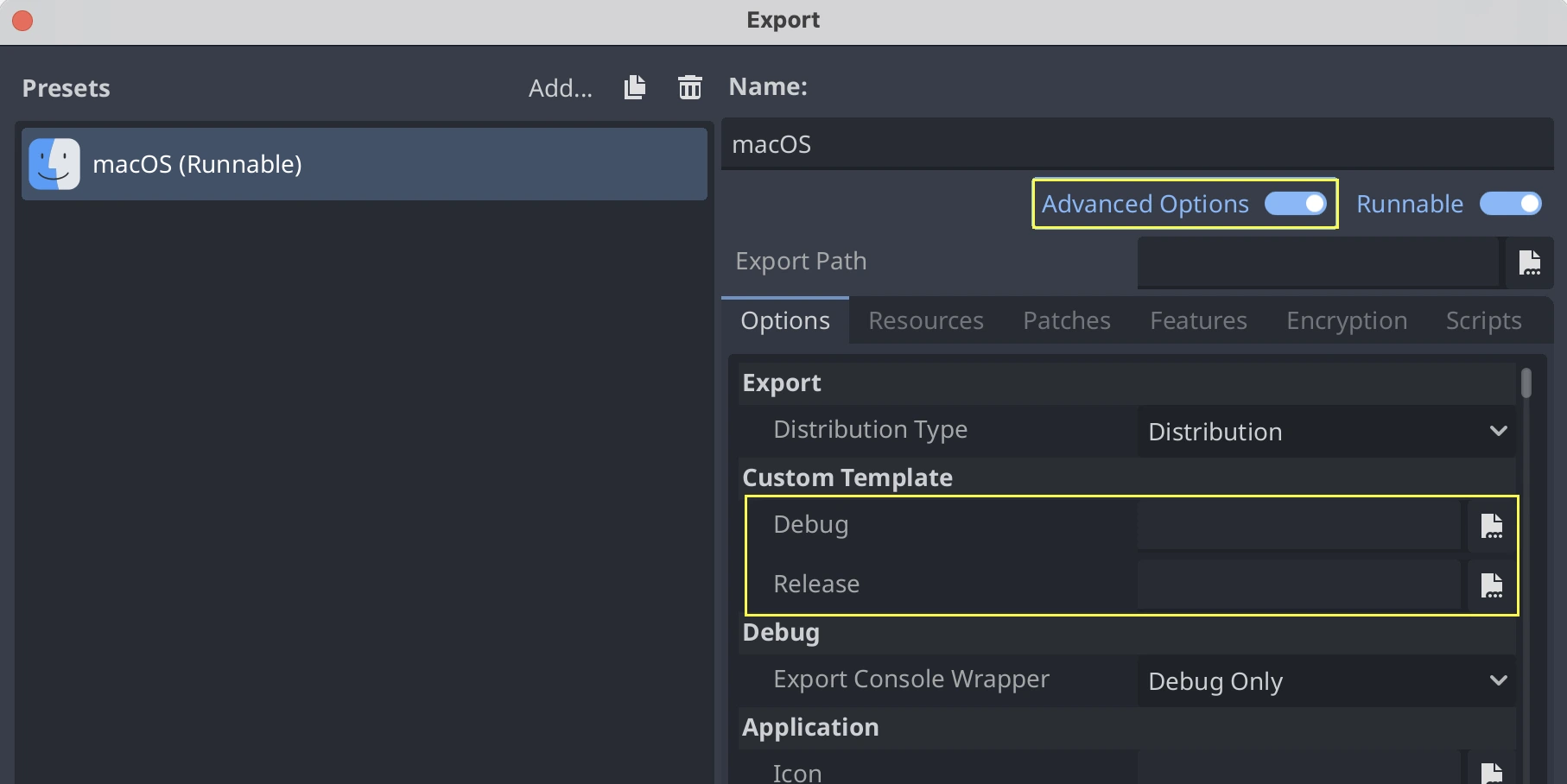
또는 모든 사전 설정에서 사용자 정의 내보내기 템플릿을 사용하려면 godot_macos.zip 파일 이름을 ``macos.zip``로 바꾸고 이를 내보내기 템플릿의 기본 위치로 이동할 수 있습니다.
- ::
macOS:
$HOME/Library/Application Support/Godot/export_templates/<버전>/
Linux에서 macOS용 크로스 컴파일
Linux 환경에서 macOS용으로 컴파일하는 것이 가능합니다(그리고 Linux용 Windows 하위 시스템을 사용하는 Windows에서도 가능). 이를 위해서는 macOS를 대상으로 사용할 수 있도록 `OSXCross <https://github.com/tpoechtrager/osxcross>`__을 설치해야 합니다. 먼저 지침에 따라 설치하십시오.
`OSXCross 저장소 <https://github.com/tpoechtrager/osxcross>`__를 컴퓨터 어딘가에 복제합니다(또는 ZIP 파일을 다운로드하여 어딘가에 추출합니다). 예:
git clone --depth=1 https://github.com/tpoechtrager/osxcross.git "$HOME/osxcross"
지침에 따라 SDK를 패키징하세요: https://github.com/tpoechtrager/osxcross#packaging-the-sdk
지침에 따라 OSXCross를 설치하세요: https://github.com/tpoechtrager/osxcross#installation
그런 다음 ``OSXCROSS_ROOT``를 OSXCross 설치 경로(저장소를 복제하거나 zip을 추출한 동일한 위치)로 정의해야 합니다. 예:
export OSXCROSS_ROOT="$HOME/osxcross"
이제 평소와 같이 SCons를 사용하여 컴파일할 수 있습니다.
scons platform=macos
SCons 빌드 시스템에서 예상하는 것과 다른 OSXCross SDK 버전이 있는 경우 osxcross_sdk 인수를 사용하여 사용자 지정 버전을 지정할 수 있습니다.
scons platform=macos osxcross_sdk=darwin15
문제 해결
치명적인 오류: 'cstdint' 파일을 찾을 수 없습니다.
초기에 이 양식의 컴파일 오류가 발생하는 경우 macOS 또는 Xcode 업데이트 후 Xcode 명령줄 도구 설치를 복구해야 하기 때문일 가능성이 높습니다.
./core/typedefs.h:45:10: fatal error: 'cstdint' file not found
45 | #include <cstdint>
   |          ^~~~~~~~~
Xcode 명령줄 도구를 다시 설치하려면 다음 두 명령을 실행하세요(필요에 따라 관리자 비밀번호 입력).
sudo rm -rf /Library/Developer/CommandLineTools
sudo xcode-select --install
그래도 작동하지 않으면 Mac App Store에서 Xcode를 업데이트하고 다시 시도해 보세요.