Attention: Here be dragons
This is the latest
(unstable) version of this documentation, which may document features
not available in or compatible with released stable versions of Godot.
Checking the stable version of the documentation...
Android SDK
Android Studio <https://developer.android.com/studio>`_은 `Google 및 `JetBrains <https://www.jetbrains.com/>`_에서 만든 Android 개발용 무료 IDE입니다. `IntelliJ IDEA <https://www.jetbrains.com/idea/>`_을 기반으로 하며 Java 및 C/C++를 지원하는 풍부한 기능의 편집기가 있습니다. 이는 Android 플랫폼 코드베이스뿐만 아니라 Godot의 핵심 엔진에서 작동하는 데 사용될 수 있습니다.
프로젝트 가져오기
Android SDK
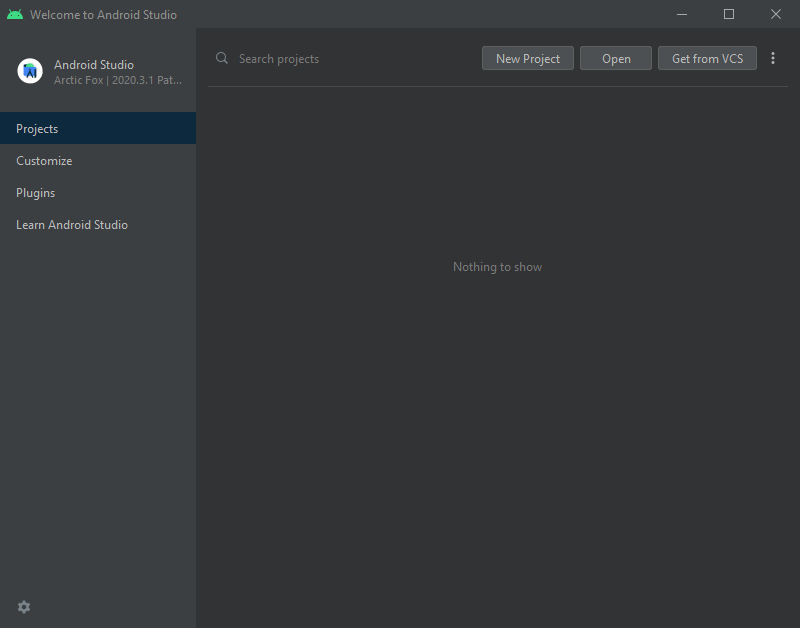
Android SDK
<Godot root directory>/platform/android/java로 이동하여settings.gradle파일을 선택합니다.Android Studio는 프로젝트를 가져오고 색인을 생성합니다.
Android SDK
Android Studio 4.1 이상의 버전 에서 설치가 가능합니다.
lib module:
Located under
<Godot root directory>/platform/android/java/lib, this is a library module that organizes the Godot java and native code and make it available as a reusable Android library.The generated Godot Android library is made available for other Android modules / projects via MavenCentral, along with its documentation.
editor module:
Located under
<Godot root directory>/platform/android/java/editor, this is an application module that holds the source code for the Android and XR ports of the Godot Editor.This module has a dependency on the lib module.
app module:
Located under
<Godot root directory>/platform/android/java/app, this is an application module that holds the source code for the Android build templates.This module has a dependency on the lib module.
편집기 실행하기
editor모듈을 빌드하려면:`실행/디버그 구성 드롭다운 <https://developer.android.com/studio/run/rundebugconfig#running>`_을 선택하고 ``editor``를 선택합니다.
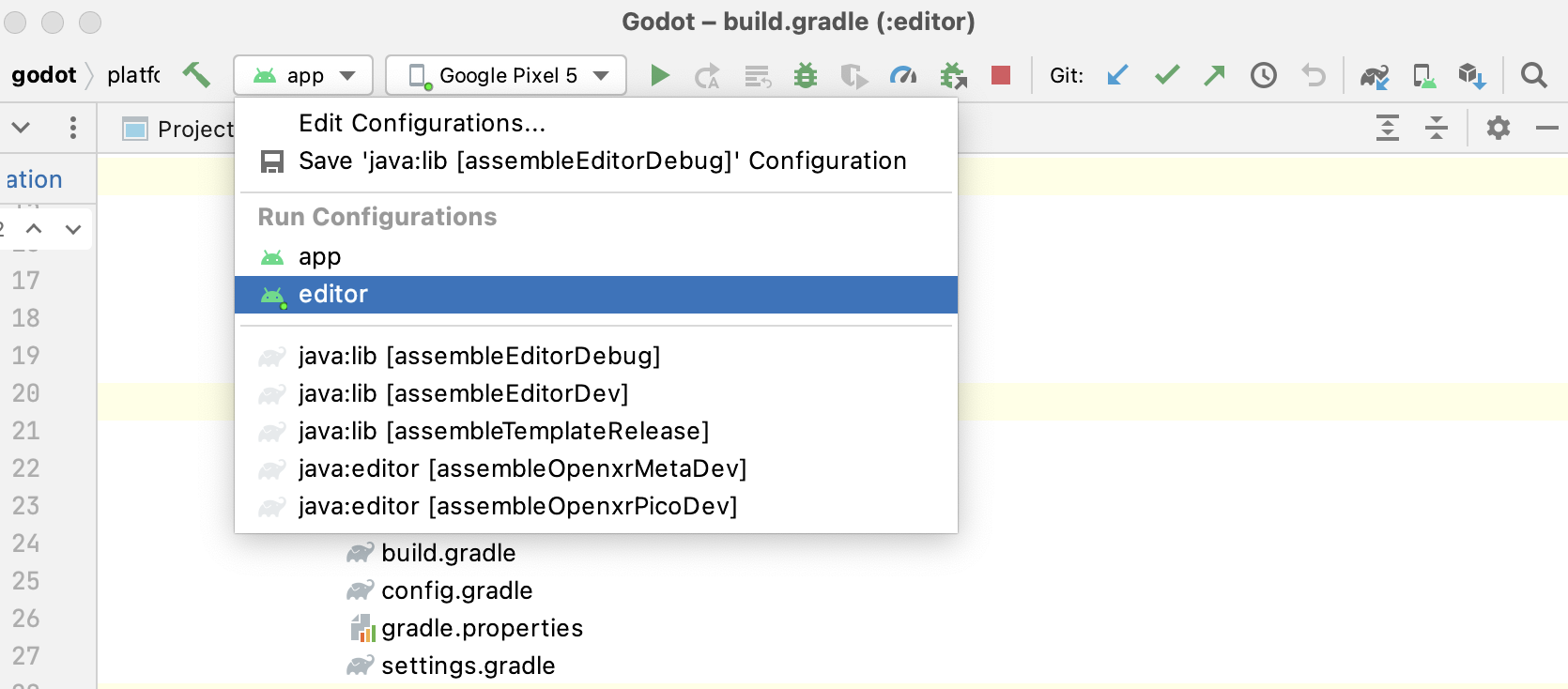
상단 메뉴에서 실행 > '편집기' 실행을 선택하거나 실행 아이콘을 클릭하세요.
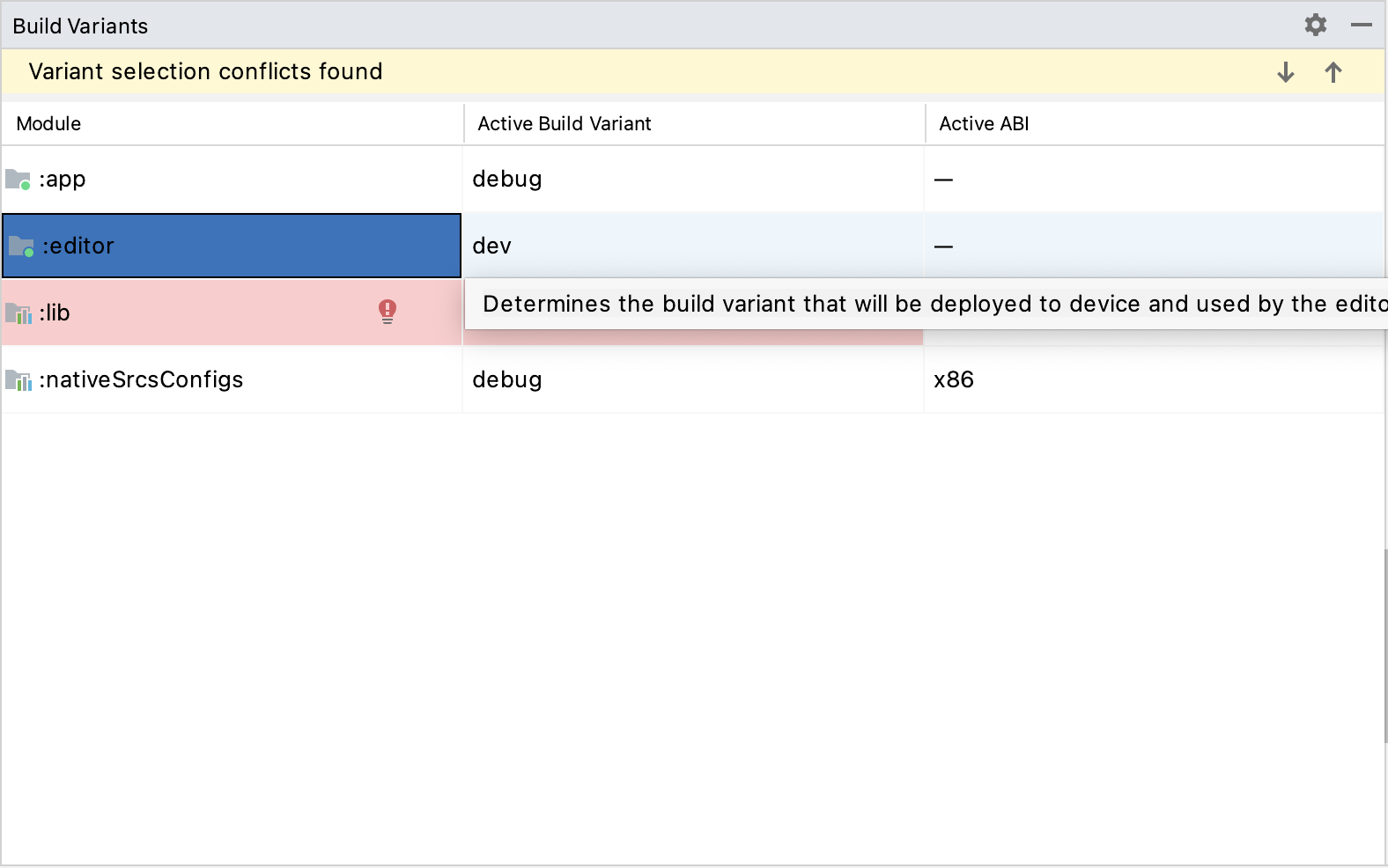
editor모듈을 디버깅하려면:상단 메뉴에서 보기 > Tools Windows > Build Variants**를 사용하여 **Build Variants 창을 엽니다.
In the Build Variants window, make sure that in the Active Build Variant column, the
:editorentry is set to one of the Debug variants.
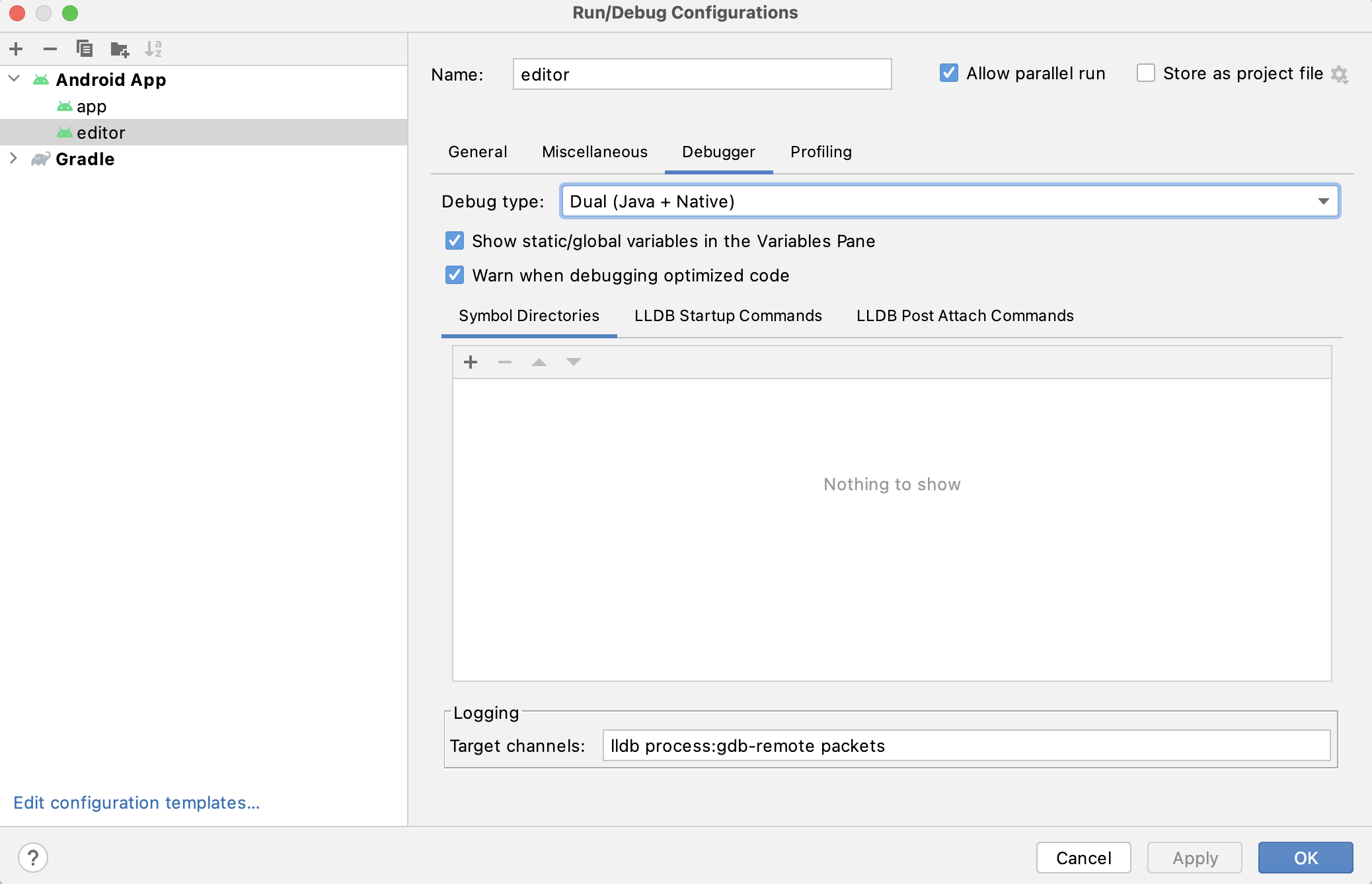
상단 메뉴에서 실행 > 구성 편집...**을 클릭하여 **실행/디버그 구성 창을 엽니다.
실행/디버그 구성 창에서
editor항목을 선택하고 **디버거**에서 **디버그 유형**이 ``Dual (Java + Native)``로 설정되어 있는지 확인합니다.Click the
+sign under the Symbol Directories section, and add theplatform/android/java/lib/libs/tools/debugdirectory.
상단 메뉴에서 실행 > '편집기' 디버그를 선택하거나 디버그 아이콘을 클릭하세요.
앱 모듈 빌드 및 디버깅
app 모듈을 실행하려면 assets 디렉터리(<Godot root directory>/platform/android/java/app/src/main/assets)에 Godot 프로젝트가 있어야 합니다. 이것은 일반적으로 내보내기 프로세스 중에 Godot 편집기에 의해 처리됩니다. Android Studio에서 개발하는 동안 내보내기 프로세스를 복제하려면 해당 디렉터리 아래에 Godot 프로젝트를 수동으로 추가해야 합니다. 완료되면 아래 지침에 따라 app 모듈을 실행/디버깅할 수 있습니다.
app모듈을 빌드하려면:`실행/디버그 구성 드롭다운 <https://developer.android.com/studio/run/rundebugconfig#running>`_을 선택하고 ``app``를 선택합니다.
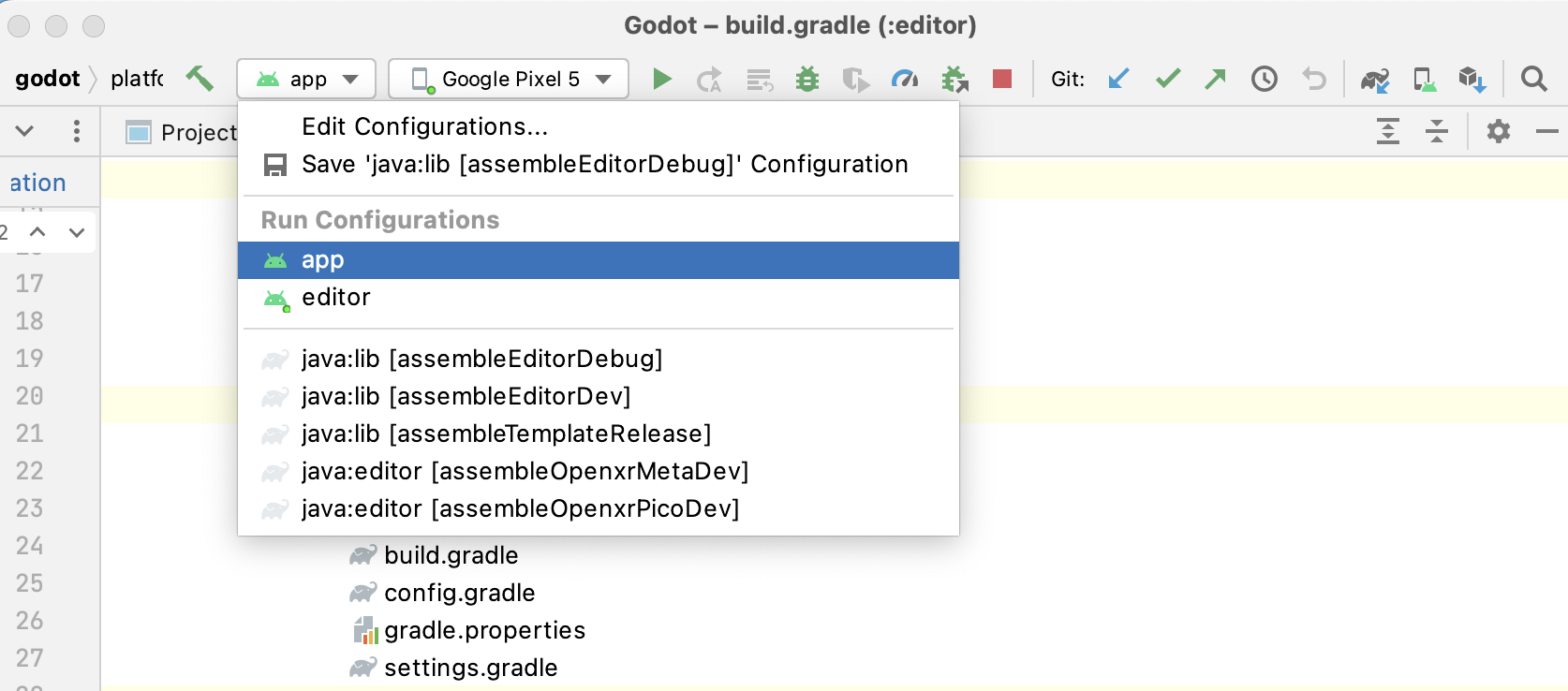
상단 메뉴에서 **실행 > '앱' 실행**을 선택하거나 `실행 아이콘 <https://developer.android.com/studio/run/rundebugconfig#running>`_을 클릭합니다.
app모듈을 디버깅하려면:상단 메뉴에서 보기 > Tools Windows > Build Variants**를 사용하여 **Build Variants 창을 엽니다.
In the Build Variants window, make sure that in the Active Build Variant column, the
:appentry is set to one of the Debug variants.
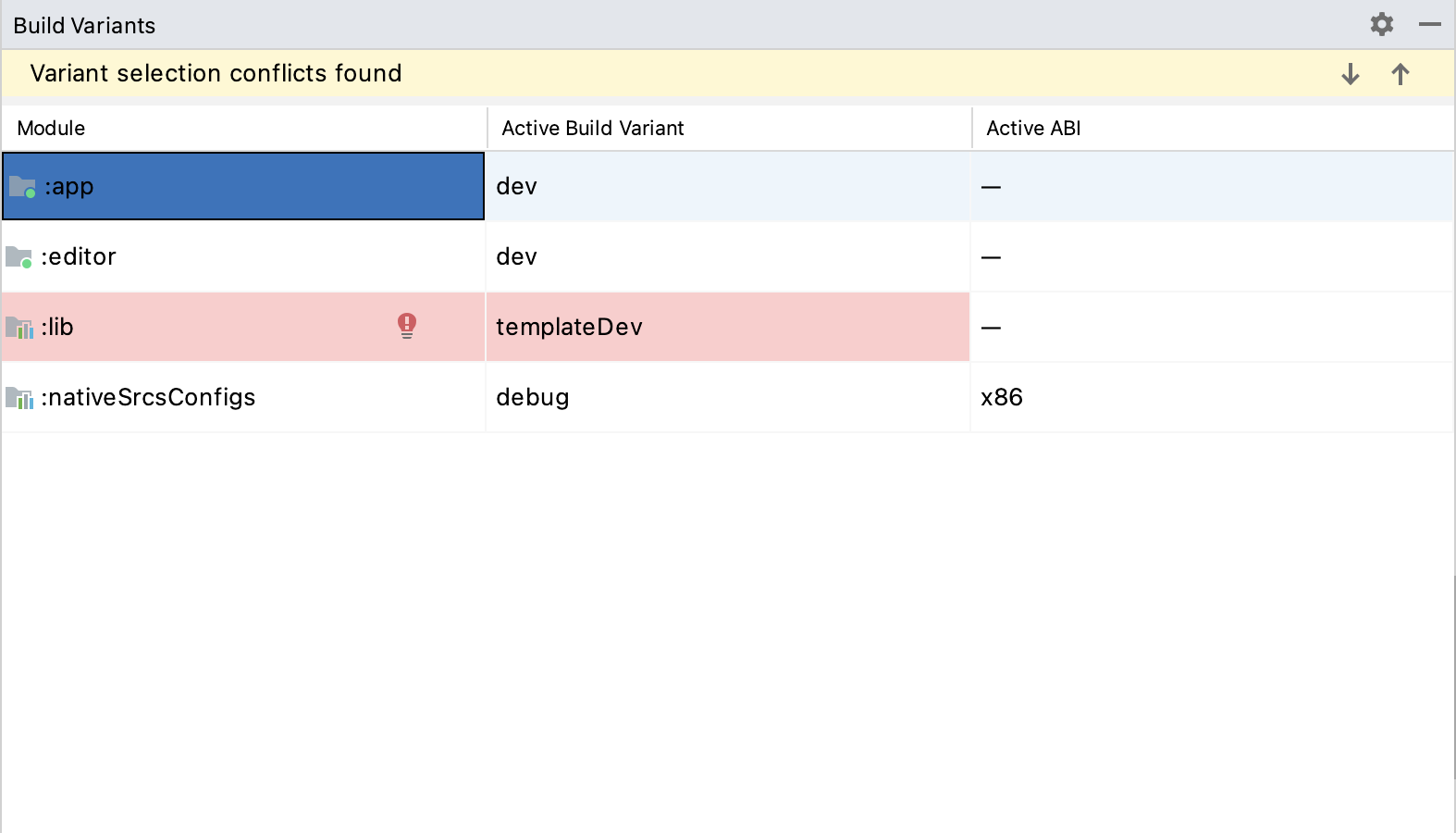
상단 메뉴에서 실행 > 구성 편집...**을 클릭하여 **실행/디버그 구성 창을 엽니다.
실행/디버그 구성 창에서
app항목을 선택하고 **디버거**에서 **디버그 유형**이 ``Dual (Java + Native)``로 설정되어 있는지 확인합니다.Click the
+sign under the Symbol Directories section, and add theplatform/android/java/lib/libs/debugdirectory.
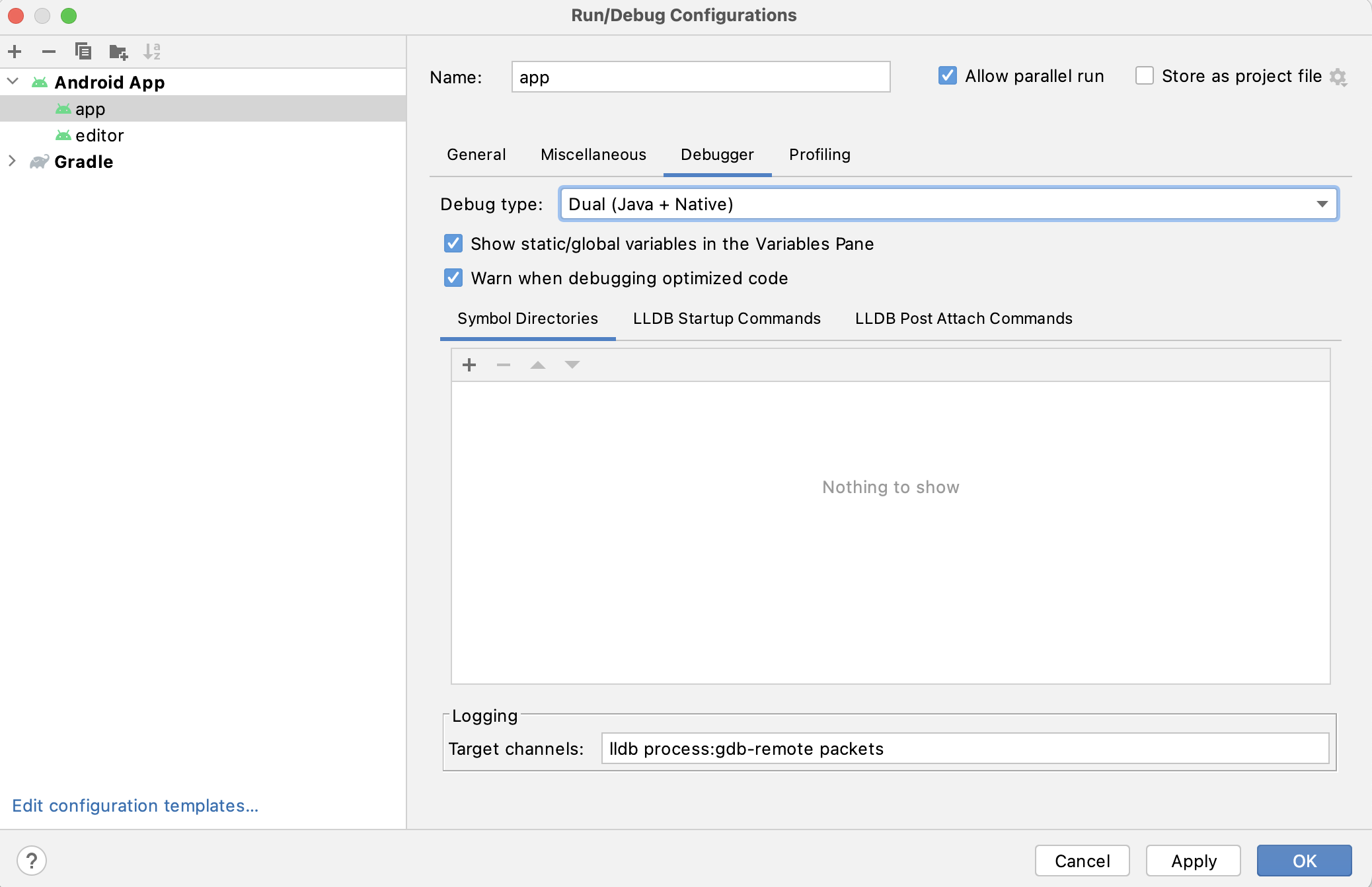
상단 메뉴에서 **실행 > '앱' 디버그**를 선택하거나 `디버그 아이콘 <https://developer.android.com/studio/run/rundebugconfig#running>`_을 클릭합니다.
같은 Godot 웹사이트 페이지에서 참고하세요.