Attention: Here be dragons
This is the latest
(unstable) version of this documentation, which may document features
not available in or compatible with released stable versions of Godot.
Checking the stable version of the documentation...
페르페토
더 보기
자세한 정보는 성능 튜토리얼을 참조하세요.
`Perfetto <https://perfetto.dev>`__은 Android용 기본 추적 시스템입니다. 실제로 시스템 추적 서비스는 Android 9부터 플랫폼에 내장되었습니다.
Using official Perfetto templates
Starting with Godot 4.7, Perfetto export templates are provided for every stable Godot release and can be downloaded from the GitHub Releases page.
Using the Gradle build template
Navigate to the release page and download the
Godot_v<godot_version>_android_source.perfetto.ziprelease artifact wheregodot_versioncorresponds to the version of the engine being used.In the Project > Export dialog, Advanced Options and Use Gradle Build must be enabled.
Point Android Source Template to the downloaded export template.
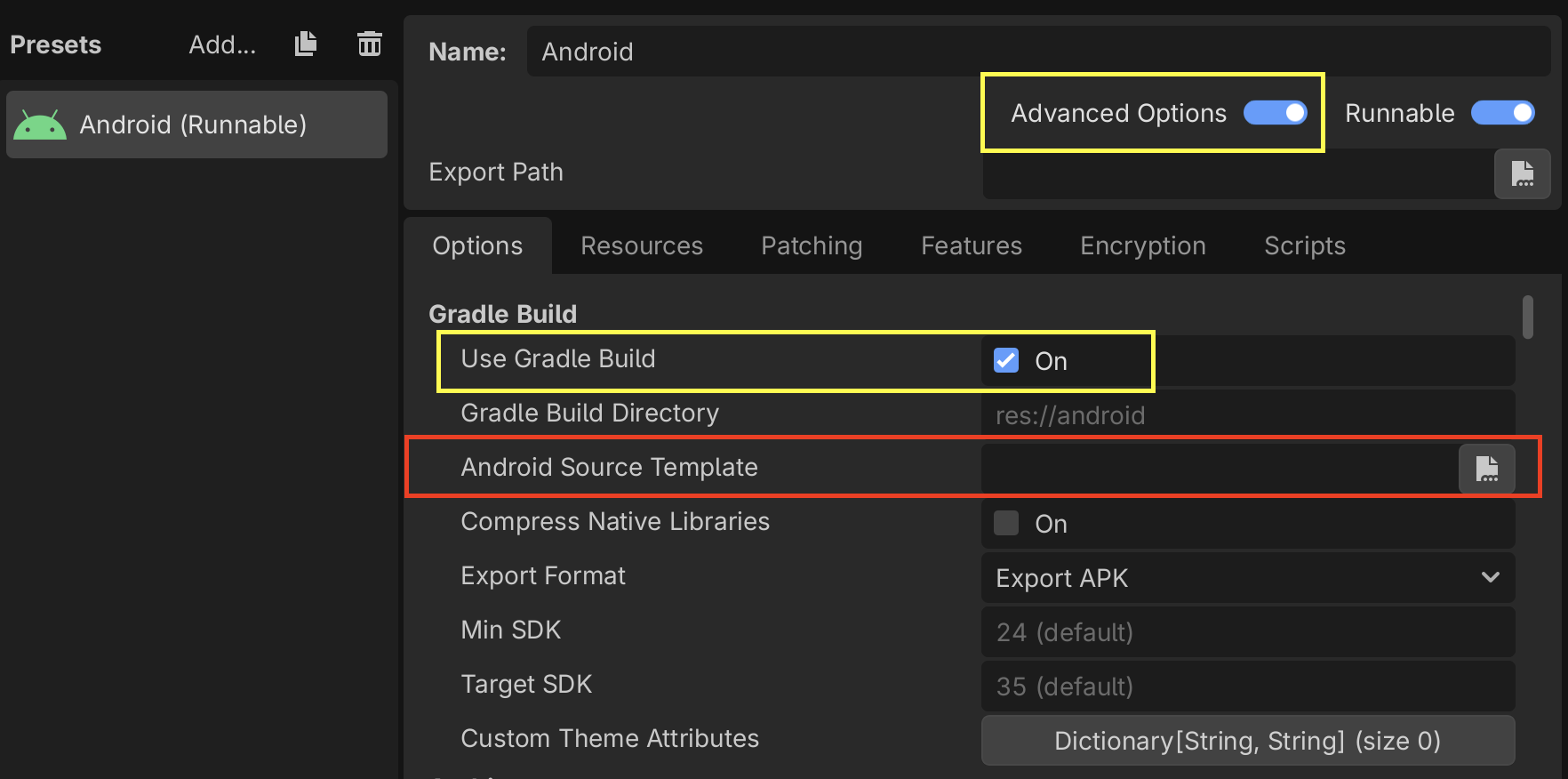
Follow the instructions in the Configuration section to learn how to configure and create a trace.
Using non-gradle build templates
Navigate to the release page and download the following release artifacts where
godot_versioncorresponds to the version of the engine being used:Godot_v<godot_version>_android_debug.perfetto.apk(for debug builds)Godot_v<godot_version>_android_release.perfetto.apk(for release builds)
In the Project > Export dialog:
Advanced Options must be enabled
Use Gradle Build must be disabled
Point Custom Template to the downloaded export templates.
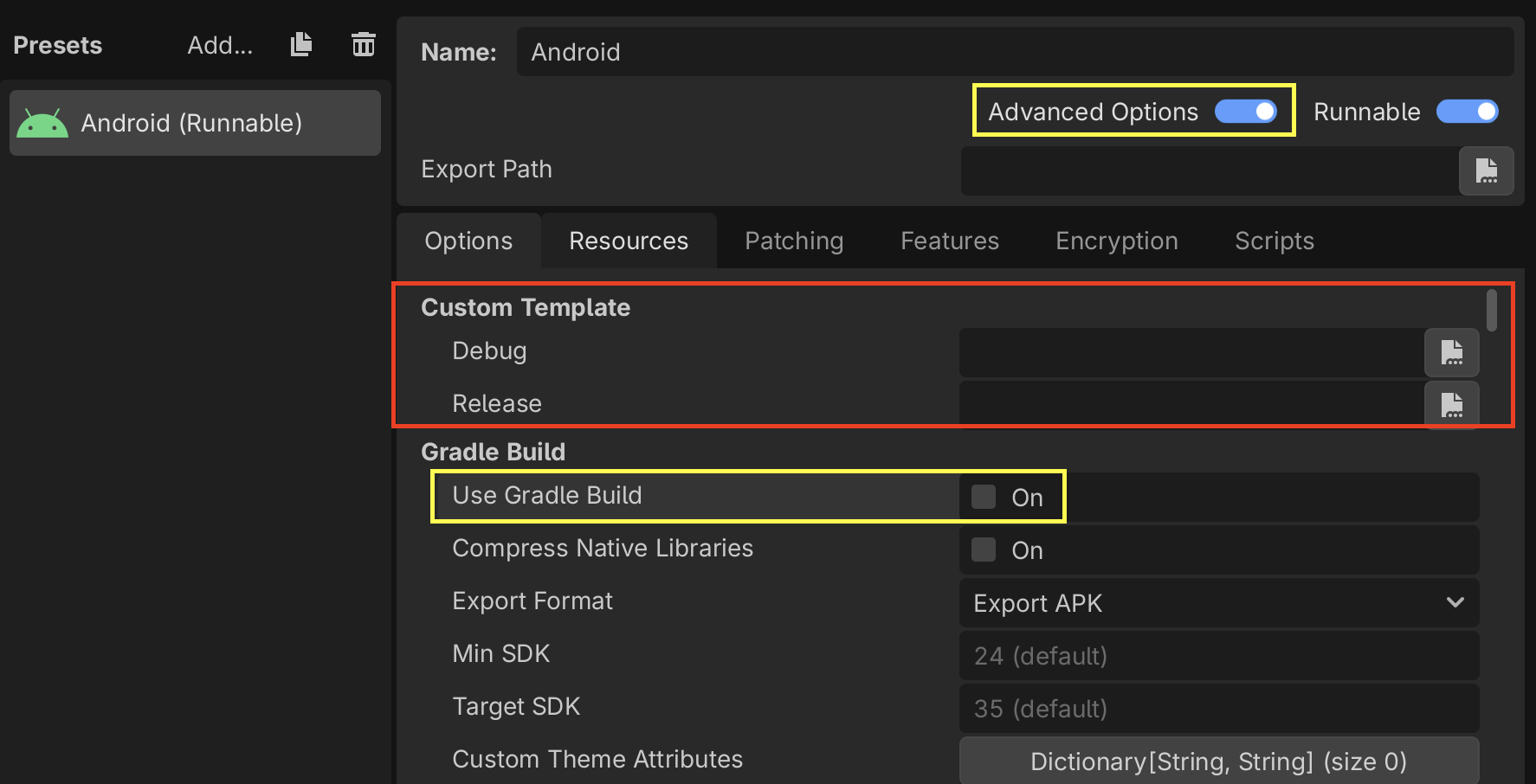
Follow the instructions in the Configuration section to learn how to configure and create a trace.
Custom Godot builds with Perfetto support
From the godot root directory, run the following python script to install
the latest version of the Perfetto SDK under thirdparty/perfetto:
python misc/scripts/install_perfetto.py
Next, build the Android debug or release templates for your architecture using
scons (per Compiling for Android), but
adding the profiler=perfetto argument.
참고
일반적으로 릴리스 템플릿을 프로파일링하는 것이 좋습니다. 왜냐하면 이 버전이 플레이어가 사용할 버전이고 다른 유형의 빌드와 다르게 수행되기 때문입니다. 그러나 Android의 경우 Godot는 디버그 템플릿에서 내보낸 게임의 원격 디버깅만 수행할 수 있기 때문에 디버그 템플릿을 사용하는 것이 때때로 유용할 수 있습니다.
예를 들어, 다음과 같이 플랫폼에 따라 코드를 변경할 수 있습니다:
scons platform=android target=template_release arch=arm64 generate_android_binaries=yes profiler=perfetto
구성
Perfetto에는 추적할 이벤트를 알려주는 구성 파일이 필요합니다.
Create a file called godot.config with this content:
# Trace for 10 seconds.
duration_ms: 10000

buffers {
    size_kb: 32768
    fill_policy: RING_BUFFER
}

# Write to file once every second to prevent overflowing the buffer.
write_into_file: true
file_write_period_ms: 1000

# Track events in the "godot" category.
data_sources {
    config {
        name: "track_event"
        track_event_config {
            enabled_categories: "godot"
        }
    }
}
참고
Godot records two categories of track events:
godot: Used to record Godot engine events. This is used for performance analysis. Event tracing overhead should not significantly impact performance. This should be the typical tracing mode for most developers.
godot_scripting: Used to record Godot scripting events. This is a slow category as it profiles the entire game scripting logic. This is used for code understanding / debugging / finding what caused a frame hitch. Performance is much slower, but it helps to find that one problematic function call that was otherwise hidden.
추적 기록
마지막으로 이전에 구축한 내보내기 템플릿을 사용하여 Android 장치에서 게임을 시작합니다.
When you're ready to record a trace (for example, when you've hit the part of your game that is exhibiting performance issues), you can use this script from the Perfetto GitHub repository.
./record_android_trace -c /path/to/godot.config
이는 구성에 따라 10초 동안 또는 :kbd:`Ctrl + C`을 누를 때까지 녹음됩니다.
게임 실행하기
스크립트가 종료되자마자 웹 브라우저에서 Perfetto UI가 시작됩니다.
To see the Godot events, expand the row for your application by clicking on its Android Unique Name / Package Name / App ID (Perfetto will also include some events from system services in the trace).
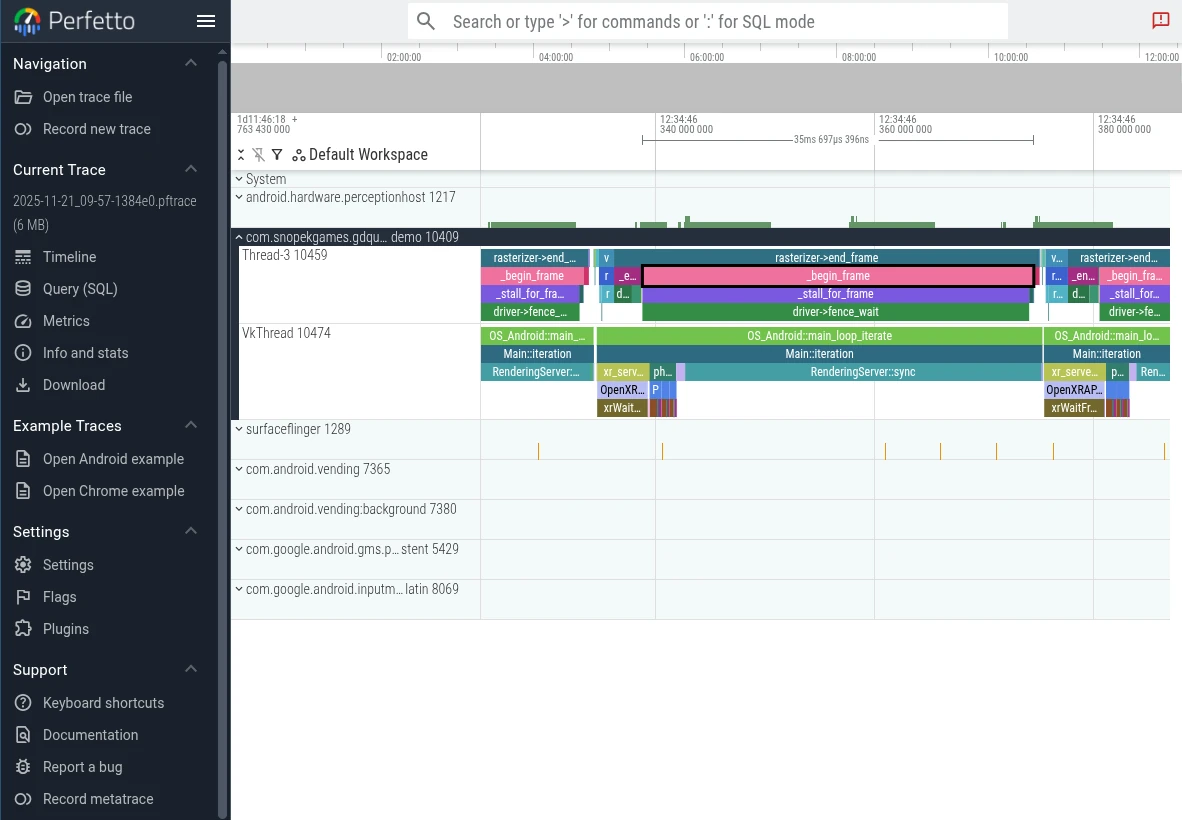
그런 다음 WASD 키를 사용하여 그래프를 탐색할 수 있습니다.
Godot의 개별 이벤트를 보려면 약간 확대해야 할 수도 있습니다.
자세한 내용은 `Perfetto UI 문서 <https://perfetto.dev/docs/visualization/perfetto-ui>`_를 참조하세요.