Attention: Here be dragons
This is the latest
(unstable) version of this documentation, which may document features
not available in or compatible with released stable versions of Godot.
Checking the stable version of the documentation...
Using the Asset Store Website
개요
As mentioned before, you can access the web frontend of the Asset Store on Godot's official website. This is what it looks like when you first visit it:

검색하기
The search bar at the top of the page can be used to find assets. You can either
type in the name of something specific you're looking for, or a tag such as 2D.
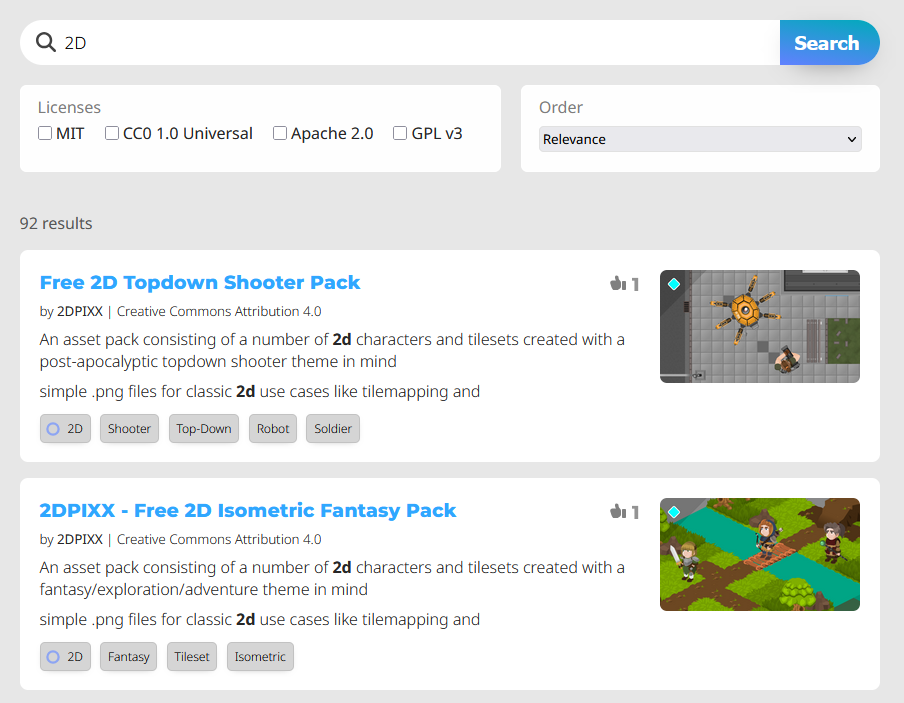
검색 결과는 실시간으로 업데이트되지 않으므로 쿼리 설정을 변경할 때마다 검색어를 다시 제출해야 합니다.
You can also click on any tag a project has to pull up a search of other assets with that tag.
애셋 분석
이제 애셋 페이지의 모양과 포함 내용을 살펴보겠습니다.

You'll immediately notice media showing off the asset in the center of the screen. Below that are 3 tabs, the description, changelog, and reviews.
The panel on the left is where you'll find the asset author, tags, license, source code link if applicable, download button, and the option to add it to your library if you're logged in.
If you are logged in, there will be a "Flag this Asset" button below this panel. Use this to report the asset if there's an issue that may warrant removal, such as copyright infringement, theft, or impersonation. This is not for bug reports for the asset itself.
등록하기 및 로그인하기
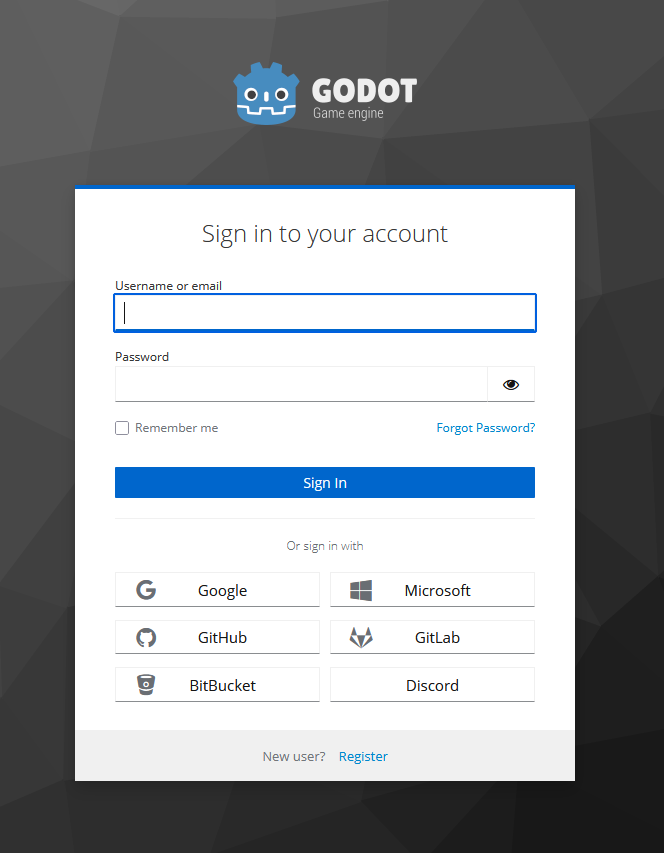
In order to upload assets to the Asset Store, leave reviews on assets, and report assets, you need to login. You do not need to be logged in to browse and download the assets.
The login/registration page can be accessed from any page, just click the button on the top right of the website, next to the "upload asset" button.

There are several options for logging in using other accounts you may already have, such as GitHub and GitLab, or you can create a new account specifically for the Asset Store.