Attention: Here be dragons
This is the latest
(unstable) version of this documentation, which may document features
not available in or compatible with released stable versions of Godot.
Checking the stable version of the documentation...
Manually changing application icon for Windows
Windows applications use a Windows only format called ICO for their file icon and taskbar icon. Since Godot 4.1, Godot can create an ICO file for you based on the icon file defined in the Windows export preset. Supported formats are PNG, WebP, and SVG. If no icon is defined in the Windows export preset, the application/config/icon project setting is used automatically instead.
This means you no longer need to follow the steps in this section to manually create an ICO file, unless you wish to have control over the icon design depending on its displayed size.
Creating a custom ICO file
You can create your application icon in any program but you will have to convert it to an ICO file using a program such as GIMP.
Ce tutoriel vidéo explique comment exporter un fichier ICO avec GIMP.
Il est également possible de convertir une image PNG en un fichier ICO compatible hiDPI à l’aide de cette commande ImageMagick :
magick convert icon.png -define icon:auto-resize=256,128,64,48,32,16 icon.ico
Selon la version d'ImageMagick que vous avez installée, vous devrez peut-être omettre le magick et lancer cette commande à la place :
convert icon.png -define icon:auto-resize=256,128,64,48,32,16 icon.ico
Avertissement
Pour que le fichier ICO remplace effectivement l'icône Godot par défaut, il doit contenir toutes les tailles incluses dans l'icône Godot par défaut : 16×16, 32×32, 48×48, 64×64, 128×128, 256×256. Si le fichier ICO ne contient pas toutes les tailles, l'icône Godot par défaut sera conservée pour les tailles qui n'ont pas été remplacées.
La commande ImageMagick ci-dessus prend cela en compte.
Changer l'icône de la barre des tâches
L'icône de la barre des tâches correspond à celle qui apparaît sur la barre des tâches quand le jeu est lancé.

To change the taskbar icon, go to
Project > Project Settings > Application > Config, make sure
Advanced Settings are enabled to see the setting, then go to
Windows Native Icon. Click on the folder icon and select your ICO file.

Ce paramètre ne modifie que l'icône de votre jeu exporté sur Windows. Pour définir l'icône pour macOS, utilisez Macos Native Icon. Et pour toute autre plate-forme, utilisez le paramètre Icon.
Changer l'icône du fichier
L'icône du fichier est celle de l'exécutable sur lequel on clique pour lancer le jeu.
To do that, you will need to specify the icon when exporting. Go to Project > Export. Assuming you have already created a Windows Desktop preset, select your icon in ICO format in the Application > Icon field.

Tester le résultat
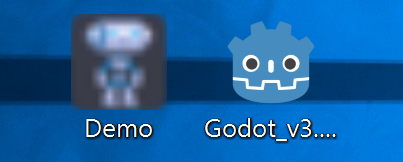
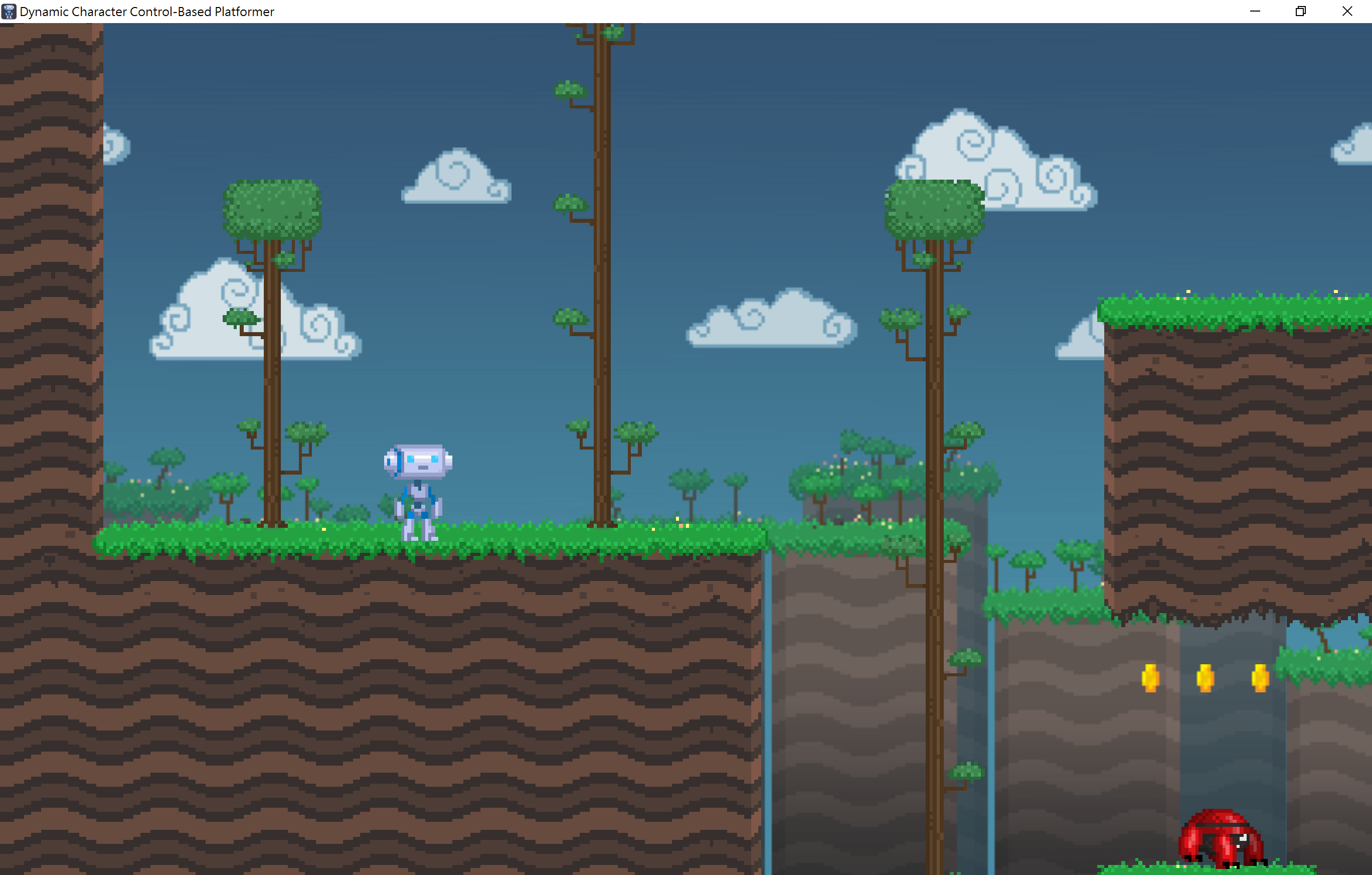
Vous pouvez maintenant exporter le projet. Si cela a fonctionné correctement, vous devriez voir ceci :
Note
If your icon isn't showing up properly try clearing the icon
cache. To do so, open the Run dialog and enter ie4uinit.exe
-ClearIconCache or ie4uinit.exe -show.