Attention: Here be dragons
This is the latest
(unstable) version of this documentation, which may document features
not available in or compatible with released stable versions of Godot.
Checking the stable version of the documentation...
Déploiement en un clic
Qu'est-ce que le déploiement en un clic ?
Le déploiement en un clic est une fonction qui est disponible une fois qu'une plate-forme est correctement configurée et qu'un périphérique pris en charge est connecté à l'ordinateur. Comme les choses peuvent mal tourner à plusieurs niveaux (la plate-forme peut ne pas être configurée correctement, le SDK peut être mal installé, le périphérique peut être mal configuré, etc.), il est bon de faire savoir à l'utilisateur qu'il existe.
Après avoir ajouté un préréglage d'exportation Android marqué comme Runnable, Godot peut détecter quand un périphérique USB est connecté à l'ordinateur et proposer à l'utilisateur d'exporter, d'installer et d'exécuter automatiquement le projet (en mode débogage) sur le périphérique. Cette fonctionnalité est appelée déploiement en un clic.
Note
Le déploiement en un clic n'est disponible que si vous avez ajouté un modèle d'exportation marqué comme Runnable dans la boîte de dialogue Export. Vous pouvez marquer plusieurs modèles d'exportation comme runnable, mais un seul modèle par plate-forme peut être marqué comme runnable. Si vous marquez un deuxième préréglage dans une plate-forme donnée comme étant runnable, l'autre préréglage ne sera plus marqué comme étant runnable.
Plateformes prises en charge
Android : Exporte le projet avec le débogage activé et l'exécute sur l'appareil connecté.
Veillez à suivre les étapes décrites dans Exportation pour Android. Sinon, le bouton de déploiement en un clic n'apparaîtra pas.
Si vous avez plus d'un appareil connecté, Godot vous demandera dans quel appareil le project sera exporté.
iOS: Exports the project with debugging enabled and runs it on the connected device.
Veillez à suivre les étapes décrites dans Exportation pour iOS. Sinon, le bouton de déploiement en un clic n'apparaîtra pas.
For each new bundle identifier, export the project, open it in the Xcode, and build at least once to create new provisioning profile or create a provisioning profile in the Apple Developer account dashboard.
Si vous avez plus d'un appareil connecté, Godot vous demandera dans quel appareil le project sera exporté.
Desktop platforms: Exports the project with debugging enabled and runs it on the remote computer via SSH.
Web: Starts a local web server and runs the exported project by opening the default web browser. This is only accessible on
localhostby default. See Troubleshooting for making the exported project accessible on remote devices.
Utilisation du déploiement en un clic
- Android :
Enable developer mode on your mobile device then enable USB debugging in the device's settings.
After enabling USB debugging, connect the device to your PC using a USB cable.
- It's also possible to one-click deploy via wireless ADB instead of with a USB cable. In order to do this, it is necessary to:
Enable wireless debugging on the device:
Connect to the same Wi-Fi network on your mobile device and PC.
Click
On your PC, enter the command
adb pair <ip address>:<port>and provide the pairing code when prompted. Ifadbis not recognized, you may need to add the android-sdk's platform-tools folder to yourPATHor execute this command from there.You can verify the ADB device is successfully connected by entering
adb devicesin the terminal.
- iOS:
Install Xcode, accept Xcode license and login with your Apple Developer account.
If you are using Xcode 14 or earlier, install ios-deploy and set path to ios-deploy in the Editor Settings (see Export ⇾ iOS ⇾ iOS Deploy).
- Pour s'exécuter sur un appareil :
Pair your mobile device with a Mac.
Activez le mode développeur sur votre appareil.
Device can be connected via USB or local network.
Make sure the device is on the same local network and a correct network interface is selected in the editor settings (see Network ⇾ Debug ⇾ Remote Host). By default, the editor is listening for localhost connections only.
L'écran du périphérique doit être déverrouillé.
- Plateformes de bureau :
Enable SSH Remote Deploy and configure connection settings in the project export setting.
Make sure there is an export preset marked as Runnable for the target platform (Android, iOS or Web).
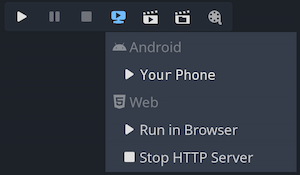
Si tout est correctement configuré et qu'il n'y a pas d'erreurs, les icônes spécifiques aux plateformes apparaîtront dans le coin en haut à droite de l'éditeur.
Cliquez le bouton pour exporter sur la platforme désirée en un clique.
Dépannage
Android
Si vous ne pouvez pas voir le périphérique dans la liste des périphériques en exécutant la commande adb devices dans un terminal, il ne sera pas non plus visible par Godot. Pour résoudre ce problème :
Vérifiez si le débogage USB est activé et autorisé sur l'appareil. Essayez de déverrouiller votre appareil et d'accepter l'invite d'autorisation si vous en voyez une. Si vous ne voyez pas cette invite, l'exécution de
adb devicessur votre PC devrait faire apparaître l'invite d'autorisation sur l'appareil.Essayez de révoquer l'autorisation de débogage dans les paramètres du développeur de l'appareil, puis suivez à nouveau les étapes.
Essayez d'utiliser le débogage USB au lieu du débogage sans fil ou vice versa. Parfois, l'un des deux fonctionne mieux que l'autre.
Sous Linux, il se peut qu'il vous manque les règles udev nécessaires pour que votre périphérique soit reconnu.
Web
By default, the web server started by the editor is only accessible from
localhost. This means the web server can't be reached by other devices on
the local network or the Internet (if port forwarding is set up on the router).
This is done for security reasons, as you may not want other devices to be able
to access the exported project while you're testing it. Binding to localhost
also prevents a firewall popup from appearing when you use one-click deploy for
the web platform.
To make the local web server accessible over the local network, you'll need to
change the Export > Web > HTTP Host editor setting to 0.0.0.0. You will
also need to enable Export > Web > Use TLS as SharedArrayBuffer requires the
use of a secure connection to work, unless connecting to localhost.
However, since other clients will be connecting to a remote device, the use of
TLS is absolutely required here.
To make the local web server accessible over the Internet, you'll also need to
forward the Export > Web > HTTP Port port specified in the Editor Settings
(8060 by default) in TCP on your router. This is usually done by accessing
your router's web interface then adding a NAT rule for the port in question. For
IPv6 connections, you should allow the port in the router's IPv6 firewall
instead. Like for local network devices, you will also need to enable Export >
Web > Use TLS.
Note
When Use TLS is enabled, you will get a warning from your web browser as Godot will use a temporary self-signed certificate. You can safely ignore it and bypass the warning by clicking Advanced and then Proceed to (address).
If you have an SSL/TLS certificate that is trusted by browsers, you can specify the paths to the key and certificate files in the Export > Web > TLS Key and Export > Web > TLS Certificate. This will only work if the project is accessed through a domain name that is part of the TLS certificate.
Avertissement
When using one-click deploy on different projects, it's possible that a previously edited project is being shown instead. This is due to service worker caching not being cleared automatically. See Dépannage for instructions on unregistering the service worker, which will effectively clear the cache and resolve the issue.