Attention: Here be dragons
This is the latest
(unstable) version of this documentation, which may document features
not available in or compatible with released stable versions of Godot.
Checking the stable version of the documentation...
Visual Studio Code
Note
This documentation is for contributions to the game engine, and not using Visual Studio Code as a C# or GDScript editor. To code C# or GDScript in an external editor, see the C# guide to configure an external editor or the GDScript guide to using an external text editor.
Visual Studio Code est un éditeur de code multiplateforme gratuit de Microsoft (à ne pas confondre avec Visual Studio).
Importation du projet
Assurez-vous que l'extension C/C++ est installée. Vous pouvez trouver les instructions dans la documentation officielle. Sinon, clangd peut être utilisé à la place.
Lorsque vous utilisez l'extension clangd, lancer
scons compiledb=yes.Depuis l'écran principal du Visual Studio Code, ouvrez le dossier racine de Godot avec File > Open Folder....
Appuyez sur Ctrl + Shift + P pour ouvrir la fenêtre d'invite de commande et entrez Configure Task.
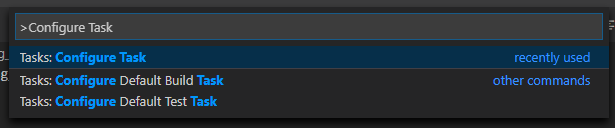
Sélectionnez l'option Create tasks.json file from template.

Sélectionnez ensuite Others.
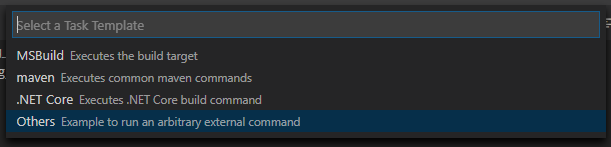
If there is no such option as Create tasks.json file from template available, either delete the file if it already exists in your folder or create a
.vscode/tasks.jsonfile manually. See Tasks in Visual Studio Code for more details on tasks.Dans le fichier
tasks.json, trouvez le tableau"tasks"et ajoutez-y une nouvelle section :.vscode/tasks.json{ "label": "build", "group": "build", "type": "shell", "command": "scons", "args": [ // enable for debugging with breakpoints "dev_build=yes", ], "problemMatcher": "$msCompile" }
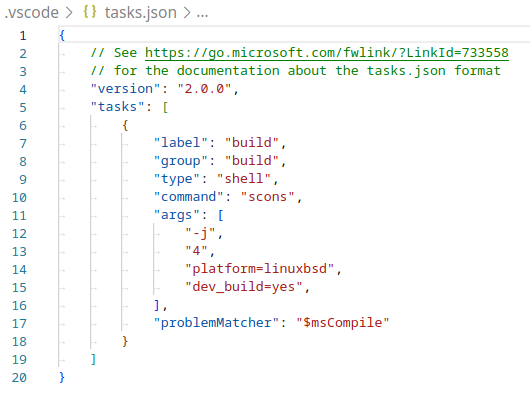
Un exemple de tasks.json rempli.
Les arguments peuvent être différents selon votre propre configuration et vos besoins. Voir Introduction au buildsystem pour une liste complète des arguments.
Débogage du projet
Pour exécuter et déboguer le projet, vous devez créer une nouvelle configuration dans le fichier launch.json.
Appuyez sur Ctrl + Shift + D pour ouvrir le panneau Run.
Si le fichier
launch.jsonest manquant, vous serez invité à en créer un nouveau.
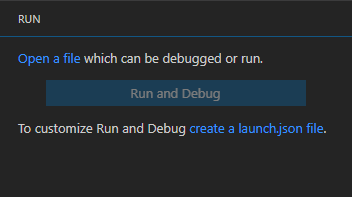
Select C++ (GDB/LLDB). There may be another platform-specific option here. If selected, adjust the configuration example provided accordingly.
Dans le fichier
launch.json, trouvez le tableau"configurations"et ajoutez-y une nouvelle section :
{
  "name": "Launch Project",
  "type": "lldb",
  "request": "launch",
  // Change to godot.linuxbsd.editor.dev.x86_64.llvm for llvm-based builds.
  "program": "${workspaceFolder}/bin/godot.linuxbsd.editor.dev.x86_64",
  // Change the arguments below for the project you want to test with.
  // To run the project instead of editing it, remove the "--editor" argument.
  "args": [ "--editor", "--path", "path-to-your-godot-project-folder" ],
  "stopAtEntry": false,
  "cwd": "${workspaceFolder}",
  "environment": [],
  "externalConsole": false,
  "preLaunchTask": "build"
}
{
  "name": "Launch Project",
  "type": "cppdbg",
  "request": "launch",
  // Change to godot.linuxbsd.editor.dev.x86_64.llvm for llvm-based builds.
  "program": "${workspaceFolder}/bin/godot.linuxbsd.editor.dev.x86_64",
  // Change the arguments below for the project you want to test with.
  // To run the project instead of editing it, remove the "--editor" argument.
  "args": [ "--editor", "--path", "path-to-your-godot-project-folder" ],
  "stopAtEntry": false,
  "cwd": "${workspaceFolder}",
  "environment": [],
  "externalConsole": false,
  "setupCommands":
  [
    {
      "description": "Enable pretty-printing for gdb",
      "text": "-enable-pretty-printing",
      "ignoreFailures": true
    },
    {
        "description": "Load custom pretty-printers for Godot types.",
        "text": "source ${workspaceRoot}/misc/utility/godot_gdb_pretty_print.py"
    }
  ],
  "preLaunchTask": "build"
}
{
  "name": "Launch Project",
  "type": "cppvsdbg",
  "request": "launch",
  "program": "${workspaceFolder}/bin/godot.windows.editor.dev.x86_64.exe",
  // Change the arguments below for the project you want to test with.
  // To run the project instead of editing it, remove the "--editor" argument.
  "args": [ "--editor", "--path", "path-to-your-godot-project-folder" ],
  "stopAtEntry": false,
  "cwd": "${workspaceFolder}",
  "environment": [],
  "console": "internalConsole",
  "visualizerFile": "${workspaceFolder}/platform/windows/godot.natvis",
  "preLaunchTask": "build"
}
{
  "name": "Launch Project",
  "type": "lldb",
  "request": "launch",
  "program": "${workspaceFolder}/bin/godot.macos.editor.dev.x86_64",
  // Change the arguments below for the project you want to test with.
  // To run the project instead of editing it, remove the "--editor" argument.
  "args": ["--editor", "--path", "path-to-your-godot-project-folder"],
  "cwd": "${workspaceFolder}",
  "preLaunchTask": "build"
}
{
  "name": "Launch Project",
  "type": "lldb",
  "request": "launch",
  "program": "${workspaceFolder}/bin/godot.macos.editor.dev.arm64",
  // Change the arguments below for the project you want to test with.
  // To run the project instead of editing it, remove the "--editor" argument.
  "args": ["--editor", "--path", "path-to-your-godot-project-folder"],
  "cwd": "${workspaceFolder}",
  "preLaunchTask": "build"
}
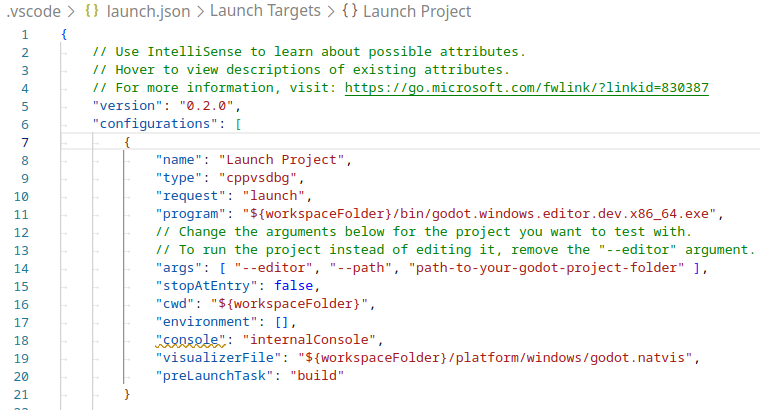
Un exemple de launch.json rempli.
Note
Due to sporadic performance issues, it is recommended to use LLDB over GDB on Unix-based systems.
Make sure that the CodeLLDB extension
is installed for configurations using lldb.
If you encounter issues with lldb, you may consider using gdb (see the LinuxBSD_gdb configuration).
Notez que lldb peut mieux fonctionner avec les compilations basées sur LLVM. Voir Compiling for Linux, *BSD pour plus d'informations.
The name under program depends on your build configuration,
e.g. godot.linuxbsd.editor.dev.x86_64 for 64-bit LinuxBSD platform with
target=editor and dev_build=yes.
Configuring IntelliSense
Pour l'extension C/C++ :
To fix include errors you may be having, you need to configure some settings in the c_cpp_properties.json file.
First, make sure to build the project since some files need to be generated.
Edit the C/C++ Configuration file either with the UI or with text:

Add an include path for your platform, for example,
${workspaceFolder}/platform/windows.Add defines for the editor
TOOLS_ENABLED, debug buildsDEBUG_ENABLED, and testsTESTS_ENABLED.Make sure the compiler path is configured correctly to the compiler you are using. See Introduction au buildsystem for further information on your platform.
The
c_cpp_properties.jsonfile should look similar to this for Windows:.vscode/c_cpp_properties.json{ "configurations": [ { "name": "Win32", "includePath": [ "${workspaceFolder}/**", "${workspaceFolder}/platform/windows" ], "defines": [ "_DEBUG", "UNICODE", "_UNICODE", "TOOLS_ENABLED", "DEBUG_ENABLED", "TESTS_ENABLED" ], "windowsSdkVersion": "10.0.22621.0", "compilerPath": "C:/Program Files/Microsoft Visual Studio/2022/Community/VC/Tools/MSVC/14.39.33519/bin/Hostx64/x64/cl.exe", "cStandard": "c17", "cppStandard": "c++17", "intelliSenseMode": "windows-msvc-x64" } ], "version": 4 }
Alternatively, you can use the scons argument
compiledb=yesand set the compile commands settingcompileCommandstocompile_commands.json, found in the advanced section of the C/C++ Configuration UI.This argument can be added to your build task in
tasks.jsonsince it will need to be run whenever files are added or moved.
Linting class reference XML files
To get linting on class reference XML files, install the vscode-xml extension.
Displaying documentation on hover
By installing the Godot Hover Docs extension, you can make class reference documentation appear when hovering symbols in C++ source or header files. The information is sourced from local XML files, so it works offline.
Note
This is only effective for symbols that are documented in the class reference XML, i.e. those that are exposed to the scripting API. Internal engine symbols will not show documentation on hover, unless they have a comment right above their declaration.
Dépannage
Si vous rencontrez des problèmes, demandez de l'aide sur l'un des canaux communautaires de Godot.