Attention: Here be dragons
This is the latest
(unstable) version of this documentation, which may document features
not available in or compatible with released stable versions of Godot.
Checking the stable version of the documentation...
Exportation pour iOS
Voir aussi
Cette page explique comment exporter un projet Godot vers iOS. Si vous cherchez à exporter les binaires des modèles depuis le code source, voyez plutôt Compiler pour iOS.
Voici les étapes permettant de charger un projet Godot dans Xcode. Ceci vous permet de compiler et de déployer sur un appareil IOS, compiler une version officielle pour l'App Store et faire tout ce que vous pouvez normalement faire sur Xcode.
Attention
Projects written in C# can be exported to iOS as of Godot 4.2, but support is experimental and some limitations apply.
Pré-requis
Vous devez impérativement disposer d'un ordinateur macOS avec Xcode installé pour exporter vers IOS.
Téléchargez les modèles d'exportation Godot. Utilisez le menu Godot : Editeur>Gérer les modèles d'exportation
Exporter un projet vers Xcode
Dans l'éditeur Godot, ouvrez la fenêtre Exporter depuis le menu Projet. Dans la fenêtre, cliquez sur Ajouter... et sélectionnez IOS.
The App Store Team ID and (Bundle) Identifier options in the Application category are required. Leaving them blank will cause the exporter to throw an error. The bundle ID must be unique.
Note
A valid bundle ID can only contain alphanumeric characters, hyphens, and periods (A-Z, a-z, 0-9, -, and .).
Apple recommends using reverse-DNS format (e.g. com.example.your-game) of a domain you own, so that your bundle ID is guaranteed to be unique.
Bundle IDs are case-insensitive. See CFBundleIdentifier.
Note
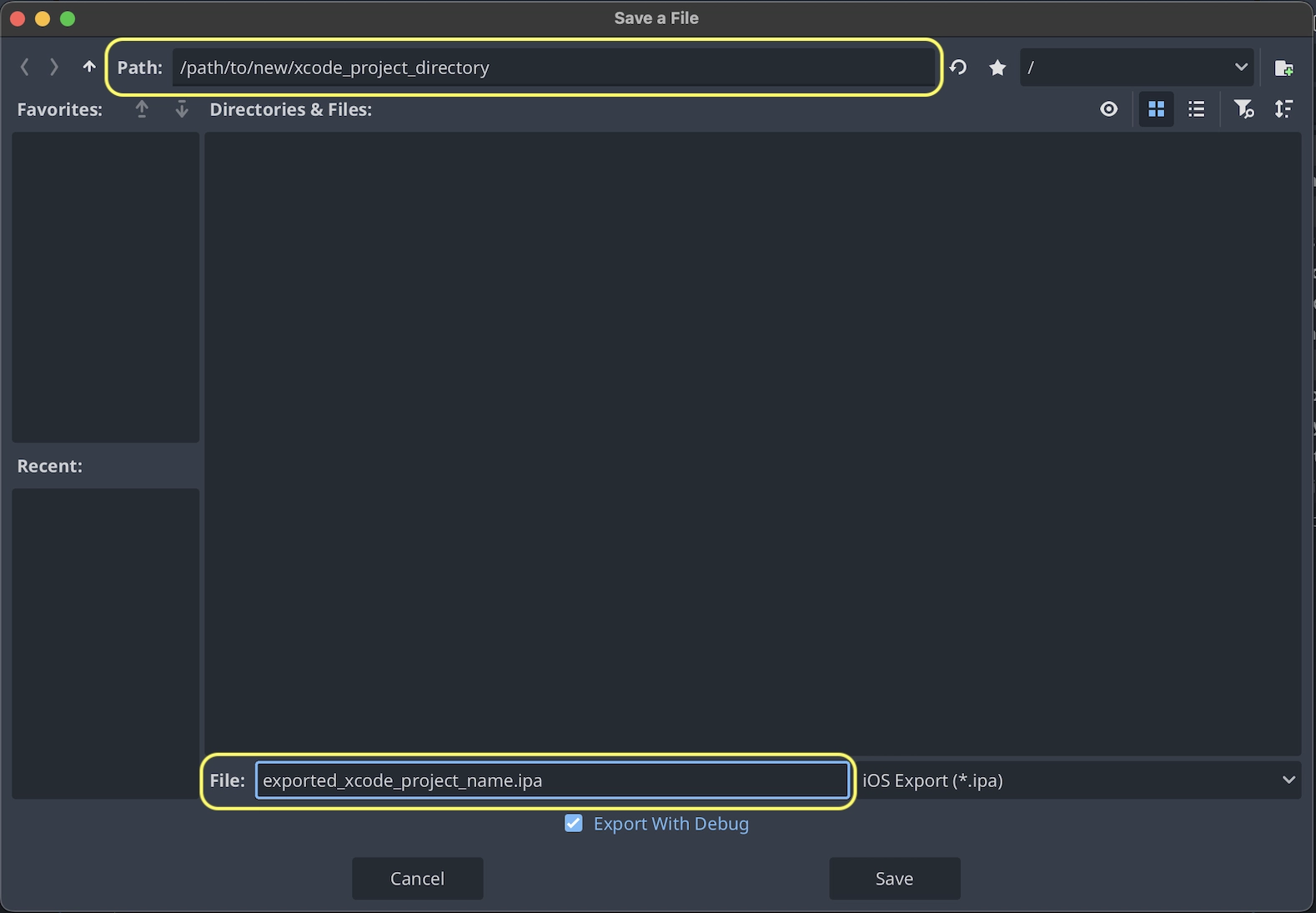
JSON text did not start with array or object and option to allow fragments not setABCDE12XYZ and not, e.g., your name as Xcode likes to display in the Signing & Capabilities tab.Après avoir cliqué sur Exporter le projet, il reste deux options importantes :
Chemin est un dossier vide qui contiendra les fichiers Xcode exportés.
Fichier sera le nom du projet Xcode ainsi que celui de plusieurs fichiers et dossiers spécifiques au projet.
Note
Ce tutoriel utiise exported_xcode_project_name, mais vous utiliserez le nom de votre projet. Quand vous verrez exported_xcode_project_name dans les étapes suivantes, replacez-le avec le nom que vous utilisez.
Note
N'utilisez pas d'espace dans votre nom_d_export_xcode, car cela peut corrompre votre fichier de projet XCode.
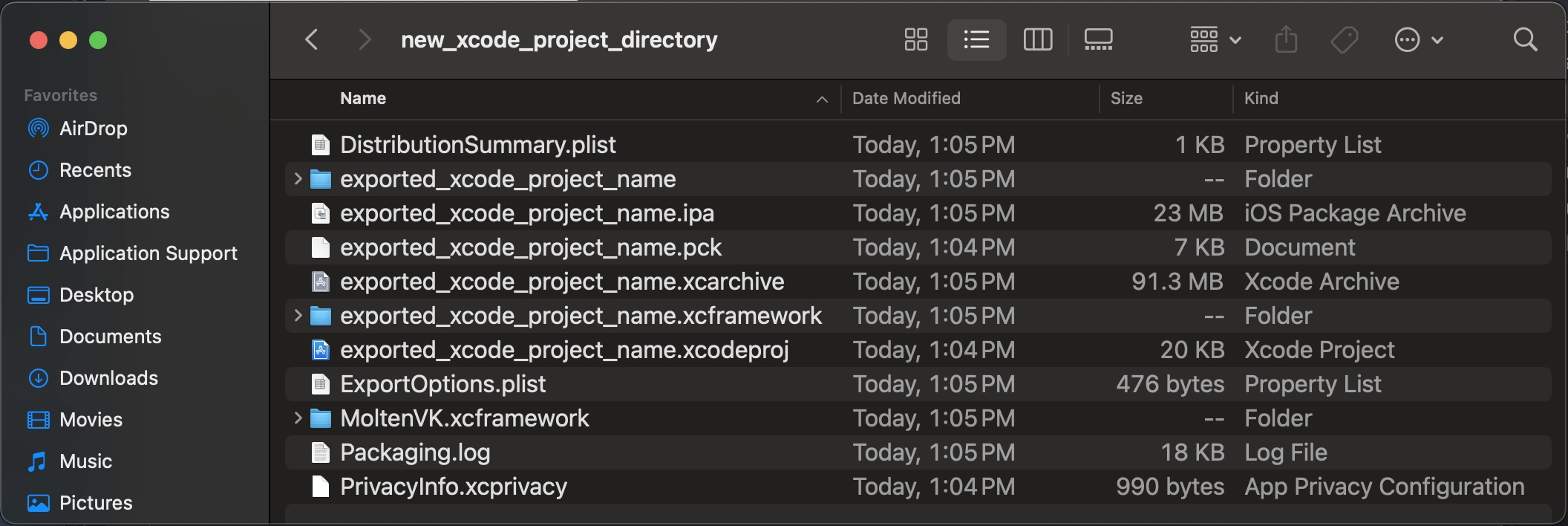
Quand l'exportation s'achève, le dossier de sortie devrait ressembler à ceci :
Avertissement
The iOS simulator only supports the Compatibility renderer.
Apple Silicon Macs can run iOS apps natively, so you can run exported iOS projects directly on an Apple Silicon Mac without iOS simulator limitations.
Ouvrir exported_xcode_project_name.xcodeproj permet de compiler et de déployer comme n'importe quelle autre application iOS.
Considérations actives lors du développement
La méthode ci-dessus crée un projet exporté que vous pouvez compiler pour sa version officielle, mais vous allez devoir tout réexporter chaque fois que vous ferez un changement dans Godot.
Lors du développement, vous pouvez accélérer ce processus en liant vos fichiers de projet directement dans votre application.
Dans l'exemple suivant :
exported_xcode_project_name est le nom de l'application IOS exportée (comme au-dessus).
godot_project_to_expor est le nom du projet Godot.
Note
godot_project_to_export ne doit pas être le même que exported_xcode_project_name pour éviter les problèmes de signature dans Xcode.
Étapes pour lier un dossier de projet Godot à Xcode
En partant d'un projet iOS exporté (suivez les étapes au-dessus).
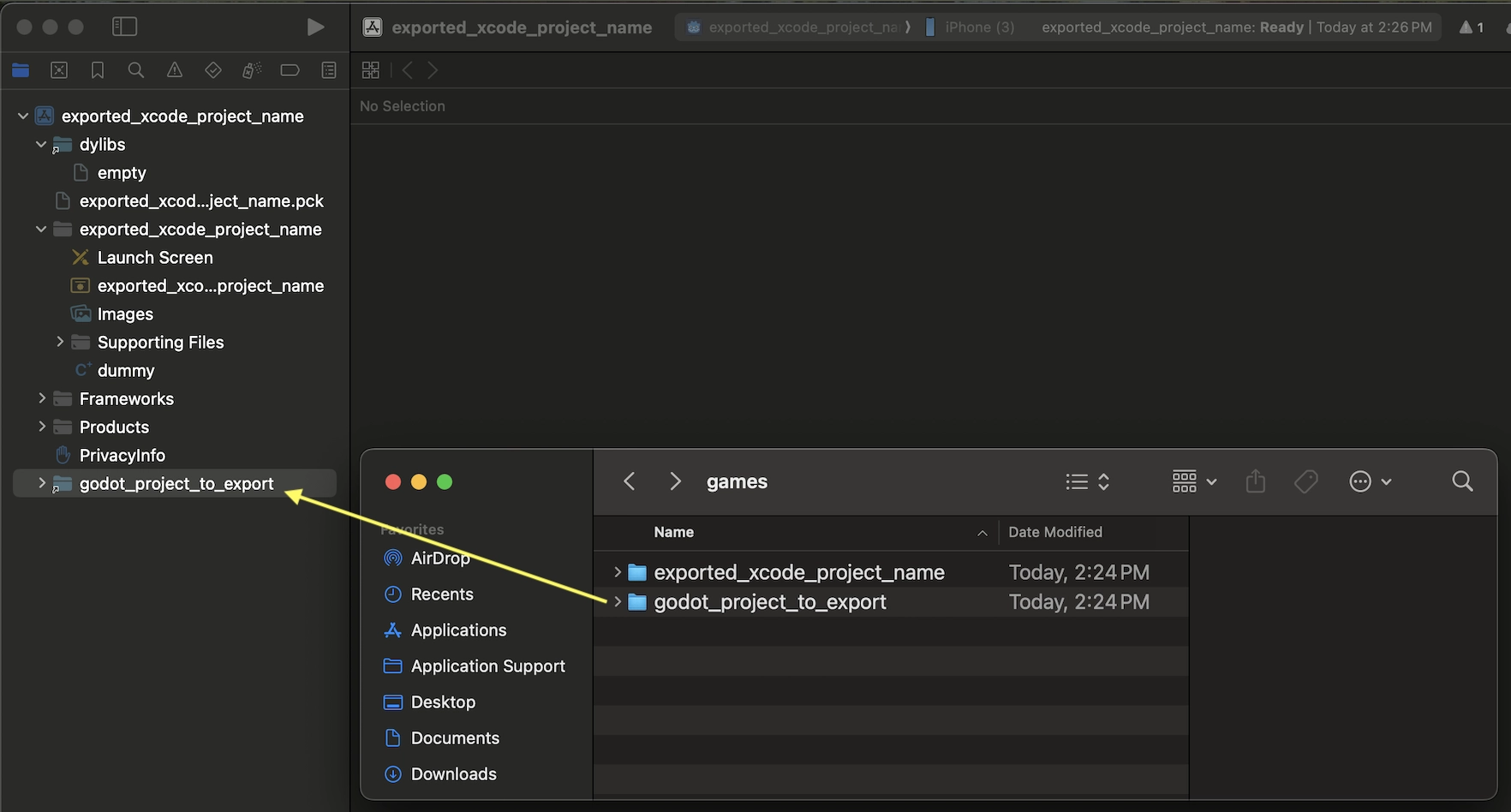
Dans le Finder, glissez-déposez le dossier de projet Godot dans le navigateur de fichier de Xcode.
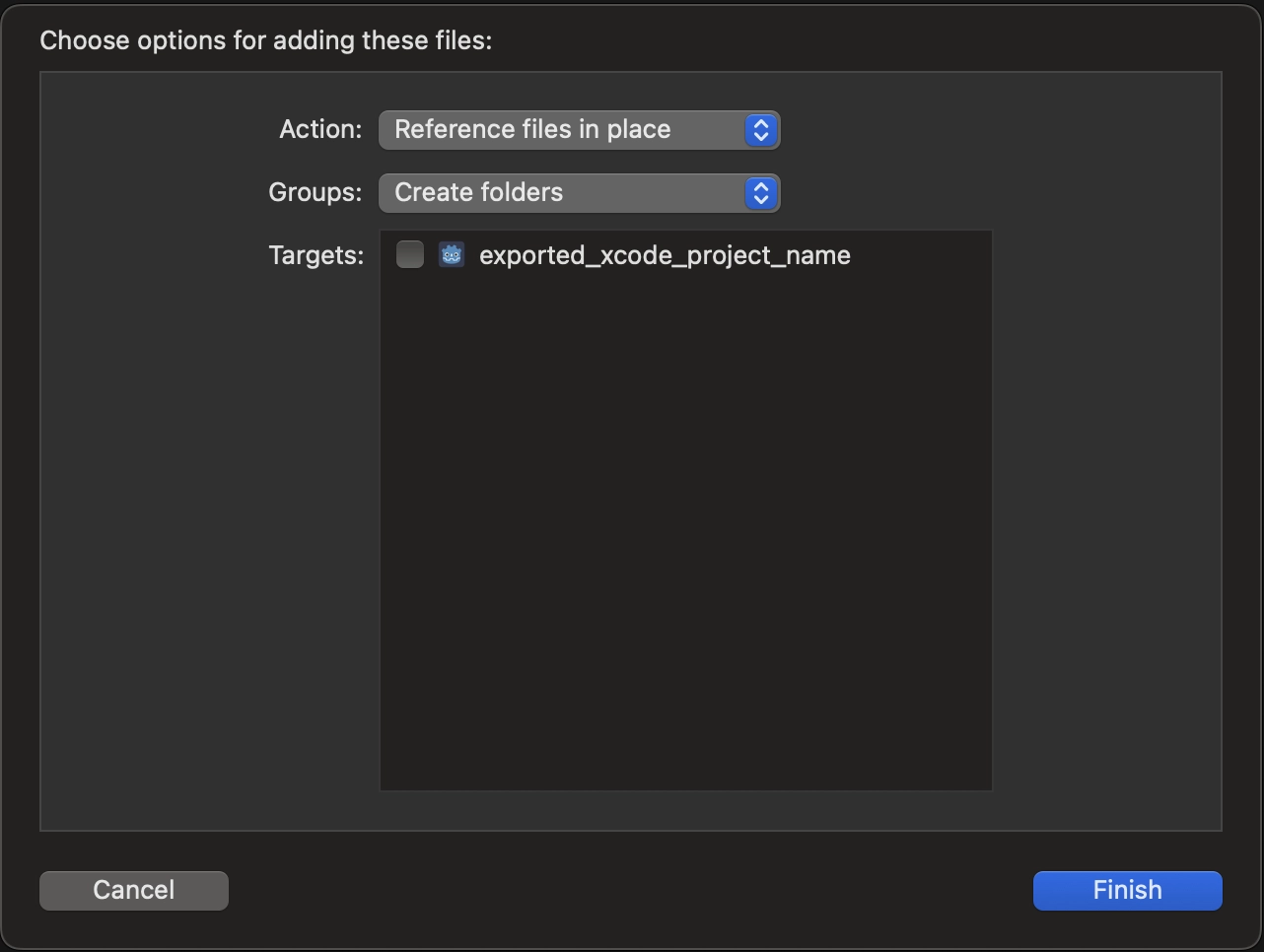
In the dialog, make sure to select Action: Reference files in place and Groups: Create folders. Uncheck Targets: exported_xcode_project_name.
Repérez le dossier godot_project_to_export dans le navigateur de fichiers Xcode.
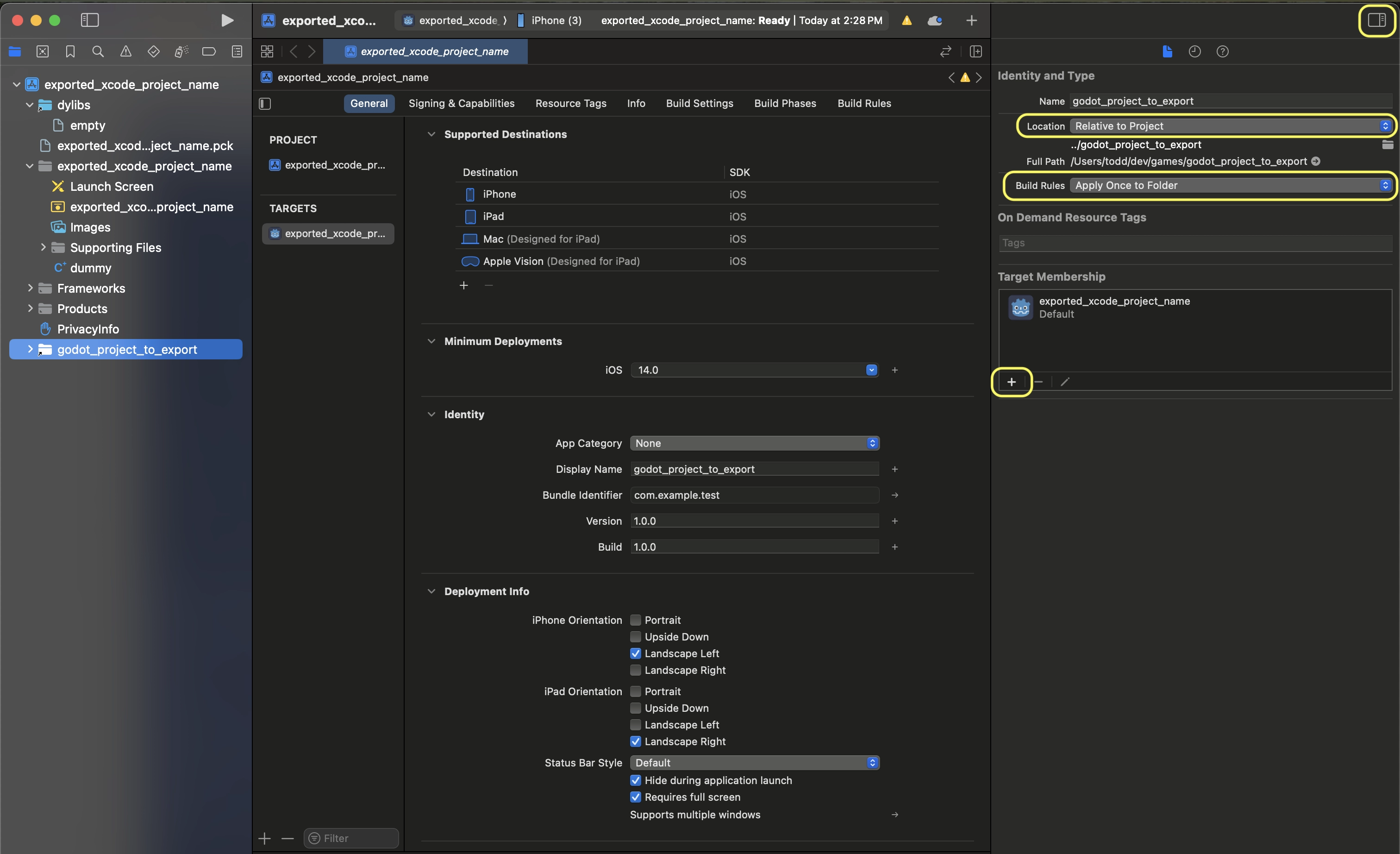
Select the godot project in the Project navigator. Then on the other side of the XCode window, in the File Inspector, make these selections:
Location: Relative to Project
Build Rules: Apply Once to Folder
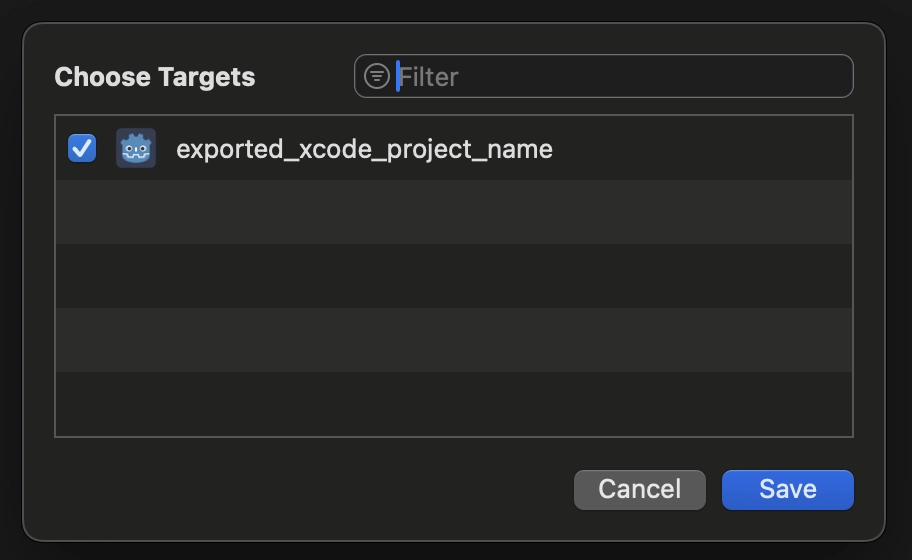
add your project to Target Membership
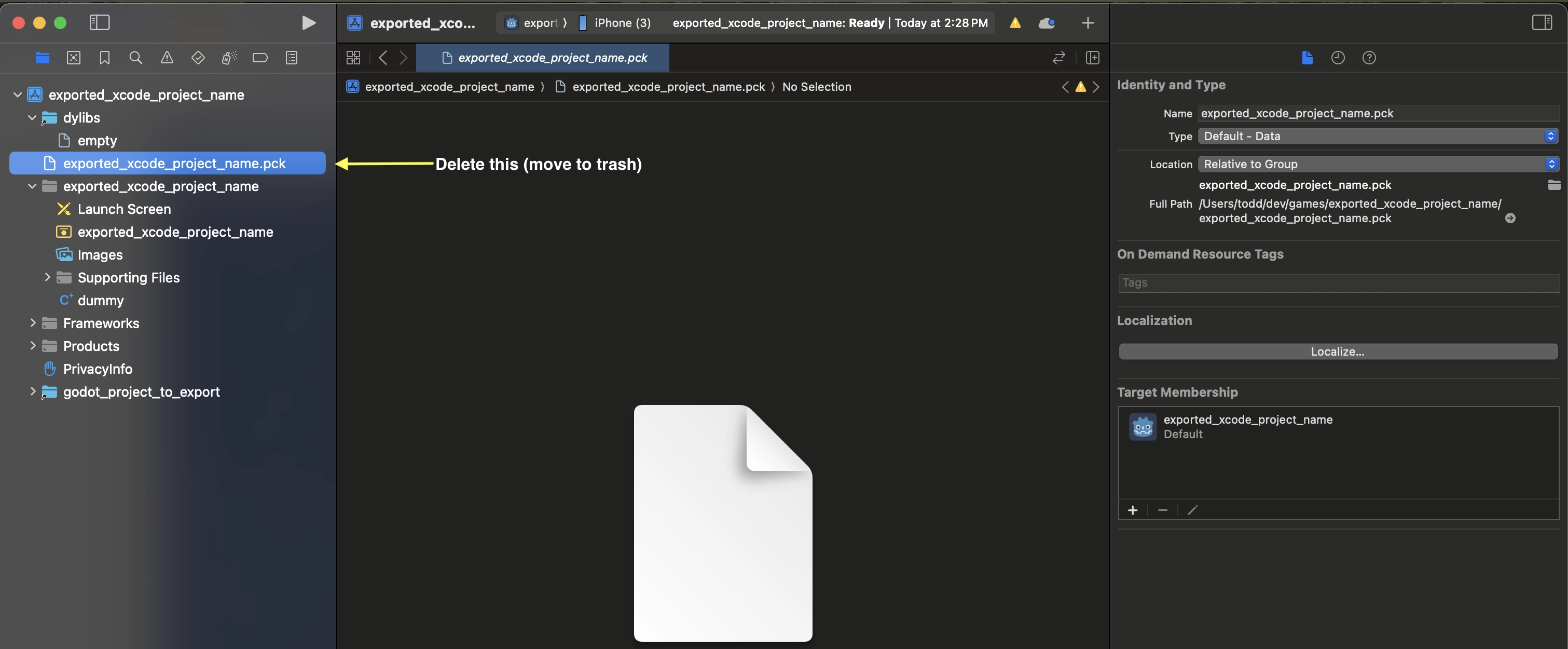
Delete exported_xcode_project_name.pck from the Xcode project in the project navigator.
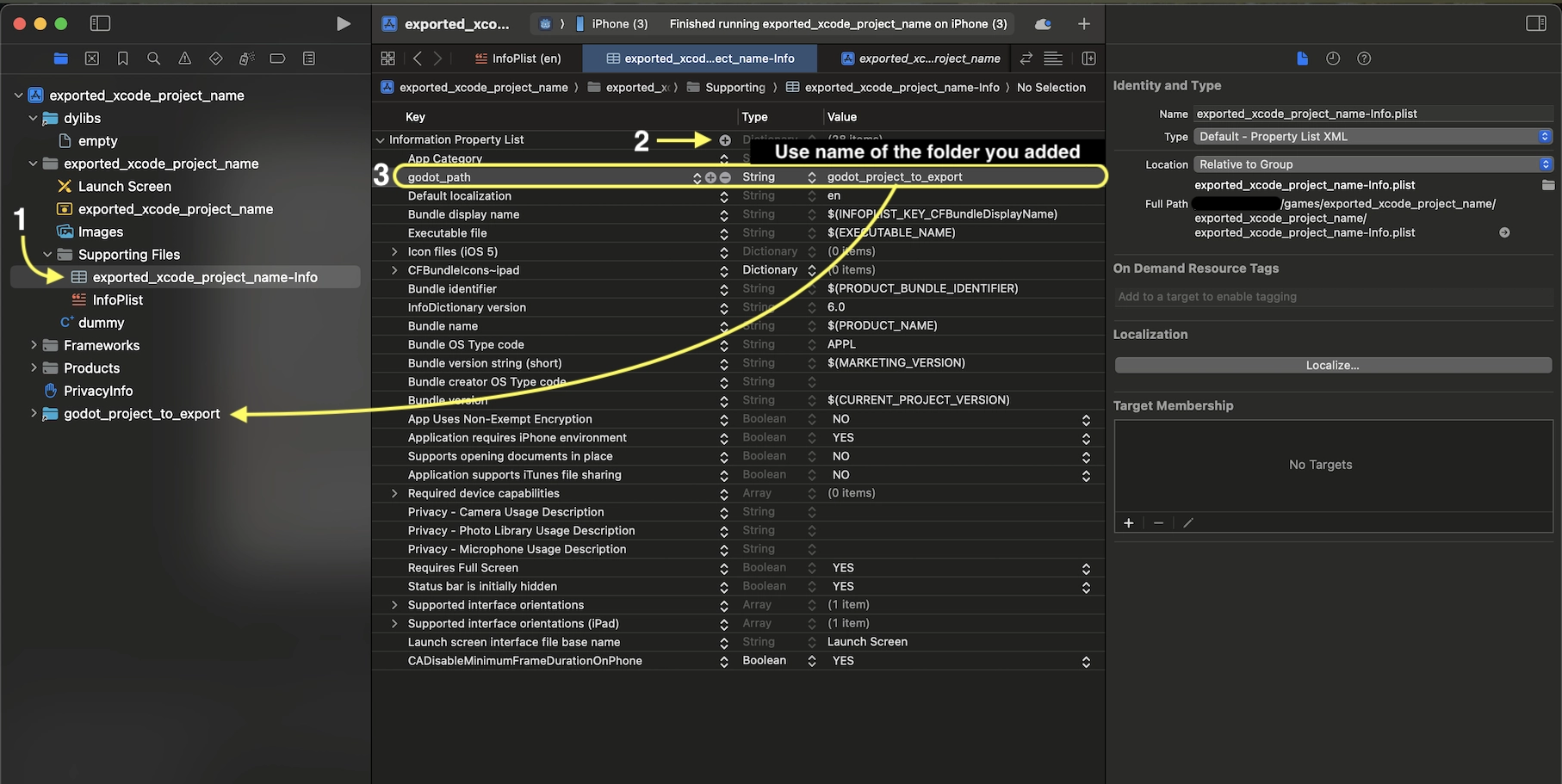
8. Open exported_xcode_project_name-Info.plist and add a string property named godot_path (this is the real key name) with a value godot_project_to_export (this is the name of your project)
Voilà ! Vous pouvez maintenant éditer votre projet dans l'éditeur Godot et le construire dans Xcode lorsque vous voudrez le lancer sur un appareil.
Plugins pour iOS
Special iOS plugins can be used in Godot. Check out the Création de plugins iOS page.
Variables d'environnement
You can use the following environment variables to set export options outside of the editor. During the export process, these override the values that you set in the export menu.
Options d'exportation |
Variable d'environnement |
|---|---|
Cryptage / Clé de cryptage |
|
Options / Application / Provisioning Profile UUID Debug |
|
Options / Application / Provisioning Profile UUID Release |
|
Dépannage
xcode-select points at wrong SDK location
xcode-select is a tool that comes with Xcode and among other things points at iOS SDKs on your Mac. If you have Xcode installed, opened it, agreed to the license agreement, and installed the command line tools, xcode-select should point at the right location for the iPhone SDK. If it somehow doesn't, Godot will fail exporting to iOS with an error that may look like this:
MSB3073: The command ""clang" <LOTS OF PATHS AND COMMAND LINE ARGUMENTS HERE>
"/Library/Developer/CommandLineTools/Platforms/iPhoneOS.platform/Developer/SDKs/iPhoneOS.sdk"" exited with code 1.
In this case, Godot is trying to find the Platforms folder containing the iPhone SDK inside the
/Library/Developer/CommandLineTools/ folder, but the Platforms folder with the iPhone SDK is
actually located under /Applications/Xcode.app/Contents/Developer. To verify this, you can open
up Terminal and run the following command to see what xcode-select points at:
xcode-select -p
To fix xcode-select pointing at a wrong location, enter this command in Terminal:
sudo xcode-select -switch /Applications/Xcode.app
After running this command, Godot should be able to successfully export to iOS.
Options d'exportation
You can find a full list of export options available in the EditorExportPlatformIOS class reference.